How to Create A Download Link With Elementor
Are you looking to Create A Download Link With Elementor?
A download link helps build a solid reputation for your website. Because the audience gets more resources from your website with these links. It enhances the user experience of the website.
As you know Elementor is a user-friendly website builder, they make everything easy for the website designer. So, with Elementor you can easily create download links too.
Know Quickly:
- Upload file in WP media library.
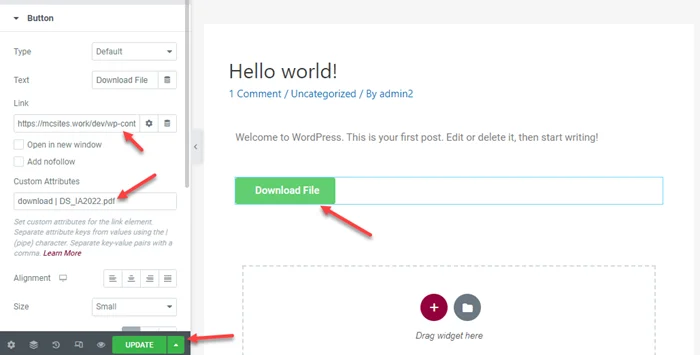
- Add custom attributes “download | FileName with extensions”.
In this post, we will show how to create a download link with Elementor. It is easy if you just follow every step.
You Might Also Like: How to Import Elementor Templates
Create A Download Link With Elementor
Step 1: First you need to upload your files. Files maybe PDF, ZIP, MP3, MP4, and Image formats.
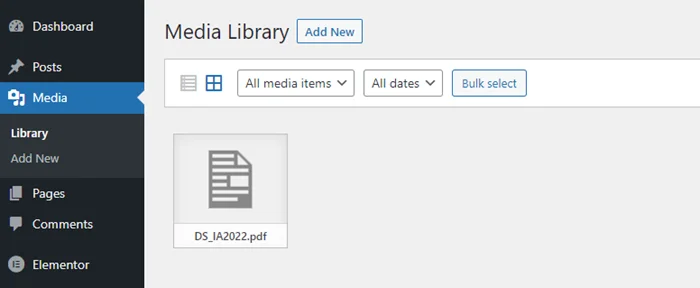
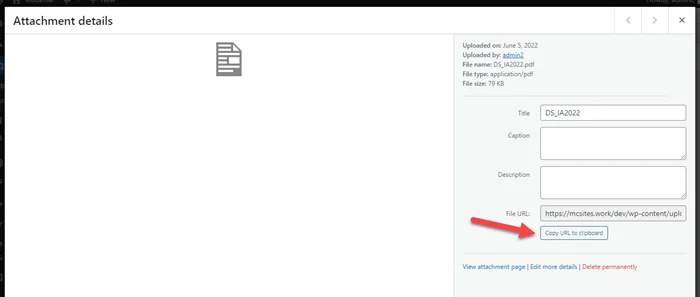
Copy FIle Url
Step 2: Click on the file and click on “Copy URL to Clipboard”.
Add Custom download Attributes in Elementor
Step 3: Add a button in Elementor and paste the URL. Last, add download | FileName to Custom Attributes. Done
We hope this article helped you learn how to Create A Download Link With Elementor. You may also want to get help from our Elementor experts.
If you liked this article, then please subscribe to our YouTube Channel for web, windows, tech, and how-tos tutorials. You can also find us on Twitter and Facebook.