How to change a bulleted list into checkmarks or any other icons in Divi?

Do you want to change a bulleted list into checkmarks or any other icons in Divi?

Bullet lists are only available in square, circle, and disc symbols. It can be boring. So that is why today we will show you how to change Bulleted List Into Checkmarks.

In this post, we will show you how to change a bulleted list into checkmarks or any other icons in Divi WordPress. Bullet lists are the best way to organize information in a well-structured format.

You Might Also Like: to remove the sidebar in Divi

Change a Bulleted List into Checkmarks

Fellow step by step guide to change a bulleted list into checkmarks in the Divi:

Text Module and Custom CSS Class

Step 1: Add a Text Module to your layout. Open the Text Module settings.

Step 2: In the Content tab, create a list of bullet items. Go to the “Advanced” tab.

Step 3: Open the “CSS ID & Classes” toggle

Step 4: Add the class “mc-bullet-list” to the “CSS Class”

Change bulleted list in Divi

Paste The CSS Snippets

Step 1: After entering the CSS class, you need to copy the below snippets.


/*bullet checklist by www.mcstarters.com*/
.mc-bullet-list ul {
list-style-type: none!important;
}
.mc-bullet-list ul li:before {
content: 'e052'!important;
color: #2cba6c;
font-family: 'ETMODULES'!important;
margin-right: 10px;
margin-left: -14px;
}

Step 2: Go to Divi > Theme Options and at the bottom of the default “General” tab, paste the CSS snippet into the “Custom CSS” box and save changes.

Change Bullets list to icon in Divi

Successfully, you change a bulleted list into checkmarks or any other icons in Divi by following these steps. You can change the code using a different style icon.

Conclusions

There is no limit to customizing the design in Divi. If you customize the bullet list and do customs CSS follow the above steps.

3 ways to Add Custom CSS to Divi

Frequently Asked Questions

How can you customize a bulleted list in Divi?

We can customize a bulleted list in Divi using custom CSS. here is the custom CSS code.
/*bullet checklist by www.mcstarters.com*/
.mc-bullet-list ul { list-style-type: none!important; } .mc-bullet-list ul li:before { content: ‘e052’!important; color: #2cba6c; font-family: ‘ETMODULES’!important; margin-right: 10px; margin-left: -14px; }

How do you change bullets to check marks divi?

To change bullets to checkmarks ✅ also need to add custom css in Divi > theme option > CSS. /*bullet checklist by www.mcstarters.com*/
.mc-bullet-list ul { list-style-type: none!important; } .mc-bullet-list ul li:before { content: ‘e052’!important; color: #2cba6c; font-family: ‘ETMODULES’!important; margin-right: 10px; margin-left: -14px; }

You Might Also Like to Hire: Divi Theme Experts

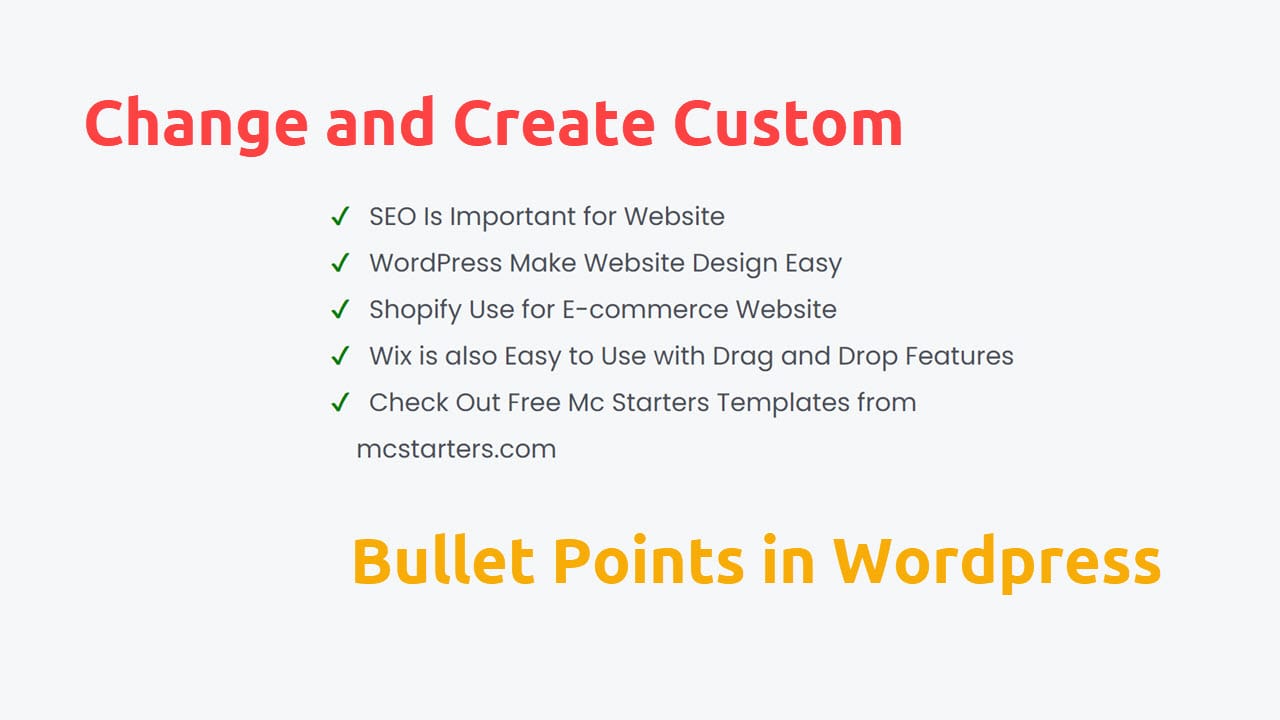
How to Change and Create Custom Bullet Points in WordPress

WordPress is a free open source blogging tool that helps the blogger to organize text. In WordPress, bullet points refer to a way of presenting information using unordered lists. Bullet points are small dots or symbols placed before each item in a list to create a visual hierarchy and make the content more scannable and organized.

WordPress also provides options to customize the appearance of bullet points. You can change the style, size, and color of the bullets by modifying the CSS (Cascading Style Sheets) of your WordPress theme or by using custom CSS plugins.

But In this post, We will show how to Change and Create Custom Bullet Points in WordPress. We do this with some lines of CSS snippets.

You Might Also Like: Elementor Template Kits

Change and Create Custom Bullet Points in WordPress to custom images

Step 1: Insert HTML block in Gutenberg Editor

Gutenberg Change Bullet Points in WordPress

Step 2: Copy and Paste below HTML snippet into HTML block

<ul> <li>SEO Is Important for Website</li> <li>WordPress Make Website Design Easy</li> <li>Shopify Use for E-commerce Website</li> <li>Wix is also Easy to Use with Drag and Drop Features</li> <li>Check Out Free Mc Starters Templates from mcstarters.com</li> </ul>


Custom Image bullet point wordpress editor

Step 3: Upload icon image into media library. Get Image Here and recommend size is 16 x 16.

Custom Icon For Bullet Points

Step 4: Past Css code into Appearance > Customize > Additional CSS

ul.mc-bullet-list li {
list-style-image:url('#');
}

Step 5: Replace # with icon image URL. Check the preview in front.

Change bullet point WP

Note: If you want to change cross all websites then put this code.

ul li {
list-style-image:url('#');
}

Change and Create Custom Bullet Points in WordPress to Icons

If you want change bullet point into icon then you need to follow these steps. 

Step 1: Follow the Step 1 & 2 to add bullet in Gutenberg editor then move to next step here.

<ul> <li>SEO Is Important for Website</li> <li>WordPress Make Website Design Easy</li> <li>Shopify Use for E-commerce Website</li> <li>Wix is also Easy to Use with Drag and Drop Features</li> <li>Check Out Free Mc Starters Templates from mcstarters.com</li> </ul>

Custom Image bullet point wordpress editor

Step 2: We put icon using unicode. Unicode is like that . ” \2714” .  Get Unicode here. Copy any icon UniCode.

Free Icon Unicode WordPress

Step 3: Past Css code into Appearance > Customize > Additional CSS

ul.mc-bullet-list li {
list-style-type: none!important;
}
ul.mc-bullet-list li:before {
content: '\2714'!important;
color: green;
margin-right: 10px;
margin-left: -14px;
}
Custom css for bullet point wordpress

Note: If you want to change cross all websites then put this code.

ul li {
list-style-type: none!important;
}
ul li:before {
content: '\2714'!important;
color: green;
margin-right: 10px;
margin-left: -14px;
}

Video Tutorial

How to Change And Create Custom Bullet Points In WordPress

I hope you done this task easily but  if you still face problem then comment below we will help you asap.

Faq: Change and Create Custom Bullet Points in WordPress

How do I customize Bullets in WordPress?

You can customize bullets in WordPress with the help of custom CSS.

ul.mc-bullet-list li { list-style-type: none!important; } ul.mc-bullet-list li:before { content: '\2714'!important; color: green; margin-right: 10px; margin-left: -14px; }

.mc-bullet-list is class name.

Get Professional Websites