How to Optimize WordPress Database for Better Performance

Do you want to optimize WordPress database for better performance?

A slow WordPress website can frustrate visitors and hurt SEO rankings. One of the most overlooked reasons for sluggish performance is an unoptimized database. WordPress database optimization helps reduce unnecessary data, improve query execution, and enhance overall site speed.

In this guide, we’ll cover why database optimization matters, how to optimize it manually and with plugins, and best practices to maintain peak performance.

Why WordPress Database Optimization is Important

Your WordPress database stores everything—posts, pages, comments, settings, and plugin data. Over time, unused data accumulates, leading to:

  • Slower website performance
  • Longer query execution times
  • Increased server resource usage
  • Higher risk of database corruption

Regular optimization removes unnecessary data and improves efficiency, resulting in a faster, more stable website.

How to Optimize WordPress Database

1. Backup Your Database

Before making any changes, always create a backup. Use plugins like UpdraftPlus or WP Database Backup to back up your database safely.

Alternative Method: If you have access to cPanel or phpMyAdmin, export your database manually.

2. Delete Unused Plugins and Themes

Inactive plugins and themes store data in your database. Removing them frees up space and reduces clutter.

  • Navigate to Plugins > Installed Plugins and delete unused ones.
  • Go to Appearance > Themes and remove unnecessary themes.

3. Remove Spam Comments and Post Revisions

Spam comments and excessive post revisions slow down your database. To clean them:

  • Use WP-Optimize or Advanced Database Cleaner to remove spam and trash comments.
  • Limit post revisions by adding this line to wp-config.php file.
define('WP_POST_REVISIONS', 5);

4. Optimize Database Tables

Over time, database tables can become fragmented. Use phpMyAdmin to optimize them:

  • Go to phpMyAdmin in your hosting control panel.
  • Select your database and click Check All.
  • Click Optimize Table.

Alternatively, install WP-DBManager to automate this process.

5. Delete Expired Transients

Transients store temporary data in the database. Over time, expired transients accumulate and slow down your site. Clean them with:

function delete_expired_transients() {
    global $wpdb;
    $wpdb->query("DELETE FROM `{$wpdb->options}` WHERE `option_name` LIKE ('_transient_%')");
}
delete_expired_transients();

Or use the Transient Cleaner plugin.

6. Use a Database Optimization Plugin

If you prefer an automated approach, use a plugin like:

  • WP-Optimize – Cleans up databases and removes unnecessary data.
  • WP-Sweep – Deletes orphaned data, revisions, and unused meta data.
  • Advanced Database Cleaner – Offers deep cleaning features.

Best Practices for Long-Term Database Optimization

  • Limit post revisions: Set a reasonable number (e.g., 5) to prevent excessive storage.
  • Regularly clean up unused data: Schedule cleanups every month.
  • Use a lightweight theme and plugins: Avoid bloated themes and plugins that store excessive data.
  • Monitor database performance: Use plugins like Query Monitor to track slow queries.
  • Upgrade hosting if necessary: A better server can handle database queries more efficiently.

Conclusion

WordPress database optimization is crucial for a fast and efficient website. Whether you choose manual optimization or plugins, regular database maintenance will improve site speed, reduce server load, and enhance user experience. Implement these steps today and enjoy a smoother WordPress experience.

Have you optimized your WordPress database recently? Share your experiences in the comments!

Frequently Asked Questions

Why should I optimize my WordPress database?

Optimizing your database helps improve site speed, reduce storage space, and enhance overall performance by removing unnecessary data.

What are the best plugins for database optimization?

Some top plugins include:
WP-Optimize
WP-Sweep
Advanced Database Cleaner

Can I optimize my database without a plugin?

Yes, you can use phpMyAdmin to manually clean up tables, remove spam comments, and delete old revisions.

What should I do if my site breaks after optimization?

Restore your database from a backup and check which optimization step caused the issue.

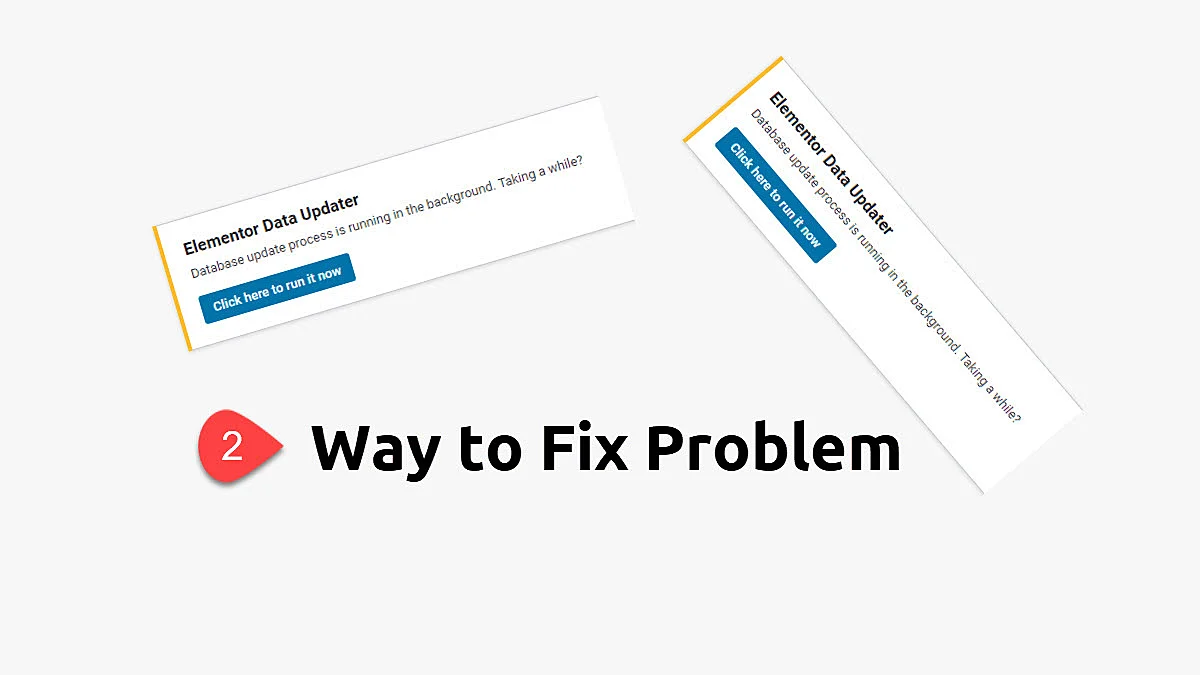
Best Way to Fix “Elementor Data Updater Database update process is running in the background”

Are you facing an error on the site “Elementor Data Updater Database update process is running in the background”

The “Elementor Data Updater” refers to a built-in function within Elementor, a popular WordPress page builder plugin. This feature is activated when Elementor releases an update that includes changes to its database structure or the way it stores data. The primary role of the Elementor Data Updater is to ensure that your existing website content, created with Elementor, is compatible with the latest version of the plugin.

Here are some key points about the Elementor Data Updater:

  • Update Process: When Elementor is updated to a new version that requires changes in the database, the Elementor Data Updater automatically starts to modify the database to match the new requirements. This process can include altering database tables, updating data formats, or migrating content to new structures.
  • Compatibility Assurance: The updater ensures that the layouts, designs, and functionalities of existing web pages remain intact and function correctly with the new version of Elementor.
  • Background Operation: The update process typically runs in the background, allowing website administrators to continue using the WordPress dashboard. However, during this process, certain functions of Elementor might be temporarily limited.
  • Notification and Monitoring: Users are usually notified via the WordPress dashboard when the Elementor Data Updater is running. In some cases, users can manually trigger or monitor the progress of the update from the Elementor tools section.
  • Safety Measures: It’s recommended to backup the website before updating, as significant changes to the database structure can potentially lead to data loss or compatibility issues if the process encounters errors.

Understanding the role and function of the Elementor Data Updater is crucial for website administrators and developers using Elementor to ensure smooth transitions between different versions of the plugin and to maintain the integrity and functionality of their WordPress sites.

My three clients faced the same problem. I fix “Elementor Data Updater Database update process is running in the background” with the same methods that I will explain in the below steps.
You Might Also Like to Hire Elementor Expert For Website.

Follow below step to fix Elementor Data Updater Database update process is running in the background

Note: Please take a backup before doing these steps.

Soluton 1

Step 1: Deactivated all my plugins.

Step 2:  Activated only Elementor and Elementor Pro

install elementor free & Pro

Step 3: Now for update the database. Just click on “Click here to run it now”

Elementor Data Updater

Step 4: Database updating has been done. Now you activate all plugins again.

Soluton 2

Step 1: Go to Elementor -> Tools -> Versions -> and do a rollback to the previous version that works well for your website.

Elementor version rollbacks

Step 2: Run the data updater again and wait some seconds and you get the message “Update successful”

Elementor Data Updater

Hopefully, in the next update, you do not face this issue.

Critical Error Caused by Elementor Data Updater

When facing a critical error caused by the Elementor Data Updater, follow these steps:

Solve the Elementor Updates Error

  • Revert to Backup: Immediately restore your site from a recent backup.
  • Check for Plugin Conflicts: Disable other plugins to see if there’s a conflict.
  • Switch to a Default Theme: Temporarily use a default WordPress theme to rule out theme issues.
  • Increase PHP Memory Limit: Modify wp-config.php to increase the memory limit.
  • Update PHP Version: Ensure you’re using a PHP version compatible with Elementor.
  • Contact Elementor Support: If the issue persists, seek assistance from Elementor’s support team.

Always ensure you have a recent backup before attempting any fixes.

Conclusion

In conclusion, addressing the “Elementor Data Updater Database update process is running in the background” issue necessitates a multifaceted approach. Key steps include ensuring thorough backups, verifying server compatibility, updating WordPress and all related plugins, and adjusting server resources like memory and execution time limits.

If these steps are unsuccessful, consultation with Elementor’s support or a professional WordPress developer is advisable. Post-resolution, a comprehensive review of the site’s functionality is crucial, along with documenting the experience for future reference and adopting preventive measures for subsequent

FAQs

How do I handle a critical error caused by Elementor Data Updater?

In case of a critical error, first, revert to a previous backup. Check Elementor and WordPress requirements, increase PHP memory limits, and ensure all plugins are compatible. If the issue continues, seek assistance from Elementor’s support team.

How to troubleshoot issues with Elementor Data Updater?

To troubleshoot issues with Elementor Data Updater, ensure your WordPress environment meets Elementor’s requirements, check for plugin conflicts, increase server resource limits, and consult the PHP error logs. If issues persist, contact Elementor’s customer support for targeted assistance.

Get Professional Websites