
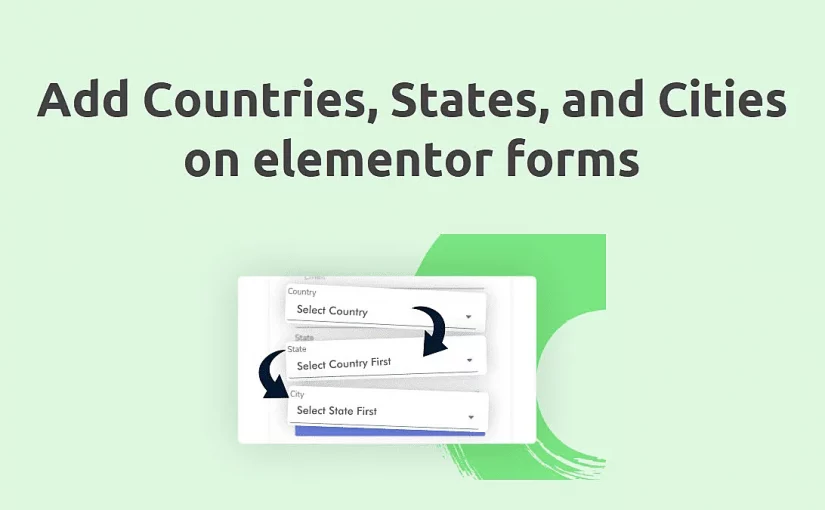
Add Countries, States, and Cities on Elementor forms is a challenge for beginners. Dropdown customization has not become a challenge by reading these steps.
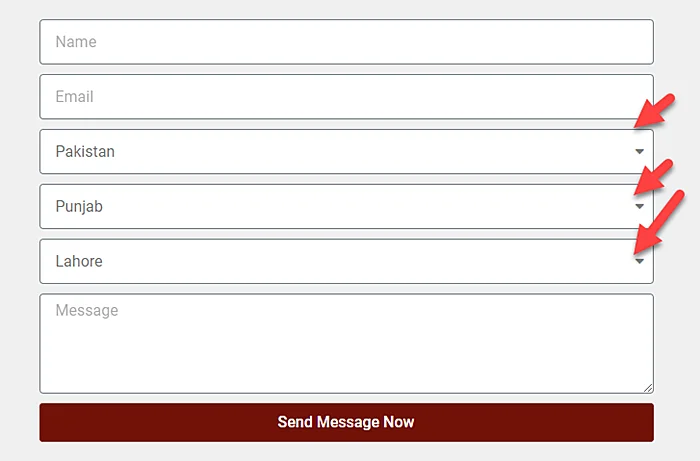
Here today we show you step-by-step guides on how to add a list of countries, and once a country is selected, the second field filled with states from that country, and the next dropdown menu will be filled with cities from that state.
Add Countries, States, and Cities on Elementor forms:
Here are step-by-step guides to add countries, states, and cities on Elementor forms.
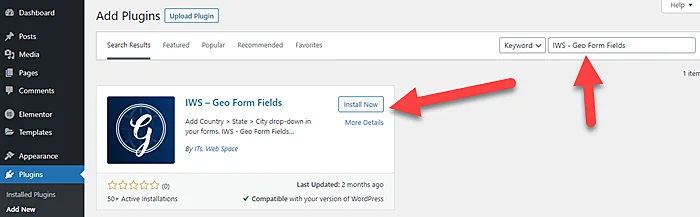
Step 1: Download IWS – Geo Form Fields plugin and upload and Activate it.
Note: Install this plugin at your own security risk as this plugin is currently not available now on WordPress.
Step 2: Create the Elementor form according to requirements.
Step 3: Now add select fields in the form fields, Add label ” Country” and Options content, and leave it blank.
Step 4: Click on “ADVANCED” and add ID “country” and make sure all letters of ID are in lowercase.
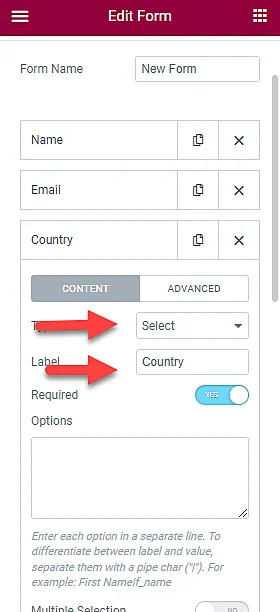
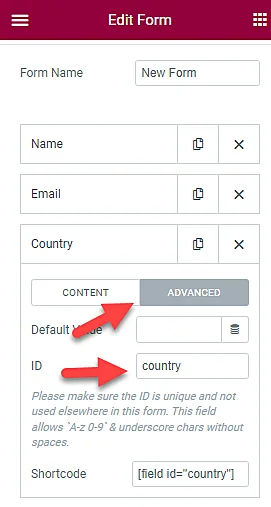
Step 5: Now duplicate this field and just change the label and ID into “state“.
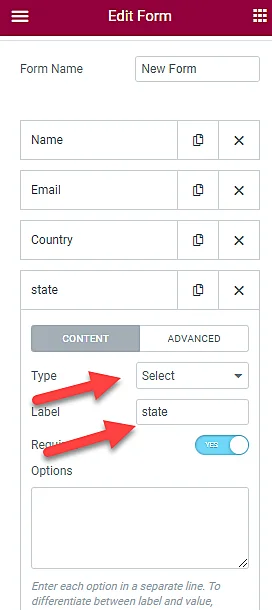
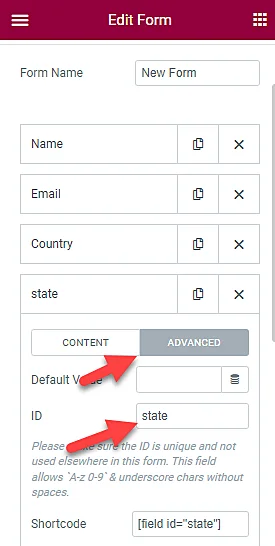
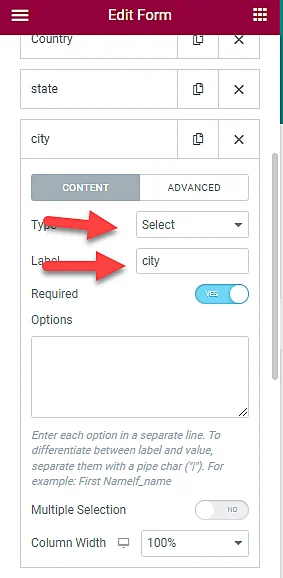
Step 5: Again duplicate the State field and now just change the label and ID into “city“.

Step 6: Now update the Elementor page and view the form in the front end.
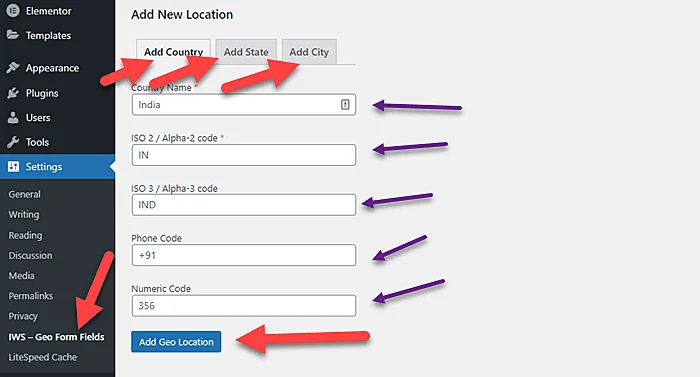
Note: If your country, state, and city aren’t already included in this list, you can easily add it from the Admin panel.
You Might Also Like to Hire: Elementor Expert for Web Design
Conclusion:
In summary, integrating Countries, States, and Cities into Elementor forms is straightforward. Elementor’s built-in features and customization options make it easy to add dynamic dropdowns, set defaults, and apply conditional logic. Users can create visually appealing and highly functional forms that enhance user experience and engagement.
For advanced features, third-party plugins and custom CSS provide additional flexibility.
FAQs: Add Countries, States, and Cities on Elementor forms
How can I integrate a country dropdown in my Elementor form?
To add a country dropdown in Elementor forms, you can use the “Select” field and choose the “Countries” option. Elementor provides a pre-built list of countries for easy selection.
Can I customize the list of countries in the dropdown?
Yes, you can customize the list of countries. In the form editor, go to the “Select” field, click on “Edit,” and then choose the “Manage Options” button. Here, you can add, remove, or rearrange countries based on your preferences.
Are there any third-party plugins that enhance country, state, and city dropdown functionality in Elementor forms?
Yes, there are third-party plugins available that can enhance the functionality of country, state, and city dropdowns in Elementor forms. Check the Elementor Pro addons or explore the WordPress plugin repository for additional features.
Can I use custom CSS to style the country, state, and city dropdowns in Elementor forms?
Yes, you can add custom CSS to style the dropdown fields. In the form editor, select the field, go to the “Advanced” tab, and add your custom CSS in the “Custom CSS” field to achieve the desired styling for the country, state, and city dropdowns.