How to Change and Create Custom Bullet Points in WordPress

WordPress is a free open source blogging tool that helps the blogger to organize text. In WordPress, bullet points refer to a way of presenting information using unordered lists. Bullet points are small dots or symbols placed before each item in a list to create a visual hierarchy and make the content more scannable and organized.

WordPress also provides options to customize the appearance of bullet points. You can change the style, size, and color of the bullets by modifying the CSS (Cascading Style Sheets) of your WordPress theme or by using custom CSS plugins.

But In this post, We will show how to Change and Create Custom Bullet Points in WordPress. We do this with some lines of CSS snippets.

You Might Also Like: Elementor Template Kits

Change and Create Custom Bullet Points in WordPress to custom images

Step 1: Insert HTML block in Gutenberg Editor

Gutenberg Change Bullet Points in WordPress

Step 2: Copy and Paste below HTML snippet into HTML block

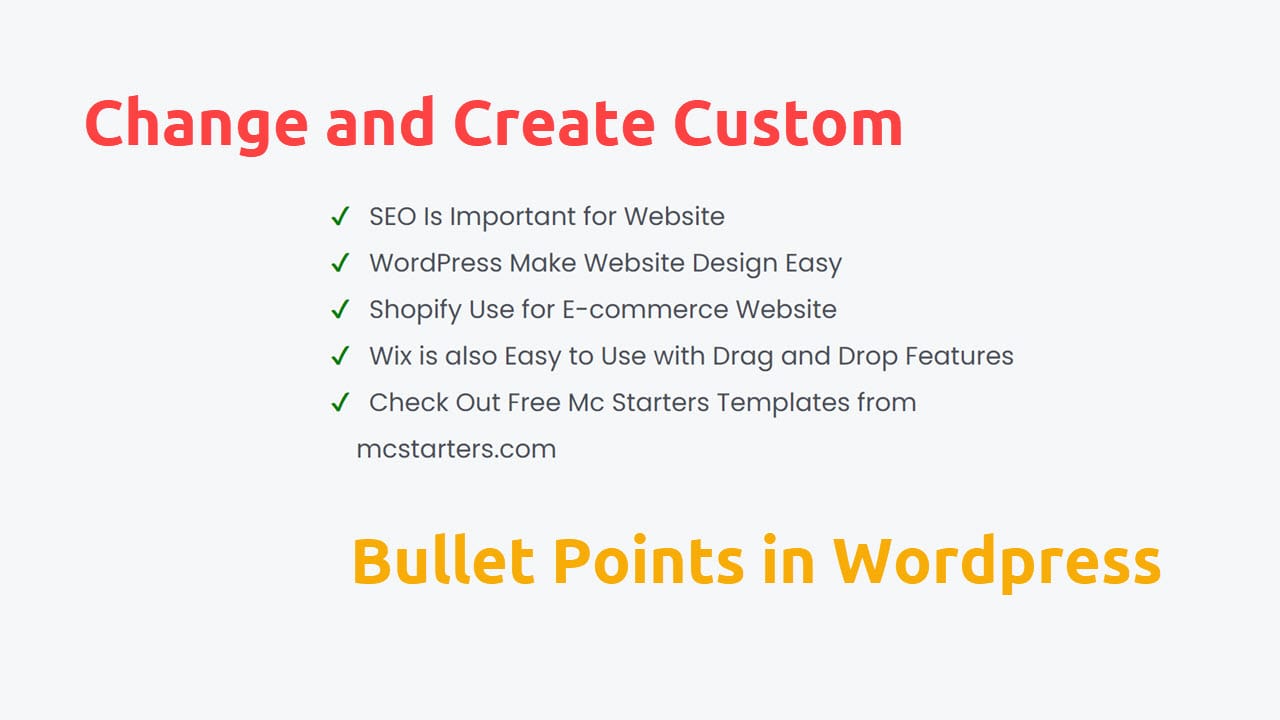
<ul> <li>SEO Is Important for Website</li> <li>WordPress Make Website Design Easy</li> <li>Shopify Use for E-commerce Website</li> <li>Wix is also Easy to Use with Drag and Drop Features</li> <li>Check Out Free Mc Starters Templates from mcstarters.com</li> </ul>


Custom Image bullet point wordpress editor

Step 3: Upload icon image into media library. Get Image Here and recommend size is 16 x 16.

Custom Icon For Bullet Points

Step 4: Past Css code into Appearance > Customize > Additional CSS

ul.mc-bullet-list li {
list-style-image:url('#');
}

Step 5: Replace # with icon image URL. Check the preview in front.

Change bullet point WP

Note: If you want to change cross all websites then put this code.

ul li {
list-style-image:url('#');
}

Change and Create Custom Bullet Points in WordPress to Icons

If you want change bullet point into icon then you need to follow these steps. 

Step 1: Follow the Step 1 & 2 to add bullet in Gutenberg editor then move to next step here.

<ul> <li>SEO Is Important for Website</li> <li>WordPress Make Website Design Easy</li> <li>Shopify Use for E-commerce Website</li> <li>Wix is also Easy to Use with Drag and Drop Features</li> <li>Check Out Free Mc Starters Templates from mcstarters.com</li> </ul>

Custom Image bullet point wordpress editor

Step 2: We put icon using unicode. Unicode is like that . ” \2714” .  Get Unicode here. Copy any icon UniCode.

Free Icon Unicode WordPress

Step 3: Past Css code into Appearance > Customize > Additional CSS

ul.mc-bullet-list li {
list-style-type: none!important;
}
ul.mc-bullet-list li:before {
content: '\2714'!important;
color: green;
margin-right: 10px;
margin-left: -14px;
}
Custom css for bullet point wordpress

Note: If you want to change cross all websites then put this code.

ul li {
list-style-type: none!important;
}
ul li:before {
content: '\2714'!important;
color: green;
margin-right: 10px;
margin-left: -14px;
}

Video Tutorial

How to Change And Create Custom Bullet Points In WordPress

I hope you done this task easily but  if you still face problem then comment below we will help you asap.

Faq: Change and Create Custom Bullet Points in WordPress

How do I customize Bullets in WordPress?

You can customize bullets in WordPress with the help of custom CSS.

ul.mc-bullet-list li { list-style-type: none!important; } ul.mc-bullet-list li:before { content: '\2714'!important; color: green; margin-right: 10px; margin-left: -14px; }

.mc-bullet-list is class name.

how to hide a page in wordpress: A Step-by-Step Guide

Do you find methods to hide a page in WordPress?

Hiding a page on your website is not difficult. When you see this method, you can solve the hiding page problems. Likes many important pages on your website, and you do not want to appear in front of users. Whether you want to protect these pages from the user and keep them private on specific pages. And it cannot show in search results. Here you find straightforward methods to hide pages in WordPress.

In this step-by-step guide, we’ll explore how to hide a page in WordPress effortlessly.

hide a page in WordPress with 2 Methods: A Step-by-Step Guide

Learn to hide a WordPress page easily! Follow our step-by-step guide for effective methods. Control visibility, and enhance privacy.

Methods 2: How to hide a page in WordPress by setting the visibility to Private?

Step 1: Go to the WordPress page you want to modify and Click on “post settings.”

Step 2: Open the “Visibility” option in summary on the right-hand side. Choose “Private” from the drop-down menu.

Methods 2 How to hide a page in WordPress by setting the visibility to Private

Step 3: Click the “Update” button to save the changes.

Now, your page is set to private, and it will only be visible to you, the site administrator, when you’re logged in.

Methods 2: How to hide a page in WordPress by setting a password for it?

Step 1: Log in to your WordPress Dashboard. Go to the Pages section. Select the specific page you want to hide.

Step 2: Locate the Visibility option within the page editor

Step 3: Click on “post settings” next to Visibility and choose “Password protected” from the dropdown.

How to hide a page in WordPress by setting a password for it

Step 4: Set a strong password for the page. Save your changes by clicking “OK.”

Step 5: Update the page by clicking “Update” to apply the new visibility settings.

Step 6: Verify the password protection by accessing the page in a new browser window or incognito mode and entering the correct password.

Following these steps allows you to change the visibility settings of your WordPress pages, making them private or password-protected based on your preferences.

Conclusion

Hiding a page in WordPress is a straightforward process that can be accomplished in just a few steps. Whether you’re working on a development project or creating exclusive content, understanding how to manage page visibility gives you greater control over your website’s content.

To make a WordPress page accessible only via a link, you can set its visibility to “Private” within the page editor. By doing so, the page becomes exclusive, and you can share the link directly without it appearing in the public menu or search results. This is a useful feature for creating private or specialized content that is intended for specific individuals or groups.

By following this step-by-step guide, you can easily hide pages on your WordPress site and tailor the user experience to meet your specific needs.

How to hide a page from the menu in wordpress?

To hide a page from the menu in WordPress, navigate to the “Appearance” section in the dashboard and select “Menus.” Within the menu settings, identify the specific page in the menu structure that you wish to hide. Expand the page and select “Remove” or “Delete.” Don’t forget to save the changes to update the menu, ensuring the page is no longer visible in the navigation menu.

How to hide a page in WordPress iOS?

If you’re using the WordPress iOS app and want to hide a page, access the app, locate the desired page, and tap on the “Visibility” option. Choose between making the page “Private” or “Password Protected” and save the changes to apply the new visibility settings.

How to hide a page in WordPress Elementor?

When using Elementor for page editing in WordPress, edit the page with Elementor, navigate to the settings (usually under “Page Layout” or “Document”), find the “Visibility” option, and set it to “Private.” Save or update the page to hide it effectively.

How to temporarily hide a page on WordPress?

To temporarily hide a page on WordPress, change the page status to “Draft” or “Private.” After making this adjustment, save or update the page to remove its public visibility while retaining it for future use.

How to Change WordPress Footer?

Utilizing a footer effectively is a simple way to enhance the user experience and the functionality of your site. The change WordPress Footer? is a crucial area at the bottom of each page.

Navigation: Helps users easily find important sections, enhancing user-friendliness.

Contact: Houses quick-access contact information, fostering better connections.

Professionalism: Gives the site a neat and trustworthy appearance by displaying important links and legal information, building trust with your audience.

In this guide, we’ll walk you through changing your WordPress footer, covering its importance and step-by-step instructions for effective customization, enhancing your website’s functionality and appeal.

Change WordPress Footer: Step-by-Step

Utilizing these methods, including the ‘Footer template of Mc Starters,’ will empower you to optimize your website’s footer section, enhancing the user experience and potentially increasing visitor engagement.

There are several methods to customize your WordPress footer. This guide will explore techniques using Elementor, the Divi Page Builder, and the Header and Footer Plugin.

Change Footer in WordPress Elementor Pro

Elementor simplifies creating and customizing your WordPress footer with its user-friendly page builder.

Step 1: Download our pre made Elementor footer from Mc Starters and import into Elementor library.

Step 2: Go to the Elementor theme builder to start making a new footer.

Step 3: Utilize the footer that you downloaded and imported in step 1.

Check out complete step by step Import Footer into Elementor pro documentation.

Change Footer in WordPress Divi Page Builder

Divi Page Builder streamlines footer customization with its user-friendly approach, making it easy for all users.

Step 1: In your WordPress dashboard, go to the “Divi” tab. Select “Theme Builder” from the Divi menu.

Step 2: Click on “Add Global Footer” to create a new footer template.

Step 3: You can choose to build your footer from scratch or add a pre-made footer template from the Mc Starters by selecting “Add From Library.”

Step 4: Click to save your changes, updating your site’s footer.

Check out complete step by step Import Footer into Divi Page Builder.

Change Footer using WordPress Header and Footer Plugin with Elementor free

Changing your WordPress Footer is made straightforward using the Header and Footer Plugin, ensuring accessibility for all users.

Step 1: Install Header and Footer builder plugin.

Step 2: Go to Appearance > Header and Footer Builder > Create new footer.

Step 3: Download footer templates from Mc Starters > Import Footer > Insert footer into Elementor page builder.

If you are stuck check documentation. How to import footer in Elementor free.

Conclusion

You can easily transform your WordPress footer into a personalized and functional element of your website. Customizing your footer not only enhances the overall appearance but also improves user experience, helping you engage your visitors effectively.

We hope this guide has empowered you to make the most of your website’s footer, contributing to a more professional and engaging online presence.

How do I edit the footer in WordPress?

Edit the footer in WordPress using a page builder like Elementor or by modifying the footer template directly in your theme’s code.

How do I add a custom footer in WordPress?

Add a custom footer in WordPress by creating a new footer template with a page builder or designing a custom footer in HTML/CSS and integrating it into your theme’s code.

How do I edit an existing footer?

Edit an existing footer in WordPress by accessing the WordPress dashboard, locating the footer area, and making changes using a page builder or by directly editing the footer code.

How do I change the bottom footer in WordPress?

Change the bottom footer in WordPress by accessing the theme’s footer template in the theme settings or editing the theme’s code, or by using a page builder to customize it.

How do I edit a footer in WordPress with Elementor?

Edit a footer in WordPress with Elementor by installing and activating the Elementor plugin, then customizing the footer section on the desired page using the Elementor editor.

How do I change the Footer in WordPress with Divi?

Change the footer in WordPress with Divi by installing and activating the Divi plugin, opening the page you want to edit, clicking “Edit with Divi Builder,” locating the footer section, and customizing it using Divi’s interface.

Get Professional Websites