Iram S. is a Content Manager who has written over 200 articles for Mc Starters. Her skills in SEO, analytics, and attention to detail have helped her create excellent content on various topics like Technology. She also enjoys writing about cooking and clothing brands. She lives in Pakistan and likes learning new things in her free time.
Are you ready to secure your WordPress website from hackers? A Complete Tutorial
When clients create new websites, our team always prefers that they secure their sites first. Ensuring that WordPress is secure is very important to prevent unwanted users. You can secure your WordPress website using different methods. This blog post will tell you how to protect your personal information and the site by adding our recommended steps.
How To Secure Your WordPress Website from Hackers?
Learn about today’s most common threats to your WordPress website, and tips to secure your WordPress website and stay safe from cyberattacks. Cyber threats are increasing, and WordPress websites are frequent targets due to their popularity. A hacked website can lead to stolen data, loss of credibility, and financial damages.
By implementing security best practices, you can safeguard your website from cybercriminals.
$50/Month Saves $5,000. Get our services today with 7-Day Money-Back Assurance.
Use a plugin like WP Activity Log to monitor user actions.
Regularly audit user accounts and remove inactive ones.
10. Scan for Malware Regularly
Use security plugins or online tools like:
Google Safe Browsing
Wordfence Security Scanner
Sucuri SiteCheck
Schedule regular scans to detect and remove malware before it causes damage.
Tips to Secure Your WordPress Website from Hackers
Securing your WordPress website from hackers is a continuous process. By following these steps—keeping your website updated, using strong login credentials, installing security plugins, enabling a firewall, and conducting regular malware scans—you can significantly reduce the risk of cyberattacks. Prioritize security today and keep your website safe!
Frequently Asked Questions
How do I secure my WordPress website?
Use strong passwords, enable two-factor authentication, install security plugins, keep WordPress updated, and use a secure hosting provider.
Can my WordPress site be hacked?
Yes, if not secured properly. Common risks include weak passwords, outdated plugins, and poor hosting security.
How do I keep my WordPress site private?
Set it to private in Settings > Reading, use password protection for pages, or install a membership plugin.
How do I lock down a WordPress site?
Disable directory browsing, limit login attempts, use security plugins, restrict user roles, and enable SSL.
Do you want to know benefits of hiring a WordPress Developer in the UK
WordPress powers over 40% of all websites, making it the most popular content management system (CMS) worldwide. While WordPress is user-friendly, hiring a professional WordPress developer in the UK can take your website to the next level.
Whether you’re a business owner, entrepreneur, or blogger, a skilled developer ensures a seamless, high-performing, and secure website.
$50/Month Saves $5,000. Get our services today with 7-Day Money-Back Assurance.
Benefits of Hiring a WordPress Developer in the UK
Here are Benefits of Hiring a WordPress Developer in the UK.
Expertise in Custom WordPress Development
A professional WordPress developer in the UK has extensive experience in customizing themes, plugins, and functionalities. They can create a unique and tailored website that aligns with your brand and business goals, providing a competitive edge.
SEO Optimization for Higher Rankings
Hiring a WordPress developer ensures that your website follows the best SEO practices. They optimize site structure, page speed, mobile responsiveness, and on-page elements to improve search engine rankings and organic traffic.
Enhanced Website Performance and Speed
Slow-loading websites lose visitors and impact search rankings. A WordPress developer fine-tunes your website for speed, optimizing images, caching, and code structure to deliver a smooth user experience.
Better Security and Data Protection
Cybersecurity is a major concern for online businesses. A WordPress developer ensures your site is secure by implementing SSL certificates, firewalls, and regular security patches, reducing the risk of hacks and data breaches.
5. Seamless Integration with Third-Party Tools
From payment gateways to CRM software, WordPress developers can seamlessly integrate third-party tools into your website, ensuring smooth functionality and automation.
Mobile-Responsive and User-Friendly Design
With more users browsing on mobile devices, a WordPress developer ensures your website is fully responsive. A mobile-friendly design enhances user experience, engagement, and conversions.
Ongoing Maintenance and Support
A WordPress developer provides continuous updates, bug fixes, and maintenance to ensure your website runs smoothly. They handle backups, troubleshooting, and plugin updates to prevent downtime.
Cost-Effective and Time-Saving Solution
While DIY website building can be time-consuming, hiring a developer saves you time and ensures a professional-grade website. Their expertise prevents costly mistakes, making it a valuable investment.
Conclusion
Hiring a WordPress developer in the UK provides numerous benefits, including expert customization, SEO optimization, security enhancements, and ongoing support. If you want a high-performing, professional, and scalable WordPress website, investing in a skilled developer is the best decision.
Are you looking for a reliable WordPress developer in the UK? Contact us today to get started on your project!
Frquently Asked Questions
Are WordPress developers in demand?
Yes, they are in high demand due to WordPress’s popularity.
What are the benefits of using WordPress?
It’s user-friendly, SEO-friendly, customizable, and has a large support community.
Should you hire a WordPress developer?
Yes, if you need a custom, high-performing, and secure website.
How much does a WordPress developer earn in the UK?
Around £30,000–£60,000 per year, depending on experience.
WordPress powers over 43% of all websites, making it the most popular CMS worldwide. While it offers flexibility and ease of use, maintaining a WordPress website can be time-consuming, especially for business owners and non-technical users. This is where WordPress support services come in.
But is investing in WordPress support worth it? In this guide, we’ll break down the cost of WordPress support, what services are included, and whether hiring professional support makes sense for your website.
SEO & Content Assistance: Ensuring your site is optimized for search engines
Is WordPress Support Worth It?
When It’s Worth It:
✅ You lack technical knowledge and need help managing your website.
✅ Your website generates revenue, and downtime affects your business.
✅ You want to focus on growing your business rather than handling technical issues.
When It’s Not Worth It:
❌ You have a simple website with minimal maintenance needs.
❌ You’re comfortable managing updates and troubleshooting yourself.
❌ Your budget doesn’t allow for recurring expenses.
Conclusion: Should You Invest in WordPress Support?
If you rely on your website for business, investing in WordPress support services can save you time, prevent costly issues, and ensure your site runs smoothly. For small personal sites, DIY support may be sufficient. The key is to balance your budget with your website’s needs.
Frequently Asked Questions
Is WordPress cost-effective?
Yes, especially with its free version and affordable hosting options.
Should I pay for hosting on WordPress?
If you want full control and customization, yes. Free WordPress.com has limitations.
Is WordPress worth it?
Yes, it’s powerful, flexible, and widely used.
Is a WordPress website builder worth it?
Yes, if you want an easy, customizable website without coding.
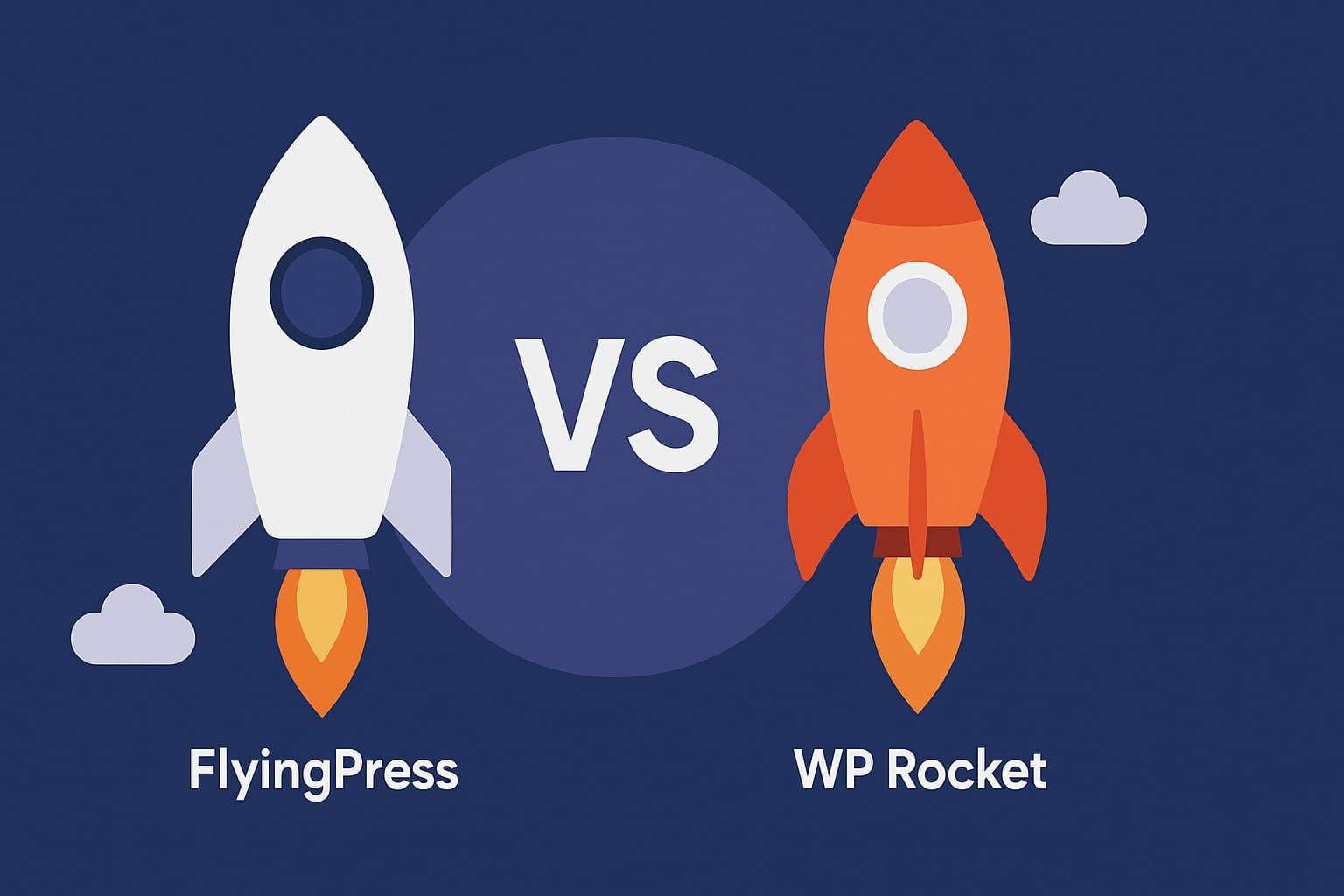
Is your WordPress site still slow after optimizing images and themes? It might be your caching plugin. Caching improves loading time, SEO rankings, and user experience. In 2025, the two most talked-about plugins are FlyingPress vs WP Rocket.
Which one is better for speed, features, and value? Let’s break it down.
Want a faster website today? Read on to see which plugin gives you the edge.
FlyingPress vs WP Rocket:
Table of Contents
Overview of Cache Plugins
Cache plugins are essential for anyone looking to boost the speed and efficiency of their WordPress site. By storing static versions of your site’s most-used resources—like images and HTML elements—these plugins help reduce server load and dramatically improve page load times. This not only makes your site feel faster for visitors but also has a direct impact on your core web vitals, including metrics like page speed, largest contentful paint (LCP), and first input delay (FID).
With a wide range of caching plugins available, from popular options like WP Rocket and FlyingPress to other solutions, site owners can tailor their approach to fit their needs and budget. Whether you’re running a personal blog or managing multiple WordPress sites, choosing the right cache plugin can make a noticeable difference in how quickly your pages load and how well your site performs in search rankings. Ultimately, leveraging cache plugins is one of the most effective ways to ensure your WordPress site delivers a smooth, fast experience for every visitor.
What is WP Rocket?
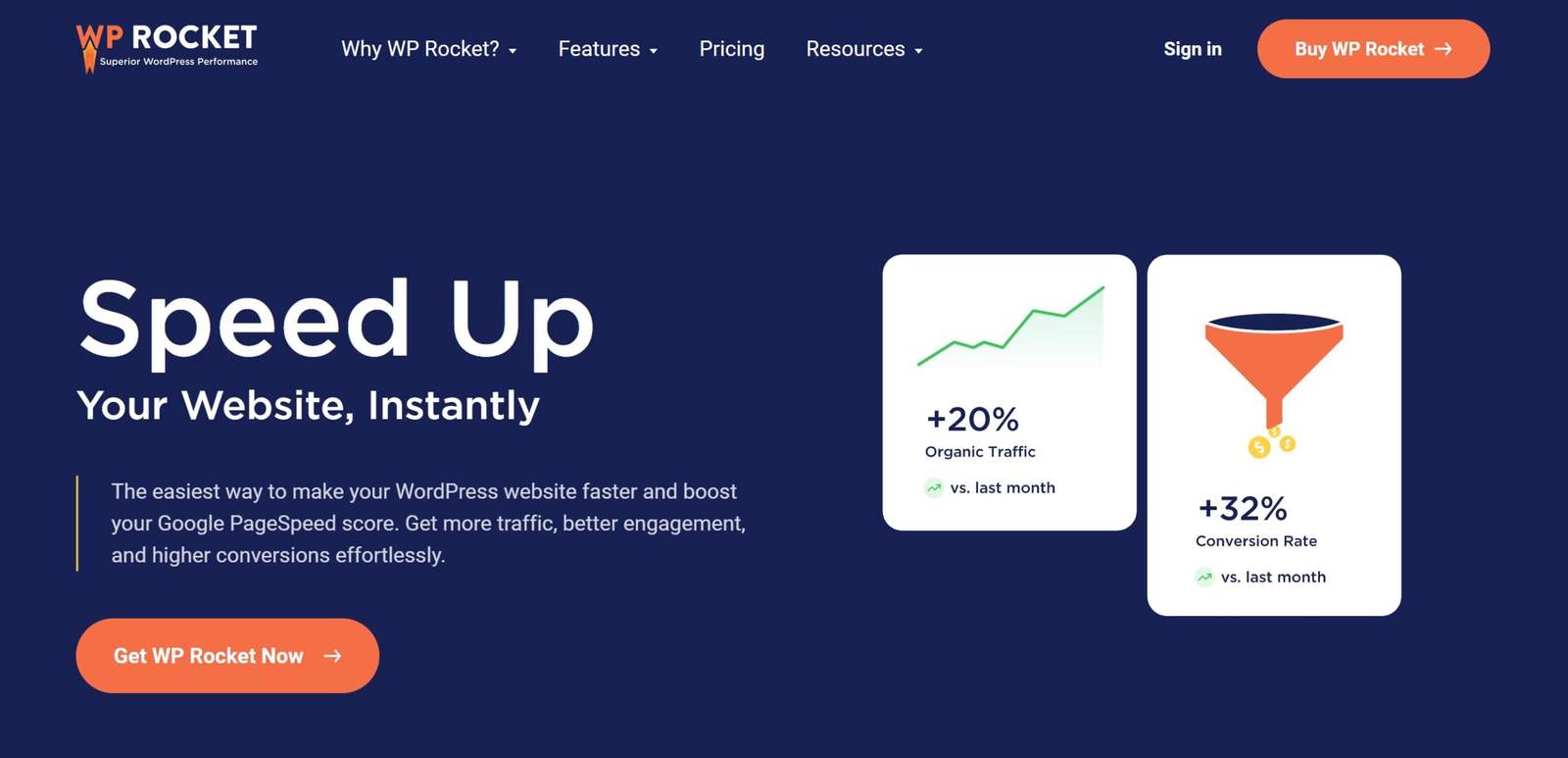
WP Rocket is one of the oldest and most popular caching plugins. It’s beginner-friendly and packed with performance tools. You install it, activate it, and your site is instantly faster. WP Rocket offers a range of features and benefits for users, making it a top choice among WordPress performance plugins.
You don’t need to know code. WP Rocket automatically applies a default configuration to boost page speed immediately. It works well with most themes and plugins, including WooCommerce.
If you’re a beginner, WP Rocket is smooth and simple. It’s also compatible with major managed WordPress hosts like WP Engine and Kinsta.
What Is FlyingPress?
This FlyingPress review provides an in-depth look at the plugin’s capabilities and how it compares to other WordPress performance plugins. In this article, we’ll cover FlyingPress vs other plugins, especially WP Rocket, to help you decide which is the best caching plugin for your needs.
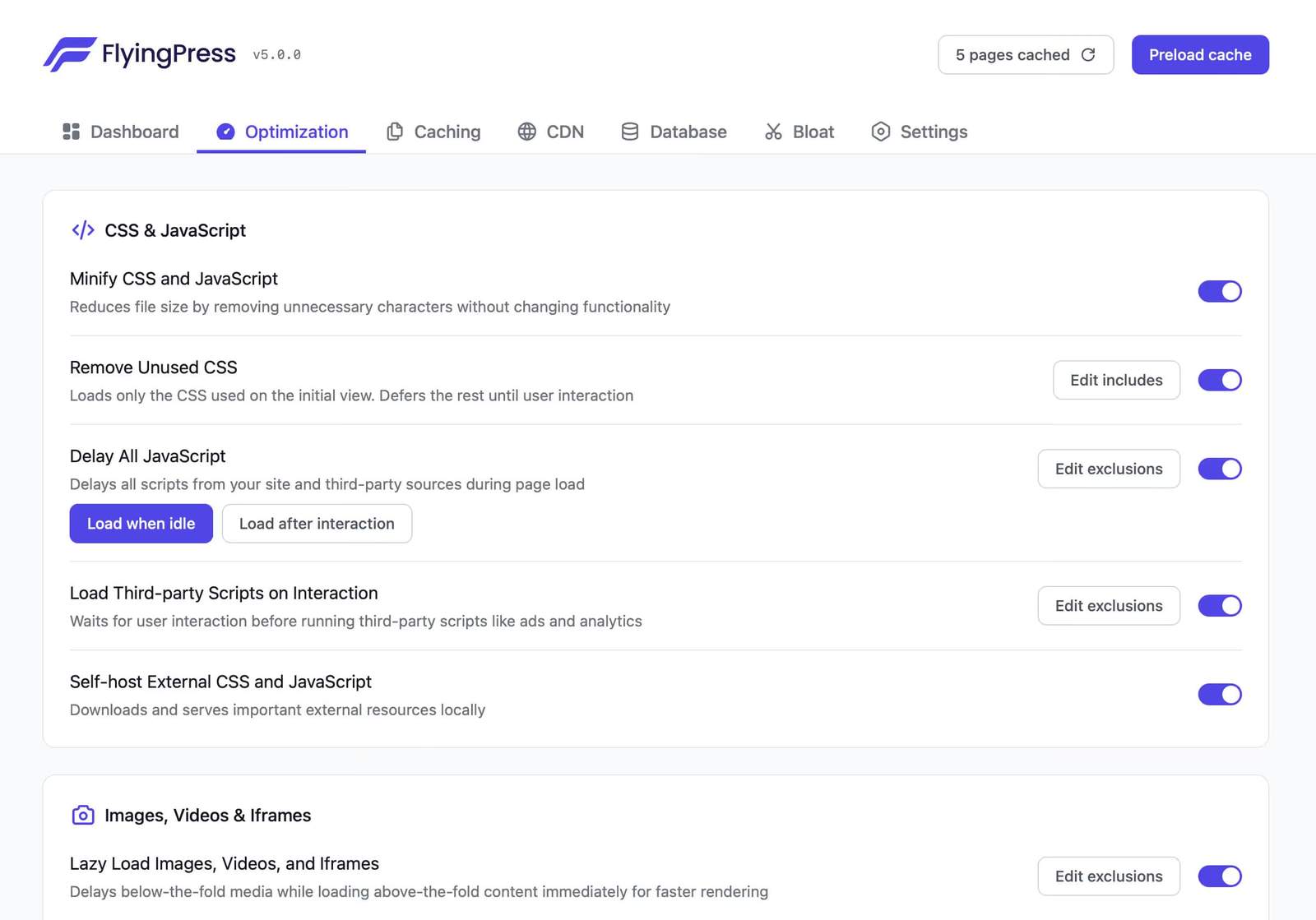
FlyingPress is a newer plugin, but it’s built by performance experts. It gives more control, faster loading, and clean output. Developers and speed-obsessed users love it.
Unlike WP Rocket, FlyingPress offers advanced options like WebP delivery, local fonts, and delay scripts with precision. It’s not hard to use, but more detailed.
Supports self-hosted fonts and Google Fonts fallback
Image optimization with WebP and AVIF
Delays JavaScript more precisely
Includes advanced features for power users, such as removal of unused CSS, database optimization, and fonts preloading
Want full control over how your site loads? FlyingPress is for you. FlyingPress provides a wide range of optimization features to boost site speed and improve overall website performance.
Speed Test Results & Core Web Vitals (Real Example)
To compare fairly, we installed both plugins on the same test site—a WordPress site with the Astra theme, dummy content, and no CDN.
FlyingPress Setup: After tweaking settings and enabling lazy loading, the homepage loaded in 0.85 seconds. Google PageSpeed score was 98 on mobile. FlyingPress helped the site perform exceptionally well under testing conditions and worked to improve core web vitals by optimizing LCP and CLS.
WP Rocket Setup: With default options, page loaded in 1.15 seconds. Mobile score was 91 with similar features active. WP Rocket also helped the site perform well, but not as efficiently as FlyingPress during the test.
Real-world case:
FlyingPress: 0.85s, mobile score 98
WP Rocket: 1.15s, mobile score 91
FlyingPress had cleaner CLS and LCP
Both passed Core Web Vitals
Overall, FlyingPress delivered better performance and did more to improve core web vitals.
Need blazing speed and better Core Web Vitals? FlyingPress wins on performance.
Features Breakdown
Let’s explore each plugin’s main features more clearly, so you can decide which best fits your needs.
Full Page Caching: Generates fast-loading static HTML pages with smart cache invalidation.
Font Optimization: Preloads and self-hosts fonts for faster text rendering, including fallback for Google Fonts.
Image Optimization: Compresses and serves images in modern formats like WebP and AVIF, with lazy load, responsive sizing, and options to optimize images and for optimizing images.
Placeholder Images: Supports placeholder images and placeholder image for lazy loading, especially for YouTube videos and lazy load iframes, improving load times and user experience.
JavaScript Delay & Execution: Allows precision control to delay specific javascript files only when needed, avoiding layout shifts.
Remove Unused CSS: Scans and removes unused CSS that’s not used on a page, reducing file size dramatically.
Built-in CDN Support: Integrates easily with BunnyCDN, Cloudflare, and others for global asset delivery.
Want a caching plugin that goes beyond basics? FlyingPress offers deeper, developer-grade optimization.
Caching Mechanism
The caching mechanism is at the heart of any caching plugin, dictating how efficiently your WordPress site can serve content to users. WP Rocket and FlyingPress both offer robust caching solutions, but their approaches differ in key ways that can affect your site’s performance and core web vitals.
WP Rocket’s caching plugin focuses on page caching and browser caching, ensuring that visitors receive pre-generated pages and assets quickly. It also offers lazy loading, which helps defer the loading of images and videos until they’re needed, but this feature is somewhat less comprehensive compared to FlyingPress.
FlyingPress, on the other hand, takes caching a step further. Its advanced caching mechanism combines full page caching, aggressive browser caching, and a more thorough lazy loading system. This means not only are your pages delivered faster, but images and other resources are loaded only when necessary, reducing initial load times and improving overall site performance. By understanding these differences, you can choose the caching plugin that best aligns with your WordPress site’s needs and your goals for optimizing core web vitals.
Database Optimization
A well-optimized database is key to maintaining top-notch WordPress performance and fast site speed. Over time, WordPress databases can become cluttered with unnecessary data, such as old post revisions, spam comments, and transient options, all of which can slow down your site and negatively impact your core web vitals.
FlyingPress stands out in the area of database optimization by offering built-in tools to clean and optimize your database. These features help remove redundant data and streamline database tables, resulting in faster queries and a more responsive website. By regularly optimizing your database, you not only improve your site’s speed but also ensure a smoother experience for your visitors. For anyone serious about WordPress performance, database optimization is a must-have feature in any caching plugin.
CDN Integration
Integrating a Content Delivery Network (CDN) with your caching plugin is a powerful way to enhance your WordPress site’s performance, especially for a global audience. A CDN works by distributing your site’s static content—such as images, scripts, and stylesheets—across a network of servers around the world. This reduces the distance between your visitors and your site’s resources, resulting in faster load times and improved site performance.
FlyingPress makes CDN integration straightforward, allowing you to connect with popular providers like FlyingCDN, KeyCDN, or Bunny with just a few clicks. By combining a caching plugin with a CDN, you can ensure that your WordPress site delivers content quickly and reliably, no matter where your visitors are located. This not only boosts load times but also helps maintain high performance scores and a seamless user experience.
Security Features
Security is a critical consideration for any WordPress site, and the right caching plugin can play a significant role in safeguarding your website. FlyingPress enhances security through features like browser caching and SSL encryption, which help protect data as it travels between your site and its visitors. Additionally, when paired with CDN integration, FlyingPress offers extra layers of protection, such as DDoS mitigation, to defend against large-scale attacks.
By choosing a caching plugin with robust security features, you’re not only improving your site’s speed and performance but also ensuring that your WordPress site remains safe from common threats. This peace of mind is invaluable for site owners who want to focus on growing their audience without worrying about vulnerabilities.
Pricing Comparison (2025)
Let’s compare pricing and licenses for both plugins. Note: both offer 1-year support and updates.
WP Rocket offers three plans: Single at $59/year for 1 site, Plus at $119/year for 3 sites, and Infinite at $299/year for unlimited sites. As a premium caching plugin, WP Rocket provides a comprehensive feature set, frequent updates, and easy setup across all plans.
Key notes:
WP Rocket is easier for multi-site scaling
FlyingPress has fewer limits on features across plans
FlyingPress includes image optimizations by default
WP Rocket depends on extra tools for compression
Despite some marketing claims, neither plugin truly provides unlimited bandwidth—actual limits depend on your hosting and CDN.
For a single site, both are similar in cost. For developers, FlyingPress gives more per dollar. While these are paid solutions, there are also free plugins available that can help improve site speed and performance, though they may lack some advanced features found in premium caching plugins like WP Rocket.
Ease of Use & Interface
WP Rocket is easier for beginners, known for its user friendly interface and hassle free setup. You can install and forget it. Most settings are toggled with one click. It’s perfect for users who don’t want to tinker.
FlyingPress is still user-friendly but offers more granular controls. Each section is clean and clearly labeled. Advanced users will appreciate the depth.
Comparison highlights:
WP Rocket = plug-and-play
FlyingPress = tweak-and-optimize
WP Rocket hides advanced options
FlyingPress gives full control without clutter
Using one plugin for caching and optimization helps avoid conflicts and keeps things simple
Want quick results? WP Rocket is easier. Want maximum performance? Go with FlyingPress.
Support & Community
Both plugins offer solid documentation and fast support. FlyingPress has a smaller but growing user base. WP Rocket has been around longer with more tutorials and community help.
Note: Both FlyingPress and WP Rocket are leading WordPress caching plugins with a comprehensive feature set. Alternatives like Litespeed Cache (optimized for LiteSpeed servers and offering free integration with QUIC.cloud CDN) and WP Fastest Cache (a minimalist plugin with limited features and updates) are also available, each catering to different hosting environments and user needs.
You prefer a widely trusted plugin with broad support
You don’t need granular controls
Both plugins are designed as top WordPress performance plugins to maximize user satisfaction through improved speed and optimization. If performance matters most, FlyingPress is the winner in 2025.
Are you ready to learn about freelance vs. in-house WordPress developers?
In today’s technological world, businesses rely heavily on WordPress developers to build, maintain, and optimize their websites. When hiring a WordPress developer, one of the biggest decisions is choosing between a freelance WordPress developer and an in-house WordPress developer. Each option has its own advantages and challenges, depending on your business needs, budget, and project complexity.
A freelance WordPress developer is an independent professional who works on a contract basis for different clients. They are hired per project, hourly, or through retainer agreements.
$50/Month Saves $5,000. Get our services today with 7-Day Money-Back Assurance.
Cost-Effective: Freelancers usually charge lower rates than full-time employees since businesses don’t need to cover benefits, office space, or equipment.
Flexibility: Freelancers offer flexible work arrangements, ideal for short-term projects or occasional website updates.
Access to Specialized Skills: You can hire a freelancer with a specific skill set, such as WooCommerce development or custom plugin creation, for particular project needs.
Faster Turnaround: Experienced freelancers often work efficiently and deliver projects faster since they focus solely on the assigned tasks.
Global Talent Pool: You’re not restricted to local talent, allowing you to hire the best WordPress developers from around the world.
Cons of Hiring a Freelance WordPress Developer
Limited Availability: Freelancers may juggle multiple clients, leading to delays in response time or project completion.
Consistency: Long-term consistency can be a challenge, especially if you work with different freelancers over time.
Communication Barriers: Time zones, language differences, or remote work setups can sometimes create communication hurdles.
Security Concerns: Hiring a freelancer without proper vetting may pose security risks, especially if sensitive website data is involved.
In-House WordPress Developer
An in-house WordPress developer is a full-time employee dedicated to managing your website’s development, maintenance, and optimization.
Pros of Hiring an In-House WordPress Developer
Better Collaboration: An in-house developer works closely with your team, ensuring seamless communication and collaboration.
Consistent Support: Unlike freelancers who may not be available 24/7, in-house developers provide ongoing maintenance and support.
Stronger Brand Understanding: A dedicated employee understands your business goals, branding, and website needs better than a freelancer.
Faster Problem Resolution: With an in-house developer, website issues can be resolved immediately, minimizing downtime.
Increased Security: Your website’s sensitive data remains within the organization, reducing the risk of data breaches or intellectual property theft.
Cons of Hiring an In-House WordPress Developer
Higher Costs: Full-time employees require a salary, benefits, office space, and other expenses, making them more costly than freelancers.
Limited Skill Set: A single in-house developer may not have expertise in every area of WordPress development, requiring additional training or external help.
Less Flexibility: An in-house developer works within fixed hours and may not be available for urgent tasks outside regular working hours.
Longer Hiring Process: Recruiting and onboarding an in-house developer takes time and effort compared to hiring a freelancer quickly.
Which is Better: Freelance vs. In-House WordPress Developer
The best choice depends on your business needs:
Freelance WordPress Developer is ideal for startups, small businesses, or companies with occasional WordPress development needs.
In-House WordPress Developer is best for large enterprises, eCommerce businesses, or organizations requiring ongoing website development and maintenance.
If you need flexibility and cost savings, go with a freelancer. If you want a dedicated, long-term support, hire an in-house developer.
Conclusions Freelance vs. In-House WordPress Developer
Both freelance and in-house WordPress developers bring unique benefits. Evaluating your project scope, budget, and long-term business goals will help you make the right decision. No matter which route you choose, ensuring clear communication, proper vetting, and setting expectations will lead to a successful partnership.
Frequently Asked Questions
What is the main difference between a freelance and an in-house WordPress developer?
A freelance developer works independently on a project basis, while an in-house developer is a full-time employee of a company.
Which is better, freelance or in-house work as an independent web developer? Why not?
It depends on your goals. Freelancing offers flexibility, higher earning potential, and diverse projects, while in-house jobs provide stability, benefits, and consistent work.
Why hire a freelance web developer?
Freelancers are cost-effective, flexible, and can be hired for specific projects without long-term commitments. They also bring diverse experience from working with multiple clients.
What are the best freelancing sites for web developers?
Upwork – Large client base, good for long-term projects. Freelancer – Competitive but offers various job types. Toptal – High-end projects for experienced developers. Fiverr – Best for small gigs and quick projects. PeoplePerHour – Good for European clients and hourly work.
Is it challenging to be a work-at-home freelance web developer?
Yes, challenges include finding clients, managing inconsistent income, handling multiple projects, and staying updated with tech trends. However, with experience, it becomes easier.
How do you, as a freelance web developer, find work? Which platform is best for freelancers?
Finding work involves: Creating a strong portfolio. Networking on LinkedIn and Twitter. Using freelancing platforms like Upwork, Fiverr, and Toptal. Reaching out to businesses directly. Best platform? Upwork and Toptal for serious projects; Fiverr for quick gigs.
Creating a professional and high-performing website requires expertise, especially when using a powerful tool like Elementor. While Elementor makes website building easier, an Elementor expert can take your site to the next level with custom designs, seamless functionality, and optimal performance.
What is an Elementor Expert?
An Elementor expert is a professional skilled in using Elementor, a popular WordPress page builder. They specialize in creating visually appealing, fast, and fully functional websites without needing complex coding. These experts understand how to customize layouts, optimize performance, and integrate advanced features to enhance user experience.
Here is the list of benefits of hiring an Elementor expert.
1. Custom Design and Branding
An Elementor expert can create a unique design that aligns with your brand. Instead of using generic templates, they build custom layouts, ensuring your site stands out and leaves a lasting impression.
2. Better Website Performance
Speed and performance are crucial for SEO and user experience. An expert optimizes images, reduces unnecessary code, and ensures the site loads quickly on all devices.
3. Seamless Functionality
Elementor offers many widgets and integrations, but configuring them correctly can be tricky. An expert ensures smooth functionality, from eCommerce stores to booking systems, enhancing user interaction.
4. Mobile Optimization
More users access websites from mobile devices. An Elementor expert ensures your site is fully responsive, providing a flawless experience across different screen sizes.
5. SEO-Friendly Design
A well-optimized Elementor website improves search rankings. Experts follow best practices, such as proper heading structures, image optimization, and fast-loading pages, to enhance your site’s SEO.
6. Ongoing Support and Maintenance
Website issues can arise at any time. An Elementor expert provides regular updates, fixes bugs, and ensures your site remains secure and functional.
Pros and Cons of Hiring an Elementor Expert
Pros
Cons
Professional Design
Higher Cost
Improved Performance
Dependency
Advanced Functionality
Finding the Right Expert
Time-Saving
Ongoing Support
How to Find the Right Elementor Expert
Check Their Portfolio: Look at previous work to assess their design style and expertise.
Read Client Reviews: Testimonials and reviews can give insights into their reliability.
Ensure Communication Skills: A good expert should understand your needs and provide clear solutions.
Look for Certifications: Elementor offers expert certifications that prove their skills.
Where to Hire an Elementor Expert Online
If you’re looking to hire an Elementor expert, here are some top platforms to consider:
Upwork – A freelancing marketplace with vetted Elementor professionals.
Fiverr – Find Elementor experts offering services at various price points.
Freelancer – A platform to post jobs and receive bids from Elementor specialists.
Codeable – A WordPress-specific marketplace for hiring top-tier developers.
Toptal – Connects you with high-quality, pre-screened WordPress and Elementor experts.
Elementor Experts Network – The official Elementor directory for finding certified professionals.
Conclusion
Hiring an Elementor expert can transform your website into a professional, high-performing platform. Whether you need a stunning design, better functionality, or improved SEO, an expert ensures your site meets the highest standards. Investing in one can save time, improve user experience, and boost your business’s online presence.
Need help with your Elementor website? Contact an experienced Elementor expert today!
Frequently Asked Questions
How much does hiring an Elementor expert cost?
Pricing varies based on experience and project complexity. However, investing in an expert saves money in the long run by preventing design flaws and performance issues.
Will an Elementor expert make my site mobile-friendly?
Absolutely! They ensure your site looks and functions perfectly on all devices, improving user engagement and SEO rankings.