
In this post, we will show you how to add a Menu and Dropdown Menu in Shopify.
A menu & drop-down menu is an essential component of every website. It improves the user experience and makes websites appear more professional. By clicking on menu items, visitors may effortlessly go to any page they like.
You Might Also Like: How to redirect URL in Shopify
Add a Menu and Dropdown Menu in shopify
It is easy if you follow every step to add a menu and dropdown menu in shopify.
Create a menu in shopify
When visitors arrive at your website, the header navigation menu is the first thing they notice, and it plays an important role in emphasizing key parts. Any online retailer should have a well-designed drop-down menu with clear and informative categories.
Follow these steps to create a menu in shopify easily:
Add menu into shopify
Step 1: Sign in to your Shopify store, go to Online store > Click on Navigation > Add Menu
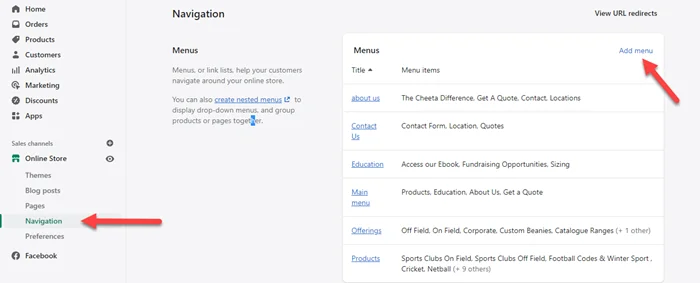
Click on Add Menu Item
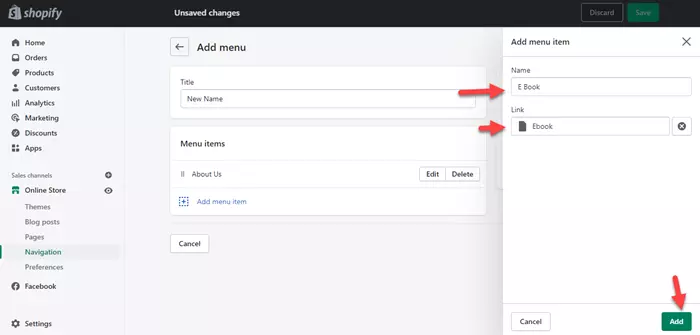
Step 2: Enter the menu name and click on Add Menu Item
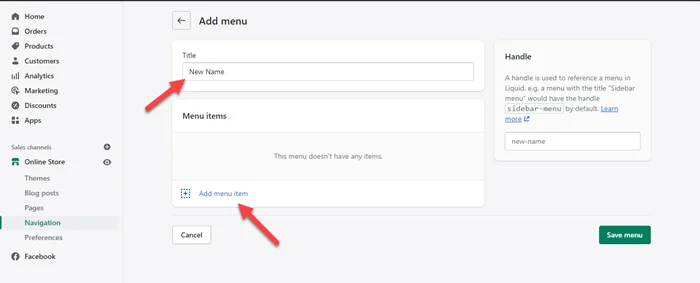
Create shopify menu
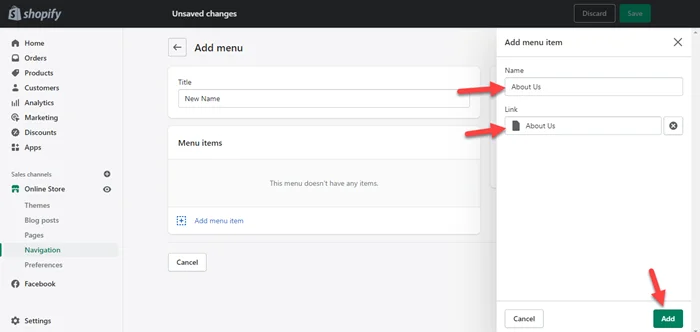
Step 3: Now enter menu item name and search pages, collection, product, and blog post and click on Add
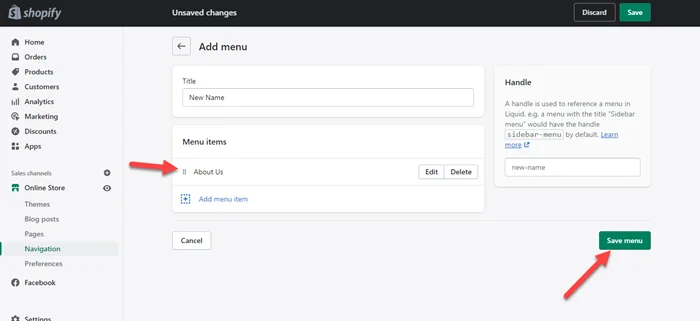
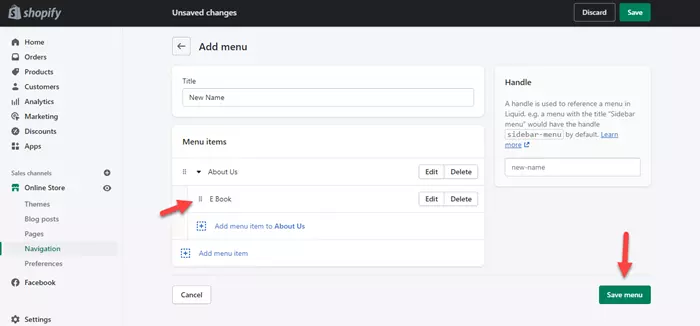
Step 4: Last, click on “Save Menu”.
Add Dropdown Menu in shopify
By grouping goods, collections, or pages together under labels, drop-down menus make it easier for customers to browse your online business. It consists of both top-level and sub-menu items. When you hover on top menu items, they appear in the main navigation menu, and when you hover on nested menu items, they appear in the drop-down menu.
Follow these steps to add a dropdown menu in shopify easily:
Step 1: First create a top level menu item.
Step 2: Drag and drop the sections, and pages related to the same topic under one label.
For example, We drag E-Book under About Us. For adding more menus just click on Add menu item to About Us.
We hope this article helped you learn how to add menu and dropdown menu in shopify. You may also want to get help from our shopify expert.
If you liked this article, then please subscribe to our YouTube Channel for web, windows, tech, and how-tos tutorials. You can also find us on Twitter and Facebook.
Frequently Asked Questions
How do I add a menu in Shopify?
Click Add menu.
Add menu items with names and links.
Click the Save menu.