How to Disable Elementor Default Colors and Fonts

Are you looking for a way to disable Elementor default colors and fonts?

Elementor is a popular page builder plugin for WordPress that empowers users to create stunning websites without coding. However, when you start using Elementor, you might notice that it comes with default styles for fonts and colors. While these defaults can be helpful for beginners, they may not always align with your website’s design or branding. In this guide, we’ll show you how to disable Elementor’s default colors and fonts so you can have more control over your website’s appearance.

Step-by-Step Guide

By following these simplified steps, you’ll successfully disable Elementor’s default colors and fonts on your WordPress website.

Step 1: Log in to WordPress. Click “Elementor” in the dashboard.

Step 2: Tick “Disable Default Colors” and “Disable Default Fonts.”

disable Elementor default colors and fonts

Step 3: Save your changes.

Benefits of Disabling Default Styles

Disabling Elementor default colors and fonts offers several advantages:

  1. Customization: By turning off default styles, you have complete control over the look and feel of your website. You can define your color palette and typography that aligns with your brand.
  2. Consistency: Disabling default styles ensures a consistent design throughout your website. You won’t accidentally use Elementor’s defaults, which can lead to a more cohesive user experience.
  3. Brand Identity: If you’re building a website for a business or brand, it’s essential to maintain a consistent brand identity. Disabling default styles allows you to showcase your brand’s unique visual elements.
  4. Faster Loading Times: Removing unnecessary styles can improve your website’s loading times, as there are fewer CSS rules to load and process.

Conclusion

Elementor is a fantastic tool for creating visually appealing websites in WordPress. However, to maintain control over your site’s design and branding, it’s important to disable Elementor’s default colors and fonts. This simple process ensures that your website truly reflects your unique style and message.

Now that you’ve learned how to disable Elementor’s default styles, go ahead and start customizing your website to make it truly your own. Experiment with different colors and fonts to create a website that stands out and leaves a lasting impression on your visitors.

Why should I disable Elementor’s default colors and fonts?

Disabling default styles gives you more control over your website’s design, ensuring it aligns with your branding and preferences.

Is it necessary to disable both default colors and fonts together?

No, you can choose to disable one while keeping the other if it suits your needs.

How to Add a Favicon in Webflow: A Simple Guide

Are you looking for a way to add a favicon in webflow?

A favicon, short for “favorite icon,” is a small image that represents your website in a browser tab or bookmark. It’s a subtle yet essential part of your website’s branding. If you’re using Webflow to build your website, adding a favicon is a straightforward process.

In this guide, we’ll walk you through the steps to add a favicon in webflow project.

Why Favicons Matter

Before we dive into the steps of add a favicon in webflow, let’s briefly understand why favicons are important for your website:

  • Branding: Favicons reinforce your brand identity, making your website instantly recognizable to users.
  • User Experience: They enhance the overall user experience by providing visual cues in browser tabs.

add a favicon in Webflow step-by-step

Here are the steps to add a favicon in webflow.

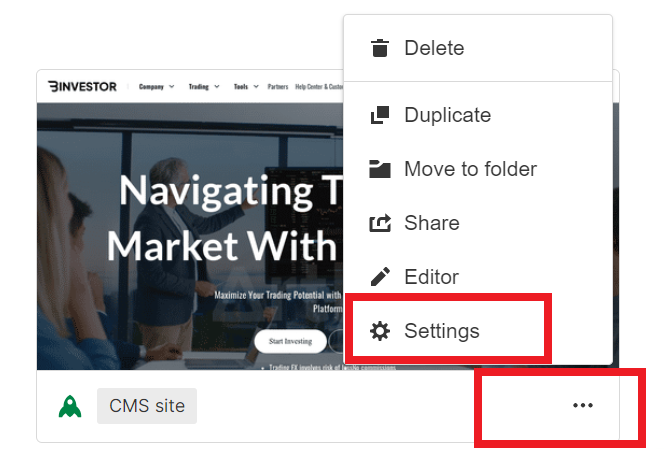
Step 1: Go to Project Settings.

Add a Favicon in Webflow

Step 2: Click on the General tab. Under Icons, upload your prepared favicon image.

Add a Favicon in Webflow

Step 3: Publish your site.

Refresh your live site to see the new favicon.

Conclusion

Adding a favicon to your webflow project is a simple yet important step in enhancing your website’s branding and user experience. A well-designed favicon can make your site more recognizable and professional in the eyes of your visitors.

Now that you know how to add a favicon in webflow, take a few moments to choose or create a favicon that represents your website effectively. It’s a small detail, but it can have a big impact on how your site is perceived.

So, go ahead and add that finishing touch to your webflow project by uploading a favicon that complements your website’s design and identity.

If you have any further questions or need more assistance with your webflow project, feel free to explore Webflow’s extensive documentation or reach out to their support team.

Happy designing! 🚀

What is a favicon?

A favicon is a small icon that appears in the browser tab and bookmarks, representing a website.

Why is adding a favicon important?

A favicon enhances your site’s branding and helps users easily identify your website in their browser.

What size should my favicon be?

A square favicon is ideal, typically 32×32 pixels or 16×16 pixels for compatibility.

How do I upload a favicon in Webflow?

Go to Project Settings > General tab > Icons, then upload your favicon image.

Do I need to republish my site after adding a favicon?

Yes, publishing your site is necessary for the changes to go live.

Can I use my website’s logo as a favicon?

Yes, using a simplified version of your logo often works well as a favicon.

Are there any design tips for creating an effective favicon?

Keep it simple, ensure it’s recognizable at a small size, and use your brand’s colors and imagery.

Divi Global Footer Not Showing – Solutions & Fixes

Your Divi global footer not showing on the websites, that’s comes with a problem with your Divi footer visibility. Here you find a quick solution to solve this problem.

The Divi theme for WordPress is known for its versatility and ease of use, allowing users to create stunning websites without extensive coding knowledge. However, like any software, it can sometimes present challenges. One common issue that Divi users may encounter is the disappearance of the global footer. If you’ve found yourself in this predicament, fret not! In this troubleshooting guide, we will walk you through the common reasons behind the Divi global footer not showing and provide step-by-step solutions to get your website’s footer back on track.

Common Reasons for Divi Global Footer Disappearance:

Before we dive into the solutions, let’s understand some of the common reasons why your Divi global footer might not be displaying as expected:

  • Theme or Plugin Conflicts: Sometimes, conflicts between Divi and other themes or plugins can lead to footer issues. It’s essential to identify any conflicting elements.
  • CSS or JavaScript Errors: Errors in your website’s CSS or JavaScript code can disrupt the layout and functionality of your footer.
  • Builder Errors: Mistakes made within the Divi Builder can inadvertently affect the visibility of the global footer.
  • Update Problems: An outdated theme or plugin can create compatibility problems. Ensuring that you have the latest versions is crucial.
  • Permissions and Settings: Incorrect settings or permissions can restrict access to your footer, causing it to disappear.

Now that we have a better understanding of the potential causes let’s explore how to fix the issue.

Checking Theme Builder Global Footer Visibility step-by-step

Here are steps to troubleshoot the issue of the Divi global footer not showing on your WordPress website:

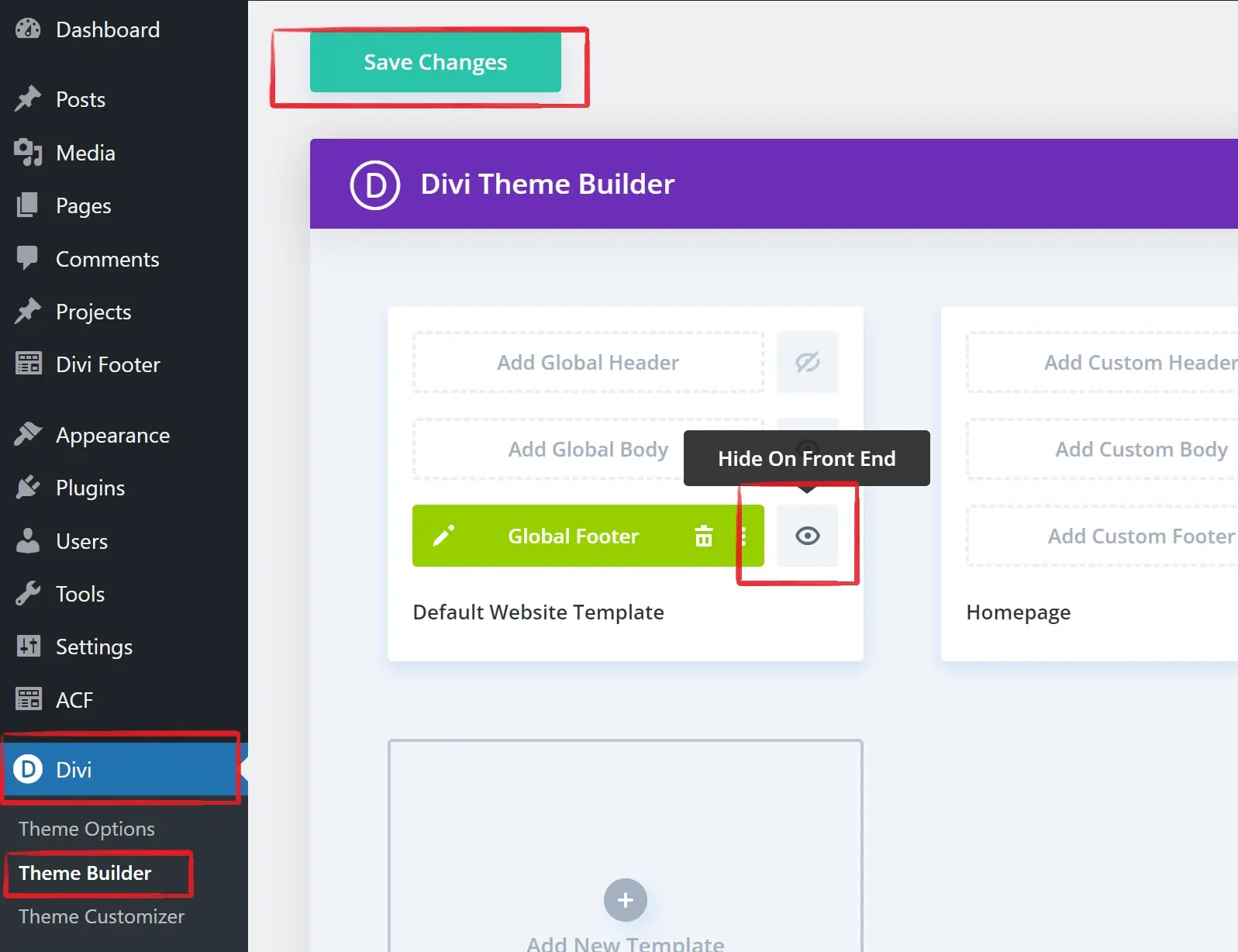
Step 1: Access the Theme Builder settings on your WordPress website. Locate the global footer section within the Theme Builder.

Step 2: Look for an “eye” icon on the right side of the global footer section. Ensure that the “eye” icon is active, not inactive or turned off.

Divi-Footer-with-Theme-Builder

Keep in mind that this “eye” icon controls the visibility of your global footer, determining whether it’s displayed on your website or not.

Conclusion:

Troubleshooting the Divi global footer not showing issue can be a straightforward process once you identify the root cause. By following these steps and addressing common reasons behind the problem, you’ll likely have your website’s footer back in no time. Remember to maintain regular updates, monitor for conflicts, and keep your code error-free to prevent future footer issues.

Your Divi-powered website can shine once more with its fully functional global footer. Enjoy a seamless user experience, and keep your audience engaged with your beautifully designed footer section.

Why is my Divi global footer not showing on my website?

If you’ve set up a global footer using the Theme Builder, make sure the “eye” icon on the right side is active, not inactive or turned off. This icon determines whether your global footer is displayed on your website.

How do I check if there’s a conflict with another theme or plugin causing the issue?

To check for conflicts, deactivate all plugins except for Divi and switch to a default WordPress theme like Twenty Twenty-One. If the footer appears, you’ve identified a conflict with a plugin or theme.

Why is my custom footer not showing in Divi?

If you’ve set up a global footer using the Theme Builder, make sure the “eye” icon on the right side is active, not inactive or turned off. This icon determines whether your global footer is displayed on your website.

How to Enable Elementor Editor for Different Custom Post Types

Are you looking for a way to Enable Elementor Editor for Different Custom Post Types?

Custom post types are a game-changer when it comes to WordPress. They allow you to organize and display different types of content on your website beyond the standard posts and pages. Whether you’re managing a portfolio, showcasing team members, or presenting events, custom post types give you the flexibility to structure your content precisely as you envision it.

Unlocking the power of customization in WordPress has never been easier. If you’ve ever wanted to take control of your custom post types, such as Products or Testimonials, and infuse them with your unique style, you’re in the right place.

In this guide, we’ll walk you through a simple and efficient process to seamlessly integrate Elementor, the beloved page builder, into your custom post types. Say goodbye to the limitations and hello to endless possibilities as we explore how to transform your content with ease. Let’s dive in and enhance your WordPress experience.

Enable Elementor Editor for Different Custom Post Types

The simplest way to enable Elementor for custom post types is by using these steps. Here’s how:

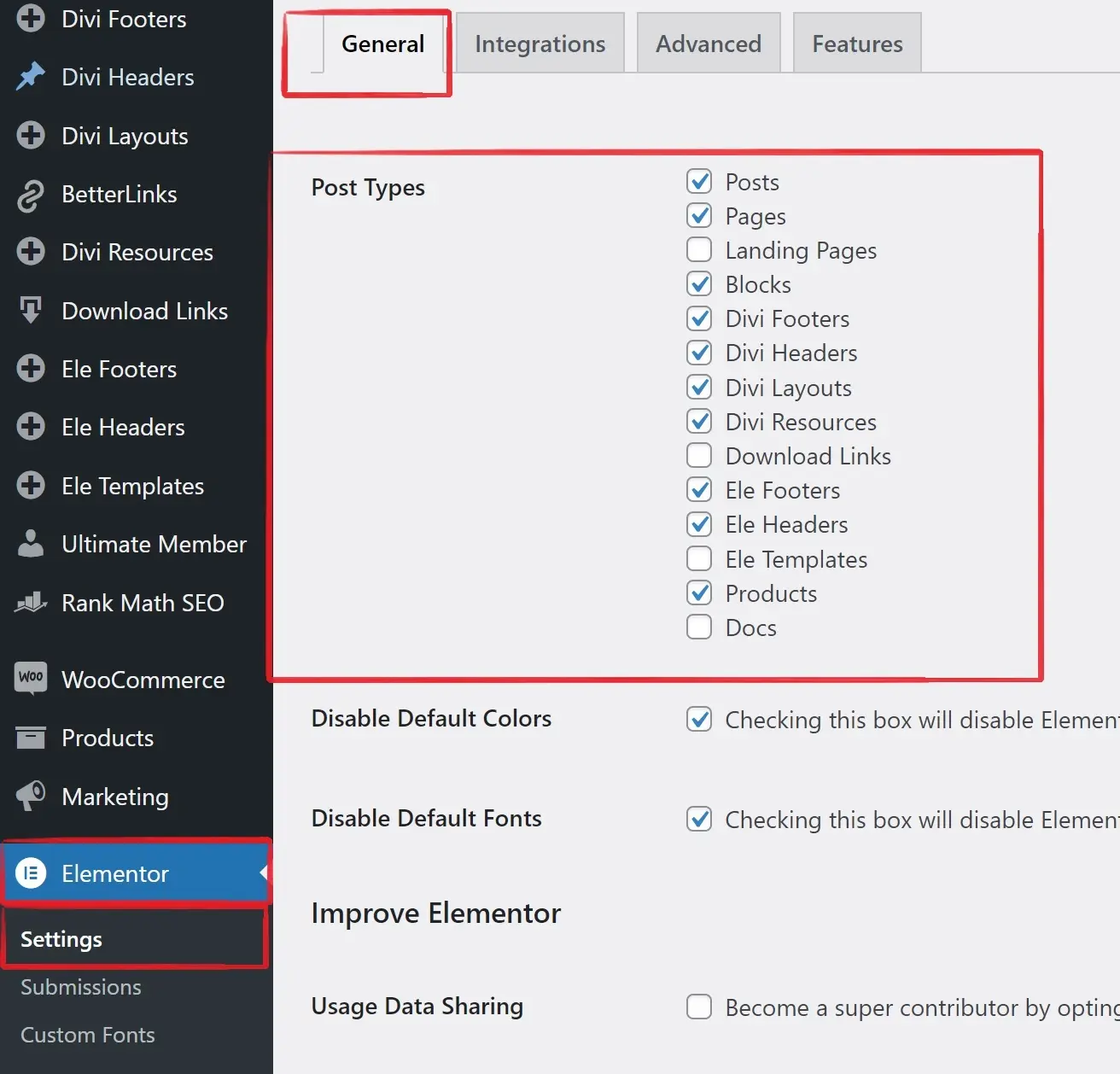
Step 1: In the WordPress Dashboard, go to Elementor > Settings.

Step 2: Check the custom post type you want to edit with Elementor under “Post Types” and save changes.

Show Edit with Elementor Button into Custom Post Type

Step 3: Find your custom post (e.g., Products) in the dashboard, and click Edit with Elementorto start customizing.

Remember, for dynamic content templates, use Mc Starters single post templates to create a Single post-type template. Otherwise, your design will apply to only one custom post.

Conclusion

In this guide, we’ve demystified the process of enabling Elementor for custom post types in WordPress. With just a few simple steps, you can unlock a world of creative possibilities, allowing you to design and style your custom content types with ease.

Custom post types empower you to showcase your content in a unique and structured manner, whether you’re running a business website, a portfolio, or a blog with diverse content. Elementor, with its intuitive drag-and-drop interface, seamlessly integrates with these custom post types, putting the power of design back into your hands.

What are custom post types in WordPress?

Custom post types are content types in WordPress that allow you to organize and display different types of content beyond the standard posts and pages. They help you structure and manage content uniquely, such as portfolios, testimonials, or events.

Why would I want to use Elementor with custom post types?

Elementor is a user-friendly page builder that allows you to design and style your content visually. Enabling Elementor for custom post types gives you the power to create stunning layouts and designs for your unique content without needing advanced coding skills.

Is it necessary to use a plugin to enable Elementor for custom post types?

While it’s possible to enable Elementor for custom post types through coding, using a plugin like “AnyWhere Elementor” simplifies the process and makes it accessible for users without extensive technical knowledge.

Can I enable Elementor for multiple custom post types on my website?

Yes, you can enable Elementor for multiple custom post types on your website. Simply follow the steps mentioned in the tutorial for each custom post type you want to customize with Elementor.

Can I revert to the default WordPress editor after enabling Elementor for custom post types?

Yes, you can switch between the Elementor editor and the default WordPress editor at any time while editing your custom post types. Elementor does not permanently replace the default editor.

How to Use Local Fonts in Divi

Are you looking for a way to use local fonts in divi?

Typography plays a pivotal role in web design. It sets the tone, communicates your brand’s identity, and significantly impacts the overall user experience. While the Divi theme offers an array of default fonts and customization options, sometimes you need that extra touch to make your website truly unique. That’s where local fonts come into play.

In this step-by-step guide, we’ll walk you through the process of using local fonts in Divi. By the end of this tutorial, you’ll have the knowledge and tools to create a typography masterpiece that matches your brand’s personality perfectly.

Why Use Local Fonts in Divi?

Before we dive into the “how,” let’s discuss the “why.” Local fonts, also known as custom or self-hosted fonts, offer several advantages:

  • Brand Consistency: Local fonts allow you to maintain consistent typography across your website, ensuring that your brand’s identity shines through.
  • Unique Design: By using local fonts, you can set your website apart from the competition, avoiding the common default font choices.
  • Improved Performance: Hosting fonts locally can reduce reliance on external servers, potentially speeding up your website’s loading times.

Use Local Fonts in Divi: Step by step

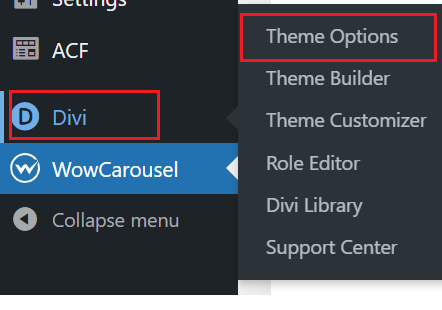
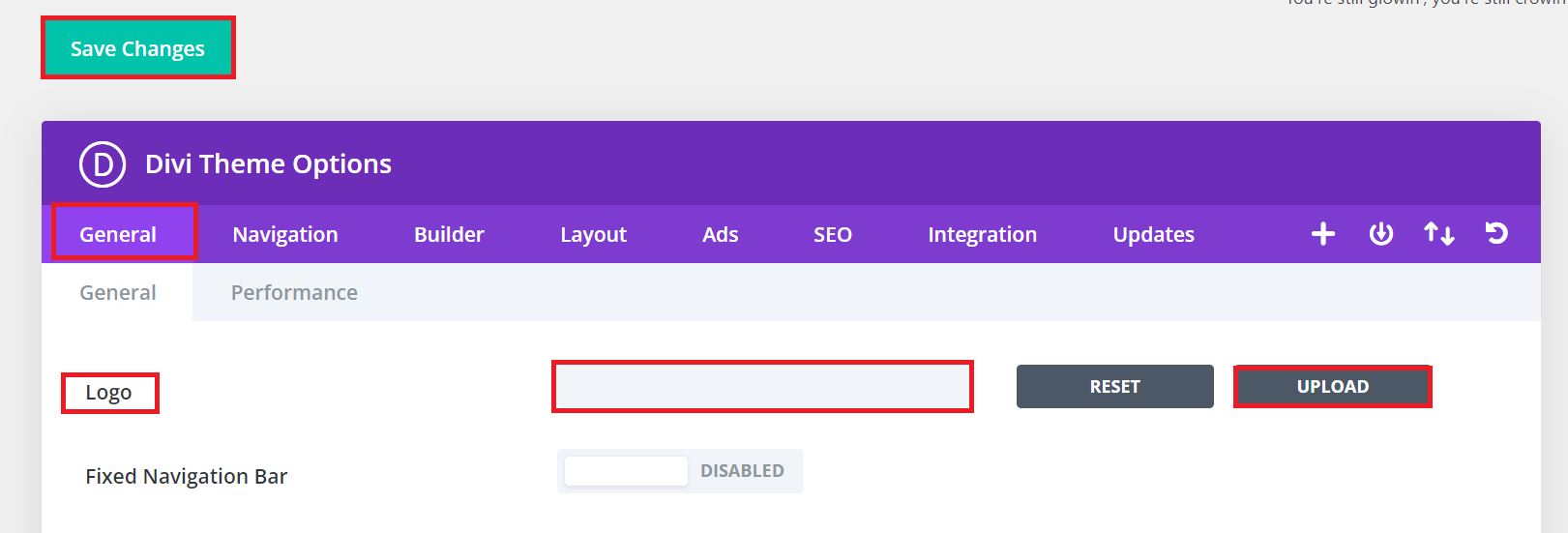
Step 1: Disable Google Fonts in Divi’s Theme Options.

Step 2: Edit your page with Divi Builder. Add a Text Module. In the module settings (Design tab -> Text block), click Text Font.

Step 3: Upload your custom font files and name your font.

By following these steps, you can use local fonts in Divi and have control over your website’s typography.

Optimizing Typography with Local Fonts

Typography is a critical aspect of web design, and using local fonts in Divi can significantly enhance your website’s appearance and brand identity. Let’s explore how to further optimize typography with local fonts:

  • Typography: Set font styles, sizes, and colors aligned with your brand.
  • Choose Complementary Local Fonts: Pair fonts for contrast and readability.
  • Create Font Hierarchy: Assign fonts to headings, subheadings, and body text for consistency.
  • Upload and Apply Fonts: Use local fonts throughout your website.
  • Test Responsiveness: Ensure fonts look good on all devices.
  • Monitor Load Times: Optimize performance if needed.

Troubleshooting and Tips

While using local fonts in Divi can greatly improve your website’s aesthetics and branding, you may encounter some challenges along the way. Here are some troubleshooting tips and additional advice:

Troubleshooting local fonts in Divi? Here are some tips:

  • Cross-Browser Compatibility: Ensure fonts display correctly on all browsers.
  • Font File Formats: Verify correct font file formats and links in CSS.
  • Font Licensing: Respect font licensing terms.

Conclusion

By following these simple steps, you can harness the power of local fonts in Divi to create a website that stands out and communicates your brand effectively. Experiment with different fonts, but remember to maintain consistency across your site for a polished and professional appearance.

Typography is just one element of web design, but it’s a crucial one. With Divi and local fonts at your disposal, you have the tools to craft a visually stunning and unique online presence.

Start experimenting with local fonts in Divi today, and watch your website transform into a captivating digital experience.

What are local fonts in Divi?

Local fonts in Divi are custom fonts that you upload and host directly on your website, as opposed to relying on external font services like Google Fonts.

Why should I use local fonts in Divi?

Using local fonts allows you to have more control over your website’s typography, ensuring that your brand’s identity is accurately represented and that your website stands out from the rest.

Can I use multiple local fonts in Divi?

Yes, you can use multiple local fonts in Divi. Just upload all the font files you need and apply them as required to different elements on your website.

Do local fonts affect my website’s SEO or compatibility?

Local fonts do not have a significant impact on SEO, but it’s essential to ensure that they render correctly across various browsers and devices to maintain compatibility.

Get Professional Websites