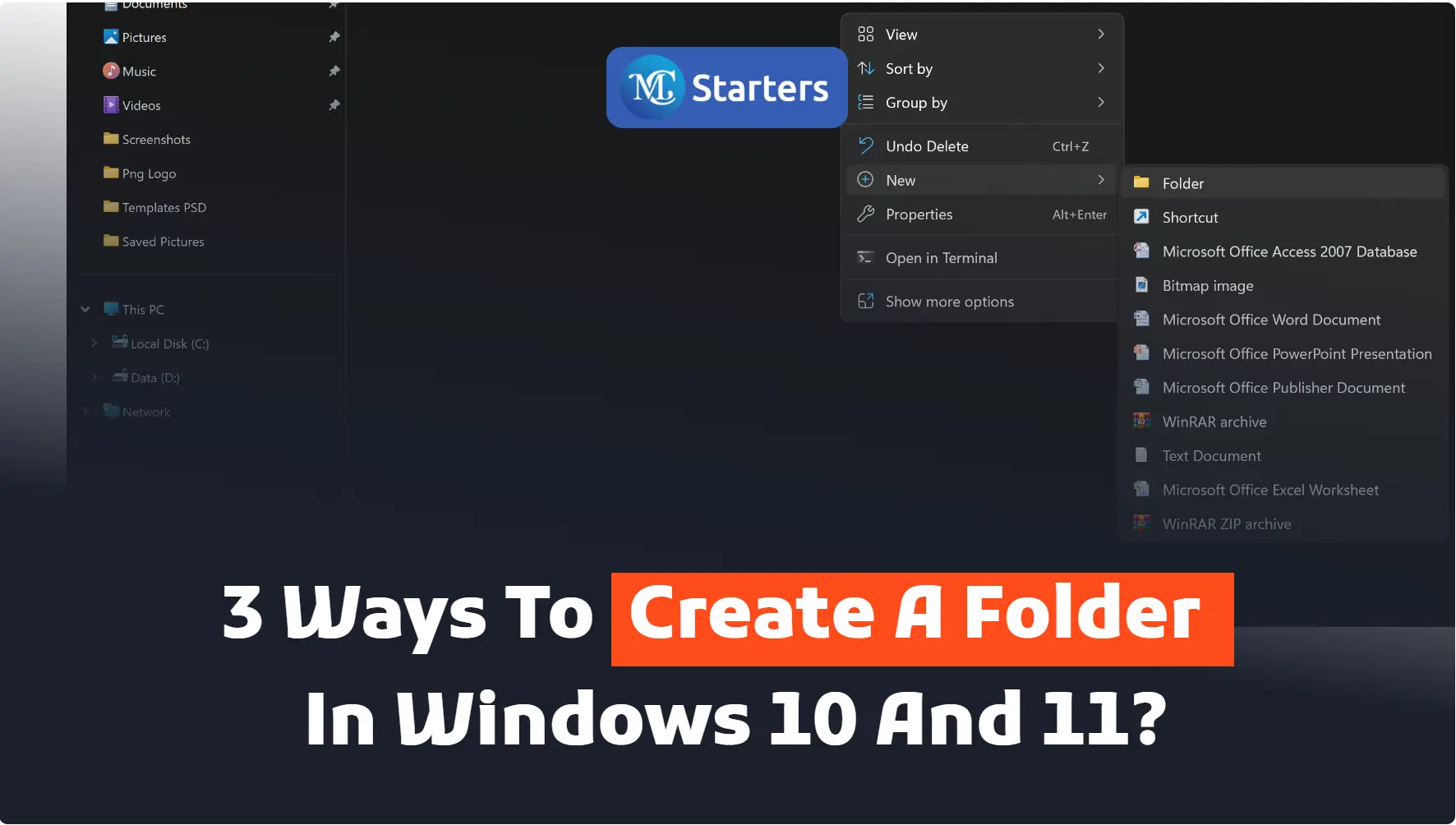
3 Ways to Create a Folder in Windows 10 and 11? 

Are you looking for the best way to create a folder in Windows 10 and 11? 

For some people, organizing their files is a nightmare. They have so many documents, pictures, and other files that they can’t keep track of them all. If you’re one of those people, don’t worry! There is a very simple way to organize your files using folders. If you want to create a folder that is accessible from anywhere on your computer.

Click Here: How to Upgrade to Windows 10 for Free?

 In this article, we’ll show you how to create a folder in Windows 10 and 11. 

We will cover things like this step by step.

  1. Create a new folder using right-click menu
  2. Create a new folder using file explorer’s menu
  3. Create a new folder using your keyboard

Ready? Let’s get started!

If you’re looking for a quick and easy way to create a new folder in Windows 10 and 11, follow these simple steps. With just a few clicks, you can have a new folder set up and ready to use, saving you time and energy.

Create a new folder using right-click menu

Creating a new folder is not difficult for you now.  You can use this method to create a folder.

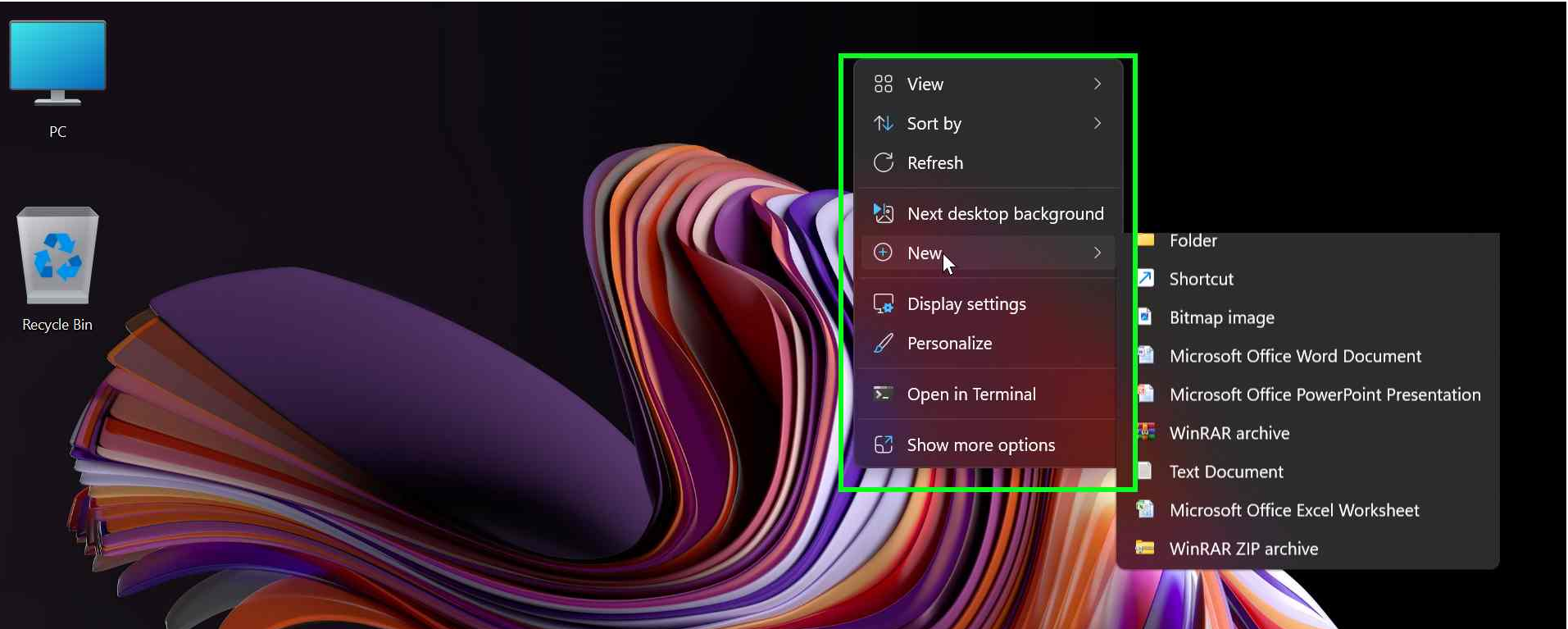
Step 1: Right-click on the desktop in any space and hold it down.

Step 2: Hover on the “New

Create a new folder using right-click menu step 1

Step 3: Click on the folder that shows under “New“.
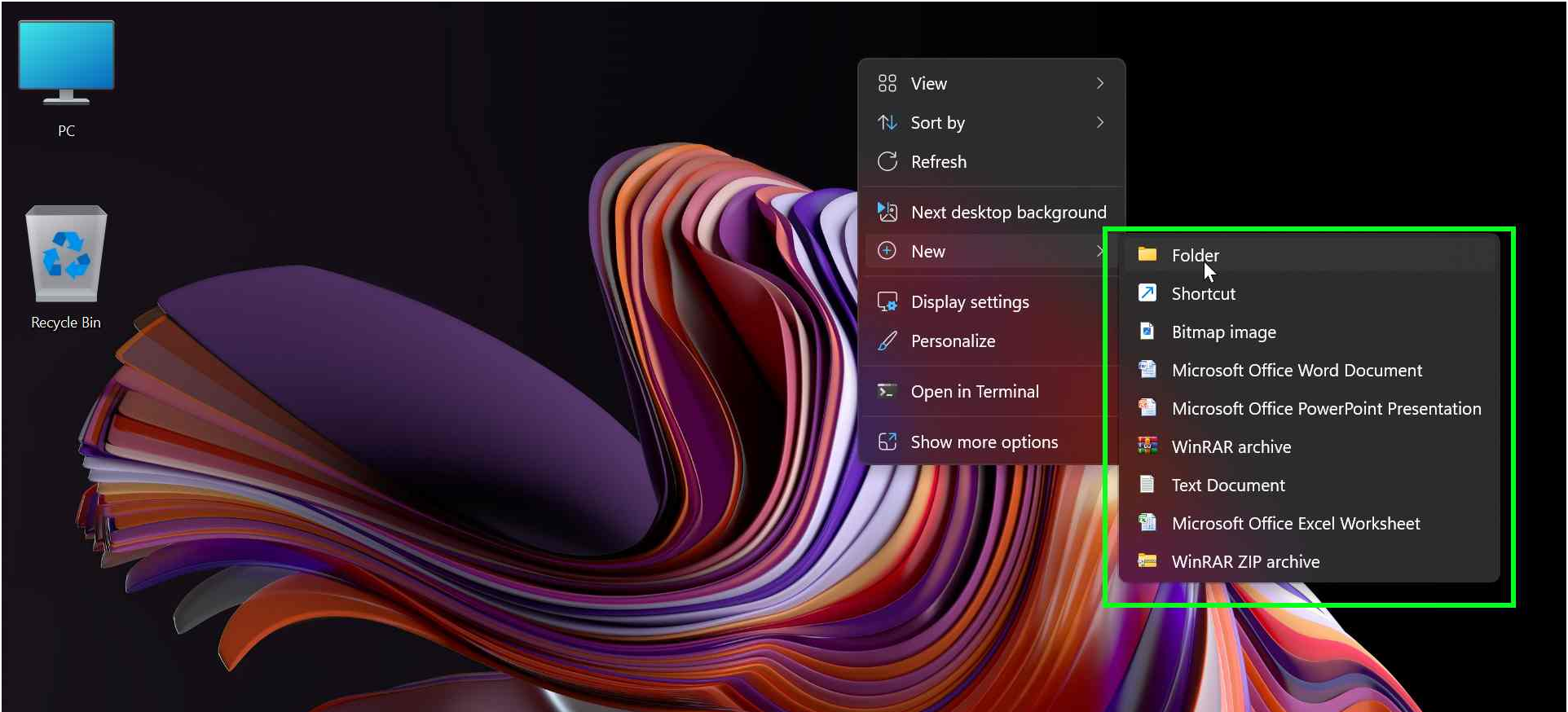
Create a new folder using right-click menu step 2

Step 4: The folder will be shown on your screen with the default name “New folder”.
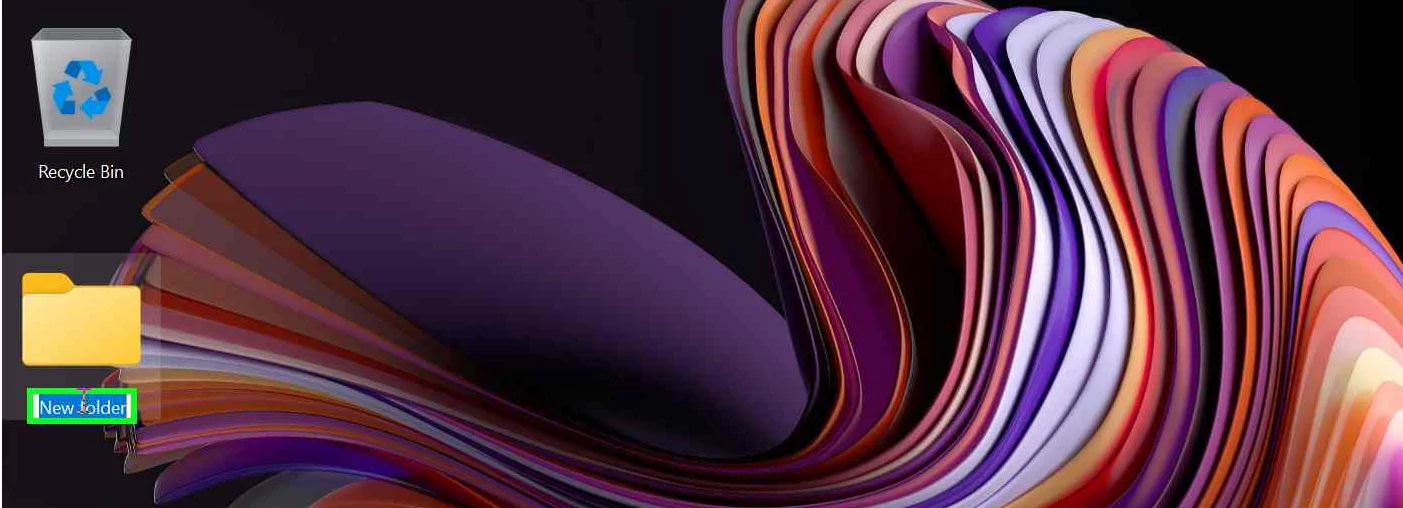
Create a new folder using right-click menu step 3

Step 5: If you want to change the name, write the folder name and then press enter.

Create a new folder using file explorer’s menu

Creating a folder through the file explorer menu is much simpler.  You can create a folder within folders for better organization.

Step 1: Go to the home tab 

Step 2: Select the ribbon menu 

Step 3: Top of the menu’s new folder button. Click on the “New Folder” it displays on the screen.

Step 4: Write the folder name and then enter the press.

Create a new folder using your keyboard

Your window allows you to create a new one using shortcut keys. Open the file explorer menu using this keyboard button.

Step 1: Click on the Windows logo key+E. It shows the many folders on the file explorer screen. Select the location where you created the folder.

Step 2: Press the keystroke CTRL+SHIFT+N to create a new folder.

Step 3: Rename the folder, then press enter.

Creating a folder in Windows 10 and the latest version, Windows 11, is a fundamental skill that every user should know. Whether you want to organize your files, store documents, or manage your digital content efficiently, having the ability to create folders is essential. In this conclusion, we’ll explore three simple methods to create a folder on both operating systems.

We hope this article helped create a new folder for Windows 10 and 11. It is a simple process that can be completed in just a few clicks. 

Which method do you find the most convenient for creating a folder in Windows?, please comment here.

What is the best step to create a folder in Windows 10 and 11? 

If you enjoyed this post, please subscribe to our YouTube channel. You may also find us on TwitterPinterest, Instagram, and Facebook.

How do I create a folder in Windows 11?

To create a folder in Windows 11, right-click on an empty area within the desired location, hover over “New,” and select “Folder” from the context menu. Then, name the folder and press Enter.

How to create a folder in Windows 10?

To create a folder in Windows 10, right-click on an empty area within the desired location, hover over “New,” and select “Folder” from the context menu. Finally, give the folder a name and hit Enter.

What are the three ways to create a folder?

The three ways to create a folder are:
a) Right-click on an empty area, choose “New,” and then select “Folder.”
b) Use the keyboard shortcut “Ctrl + Shift + N” while inside the File Explorer or desktop.
c) Click on the “New folder” button in the File Explorer toolbar.

What are the 3 ways to create a new folder in File Explorer?

The three ways to create a new folder in File Explorer are:
a) Right-click on an empty area, choose “New,” and then select “Folder.”
b) Use the keyboard shortcut “Ctrl + Shift + N” while inside the File Explorer or desktop.
c) Click on the “New folder” button in the File Explorer toolbar.

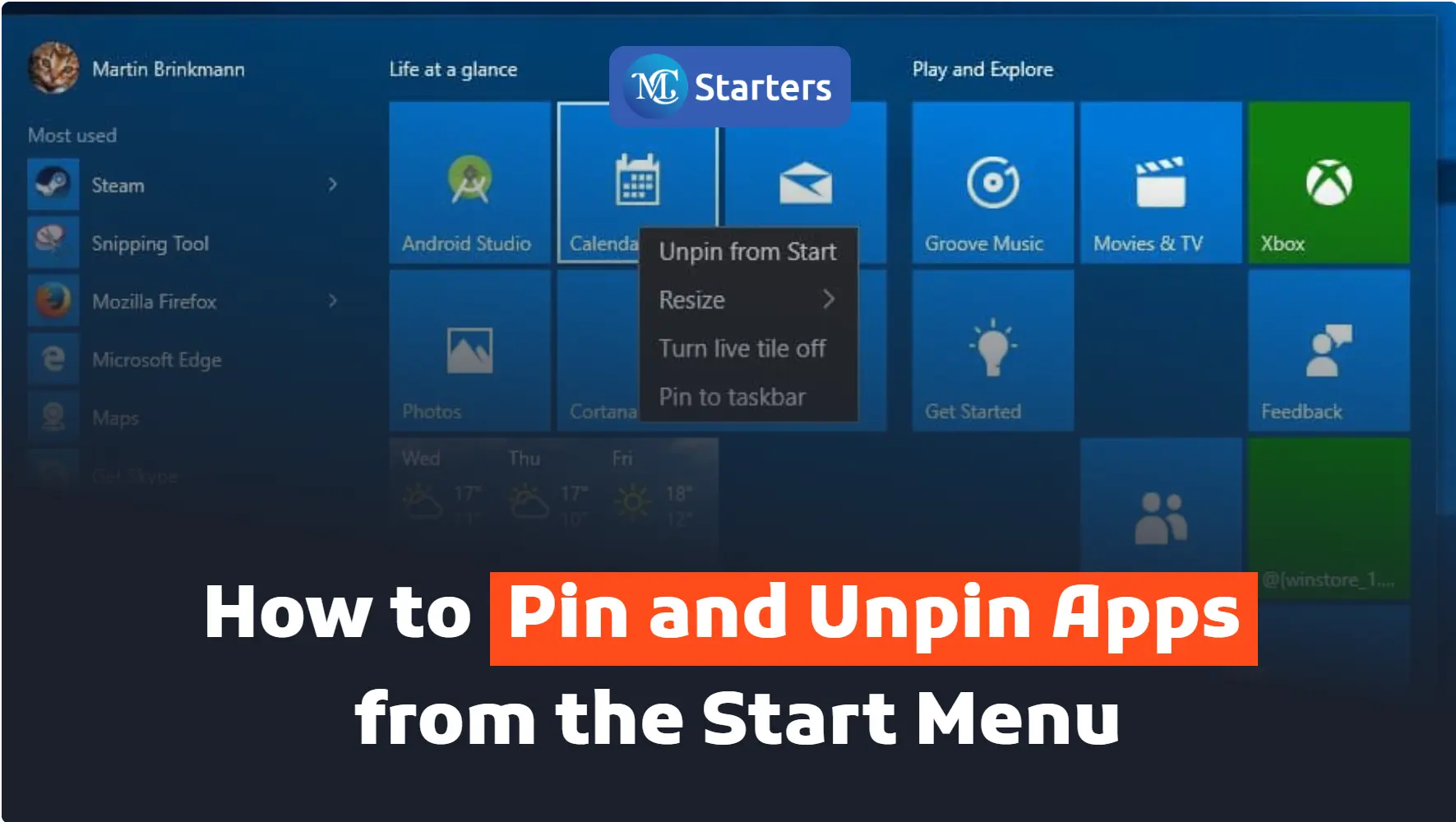
How to Pin and Unpin Apps from the Start Menu?

Are you looking for the best way to pin and unpin apps from the start menu?

Select Start> click and hold the app> Pin to Start> Unpin from Start (to unpin an app)

Pinning any app on the start menu or computer display has become easy for you. You are not searching to find apps. It is already pinned on your screen. On another side, whose apps do you not use and want to unpin from the start menu? 

Click Here: Change a Regional Setting in Windows 10 and 11

Here are a few steps, you can easily pin and unpin apps from the start menu. Pin and unpin apps to the start menu using different steps.

 In this article, I am telling you how to pin and unpin apps from the start menu. 

Pin in the Start menu

If you want to pin apps for the start menu, follow these steps:

Step 1 First, go to the start menu

Step 2 And Search for any app

Step 3 Right-click on the app

Step 4 Press the Pin to start

Step 5 Apps are pin for the start menu

Unpin in the Start menu

If you want to unpin apps from the start menu, follow these steps:

Step 1 First, go to the start menu

Step 2 Pin apps showing on the start menu

Step 3 Right-click on the apps 

Step 4 Press the unpin from the start

In conclusion, customizing your Windows Start Menu by pinning and unpinning apps is a simple yet effective way to enhance your productivity and access your favorite programs with ease. By organizing your Start Menu according to your preferences, you can streamline your workflow and reduce the time spent searching for applications.

What apps do you find most essential for your daily workflow, and how would you organize them on your Start Menu to maximize efficiency? Share your thoughts in the comments below!

We hope this article helped you learn how to pin and unpin apps from the start menu in Windows 10 and 11.

If you enjoyed this post, please subscribe to our YouTube channel. You may also find us on TwitterPinterest, Instagram, and Facebook.

How do I unpin apps from the Start menu?

To unpin apps from the Start menu in Windows 11 or Windows 10, right-click on the app’s icon and select “Unpin from Start” from the context menu.

How do I pin and unpin an app?

To pin an app to the Start menu, find the app in the Start menu or the All Apps list, right-click on it, and choose “Pin to Start.” To unpin, right-click on the app’s icon and select “Unpin from Start.”

How do I unpin icons from the Start menu in Windows 10?

To unpin icons from the Start menu in Windows 10, right-click on the app’s tile and select “Unpin from Start” from the menu that appears.

How do I pin an app to the Start bar?

To pin an app to the Start menu in Windows 11 or Windows 10, find the app in the Start menu or the All Apps list, right-click on it, and choose “Pin to Start.”

How to pin apps to the Start menu in Windows 11?

To pin apps to the Start menu in Windows 11, find the app in the Start menu or the All Apps list, right-click on it, and select “Pin to Start.”

How do I remove “Pin to Start” from Windows 10?

To remove the “Pin to Start” option in Windows 10, you cannot directly remove it, but you can prevent apps from being pinned to the Start menu by using group policy or registry settings. However, this requires advanced knowledge and is not recommended for regular users.

How To Fix Elementor Stuck on Loading Screen

Are you facing an issue with “Elementor stuck on Loading Screen”

There are several things you can try if you’re experiencing the Elementor page builder getting stuck on the loading screen:

For More Information: 7 Essential Steps to Resolving Elementor Loading Problems

Slow Internet Connection

Step 1: Make sure you have a stable internet connection. If your connection is slow or unstable, it could cause the page builder to get stuck on the loading screen.

Fix Elementor Stuck on Loading Screen

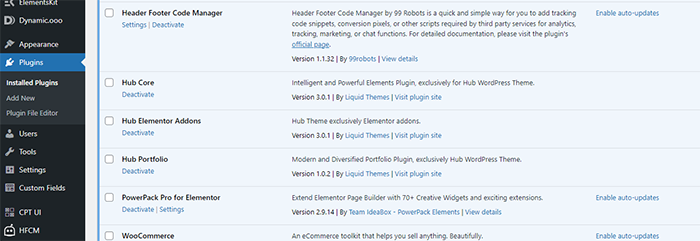
Check Plugin Conflict

Step 2: Plugin conflict means checking to see if any other plugins you have installed on your website are causing conflicts or issues with Elementor. Here’s how to check for plugin conflicts:

  1. Deactivate all of the plugins on your website except for Elementor.
  2. Try using Elementor again to see if the issue persists. If the issue is resolved, it means that one or more of the plugins you deactivated were causing a conflict with Elementor.
  3. Reactivate each plugin one at a time, testing Elementor after each activation to see if the issue returns.
  4. If the issue returns after activating a particular plugin, that plugin is likely causing a conflict with Elementor. You can try reaching out to the plugin developer for assistance or consider finding an alternative plugin.
check-plugin-conflict

Upgrade PHP Version

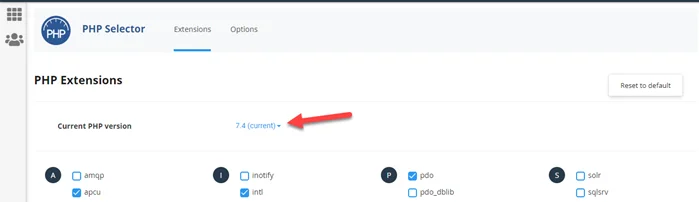
Step 3: Make sure the website is running on the latest PHP version. You can check it in your hosting account or ask hosting support to upgrade the PHP version.

Upgrade Your PHP Version

Increase Memory Limit

Step 4: To check and increase the memory limit you need to visit the website file manager. here is some step you need to follow:

  1. Open the Website File Manager or Install the file manager plugin.
  2. Open the wp-config file
  3. edit the line

Browser Extension or Addon

Step 5: Sometimes too many extensions are installed on the browser such as ad blockers. You can try to switch browsers to fix it.

By following these steps, you should be able to overcome the “Elementor stuck on Loading Screen” problem and continue building your website without any interruptions.

Now, here’s an interactive question for you: Have you ever encountered issues with Elementor getting stuck on the loading screen? If so, how did you resolve it?

Share your experiences and solutions in the comments below, so others can benefit from your insights!

If you enjoyed this post, please subscribe to our YouTube channel. You may also find us on TwitterPinterest, Instagram, and Facebook.

How to turn off Windows 10 updates permanently? 

Are you turn off  Windows 10 updates permanently?

Automatic updates keep the PC system secure and stable. Automatic updates make your life easier and your system works smoothly. The updates also introduce the latest Windows 10 features and improvements. If the computer is manually updated when you are working on your PC, the update can interrupt.  Automatic updates create many problems and become a cause of headaches. If you want to stop permanently all the updates on your PC, is the current solution “Disabled” the updates?

Click Here Upgrade to Windows 10 for Free

In this article, we’ll share proven ways to turn off Windows 10 updates permanently. 

Disable Windows 10 Update using Windows Start Button

You can permanently disable the Windows 10 update by following these steps:

Step 1 Go to the “Windows start” button

Step 2 Type “Services” and open the PC services settings list

Step 3 Scroll down and double-click on “Windows update”

Step 4″ General tab” open in properties 

Step 5 Select “Disabled” from the startup type dropdown menu. Done, update disable permanently on your PC. Restart your PC.

Disable Windows 10 Update using Services.msc

You can permanently disable the Windows 10 update by following these steps:

Step 1 Press the “Windows + R” keyboard shortcuts

Step 2 Type “Services. msc” and hit enter and the Windows 10 services list opens

Step 3 Scroll down and double-click on “Windows update” in the services list.

Step 4 Open the “General” tab in properties and select “Disabled“ from the startup type dropdown menu, then press “Apply”.

Step 5 Restart your PC.

We hope this article helped you learn new ways to turn off the Windows 10 update permanently.

If you enjoyed this post, please subscribe to our YouTube channel. You may also find us on Twitter, Pinterest, Instagram, and Facebook.

How to Upgrade to Windows 10 for Free?

Are you looking for the best way to upgrade to Windows 10 for free?

Open the download page> Download and open file> Accept license terms> Click on upgrade this PC> Install> Setting> Windows Update > Click on Activation.

First, install Windows 10 for free without spending time.

Windows 10 is a great operating system that is constantly updated with new features and improvements. There are a few things that you wanted to do to upgrade to Windows 10.

The first thing is to go to the Microsoft website and sign up for the free upgrade. After you have upgraded, make sure that you back up your data because Windows 10 is a different operating system.

Click Here: Turn Off Windows 10 Updates

Windows 10 is a Microsoft operating system used for personal computers, talent, and other internet devices. Windows 10 was released in July 15, 2015.the direct successor of Windows 8.1.

In this article, I am showing you how to upgrade to Windows 10 for free.

Let’s get started!

Install Windows 10

To get started, one vital chat to keep in mind is that you need a license to install Windows 10. You can easily upgrade from Windows 7 and Windows 8.1.

Here are a few steps for upgrading Windows 10 for free.

Step 1 Open the Windows 10 download page

Step 2 Click on the “Download Tool Now

Step 3 When the download is complete, open the download file and accept the license terms.

It gives you two options:

Click on “Upgrade this PC now and then go to Next

Select “Keep personal files and apps

Step 4 Click on the “install tab” and wait (it will take some time to install)

Step 5 When it is installed, open Settings

 Step 6 Windows Update

Step 7 Click on “Activation” (to activate your Windows 10 digital license….)

Then, input your authentic Windows 7 and Windows 10 keys if your previous Windows version is not activated.

We hope this article helped you upgrade to Windows 10 for free.

If you enjoyed this post, please subscribe to our YouTube channel. You may also find us on Twitter, Pinterest, Instagram, and Facebook.

How to Change Mouse Size and Color in Windows 10?

I am telling you how to change the mouse size and color in Windows 10 and 11.

Go to Window Start > Setting > Devices > Mouse > Adjust mouse and cursor size > Change pointer size > Change pointer color

With Windows 10, you can easily change the size and color of your mouse.  You can change the color and size in a few minutes.  

Click Here: Zoom in and Zoom out on Chrome

Here are the steps. You can follow these steps to increase and decrease the mouse size to create its own custom color for the mouse.

Step 1:  First, go to “Window Start” 

Step 2: Open the “Setting” 

Step 3:  Click on “Devices” in the setting list

Step 4: Right-click on the “Mouse” in the sidebar menu

Step 5: When it opens go to the left side of the page with the mouse. Here shows the “adjust mouse and cursor size” option, Click on it.

Step 6: Drag the mouse and “change pointer size” whose perfect for you

Step 7: Under the “Change Pointer Color” Label, You will find 4 different pointer color options. You can choose any color of the mouse.

  • 1st pointer indicates the White pointer color
  • 2nd shows the back pointer  color
  • 3rd Pointer options indicate inverted color 
  • 4th shows different custom colors (you can pick any color for the mouse cursor)

In conclusion

Change your mouse color and size easily in Windows 10 by following the above tips. You can download your own favorite third-party mouse pointers from Windows 10. Now, your mouse is easier to use, and it becomes helpful after making a smaller and bigger colorful mouse.

Are you ready to give your Windows 10 interface a fresh look and feel? Share with us in the comments below which mouse size and color you plan to choose

We hope this article helped you learn new ways to Change Mouse Size and Color in Windows 10 and 11.

If you enjoyed this post, please subscribe to our YouTube channel. You may also find us on Twitter, Pinterest, Instagram, and Facebook.

Get Professional Websites