Iram S. is a Content Manager who has written over 200 articles for Mc Starters. Her skills in SEO, analytics, and attention to detail have helped her create excellent content on various topics like Technology. She also enjoys writing about cooking and clothing brands. She lives in Pakistan and likes learning new things in her free time.
Are you looking for the best way to zoom in and out on Chrome?
Zoom in and Zoom out on Chrome
When using a computer or laptop, your website content may look too big or too small, and if you want it in default size. You can’t see small text on the Chrome browser and want to zoom in. Zoom in to make the larger text on your screen. You need to follow the steps below. You can zoom in and out on Chrome with the mouse and keyboard.
In this article, I am going to tell you how to zoom in and out on Chrome.
Zoom In using the keyboard
First, open the Chrome browser.
Press Ctrl and + (plus) to Zoom In.
To return to the default size Press “Ctrl and 0” Together.
Zoom In using Mouse
First, open a Chrome browser.
Hold Ctrl and Move the Wheel Scroll Up to Zoom In.
To return to the default size Press “Ctrl and 0” Together.
Zoom Out using the keyboard
First, open the Chrome browser.
Press Ctrl and – (minus) to zoom out.
To return to the default size Press “Ctrl and 0” Together.
Zoom Out using Mouse
First, open a Chrome browser.
Hold Ctrl and Move Wheel Scroll down to Zoom In.
To return to the default size Press “Ctrl and 0” Together.
In conclusion, learning how to zoom in and zoom out on Chrome can significantly improve your browsing experience and make it more convenient to navigate through web pages. By using the various methods mentioned in this blog, you can easily adjust the zoom level according to your preferences and ensure that the content is displayed just the way you want it.
How do you prefer to zoom in and out while using Chrome? Feel free to share your thoughts and preferences in the comments section below! Happy browsing!
We hope this article helped you learn new ways to zoom in and out on Chrome.
Are you looking for the best way to resolve the Elementor loading problems?
Elementors can sometimes encounter loading issues that can affect the performance of your website.
Hire an Elementor Expert to solve all Elementor loading problems.
Table of Contents
In this article, I am sharing the 7 essential steps to resolving Elementor loading issues, so your website runs smoothly and efficiently.
Elementor loading issues can be caused by:
Insufficient hosting plan
Too many active widgets
Plugin or theme conflict
Corrupted files
Update Elementor and WordPress
Ensure Elementor and WordPress are up to date.
Update Elementor plugin:
Go to Dashboard > Plugins > Installed Plugins.
Click on the “Update Now” link.
Wait for the update process to be completed.
Check for Plugin Conflicts
If Elementor editor is not loading, deactivate all plugins except Elementor. Reactivate one by one until error reappears. Deactivate the plugin that caused the error and contact the developer for help.
This will reduce file size and improve loading times for your website and Elementor.
Clear Elementor and Browser Cache
Cached Elementor data can conflict with the latest version, causing loading issues. To clear the cache, go to Elementor > Tools > Clear Cache in your WordPress dashboard.
Increase Apache Service Limit
If the Elementor editor doesn’t load, add these codes to .htaccess to increase the Apache server limit:
Ensure your hosting plan has enough CPU, memory, and storage for your website.
If loading issues persist, upgrade your hosting plan.
Contact your hosting provider for help to optimize server resources.
Optimized server resources ensure Elementor loads smoothly.
Check the PHP Version of Your Site
To check your PHP version:
Log in to your hosting account.
Look for the PHP settings or the PHP configuration section.
Check the currently installed PHP version.
Update to a more recent version if needed.
Updating PHP can improve Elementor performance and compatibility; resolving any loading issues caused by outdated PHP.
Reach out to Elementor Support
If you still have Elementor loading issues after following the steps above, please contact Elementor support. Provide them with details about your website and the steps you’ve taken.
In Conclusion
Resolving Elementor loading problems is crucial for ensuring optimal website performance. You can address issues related to hosting, plugin conflicts, image optimization, cache clearing, server resource optimization, and PHP version updates, and seek support from Elementor. Taking these steps will help you overcome Elementor loading problems and create a smoother and more efficient website-building experience.
Remember to stay proactive in maintaining your website’s performance and reach out to professionals when needed.
What are the essential steps to resolve Elementor loading issues?
Essential steps to resolve Elementor loading issues include checking compatibility, disabling conflicting plugins, optimizing images, clearing cache, optimizing server resources, updating the PHP version, and seeking support from Elementor if needed.
How can I check if elementor compatibility issues are causing loading problems?
To check if Elementor compatibility issues are causing loading problems, ensure that your WordPress version, Elementor plugin, and other related plugins are up-to-date and compatible. Update them if necessary.
Which plugins commonly conflict with Elementor and cause loading issues?
While the specific conflicting plugins may vary, some common plugins known to cause conflicts with Elementor and lead to loading issues include caching plugins, minification plugins, and certain optimization plugins. Consider deactivating such plugins to troubleshoot the problem.
What should I do if Elementor is not loading properly on my website?
If Elementor is not loading properly on your website, start by deactivating all non-essential plugins and switching to a default WordPress theme. If the issue persists, clear Elementor cache, optimize server resources and seek professional support if needed.
How can I optimize the loading speed of the Elementor on my website?
To optimize the loading speed of Elementor on your website, ensure that your images are properly resized and compressed, consider using a caching plugin, minify CSS and JS files, and optimize your server resources for improved performance.
Are there any specific file types that can cause slow loading in Elementor?
While any large or unoptimized files can contribute to slow loading in Elementor, images and videos are often the primary culprits. Optimize your images by resizing, compressing, and using efficient file formats like WebP to improve loading times.
How do I clear the Elementor cache to resolve loading issues?
To clear the Elementor cache, go to the WordPress dashboard, navigate to Elementor > Tools > General, and click on the “Clear Cache” button. This will remove any cached data and may help resolve loading issues caused by outdated or conflicting cached content.
| Is there a recommended PHP memory limit for optimal Elementor loading?
While the recommended PHP memory limit may vary depending on your website’s requirements, it’s generally recommended to set the limit to at least 256MB or higher for optimal Elementor loading performance. Check your hosting provider’s documentation for specific instructions.
Elementor Pro/free is a powerful page builder that allows you to build stunning websites with ease. However, like any other tool, it’s not without its challenges.
In this comprehensive guide, we’ll explore the common problems that users encounter while working with Elementor and provide step-by-step solutions to troubleshoot and fix them. Whether you’re facing content issues, compatibility problems, or performance challenges, this guide has got you covered.
So let’s dive in and become experts in resolving Elementor problems!
The content issue refers to any Elementor problems or limitations related to the creation, editing, or display of content using the Elementor page builder. This could manifest as issues with text formatting, image alignment, responsive design, or other content-related aspects. Troubleshooting such issues requires a systematic approach and an understanding of Elementor’s features. Let’s explore some common content issues and their solutions:
Text Formatting Problems: If you’re experiencing issues with text formatting, such as incorrect font styles or spacing, ensure that you’re using compatible themes and plugins. Additionally, double-check the typography settings within Elementor and consider disabling any conflicting plugins that may interfere with text formatting.
Image Alignment Challenges: Incorrect image alignment can disrupt the visual appeal of your website. To fix this, make sure you’re using the appropriate column widths and alignments in Elementor. Also, check for conflicting CSS rules within your theme or other custom CSS applied to your site.
Responsive Design Glitches: Elementor provides responsive design capabilities, allowing your website to adapt to different devices. If you’re facing responsive design glitches, review your layout settings and breakpoints in Elementor. Ensure that your elements are set to behave correctly on various screen sizes.
Remember to save your changes and preview your website after implementing any fixes to verify that the content issue has been resolved.
Limitations of Elementor
While Elementor empowers you to build impressive websites, it’s essential to be aware of its limitations. Understanding these limitations can help you set realistic expectations and find appropriate workarounds when needed. Here are some common limitations of Elementor Problems:
Restricted Customization Options: Certain themes may have limited customization options when used in conjunction with Elementor. Before choosing a theme, ensure that it offers the flexibility you need to achieve your design goals. Consider using themes specifically designed to work seamlessly with Elementor.
Compatibility Issues with Plugins: Elementor is compatible with most plugins, but conflicts can occur, especially with plugins that heavily modify the website’s functionality or alter the editor environment. If you encounter compatibility issues, check for updates or reach out to the plugin’s support team for assistance.
Performance Challenges: Heavy content or complex designs can sometimes impact the performance of Elementor. If you notice slower load times or sluggishness, optimize your website by optimizing images, minimizing unnecessary animations or effects, and utilizing caching mechanisms. Additionally, consider upgrading your hosting plan for better performance.
Understanding these limitations will help you navigate potential obstacles and make informed decisions when building websites with Elementor.
How to Fix Elementor Problems
Encountering problems while working with Elementor can be frustrating, but there are several troubleshooting steps you can take to resolve them. Follow these guidelines to effectively troubleshoot and fix Elementor problems:
Update Elementor and Plugins: Outdated versions of Elementor or its associated plugins can lead to compatibility issues and bugs. Regularly check for updates and ensure that you’re using the latest versions of Elementor and its plugins to benefit from bug fixes and feature enhancements.
Disable Conflicting Plugins: Conflicts between plugins can cause unexpected behavior in Elementor. Temporarily deactivate all non-essential plugins and check if the issue persists. Gradually reactivate the plugins one by one to identify the conflicting plugin.
Clear Cache: Cached data can sometimes interfere with Elementor’s functioning. Clear the cache in Elementor by navigating to the Elementor settings in your WordPress dashboard. Look for the “Tools” tab and find the option to clear the cache. This action will refresh your Elementor content.
Check for Theme Compatibility: Some themes may not fully support Elementor or have specific compatibility issues. Verify that your theme is compatible with the latest version of Elementor and consider reaching out to the theme developer for guidance.
Reach Out to Elementor Support: If you’ve exhausted all troubleshooting options and are still experiencing problems, don’t hesitate to contact Elementor’s support team. They have dedicated professionals who can provide personalized assistance and help resolve complex issues.
By following these troubleshooting steps, you’ll be well-equipped to tackle various Elementor problems and ensure a smooth experience while building your website.
Why is Your Elementor Website Not Working?
There can be various reasons why your Elementor website is not working as expected. Let’s explore some common causes of Elementor problems:
Conflicts with Plugins or Themes: Incompatibilities between Elementor and other plugins or themes can lead to malfunctions. Check for conflicts by temporarily deactivating plugins or switching to a default WordPress theme to isolate the issue.
Outdated Versions: Ensure that both Elementor and WordPress are up to date. Outdated versions may lack necessary bug fixes and security patches, which can affect Elementor’s functionality.
JavaScript Errors: JavaScript errors on your website can interfere with Elementor’s performance. Use browser developer tools to identify any JavaScript errors and address them accordingly.
Server-Related Issues: Problems with your server configuration or settings can impact Elementor’s operation. Check with your hosting provider to ensure there are no server-related issues causing the problem.
By troubleshooting these potential causes, you can identify the specific issue affecting your Elementor website and take appropriate corrective measures.
How to Clear Elementor Cache
Clearing Elementor’s cache can help resolve certain issues and ensure that your changes are immediately visible. Follow these steps to clear the Elementor cache problem:
Access your WordPress dashboard and navigate to Elementor’s settings.
Look for the “Tools” tab and click on it.
In the Tools section, you’ll find an option to clear the cache.
Click on the “Clear Cache” button to delete the cached data.
After clearing the cache, refresh your Elementor content to see the changes take effect.
Certainly! Here’s the continuation:
Safe Mode in Elementor
Safe mode in Elementor is a useful feature that allows you to troubleshoot issues by temporarily deactivating all plugins and using a default WordPress theme. By enabling safe mode, you can determine if a specific plugin or theme is causing the problem. Here’s how to activate safe mode in Elementor:
Access your WordPress dashboard and navigate to the Elementor settings.
Look for the “General” tab and click on it.
Scroll down until you find the “Safe Mode” option.
Toggle the switch to enable safe mode.
When safe mode is activated, Elementor will deactivate all plugins except itself and switch to a default WordPress theme. This helps you identify whether the issue is related to a specific plugin or theme. If the problem no longer occurs in safe mode, you can narrow down the cause and take appropriate action.
CSS Effects for Elementor
CSS effects for Elementor allow you to enhance the visual appeal of your web pages by adding interactivity, transitions, and engaging visuals to Elementor elements. With the help of Cascading Style Sheets (CSS), you can apply various effects to make your designs stand out. Here are some examples of CSS effects you can implement in Elementor Pro problems:
Hover Effects: Apply hover effects to elements such as buttons, images, or icons to create interactive and engaging user experiences. Hover effects can include color changes, animations, or transitions.
Parallax Effects: Parallax scrolling creates an illusion of depth by making background elements move at a different speed than the foreground elements. This effect adds a sense of dimension and visual interest to your web pages.
Fade-in and Fade-out Effects: Utilize CSS animations to create smooth fade-in and fade-out effects for elements such as text blocks or images. This effect can add a touch of elegance and professionalism to your design.
Transform Effects: Apply transformations like scaling, rotating, or skewing to elements to create dynamic and eye-catching effects. This can be useful for showcasing product images or creating unique visual elements.
By incorporating CSS effects into your Elementor designs, you can enhance the aesthetics and user experience of your website.
How to Protect Content in Elementor
Protecting content in Elementor is important, especially if you want to restrict access to specific sections or pages. Elementor provides built-in features and compatible third-party plugins that offer content protection options. Here’s how you can protect your content in Elementor:
Password Protection: Elementor allows you to set passwords for individual sections or pages. This way, only users who have the correct password can access the protected content.
User Role-Based Access Control: use plugins that offer user role-based access control. With these plugins, you can define user roles and assign specific permissions, ensuring that only allowed users can view or edit certain content.
Third-Party Content Restriction Plugins: Explore third-party plugins that specialize in content restriction and access control. These plugins provide additional features and flexibility for protecting your Elementor content.
Consider the sensitivity of your content and the level of protection you require when choosing the method for content protection in Elementor.
Checking Elementor Error Log
Elementor itself does not provide a built-in error log feature. However, you can still check your website’s error log to diagnose any issues related to Elementor. Here are two common methods to access the error log and solve Elementor problems:
Error Log Viewer in cPanel: If your hosting provider offers cPanel, you can access the error log viewer tool. Log in to your cPanel account, navigate to the “Metrics” section, and locate the error log viewer. This tool displays the server’s error log, allowing you to identify any Elementor-related errors.
Server Error Log Files via FTP or SSH: Connect to your website’s server using FTP or SSH. Look for the error log files, typically located in the “logs” directory. Download and open the error log files to examine any errors related to Elementor.
Analyzing the error log can provide valuable insights into the root causes of issues and help you troubleshoot Elementor errors effectively.
In conclusion, this guide has provided you with a comprehensive understanding of troubleshooting and fixing common Elementor problems. We’ve explored content issues, limitations, and various solutions to overcome challenges while using Elementor. Remember to keep your plugins and themes updated, clear the cache when necessary, and reach out to Elementor support or relevant plugin developers for help. By following the steps outlined in this guide, you’ll be equipped with the knowledge and tools to ensure a smooth Elementor experience.
Please let me know what specific information or guidance you are looking for, and I’ll be glad to help you create a comprehensive and engaging article about Elementor.
FAQs
What is the content issue in Elementor?
The content issue in Elementor refers to any problem or limitation related to the creation, editing, or display of content using the Elementor page builder.
What are the limitations of Elementor?
Elementor has limitations such as restricted customization options for certain themes, compatibility issues with plugins, and performance challenges with heavy content or complex designs.
How do I fix Elementor problems?
To fix Elementor’s problems, you can update Elementor and plugins, disable conflicting plugins, clear cache, check for theme compatibility, and seek help from Elementor support.
Why is my Elementor website not working?
Possible reasons for Elementor website issues include conflicts with other plugins or themes, outdated versions, JavaScript errors, or server-related problems.
How do I clear the Elementor cache?
To clear the Elementor cache, go to the Elementor settings in your WordPress dashboard, navigate to the “Tools” tab, and choose the option to clear the cache.
In the fast-paced world of web design, time is of the essence. As a web designer, it’s crucial to streamline your workflow and increase productivity. One powerful tool that can help you achieve these goals is Elementor, a popular page builder plugin for WordPress.
Elementor allows you to design visually stunning websites with its intuitive drag-and-drop interface, but did you know that there are also shortcuts you can use to save even more time? In this article, we will explore these time-saving secrets and how they can revolutionize the way you work.
Getting Started with Elementor
Before we dive into the shortcuts, let’s first understand the basics of Elementor. It is a user-friendly plugin that can be easily installed and set up on your WordPress website. Once installed, Elementor seamlessly integrates with your existing workflow, allowing for efficient design and customization.
The Power of Elementor Shortcuts
Now, let’s explore why using shortcuts in Elementor is so beneficial. By utilizing shortcuts, you can significantly speed up your design process and increase your overall productivity. These shortcuts allow for quick and easy access to important features and functions, making your workflow seamless and efficient.
Essential Keyboard Shortcuts in Elementor
To truly harness the power of Elementor shortcuts, it’s important to familiarize yourself with the available keyboard shortcuts. Here is a comprehensive list of some of the most useful keyboard shortcuts:
Ctrl + S: Save changes
Ctrl + Z: Undo
Ctrl + Y: Redo
Ctrl + C: Copy style
Ctrl + V: Paste style
Ctrl + B: Bold text
Ctrl + I: Italicize text
By incorporating these keyboard shortcuts into your workflow, you can expedite your design process and achieve impressive results in less time.
Time-Saving Drag and Drop Techniques
Elementor’s drag-and-drop functionality is a game-changer for web designers. It allows you to effortlessly move and arrange elements on your page, saving you the hassle of manually coding each element’s position. To optimize your drag-and-drop operations, here are some tricks and techniques:
Hold Shift: Hold the Shift key while dragging an element to constrain its movement horizontally or vertically.
Duplicate: Simply drag and drop an element while holding the Alt key to create a duplicate, saving you from recreating similar elements from scratch.
Copy and Paste: Copy and paste elements, rows, or entire sections within Elementor using the Ctrl + C and Ctrl + V shortcuts, respectively.
These drag-and-drop techniques will boost your efficiency and allow you to bring your creative vision to life with ease.
Maximizing Efficiency with Template Shortcuts
Pre-designed templates are a boon to web designers, as they save valuable time that would have otherwise been spent creating designs from scratch. Elementor offers a wide range of design templates that can be customized to suit your specific needs. Here’s how you can make the most of these templates with shortcuts:
Right-Click: Right-click on a template to quickly apply it to your page.
Ctrl + Right-Click: Hold the Ctrl key while right-clicking on a template to open it in a new tab, allowing you to compare multiple templates side by side.
By utilizing these shortcuts, you can effortlessly browse and customize templates, giving you a head start on your design projects.
Efficient editing is essential for a smooth workflow, and Elementor provides shortcuts to help you navigate and change elements quickly. Here are some useful shortcuts for quick editing:
Tab: Use the Tab key to navigate through different elements on your page, making it easy to select and edit specific elements.
F2: Press F2 to rename an element, allowing for easy organization and identification.
Ctrl + D: Duplicate the selected element with a simple Ctrl + D, saving you from manually creating similar elements.
With these quick editing techniques, you can make modifications swiftly and effortlessly, ensuring that your design process remains efficient.
Advanced Styling Shortcuts in Elementor
Elementor offers advanced styling options that allow you to create visually stunning designs. By utilizing shortcuts, you can further enhance your design process and achieve incredible results in less time. Here are some advanced styling shortcuts to consider:
Ctrl + Up/Down Arrow: Use this shortcut to nudge an element up or down, allowing for precise positioning.
Alt + Shift: Hold the Alt + Shift keys while resizing an element to maintain its aspect ratio, preserving the design integrity.
Ctrl + T: Apply a CSS filter to an element, providing eye-catching visual effects.
Speeding Up the Publishing Process
After designing a website, the next step is publishing and launching it for the world to see. Elementor shortcuts can help automate this process, saving you time and effort. Here are some quick tips for faster publishing and launching of websites:
Ctrl + P: Press Ctrl + P to open the Elementor print preview mode, giving you a quick glimpse of how your website will look when printed.
Ctrl + Shift + P: Use Ctrl + Shift + P to enter the Elementor proofreading mode, where you can check for spelling and grammar errors.
These shortcuts streamline the publishing process and ensure that your website is ready for the world to explore.
Collaboration and Workflow Optimization
Collaboration is vital in web design, and Elementor offers features that enhance teamwork. By incorporating shortcuts into your collaborative workflow, you can optimize efficiency and productivity. Here’s how shortcuts can contribute to collaboration:
Ctrl + S: Share your design changes instantly with team members by using the Ctrl + S shortcut, which syncs your design in real-time.
Ctrl + E: Enable live editing mode, allowing multiple users to work on the same design simultaneously.
By utilizing these shortcuts, you can foster seamless collaboration and achieve better results as a team.
Elementor Shortcuts for Responsive Design
In today’s mobile-centric world, responsive design is crucial. Elementor shortcuts can speed up your responsive design tasks, ensuring that your website functions seamlessly across various devices. Here are some shortcuts to help you create a responsive design:
Ctrl + Alt + F: Use this shortcut to access the responsive editing mode in Elementor, where you can make device-specific adjustments.
Ctrl + Shift + K: Toggle the keyboard navigation menu to easily navigate and edit different breakpoints in your design.
These shortcuts make responsive design a breeze, allowing you to optimize user experience across devices more efficiently.
SEO Optimization Made Faster
Search engine optimization (SEO) plays an important role in driving organic traffic to your website. Elementor shortcuts can expedite optimizing your website for search engines. Here’s how:
Ctrl + Alt + C: Easily access Elementor’s heading tag options, ensuring proper hierarchy for improved SEO.
Ctrl + Alt + T: Quickly toggle the visibility of title, meta, and other SEO tags, allowing you to preview and optimize them effortlessly.
By utilizing these shortcuts, you can enhance your website’s visibility and improve its search engine rankings in less time.
Troubleshooting and Debugging Shortcuts
In every web designer’s journey, troubleshooting and debugging are inevitable tasks. Elementor shortcuts can simplify identifying and resolving issues quickly. Here are some handy shortcuts for troubleshooting:
Ctrl + /: Toggle the Elementor Navigator panel to summarize all elements on the page and simplify the identification of problematic elements.
Ctrl + H: Hide a specific element temporarily to test if it is causing any issues.
By utilizing these shortcuts, you can efficiently identify and resolve issues, ensuring a smooth and error-free experience for your website visitors.
Integrating Third-Party Plugins with Elementor
Elementor integrates seamlessly with various third-party plugins, further enhancing the functionality of your website. Shortcuts can simplify integrating these plugins and expanding your design possibilities. Here’s how:
Ctrl + Alt + L: Access the library of third-party add-ons and extensions compatible with Elementor, allowing you to enhance your website’s functionality and design effortlessly.
Ctrl + Shift + A: Quickly open the WordPress admin panel and navigate to the “Add New Plugin” section, making it easy to search for and install new plugins.
By utilizing these shortcuts, you can unlock a world of possibilities and take your designs to the next level with the help of third-party plugins.
Enhancing User Experience with Elementor Shortcuts
User experience (UX) is a critical aspect of web design. Elementor shortcuts can help you optimize your designs for intuitive and user-friendly experiences. Here are some key tips to create an exceptional UX with shortcuts:
Ctrl + Alt + W: Switch to the wireframe mode in Elementor, providing a simplified view of your design and allowing you to focus on the overall layout and structure.
Ctrl + Alt + M: Toggle the Elementor Mobile Editing mode, allowing you to customize your design specifically for mobile users.
By incorporating these shortcuts into your workflow, you can ensure a seamless and delightful user experience for your website visitors.
Time Management and Project Organization
Effective time management and project organization are essential for every web designer. Elementor shortcuts can help you optimize your time and stay organized throughout your design process. Here are some strategies for time management and project organization:
Ctrl + Shift + U: Collapse or expand all sections within Elementor, allowing for a clutter-free workspace and easy navigation.
Ctrl + Alt + O: Open Elementor’s settings to customize your workspace, adjust preferences, and make your design process more efficient.
By following these strategies and using the corresponding shortcuts, you can unleash your creativity and stay on top of your tasks.
Evaluating and Improving Performance
Measuring and improving website performance is crucial for delivering optimal user experiences. Elementor shortcuts can help you evaluate and enhance your website’s performance. Here’s how:
Ctrl + Shift + W: Toggle the Performance Optimization menu in Elementor, where you can optimize various aspects of your design to ensure faster page load times.
Ctrl + Alt + R: Render your design with specific devices or resolutions to test its responsiveness and identify any performance issues.
By using these shortcuts, you can maintain a high-performing website that provides a seamless user experience.
Summary
Elementor shortcuts are powerful tools that every web designer should know and use. These time-saving secrets not only enhance productivity but also enable you to create exceptional designs in less time. By incorporating these shortcuts into your workflow, you can optimize your design process, collaborate effectively, and deliver outstanding results.
FAQs
Here are some frequently asked questions about Elementor shortcuts:
What are the must-know Elementor shortcuts for beginners?
For beginners, it’s essential to familiarize themselves with basic shortcuts such as Ctrl + S for saving changes and Ctrl + Z for undoing actions. These shortcuts provide a solid foundation for efficient design.
How can Elementor shortcuts enhance collaboration among team members?
Elementor shortcuts like Ctrl + S, which instantly syncs design changes, and Ctrl + E, which enables live editing mode, help team members collaborate seamlessly and work on the same design simultaneously.
Are there any limitations or risks associated with using Elementor shortcuts?
Elementor shortcuts are designed to enhance efficiency and productivity. However, it’s important to ensure that you use them appropriately to avoid any accidental changes or deletions.
Can these shortcuts be customized or configured based on individual preferences?
Elementor shortcuts are pre-configured and cannot be customized within the plugin. However, you can explore keyboard shortcut management options offered by your operating system to customize shortcuts globally.
Conclusion
In conclusion, Elementor shortcuts are the hidden gems every web designer should uncover. By utilizing these time-saving secrets, you can streamline your workflow, optimize your design process, and ultimately deliver exceptional websites in less time. Embrace the power of Elementor shortcuts to unlock your full design potential. Now, let’s delve deeper into your experience with Elementor and its shortcuts.
How have Elementor shortcuts improved your web design workflow?
In today’s digital age, having a visually appealing and functional website is important for businesses and individuals alike. One of the most powerful tools for creating stunning websites is Elementor. In this comprehensive guide, we will explore how Elementor can unlock your potential and help you create captivating online experiences.
Elementor is a user-friendly and feature-rich website builder for WordPress. It is a powerful plugin that enables anyone, regardless of their technical expertise, to create visually stunning websites using a drag-and-drop interface. With its extensive library of pre-designed templates and customizable elements, Elementor empowers users to build professional websites without writing a single line of code.
Unlocking Your Creativity
Elementor provides you with a highly intuitive and flexible interface, giving you full control over the design process. You can easily customize every element of your website, from headers and footers to individual sections and widgets. This level of customization allows you to bring your unique creative vision to life.
Embrace the Drag-and-Drop Experience
Elementor’s intuitive drag-and-drop interface allows you to effortlessly customize every aspect of your website. From headers and footers to individual sections and elements, you have full control over the design. By simply dragging and dropping elements onto your canvas, you can bring your creative vision to life.
Explore the Vast Library of Templates
With Elementor, you don’t have to create a design from scratch. It offers a vast library of professionally designed templates that cater to various industries and niches. Whether you need a sleek landing page, an elegant portfolio, or a robust e-commerce store, Elementor has got you covered. Choose a template that resonates with your brand and customize it to suit your unique requirements.
Elementor allows you to customize every element of your website with ease. From typography and colors to spacing and animation, you have complete control over the look and feel of your site. Its real-time editing feature ensures you can see the changes in real time, making the customization process seamless and efficient.
Enhancing Functionality
Elementor is an awesome tool that allows you to create amazing websites without any coding knowledge. But did you know that you can take your designs to the next level by adding more functionality? It’s true! With Elementor, you can easily integrate cool features like interactive animations, custom forms, and even e-commerce capabilities. The possibilities are endless! So, if you want to make your website stand out and impress your visitors, let’s dive into the world of enhancing functionality in Elementor.
Extensive Widget Library
Elementor comes with a comprehensive widget library that expands the functionality of your website. From contact forms and image galleries to countdown timers and pricing tables, the possibilities are endless. You can effortlessly add these widgets to your pages, enhancing user engagement and interactivity.
Seamless Integration with Third-Party Tools
Elementor seamlessly integrates with popular third-party tools, further extending its capabilities. Whether you need to integrate your website with an email marketing platform, a CRM system, or an e-commerce solution, Elementor provides seamless integration options. This enables you to streamline your workflow and optimize your website’s performance.
Maximizing Performance
Maximizing performance in Elementor is vital for delivering an exceptional user experience. By following the strategies outlined in this article, such as selecting lightweight themes and compatible plugins, implementing optimization techniques, and optimizing within Elementor itself, website designers and developers can achieve faster loading times and improved overall efficiency.
Lightweight and Efficient
One of the key advantages of Elementor is its lightweight nature. They build it with clean and optimized code, ensuring fast loading times and a smooth browsing experience. With Elementor, you can create visually stunning websites without sacrificing performance.
Mobile-Responsive Design
In today’s mobile-centric world, having a mobile-responsive website is essential. Elementor automatically ensures that your website looks great and functions seamlessly across all devices and screen sizes. This eliminates the need for separate mobile optimization and allows you to reach a wider audience.
Conclusion
Elementor is a game-changer for website building. With its intuitive interface, extensive customization options, and seamless integrations, it empowers individuals and businesses to unlock their full potential online. Whether you’re a seasoned developer or a complete beginner, Elementor provides the tools you need to create stunning websites that captivate and engage your audience. Embrace Elementor today and take your online presence to new heights.
What is Elementor and how does it work?
Elementor is a powerful drag-and-drop website builder for WordPress that allows you to create stunning websites without any coding knowledge. It provides a user-friendly interface where you can design and customize your website in real-time. With Elementor, you can choose from a wide range of pre-designed templates, add various elements such as text, images, videos, buttons, and more, and arrange them on your page using a simple drag-and-drop mechanism.
Is Elementor compatible with any WordPress theme?
Yes, Elementor is compatible with almost all WordPress themes. Whether you are using a free or premium theme, you can seamlessly integrate Elementor into your website and start building beautiful pages. Elementor works independently of the theme and offers its own set of design options and features. This flexibility allows you to enhance the design and functionality of your website regardless of the theme you choose.
Can I create responsive websites using Elementor?
Absolutely! Elementor is designed to help you create responsive websites that look great on all devices. It provides various responsive design settings, allowing you to adjust the appearance and layout of your website for different screen sizes. You can preview and customize how your website will look on desktop, tablet, and mobile devices, ensuring a seamless and optimized user experience across all platforms.
Does Elementor support e-commerce functionality?
Yes, Elementor supports e-commerce functionality. If you are running an online store or planning to sell products or services on your website, Elementor integrates smoothly with popular e-commerce plugins like WooCommerce.
Can I use Elementor to create multilingual websites?
Absolutely! Elementor is compatible with multilingual plugins like WPML (WordPress Multilingual Plugin) and Polylang. These plugins allow you to create websites in multiple languages and easily translate your content
In this digital age, staying connected with our loved ones has become more important than ever. Threads is a mobile app developed by Facebook that focuses on private, intimate sharing between close friends. Using Threads from Instagram, share your status, photos, and videos directly with the people on your “Close Friends” list on Facebook. The app provides a dedicated space for communication with this select group, enabling you to capture and share moments throughout your day easily.
This guide will walk you through creating an account on Threads from Instagram.
Step-by-Step Guide: Creating an Account on Threads from Instagram
Follow these steps to create an account on the Threads app using your Facebook profile:
Downloading and Installing the Threads From Instagram
To begin, ensure you have a compatible smartphone and a stable internet connection. Then, follow the steps below:
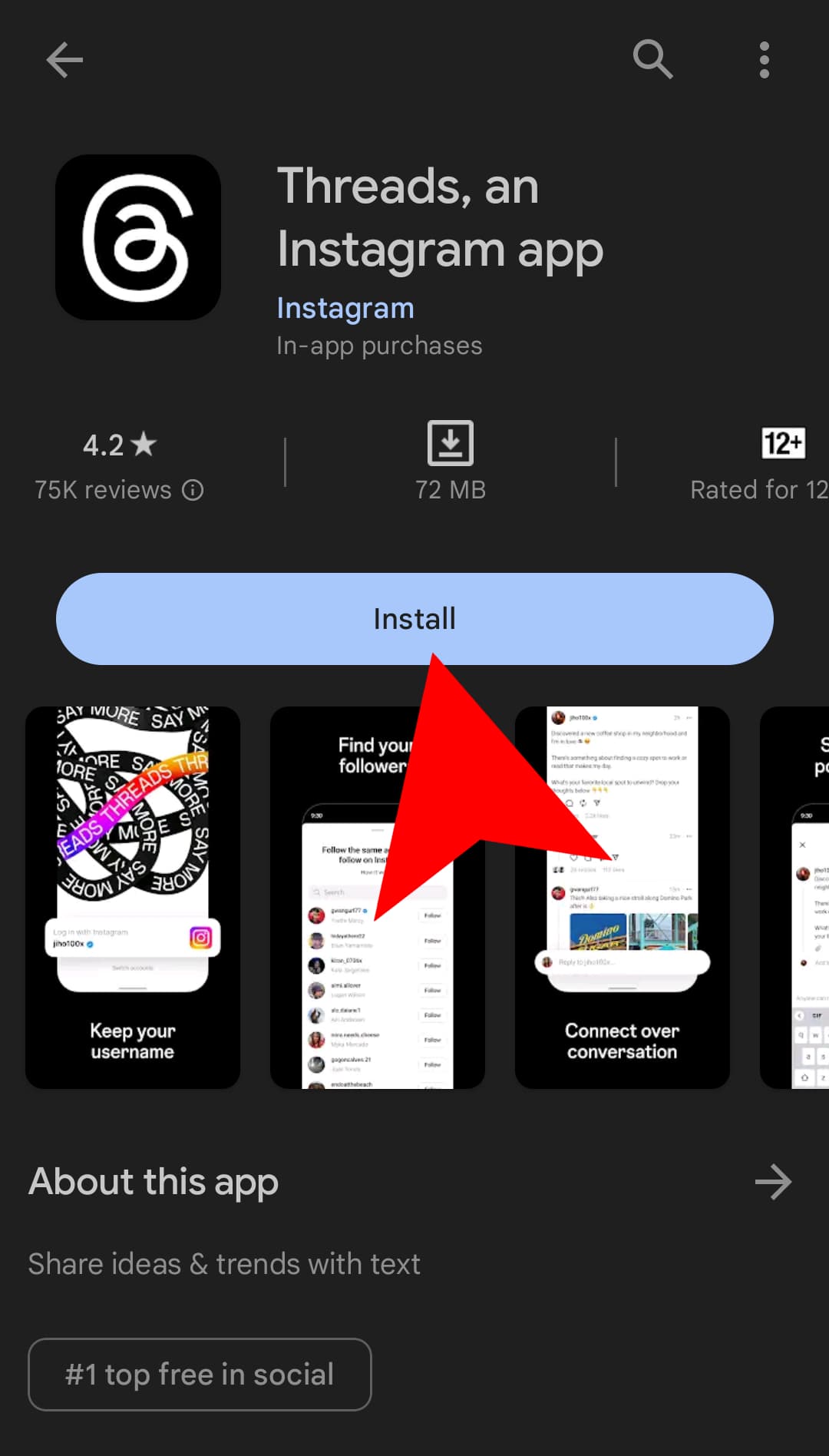
Open the App Store (iOS) or Google Play Store (Android) on your device. In the search bar, type “Threads from Instagram” and tap on the app when it appears in the search results.
Step 1: Tap the “Install” or “Get” button to download the app.
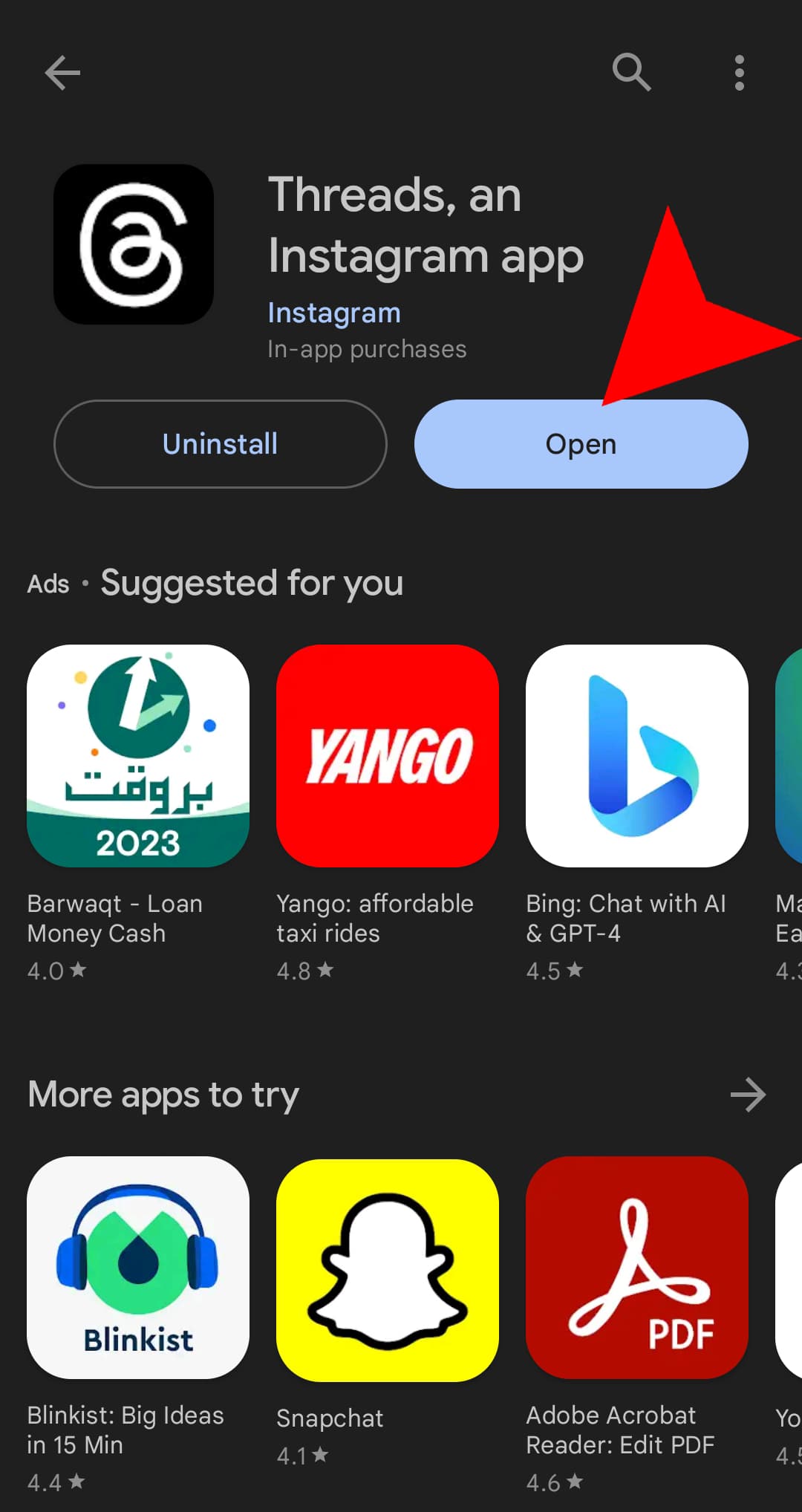
Step 2: Wait for the installation to complete, and then tap “Open” to launch the Threads app.
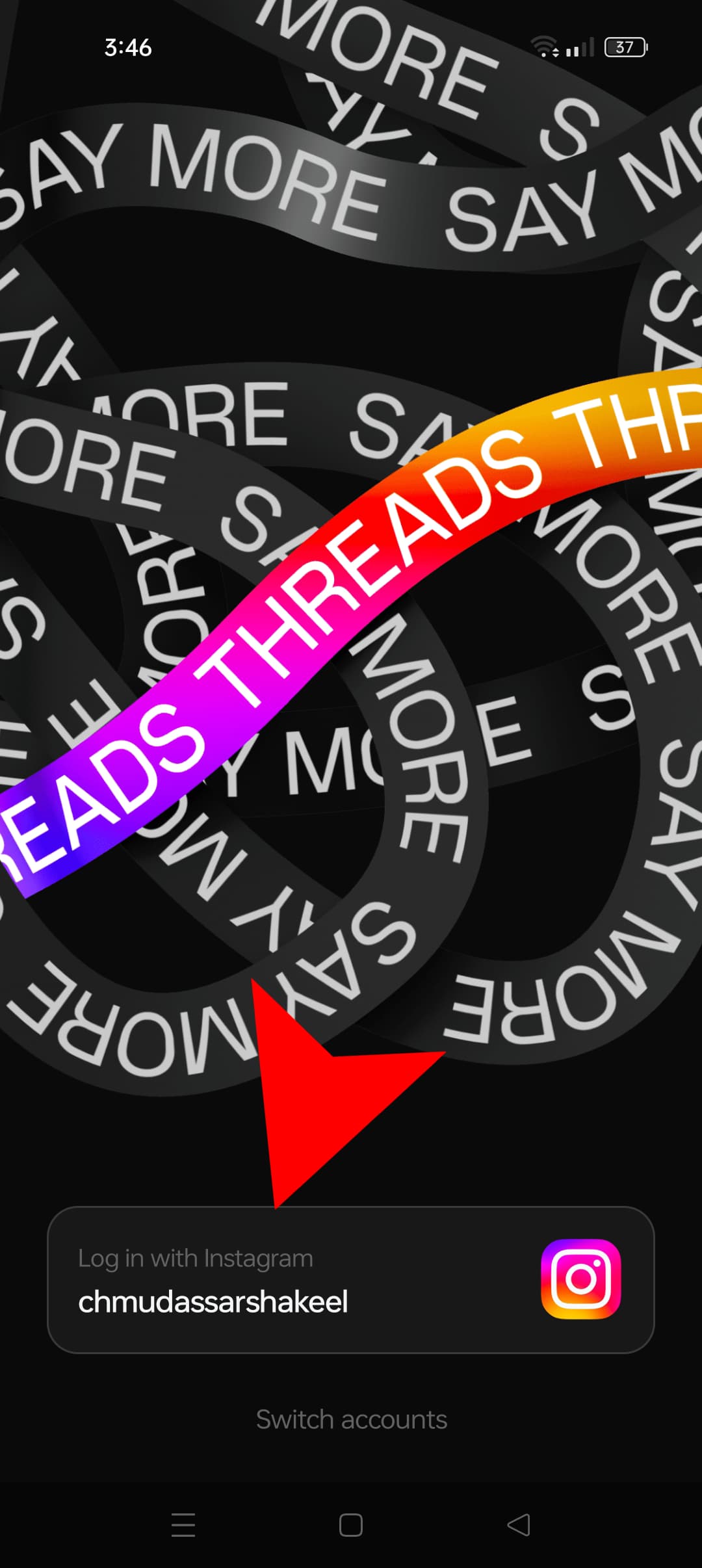
Step 3: Click on the “Sign in with Instagram” option at the bottom. This will display the Instagram account someone currently login you in to.
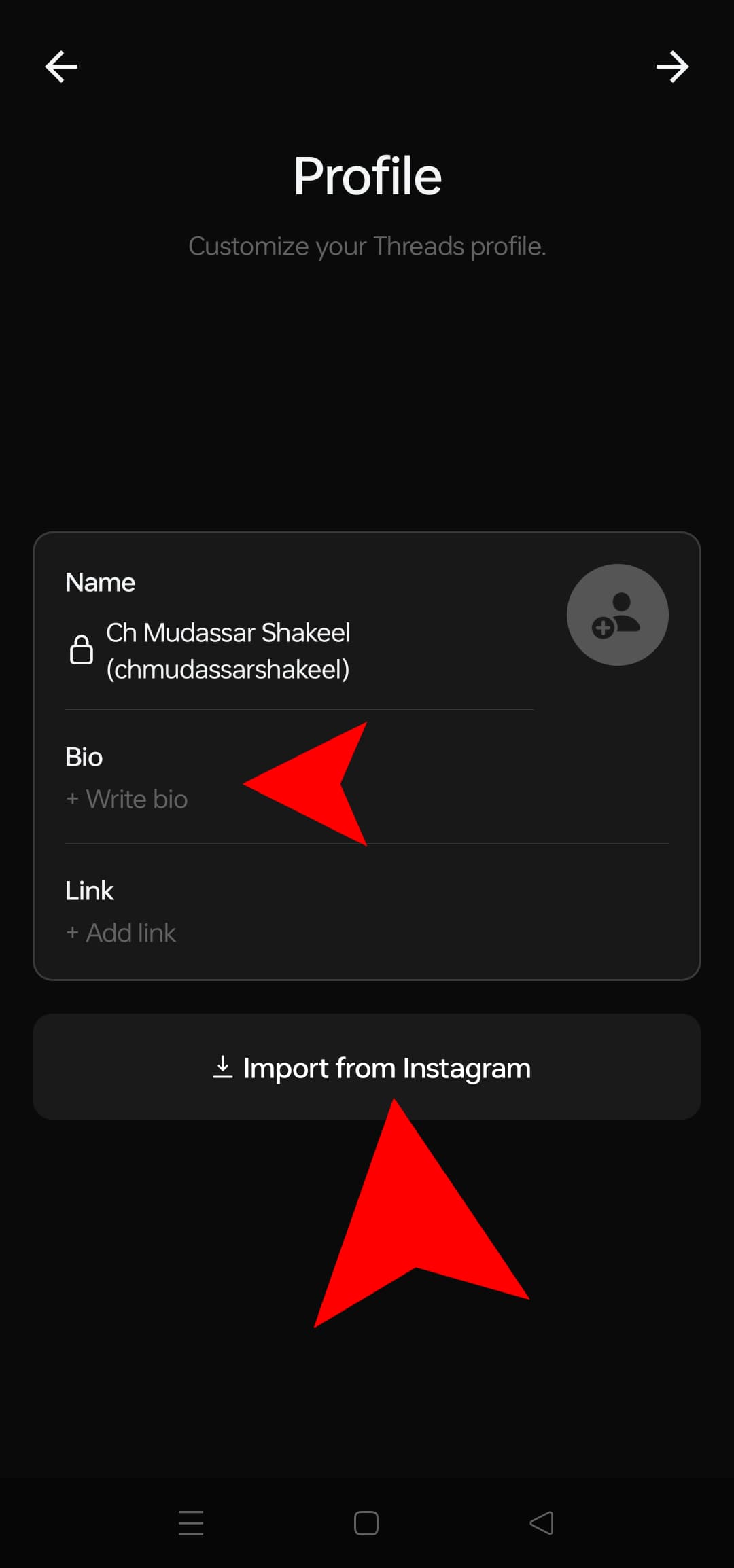
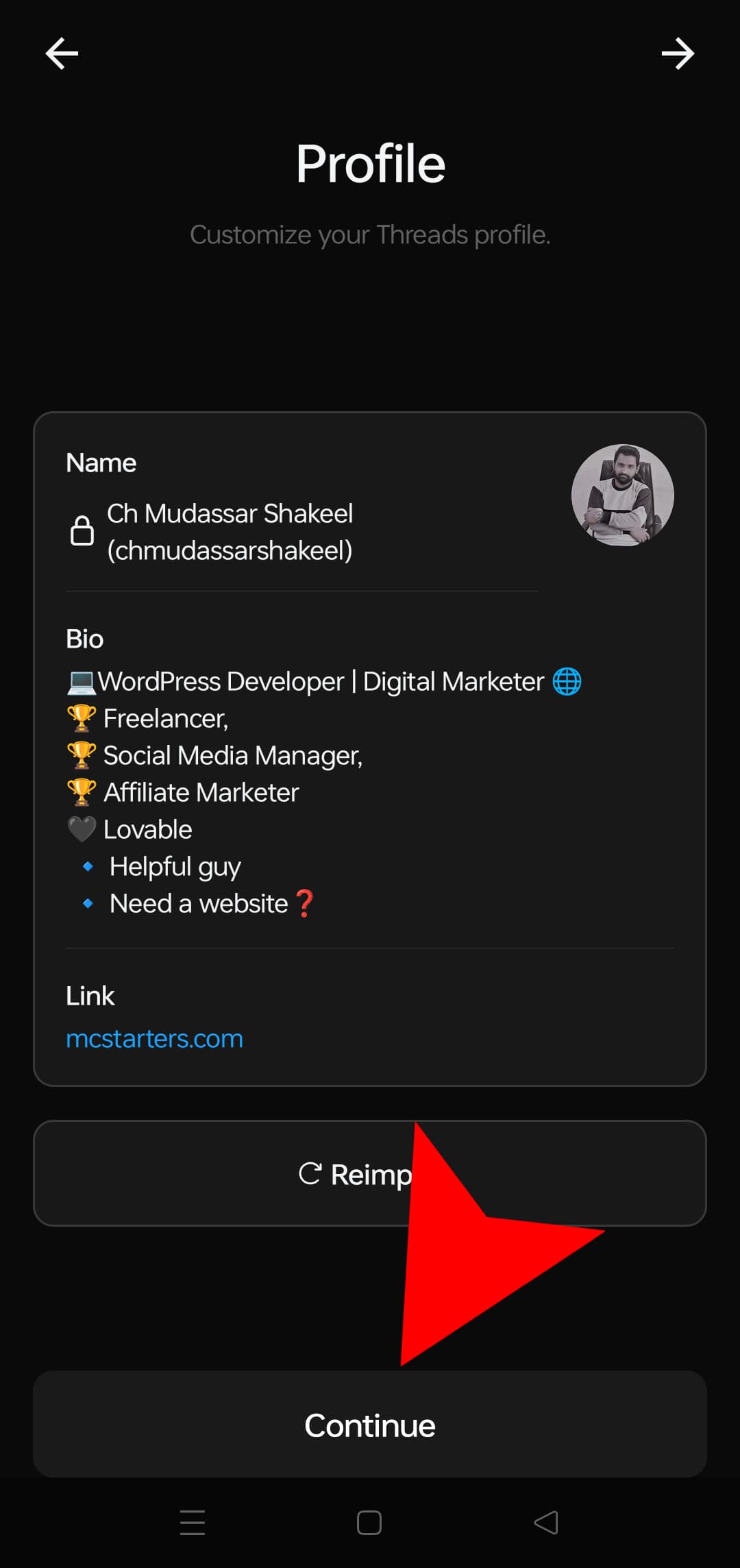
Step 4: To compose a bio for your profile, tap on the “Bio” section. You can either manually enter your desired bio or choose to import it from Instagram by tapping onthe “Import bio from Instagram” located at the bottom.
Step 5: Once you’re satisfied with your bio, simply tap “Continue” in the top right corner to save your changes.
Step 6: Choose whether you prefer to have a public or private profile by selecting the option at the top, then proceed by tapping on “Continue” at the bottom.
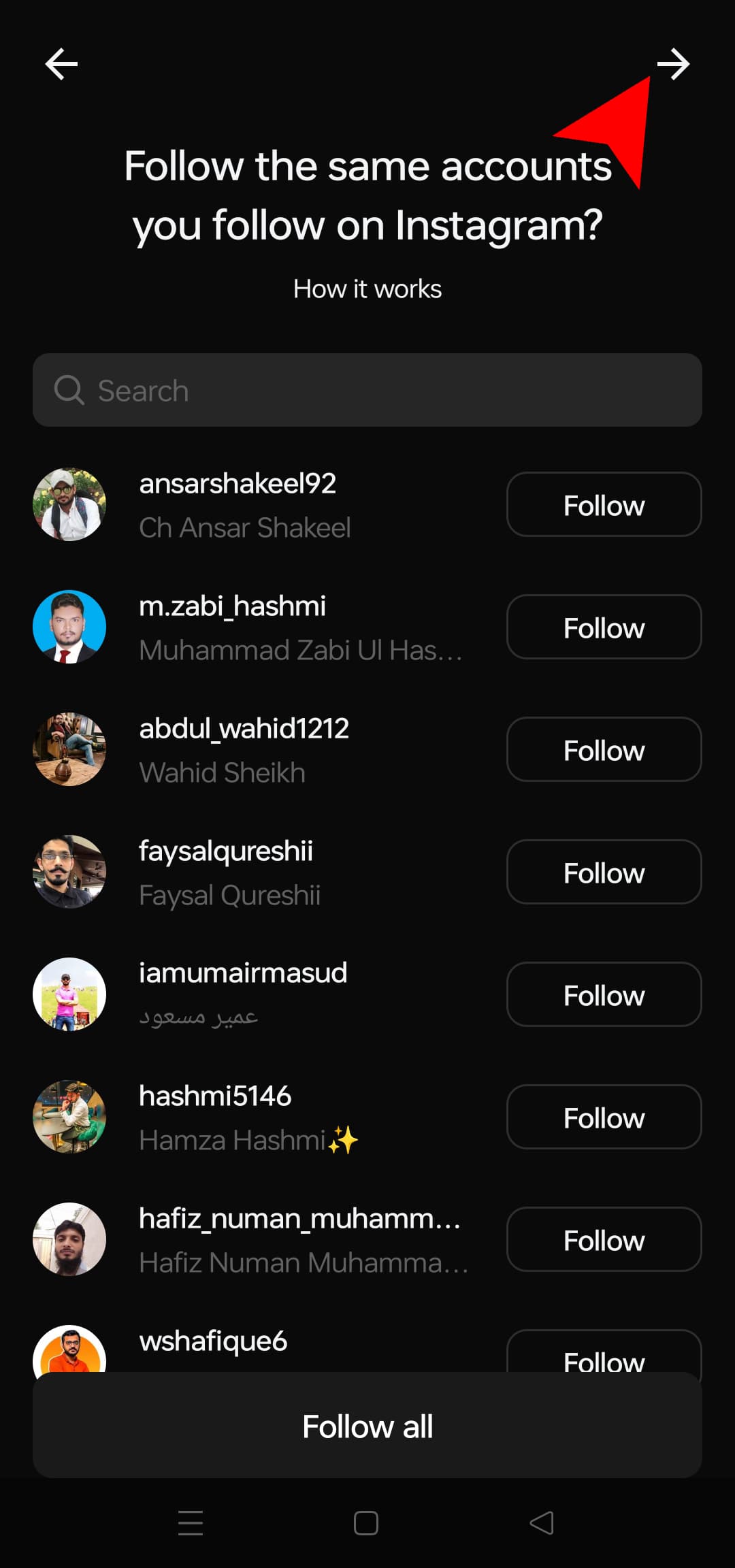
Step 7: To discover profiles you might be interested in, tap on “Following” and explore a list of suggested profiles. If you find a profile you like, simply tap on “Follow” to start following it.
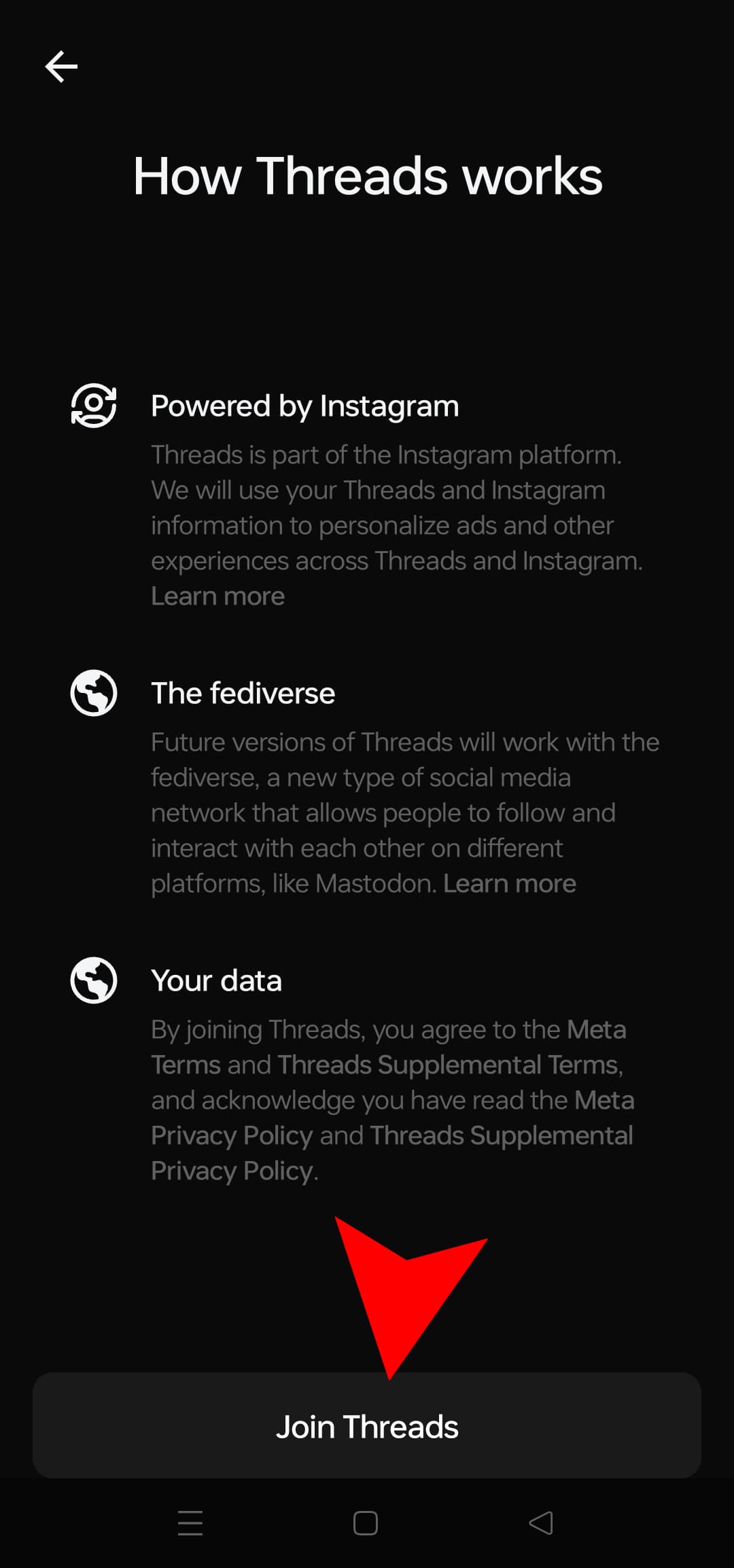
Step 8: Press “Join the Threads,”
Step 9: If you want the notification to press “Allow” and don’t want a notification press “Don’t Allow”
Step 10: Explore the app: Congratulations! You’ve successfully created an account on Threads. Take some time to explore the app’s features, such as sharing photos and videos, viewing your close friends’ updates, and using the camera to capture and share moments directly.
That’s it! You’re now ready-to-use Threads from Instagram and connect with your close friends in a more focused and private way. Enjoy your Threads experience!
In Conclusion
In conclusion, creating an account on Threads from Instagram is a straightforward process. By following the step-by-step guide outlined above, you can easily set up your account and start using the app to connect with your close friends.
What features of the Threads app from Instagram are you most excited to explore and use to connect with your close friends?