
Know Quickly:
- Click on Windows Start Menu > Setting > Devices > Mouse > Adjust Mouse and Cursor Size > Change Pointer Size Or Change Pointer Color
Are you looking for ways to change mouse size and color in Windows 10?
As we know Windows 10 has a user-friendly interface, so we can easily change the size and color of the mouse. It only takes a few minutes. Your mouse is easier to use, and it becomes helpful after making smaller and bigger colorful mouse.
In this article, we’ll share proven way to change mouse size and color in Windows 10?
Change Mouse Size and Color in Windows 10
Here are the steps. You can follow these steps to increase and decrease the mouse size to create its own custom color for the mouse.
Open Mouse Settings
Step 1: First, go to “Window Start Menu”
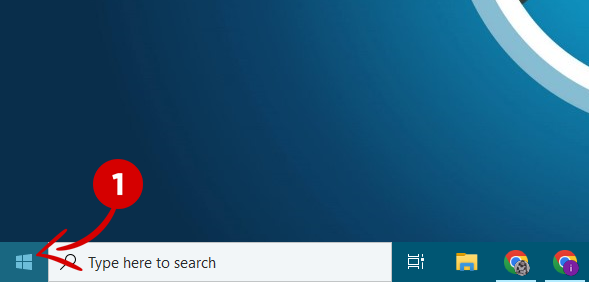
Step 2: Open the “Setting Icon”

Step 3: Click on “Devices” in the setting list
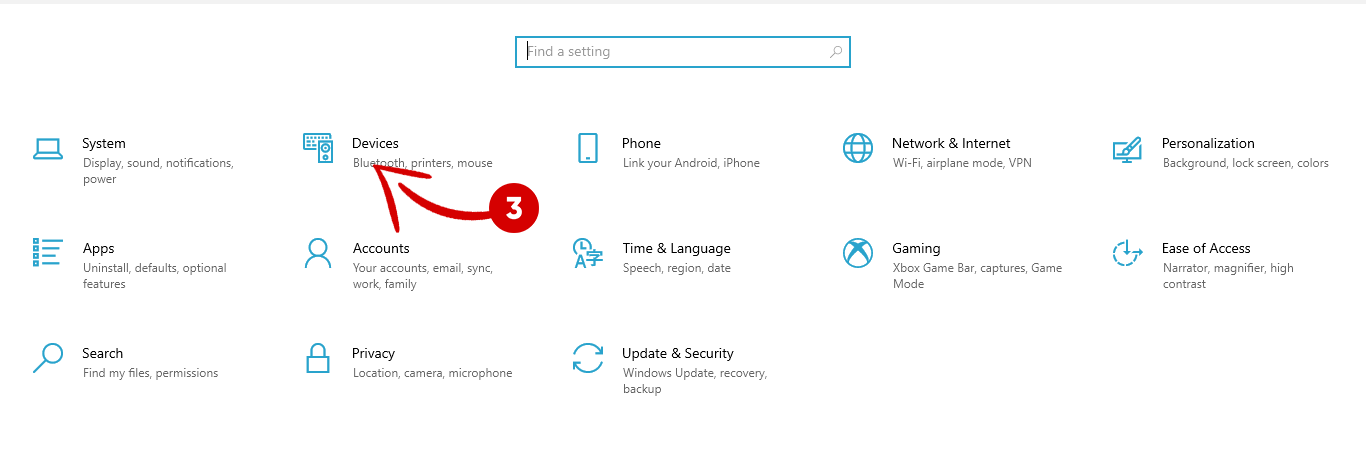
Step 4: Right-click on the “Mouse” in the sidebar menu
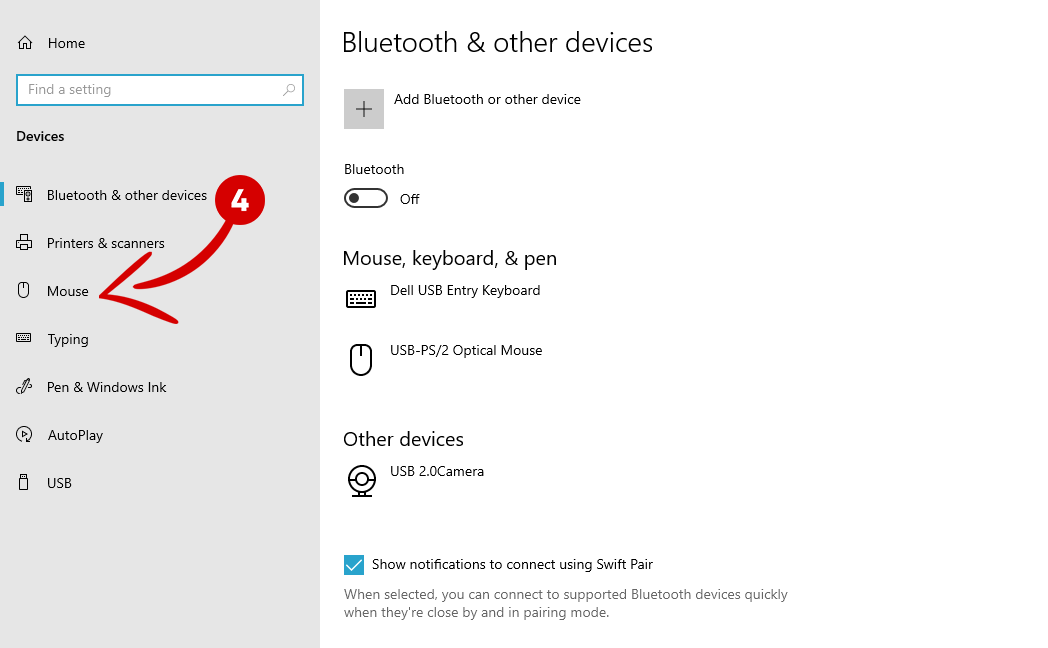
Adjust Mouse and Cursor
Step 5: When it opens go to the left side of the page with the mouse. Here shows the “adjust mouse and cursor size” option, Click on it
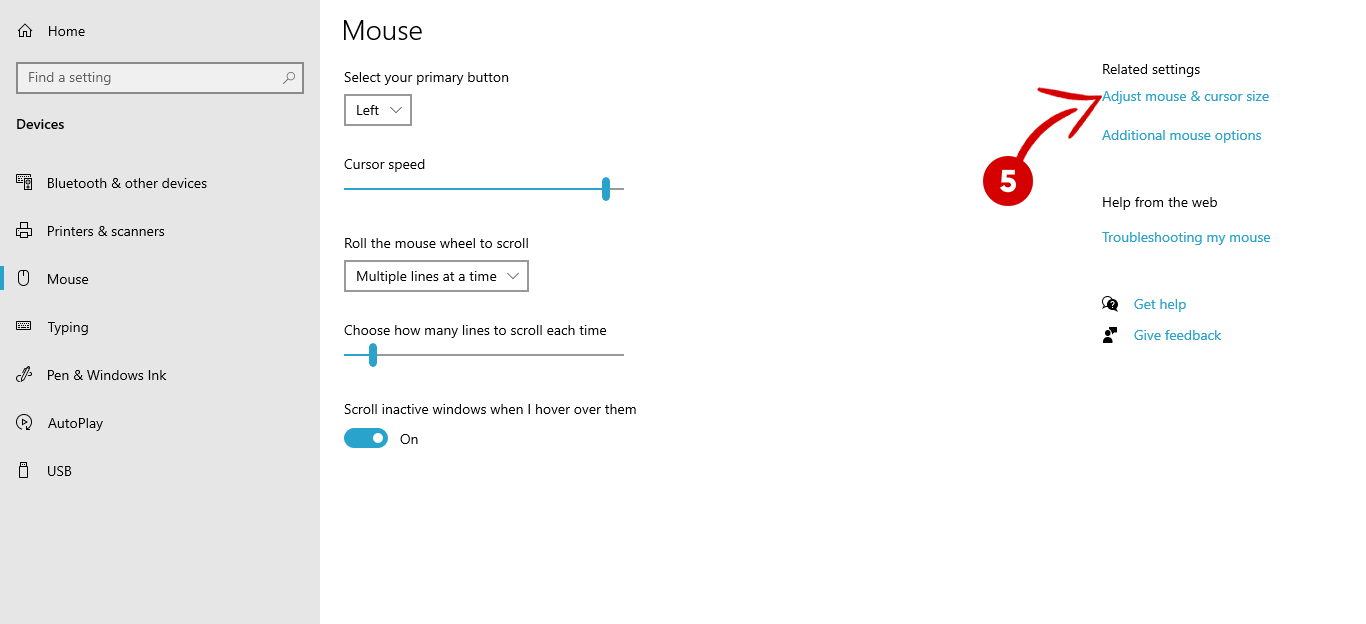
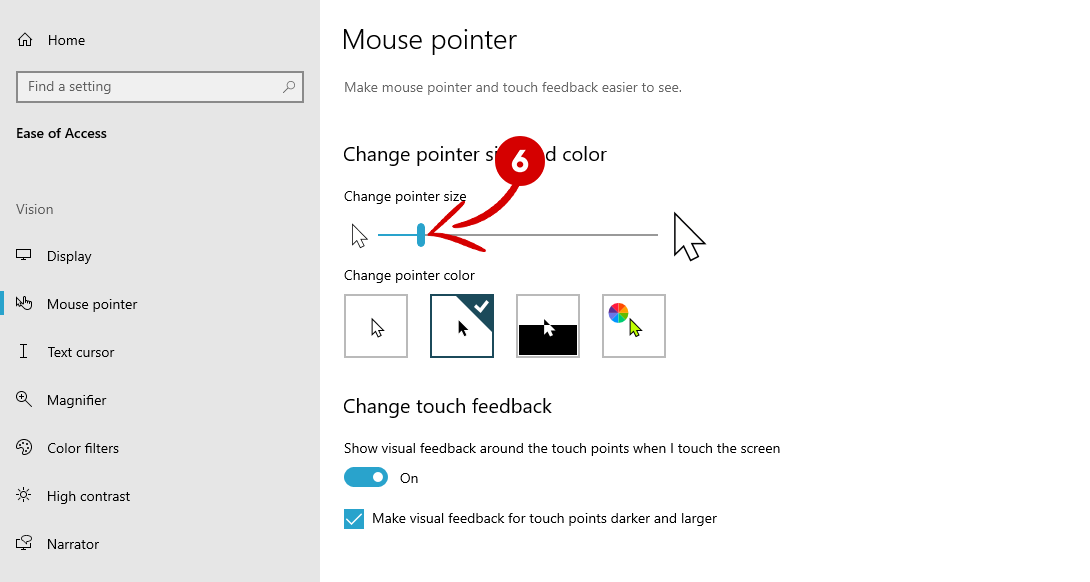
Change Pointer Size
Step 6: Drag the mouse and “change pointer size” whose perfect for you
Change Pointer Color
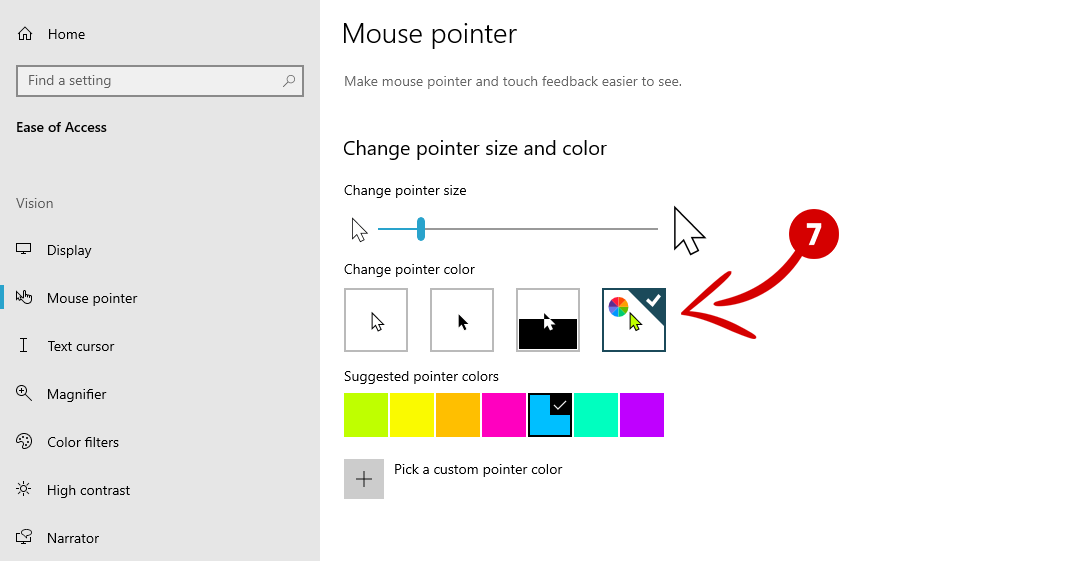
Step 7: Under the “Change Pointer Color” Label, You will find 4 different pointer color options. You can choose any color for the mouse.
- 1st pointer indicates the White pointer color
- 2nd shows the back pointer color
- 3rd Pointer options indicate inverted color
- 4th show different custom color( You can pick any color for the mouse cursor)
We hope this article helped you learn new ways to change the mouse size and color in Windows 10.
If you enjoyed this post, please subscribe to our YouTube channel. You may also find us on Twitter and Facebook.