
Skip to content
Mc Starters Logo

Mc Starters

  • CategoriesExpand
    • AI
    • Business
    • CRM
    • Divi
    • Elementor
    • Email Marketing
    • Hosting
    • Insurance
    • Kinsta Hosting
    • make.com
    • Mega Menu
    • Review
    • Science and Technology
    • SEO
    • Shopify Tutorials
    • Squarespace
    • Tips and Tricks
    • Tools
    • Upwork
    • Webflow Tutorials
    • Website
    • Windows 10
    • Windows 11
    • WordPress
    • WordPress Plugins
    • WordPress Theme
  • Our Services
  • Write for Us
  • Tools
Download 300+ Templates
Mc Starters Logo
Mc Starters

Home \ Shopify Tutorials \ How to import and export products in Shopify

How to import and export products in Shopify

Published By :Mudassar Shakeel Updated On : March 15, 2024 Shopify Tutorials
📌 Summarize this content with AI
ChatGPT Grok Google AI Perplexity Claude
import and export products in Shopify

Do you want to learn how to import and export products in shopify?

Shopify is the best platform for e-commerce. With shopify, anyone can start a business without coding knowledge. Importing and exporting products is a great feature of shopify. This feature helps you move large amounts of data to another store.

You Might Also Like: How to redirect URL in Shopify

Import and export products in shopify.

In this post, we will show you how to import and export products in shopify. We are providing step by step guide.

Export shopify products

Step 1: Login into shopify admin > All Products > Click on “Export“
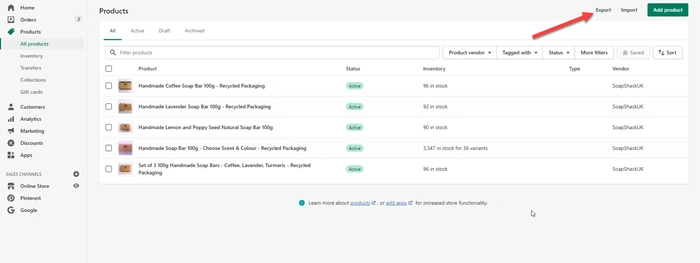
Click on Export

Export Products

Step 2: Now click on “Export Products”.
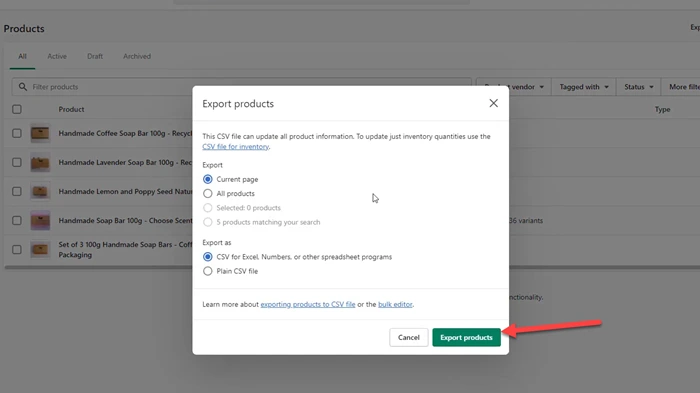
Click on Export Products

Check Email Account for downloading file

Step 3: Now you can check your email because the export file sends the email account.
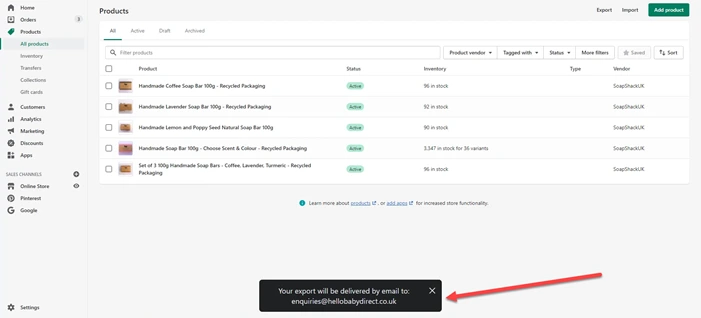
Export deliver to Email

Download excel file

Step 4: Download the excel file from the email and open you see all products with pieces of information.
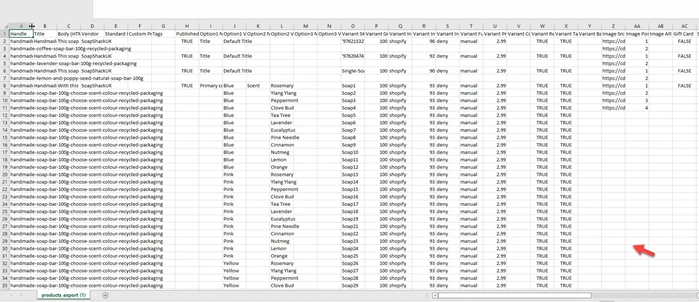
Excel file

Import shopify products

Step 5: For Import Click on “Import“.
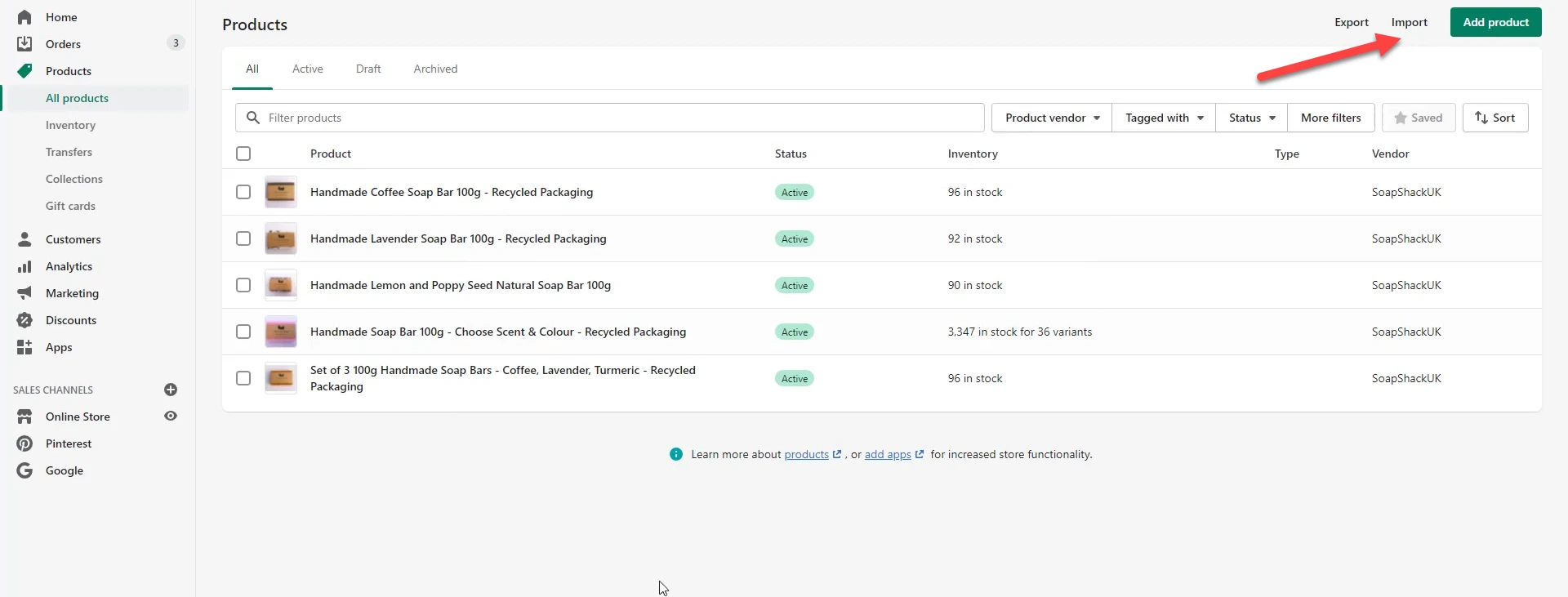
Click on Import

Upload file

Step 6: Click on Add File > Open file > Click on Upload and Continue.
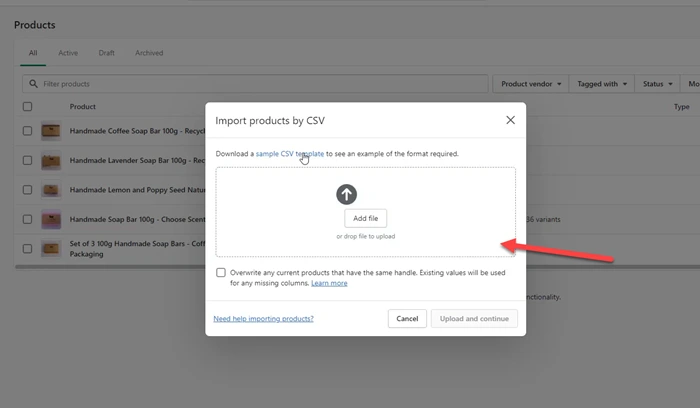
Upload File for Import

Start Importing products

Step 7: Now preview your first product and click on Import Products.
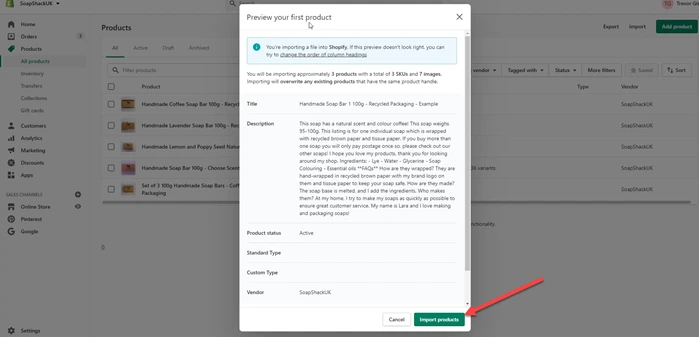
Click on Import Product

Step 8: It takes time to import, don’t close the screen.
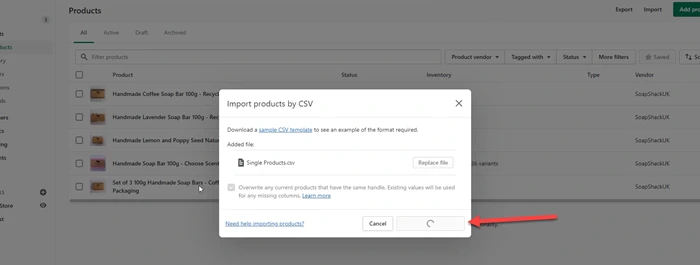
Uploading Take Time

Step 9: Now you see “Products Imported ” successfully.
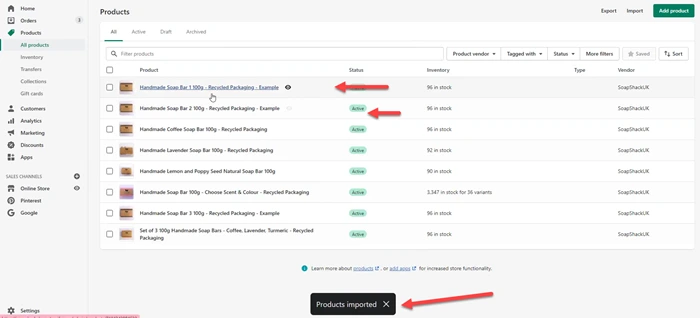
Product imported Successfully

We hope this article helped you learn how to import and export products in shopify. You may also want to get help from our shopify expert.

If you liked this article, then please subscribe to our YouTube Channel for web, windows, tech, and how-tos tutorials. You can also find us on Twitter and Facebook.

See also  How to add Alt text to images on Shopify?
Post Tags: #Products#Shopify#Website builder
Facebook FacebookTwitter TwitterInstagram InstagramPinterest PinterestYouTube YouTube

© 2026 Mc Starters

  • Guest Posts
  • HTML Sitemap
  • XML Sitemap
  • llms.txt
  • Affiliate Disclosure
Get Professional Websites
  • Categories
    • AI
    • Business
    • CRM
    • Divi
    • Elementor
    • Email Marketing
    • Hosting
    • Insurance
    • Kinsta Hosting
    • make.com
    • Mega Menu
    • Review
    • Science and Technology
    • SEO
    • Shopify Tutorials
    • Squarespace
    • Tips and Tricks
    • Tools
    • Upwork
    • Webflow Tutorials
    • Website
    • Windows 10
    • Windows 11
    • WordPress
    • WordPress Plugins
    • WordPress Theme
  • Our Services
  • Write for Us
  • Tools
Facebook X Instagram YouTube Pinterest
Search