
Do you want to see and delete your incognito history?
Have you ever wondered if anyone can see your incognito browsing history? It turns out, yes, your device saves your browsing session in its DNS cache. But fear not, you can take control of your digital privacy with a few simple steps.
Threat Protection Helps You Take Control of Your Cybersecurity
Here’s how to see and delete your incognito history on Windows, macOS, Android, and iOS.
See and Delete your incognito history Step by Step
Follow the step-by-step guide to see and delete your incognito history Step by Step.
How to see your and delete incognito history on Windows?
See Your Incognito History on Windows
To see your incognito history on Windows, follow these steps:
Best VPN for Laptop and Windows 10
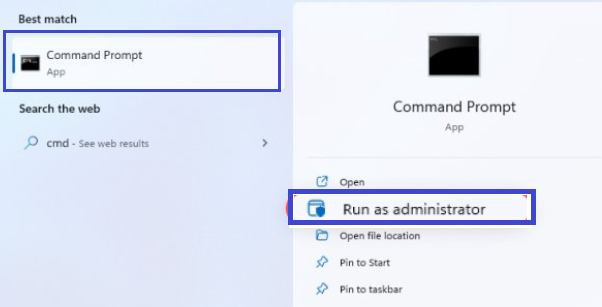
Step 1: Find “Command prompt” using the Windows search bar.

Step 2: Choose the “Run as administrator” option.
Step 3: Type “ipconfig /displaydns” in the Command prompt window and press Enter.
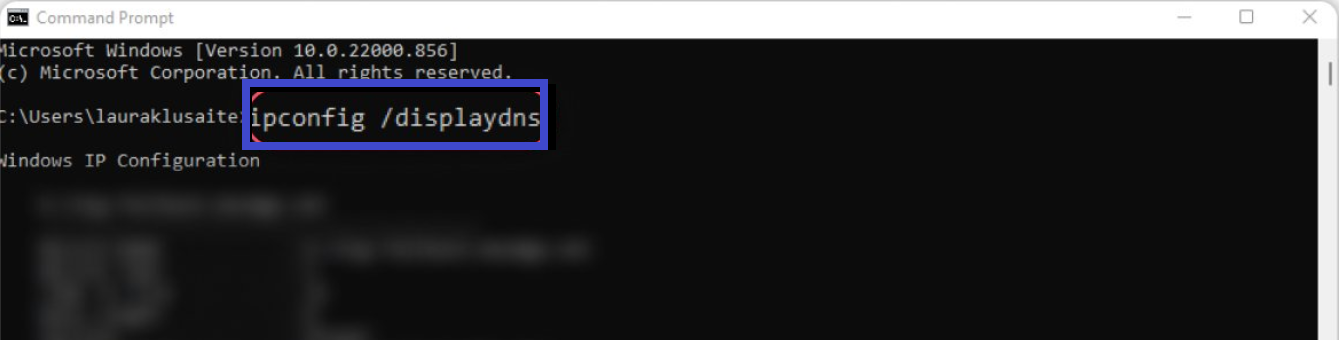
Step 4: You’ll see a list of domains you’ve recently visited, including incognito sessions.
Delete Your Incognito History on Windows
Now, to delete your incognito history on Windows:
Step 1: Open “Command prompt” and choose “Run as administrator” again.
Step 2: Type “ipconfig/flushdns” and hit Enter.
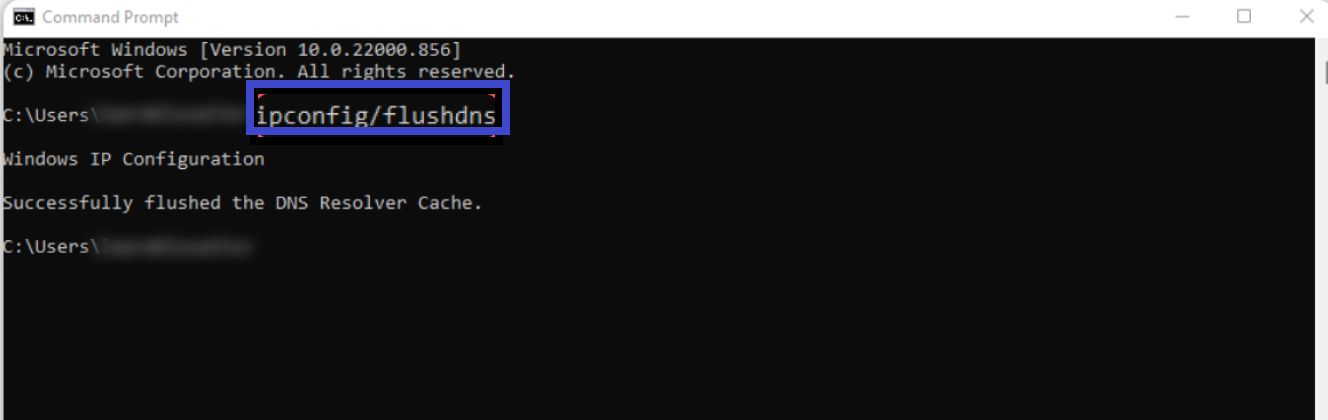
That’s it! Your incognito history on Windows is now deleted.
How to see and delete your incognito history on macOS?
See Your Incognito History on macOS
To see and delete your incognito history on macOS:
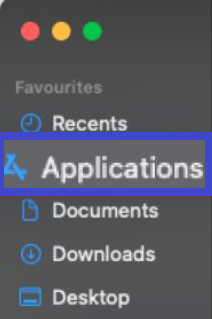
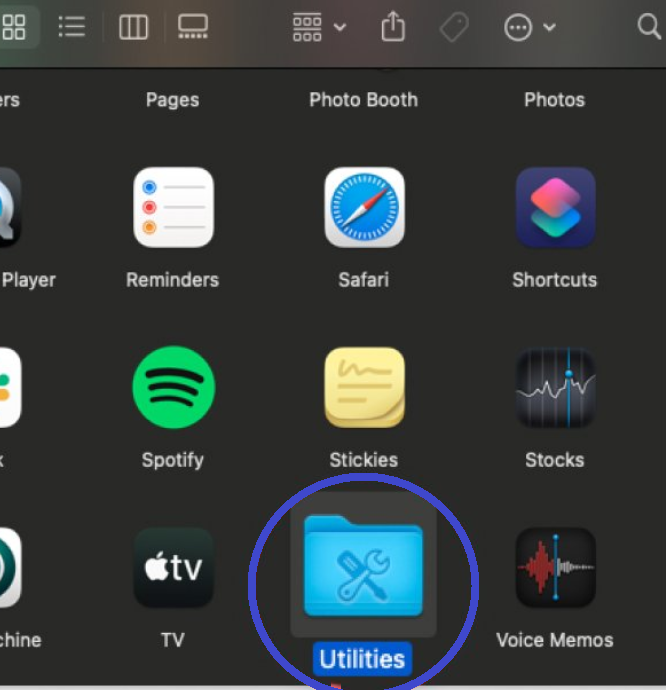
Step 1: Open Applications and choose “Utilities.”
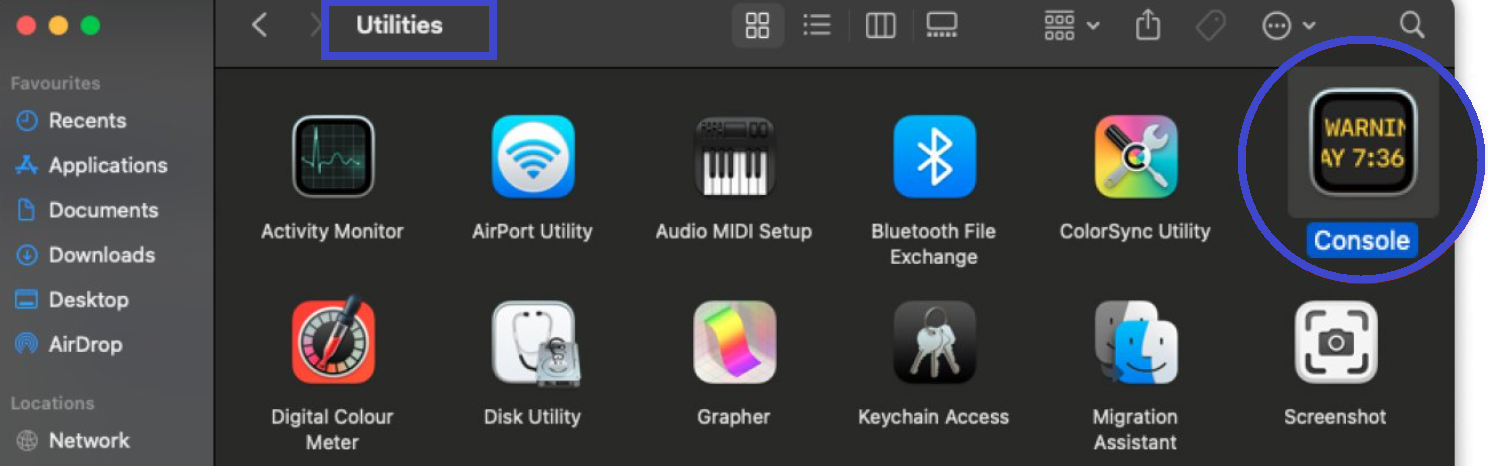
Step 2: Double-click to open “Console.”
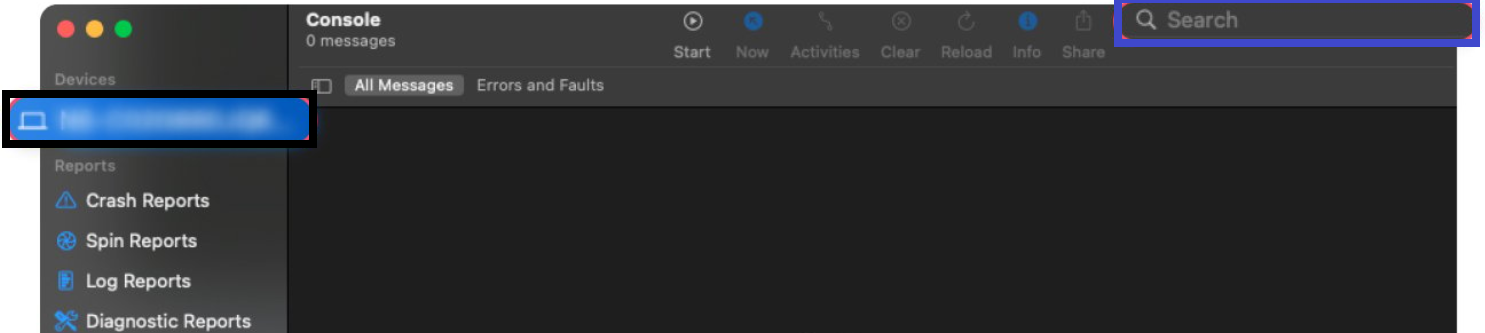
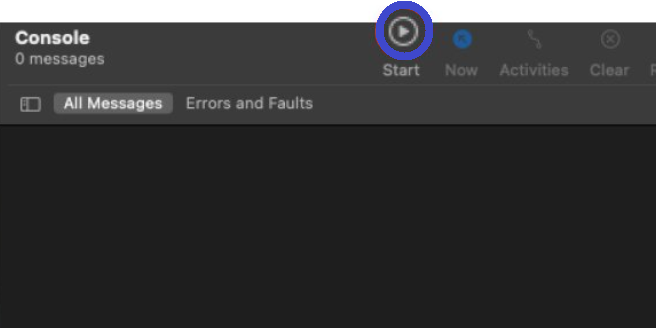
Step 3: Select your device and type “any:mdnsresponder” into the search bar. Press the “Play” button in the toolbar.
Step 4: Go back to “Utilities” and choose “Terminal.”
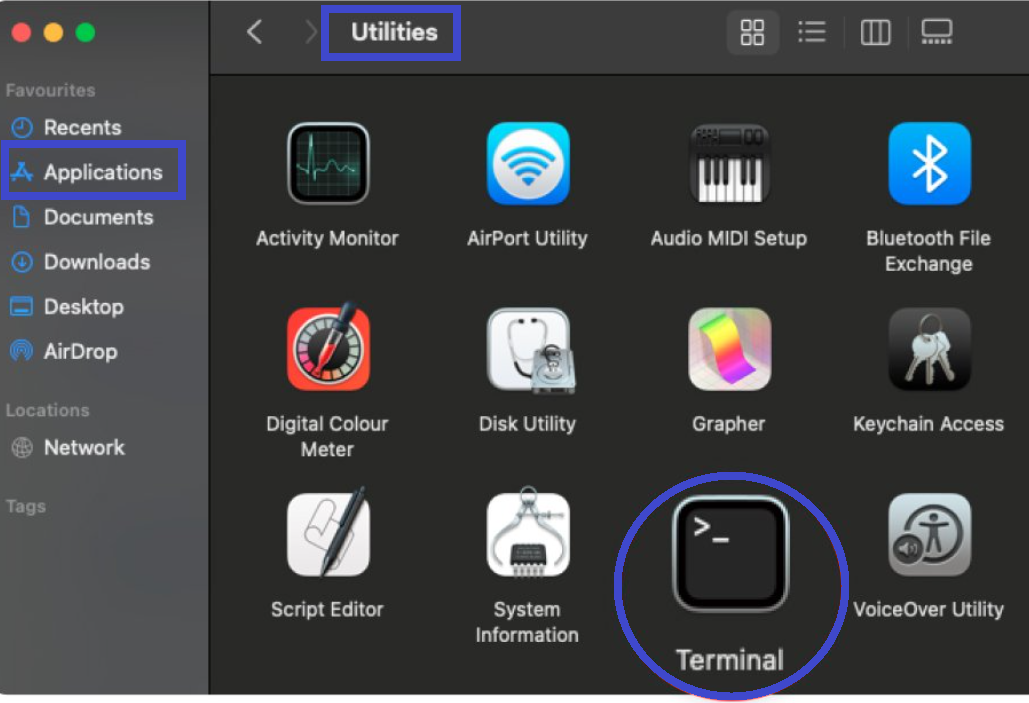
Step 5: Type the command “sudo killall -INFO mDNSResponder” into the terminal and press enter. You’ll need to enter your password.
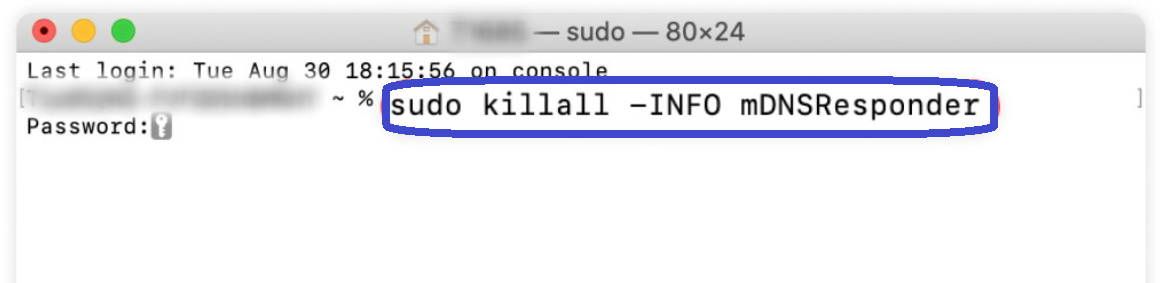
Step 6: Then you can see and delete your incognito history.
Browse privately and prevent web tracking with NordVPN.
Delete Your Incognito History on macOS
Step 1: Open the “Applications” and choose “Utilities.”
Step 2: Double-click to open “Terminal.”
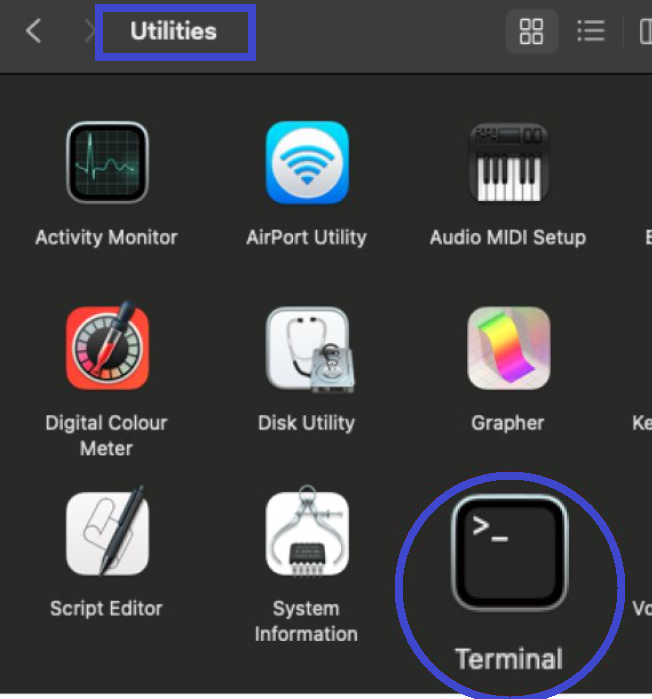
Step 3: Type the “sudo killall -HUP mDNSResponder” command into the terminal and press “Enter.” You’ll also need to enter your password.

That’s it! Your incognito history on macOS is now deleted.
How to see and delete your incognito history on Android and iOS:
Unfortunately, there’s no direct way to see your incognito history on these platforms without using third-party parental control apps, which may compromise your privacy further.
Delete Your Incognito History on Android and iOS
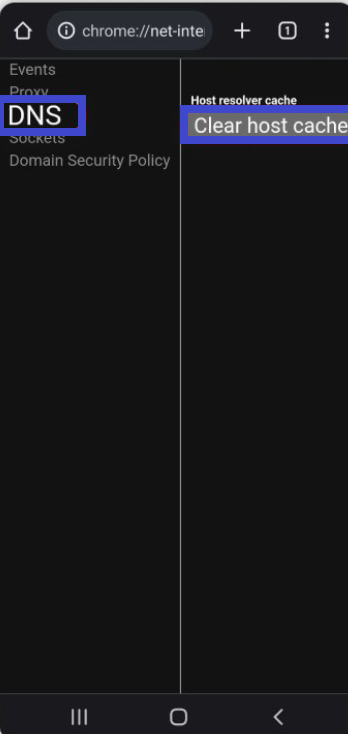
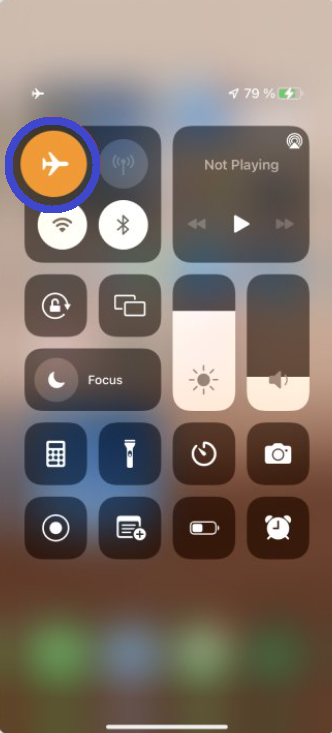
However, you can delete your incognito history on Android by clearing the host cache in Google Chrome, and on iOS by enabling Airplane mode for a few seconds or restarting your iPhone.
Remember, while incognito mode can offer some privacy benefits, it’s not a foolproof method for hiding your online activity. Your internet service provider (ISP) and certain websites may still be able to track your activity, and using a VPN or other privacy tools may be necessary for more comprehensive privacy protection.
Conclusions
Remember, protecting your digital privacy is crucial in today’s online world. Take these steps to manage your incognito history and stay safe while browsing the web.
Browse privately and prevent web tracking with NordVPN.
Stay safe out there!