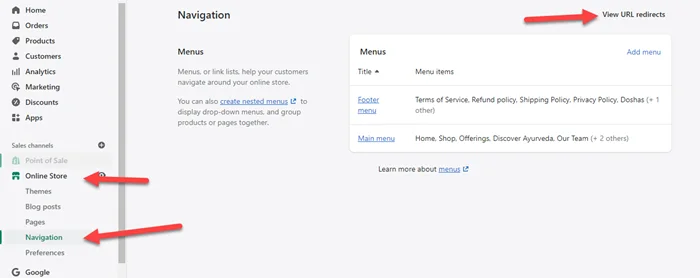
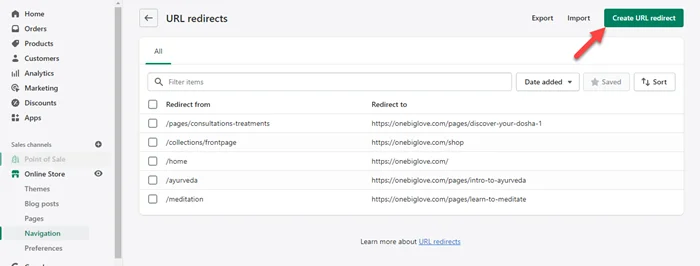
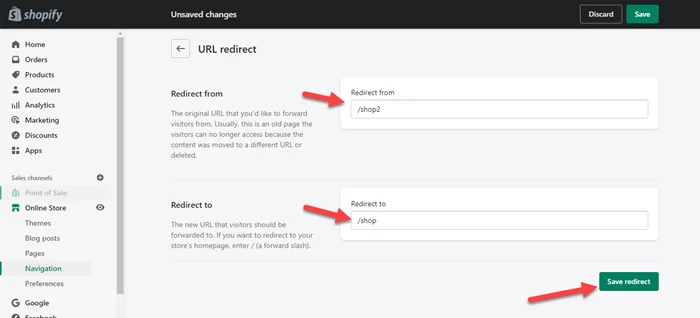
Traffic can be redirected from one web page to another using URL redirect. When you update the URL, you can set up a URL redirect in your Shopify store to ensure that your users can still find what they are looking for.
If you delete a product, for example, you can configure the URL redirect so that when customers enter the URL for that product they are taken to a similar product in your store. So, this is how URL redirection works.
Alt-text is the most important aspect of SEO. The alt text appears when images cannot be loaded for any reason. So, in this post, we will show you how to add alt text to images on Shopify.
Text that is part of the image should be included.
Don’t say the same thing twice.
Alt text characters length keep it to 125 or less.
Add alt text to images on shopify
You need to follow the below steps to add alt text to products image on shopify. Keep your alt text informative and short. The maximum length is 512 characters, although it’s best to keep it to 125 or less.
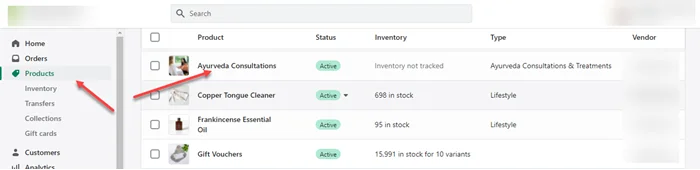
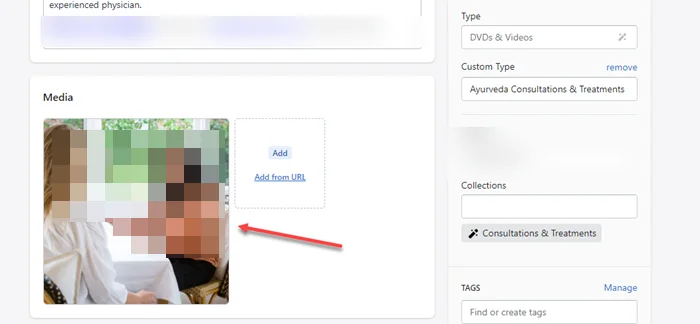
Step 2: Select the product you wish to edit and click on the product name.
Step 3: After accessing the Preview media page and click a product media item.
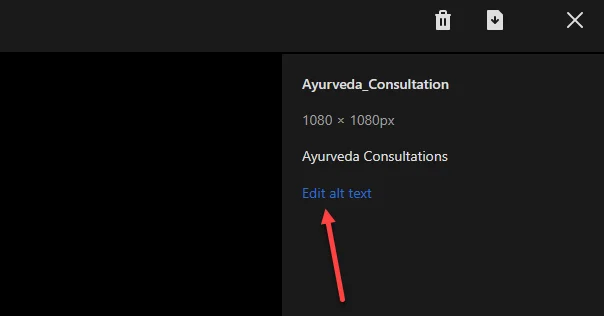
Step 4: Click on “Edit Alt Text“.
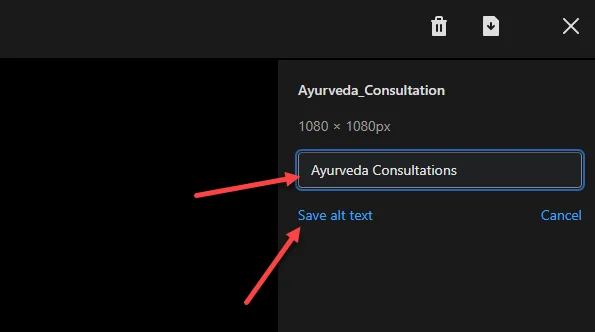
Step 5: Enter alt text and click on “Save alt text“
Step 6: To quit the preview page, click the X.
Adding alternative text to your theme images
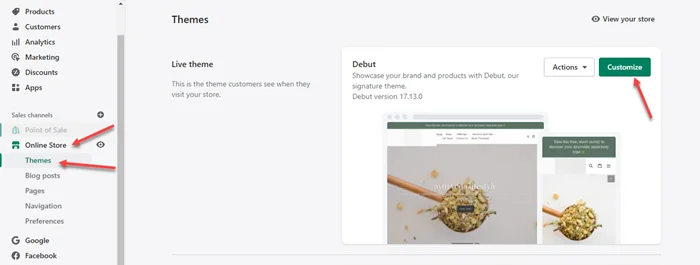
Step 1: Go to Online Store > Themes in your Shopify admin.
Step 2: Click Customize when you’ve found the theme you want to change.
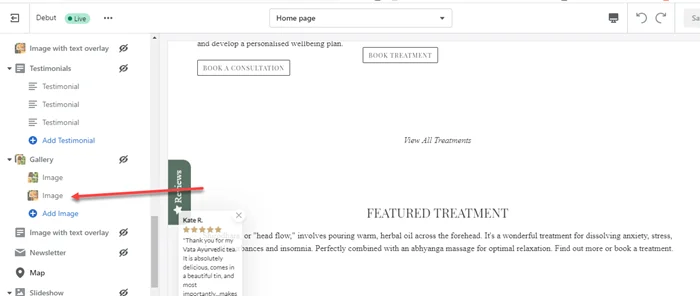
Step 3: Select the part with the picture that requires alt text from the theme editor sidebar.
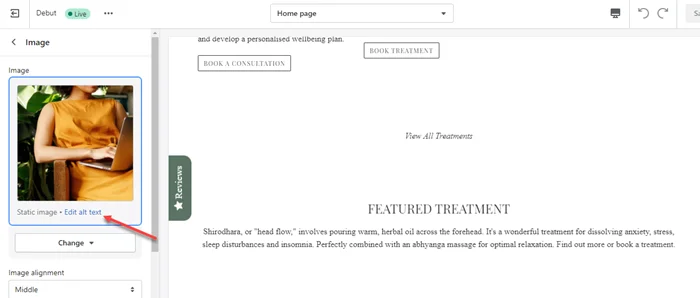
Step 4: Click on “Edit alt text“.
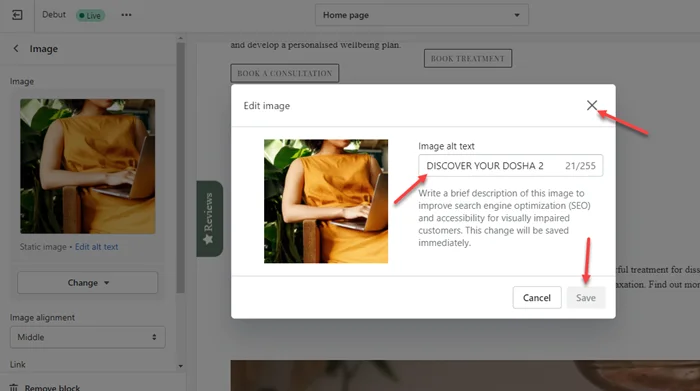
Step 5: Enter the alt text in the dialogue box, then click Save.
Summary
We hope you easily edit alt text to product and theme images. Alt text is important for Accessibility. If you still need help then comment below, we will help you.
Frequently Asked Questions
How do you do alt text on Shopify?
You can do alt text on shopify by just clicking on image and enter alt text. Here is steps Shopify Login > Products > Click on product name > click on product image > enter alt text and click on save.
Do you want to learn how to upload images to Shopify? In this post, we will show how to upload pictures in shopify with step-by-step guides.
Your company logo, product images, slideshows, banners, and blog post images are all examples of images that you can use on your online store. Shopify’s imagery service manages and organizes your images, ensuring that the best image formats are presented in the right position in your online store.
You do not need to have any special qualifications to upload images in Shopify. You just need to follow the below steps.
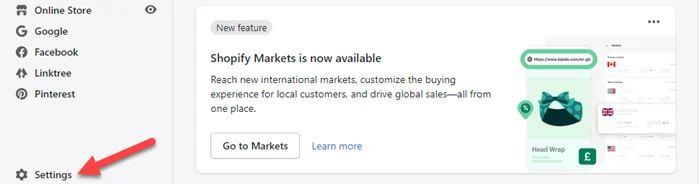
Step 1: Open your shopify admin dashboard. Click on Setting.
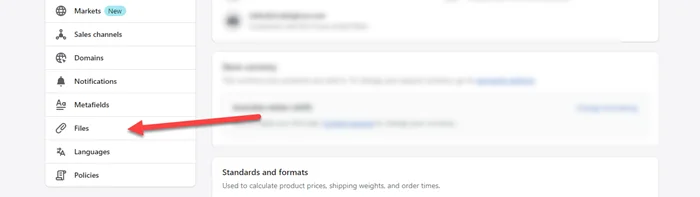
Step 2: Scroll Down and Click on Files.
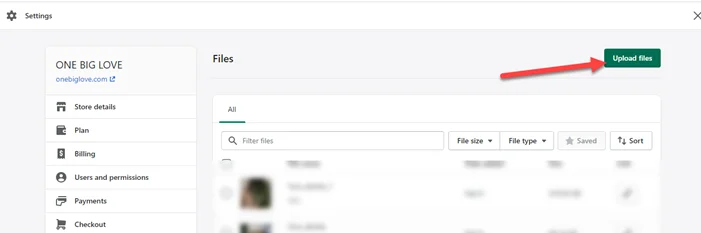
Step 3: Click on Upload Files.
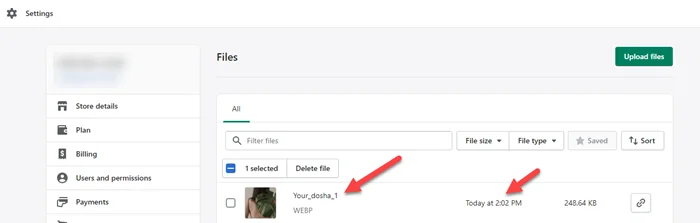
Step 4: Uploading Done and See below.
Frequently Asked Questions
How do I upload images to Shopify?
You can upload images to Shopify with these steps. Open your admin dashboard on shopify. Click on Settings. Choose Files > Click on Upload files and upload images.
Are you looking for the best WordPress payment gateway plugin for India?
Here is the best WordPress payment gateway plugin if you run an e-commerce website and want to start selling on WordPress. These gateway plugins help with free, secure online payment. In India, you can easily create an online shopping store on WordPress with a payment gateway plugin, and every WordPress theme supports this payment gateway plugin.
Here is the best free WordPress payment gateway plugin for India that is suited for business. You can easily sell online digital products and get payments all over the world.
Here we list some best WordPress payment gateway plugin for India.
CCAvenue
CCAvenu is an impressive payment gateway plugin in the WooCommerce field. It allows you to create a store and sell anything online with a secure payment option. CCAvenu supported all payments, like debit cards, credit cards, banking, and more. On premium press websites, this accepts all CCAvenu payments.
Razorpay is the popular gateway plugin, that secures a payments solution for India. You can accept the payment in a personal way from your customer. It is compatible with WooCommerce. Razorpay accepts all types of payments, like debit cards, credit cards, net banking, UPI, and popular wallets. You can easily set this up in your online store without any cost.
Here are the core features:
Free payment gateway plugins
Customize the checkout experience.
Reduction of transaction failures and abandoned carts.
Cashfree is the fastest payment gateway with low transaction costs. It is a developer-friendly gateway and accepts all types of payments like Indian cards, wallets, net banking, and more. Cashfree is a secure payment gateway that accepts all international payments. It offers a variety of choices, and over a million businesses in India are currently using the service.
PayPal is a similar service that accepts all payments. Both sender and receiver can make it secure, fast, and easy to get money with PayPal. It is integrated with the WooCommerce store. It gives an easy process and more options while using it in India. It accepts all international payments and sends 25 currencies through PayPal. It gives an effective transaction cost for your store.
InstaMojo is a free payment gateway plugin integrated with the WooCommerce store. It accepts all types of payment, like UPI transactions, network money, debit cards, wallets, etc. It provides a wide range of options and is fully optimized for customers. Thousands of people use InstaMajo in India and across solutions for small businesses. You can easily sign up and use the InstaMojo link for business. InstaMojo gives a great experience to customers.
Hopefully, these best WordPress payment gateway plugins for India can help you in providing your consumers with a better checkout experience. These payment gateway plugins are the best in India.
Leave a comment below, let me know which is you like for business.
Frequently Asked Question
Which payment gateway is best for WordPress in India?
Yes, Stripe payment is available in India. Stripe’s software and APIs are used by millions of businesses of all sizes, from startups to Fortune 500s, to accept payments, send payouts, and administer their operations online.
If you want to import Divi layouts and make a website in less time then you must watch the video below on how to import Divi Templates. You can also check out the below steps for this.
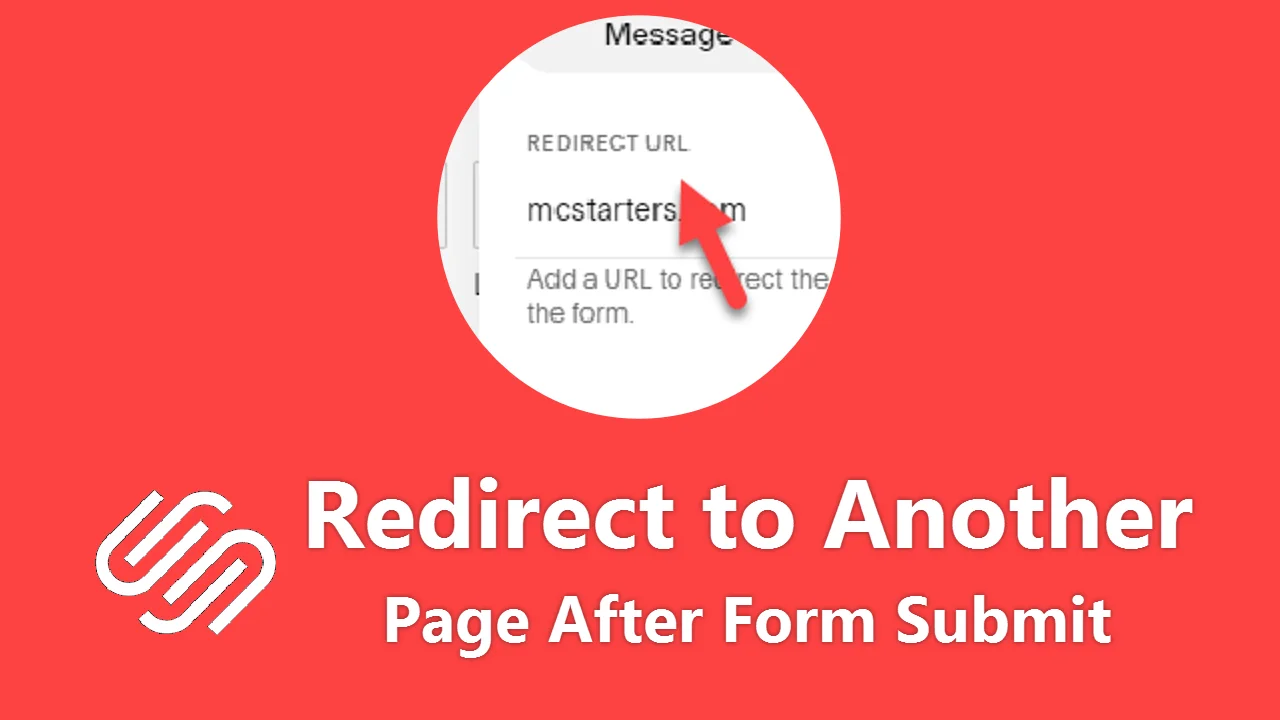
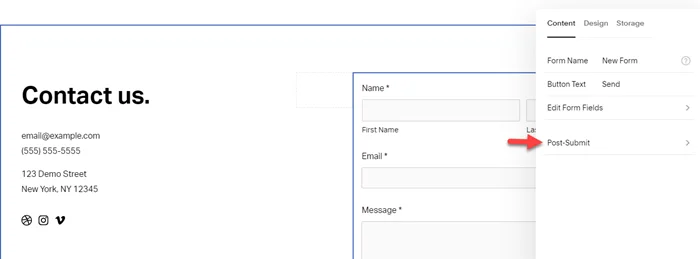
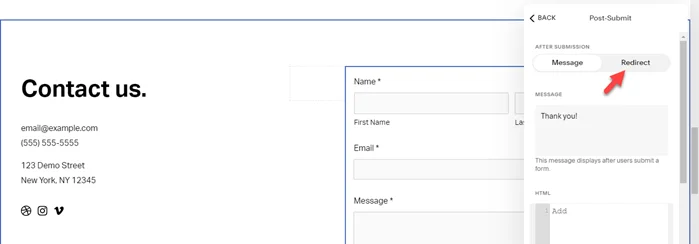
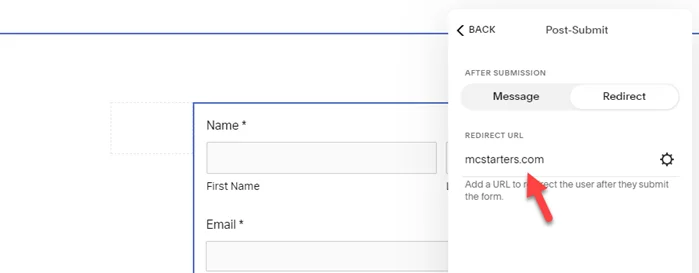
Most of the website owners want their contact or subscription form to Redirect to another page after form submit Squarespace. That’s will be a great user experience if you are redirecting users into a custom thank you page or any other external page after submitting a form.