How do I change the default color in Divi

Have you found a way to change the default color in Divi?

The Divi theme for WordPress is renowned for its flexibility and ease of use. It empowers users to create stunning websites without needing to write a single line of code. However, when it comes to personalizing your website, one of the first steps you might want to take is changing the default color scheme to align with your brand or style.

In this blog post, we’ll walk you through the simple steps to change the default color in Divi, allowing you to give your website a unique and eye-catching look.

change the default color in Divi step-by-step

Here is a step-by-step guide to change the default color in Divi. After changing this color, you can make the Divi theme personalized.

Step 1: Go to Divi > Theme Options.

Step 2: Locate “Color Pickers Default Palette” and click on it.

Step 3: Click on the color you want to edit and change the hex code as needed.

Step 4: Don’t forget to click “Save Changes” to apply your updated color.

change the default color in Divi step-by-step

Conclusions

Customizing the default colors in the Divi theme is a straightforward process that allows you to align your website with your brand or personal style. With just a few clicks, you can give your website a fresh and appealing look that resonates with your audience. Whether you’re starting a new website or giving your existing one a makeover, changing the default colors in Divi is a quick and effective way to make your site stand out.

So go ahead and get creative with your color choices, and watch your website come to life in a way that reflects your unique identity and vision.

Happy customizing!

Where can I find the color customization options in Divi?

In Divi, color customization options are typically found within the “Customizer Settings.” From the Theme Options, click on “Customizer Settings” to access the color settings.

What if I don’t see the color changes immediately on my website?

Sometimes, changes may not appear immediately due to caching. If you’re not seeing the updated colors, consider clearing your website’s cache or your browser’s cache to see the changes.

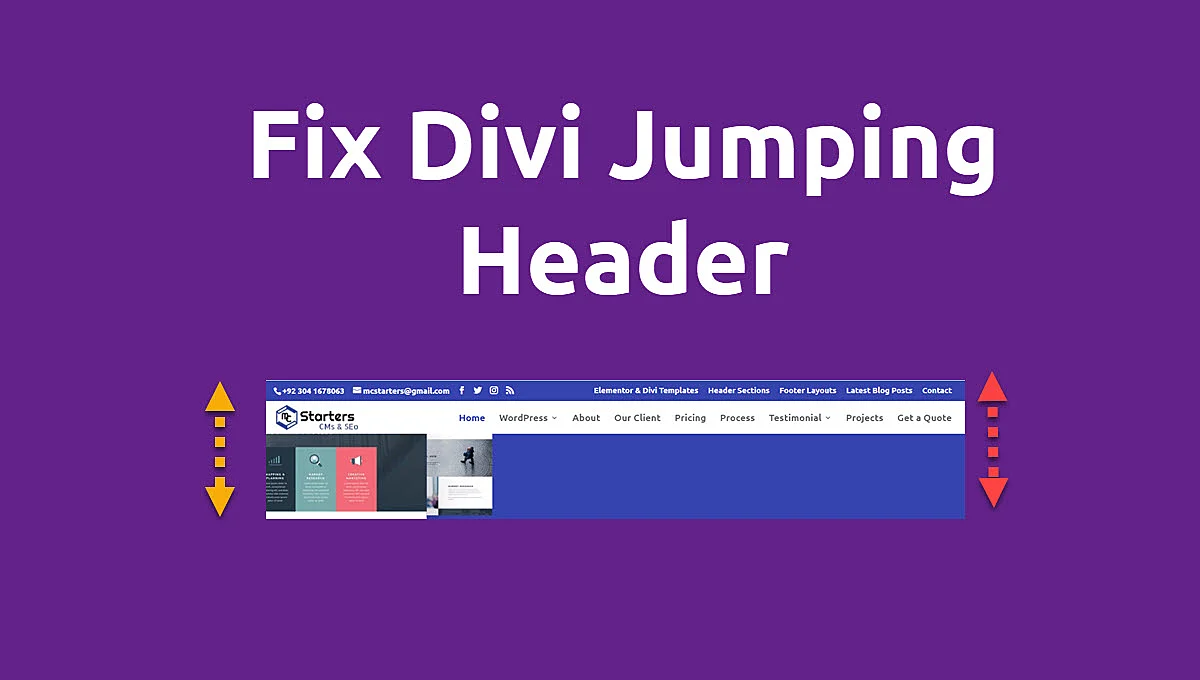
How to Fix Divi Jumping Header

The jumping header in Divi is a well-known issue. It happen when divi website page load.

In this post, We will show you how to fix Divi Jumping header in WordPress. I do with the help of custom CSS.

You Might Also Like to hire: Divi Website Designer for websites

Fix Divi Jumping Header

To fix divi jumping header you need to add below css code into Divi > Theme Options > Custom Css

#page-container {
padding-top: 100px !important;
}

#main-header {
top:39px !important;
}

Note: This is Code may not work. You Can adjust padding according to website header and check website without login.

You Might Also Like: Divi Header Layouts

My Header and Setting

Divi Header

Below is my website header “Menu Height“. You can adjust it also according to website.

Fix Divi Header Jumping Problem

I hope you fix this issue but If you have any questions please let me know in the comments.

How to create custom header in Divi

You can create custom header in Divi using Divi theme builder. you can free header layout from our mcstarters.com websites. We create these header with responsive design. These are free to download and use.

Get Professional Websites