How to Track Conversions & User Behavior with Google Analytics

Here are ways to track conversions & user behavior with Google Analytics.

You can’t improve what you don’t measure. Tracking conversions and user behavior with Google Analytics 4 (GA4) lets you see what works — and what doesn’t. GA4 helps you understand how users engage, which campaigns drive conversions, and where you lose potential customers.

In short:
To track conversions in GA4, you must implement event-based tracking, mark important events as Conversions, and validate data using DebugView and Realtime reports.

Now, let’s go step-by-step.

1. Plan What to Track

Before diving into code or Tag Manager, identify the key actions that matter. Ask yourself:

  • What defines success on my site — a purchase, signup, or lead form?
  • What user actions lead to that goal?

Examples of conversions:

  • Purchase (ecommerce_purchase)
  • Lead form submission (generate_lead)
  • Newsletter signup (sign_up)
  • Demo request (begin_trial)

“Measure what matters. Don’t get lost in vanity metrics.” — Justin Cutroni, Analytics Expert

2. Set Up Event Tracking

GA4 tracks everything as events. You can implement them in three ways:

A. Using Google Tag Manager (Recommended)

  • Create a GA4 Event tag.
  • Define your trigger (e.g., form submission, button click).
  • Test using Preview Mode.
  • Publish once validated.

B. Using gtag.js

gtag('event', 'generate_lead', {
  event_category: 'lead',
  event_label: 'contact_form',
  value: 1
});

C. Using Firebase (For Apps)

If you’re tracking app users, integrate Firebase Analytics. It automatically sends events to GA4.

Google provides predefined event names and parameters to ensure your reports populate correctly. Examples include:

Event NameWhen to UseKey Parameters
purchaseCompleted transactionvalue, currency, items
add_to_cartAdded product to cartitem_id, price
sign_upUser registrationmethod

(Source: Google Developers – Recommended Events)

4. Mark Important Events as Conversions

Once events start appearing in GA4:

  1. Go to Admin → Events
  2. Find your key event (e.g., generate_lead).
  3. Toggle Mark as Conversion.

That’s it — GA4 will now track it as a conversion in reports and link it to your ad campaigns.

5. Validate Your Setup

Use DebugView and Realtime to check if events are firing correctly.

  • DebugView: Test live events with parameters.
  • Realtime: See active users and triggered events.

If something looks off, double-check your Tag Manager triggers and data layer.

6. Analyze User Behavior

GA4’s Exploration reports allow you to visualize how users move through your site:

  • Funnel Exploration: See where users drop off.
  • Path Analysis: Discover what users do before or after key actions.
  • Engagement Reports: Understand how long users stay and interact.

“Data tells stories — but only if you connect the dots.” — Avinash Kaushik, Digital Analytics Evangelist

7. Export Data to BigQuery

GA4’s free BigQuery export lets you access raw, unsampled data for deeper analysis.
You can:

  • Join GA4 data with CRM or email marketing data.
  • Build advanced cohort reports.
  • Create custom dashboards in Looker Studio.

8. Maintain Consistency and Privacy

  • Use consistent naming for events and parameters.
  • Respect privacy laws (GDPR, CCPA).
  • Avoid sending personally identifiable information (PII).
  • Use Consent Mode if you operate in regions with strict privacy laws.

“GA4 is designed for the privacy-first web — event-based, cross-platform, and future-ready.” — Simo Ahava, Analytics Expert

9. Common Mistakes to Avoid

MistakeFix
Using inconsistent event namesUse a documented naming convention
Missing parameters (e.g., value)Add required fields to every event
Double-counting conversionsDeduplicate using transaction_id
Ignoring consent settingsEnable Consent Mode in GTM
Forgetting to testAlways validate with DebugView

10. Metrics You Should Monitor

  • Conversions — total key events completed.
  • Conversion Rate — % of sessions leading to conversions.
  • Engagement Rate — % of engaged sessions (over 10 seconds or with conversions).
  • User Retention — returning users after X days.
  • Revenue (if ecommerce) — total purchase value.

(Source: Google Analytics Help Center)

11. Advanced Tips

  • Combine GA4 data + Google Ads for smarter campaign optimization.
  • Use event parameters (like plan_type or user_role) to segment conversions.
  • Integrate Looker Studio for custom dashboards.
  • Use server-side GTM to improve data accuracy and compliance.

Conclusion: Turn Data Into Action

Tracking conversions and user behavior in GA4 transforms raw data into real insights. You’ll see which channels bring customers, where users drop off, and how to optimize every step.

Start simple:

  1. Implement one event.
  2. Validate it.
  3. Mark it as a conversion.
  4. Analyze and improve.

Once you understand user behavior, every marketing and UX decision becomes data-driven.

Ready to optimize your analytics setup?
👉 Drop your questions or share your GA4 success story in the comments below — let’s learn and grow together!

FAQs About Tracking Conversions in GA4

What’s the difference between events and conversions?

All conversions are events, but not all events are conversions. Mark your key events (e.g., purchase, signup) as conversions for deeper insights.

Can I track conversions from multiple websites?

Yes. You can connect multiple data streams (web + app) to the same GA4 property.

On-Page SEO vs. Off-Page SEO: What’s the Difference?

On-Page SEO vs Off-Page SEO? What’s the difference?

When it comes to ranking high on Google, understanding the difference between on-page SEO and off-page SEO is essential.
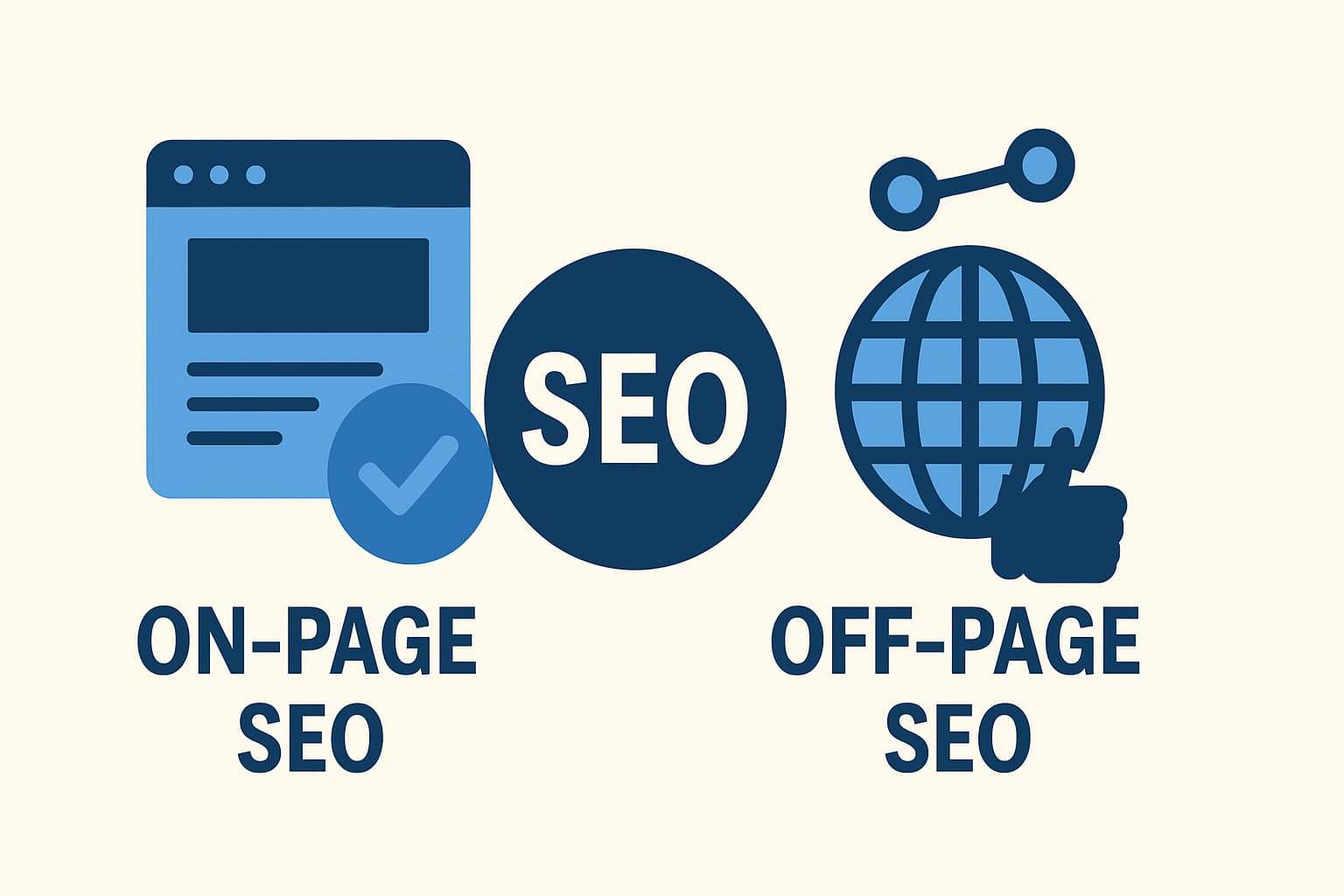
On-page SEO improves your website’s content, structure, and technical health, while off-page SEO focuses on building authority through backlinks and brand mentions.

According to BrightEdge (2025), over 53% of all website traffic comes from organic search — meaning SEO directly influences visibility and conversions. If you want to dominate search results, you must balance both on-page and off-page strategies.

What is On-Page SEO?

On-page SEO includes all the elements you can control on your website to help search engines understand your pages better and users have a smoother experience.

Key On-Page SEO Factors

  • Optimized content with targeted keywords
  • Title tags and meta descriptions
  • Clean URL structure
  • Image optimization with alt text
  • Internal linking and schema markup
  • Page speed and mobile responsiveness

Expert Quote: “On-page SEO ensures your website speaks the same language as your audience and search engines.” — Olga Zarr, SEO Expert (SEOSLY.com)

Google uses on-page factors to assess relevance and quality, helping your page rank for the right queries.

What is Off-Page SEO?

Off-page SEO includes all the strategies that take place outside your website to build authority, credibility, and trust.

Key Off-Page SEO Factors

  • Backlinks from reputable websites
  • Brand mentions and citations
  • Guest posting
  • Social media shares and engagement
  • Online reviews and reputation management

Expert Quote: “Off-page SEO tells Google that other websites trust yours enough to recommend it.” — Brian Dean, Founder of Backlinko

High-quality backlinks act like “votes of confidence,” signaling that your site is trustworthy and valuable.

On-Page vs. Off-Page SEO: A Quick Comparison

FactorOn-Page SEOOff-Page SEO
ControlFully controlled by youInfluenced by others
FocusContent, UX, and site structureAuthority and reputation
Time to See Results2–4 weeks2–6 months
ToolsYoast, Rank Math, Ahrefs (on-site audit)Semrush, BuzzSumo, HARO
GoalOptimize for relevanceBuild trust and authority

Expert Quote: “SEO isn’t a choice between on-page and off-page—it’s a partnership between the two.” — Rand Fishkin, Co-founder of Moz

Real-World Data: Why Both Matter

  • Pages with strong on-page optimization are 65% more likely to rank in Google’s top 10 results. — (Ahrefs, 2024)
  • Websites with high-authority backlinks rank 3.8x higher than those with few or no links. — (Semrush, 2024)
  • 68% of online experiences begin with a search engine. — (BrightEdge, 2025)

This data shows that content quality (on-page) and authority (off-page) work hand in hand to achieve consistent SEO performance.

Building a Balanced SEO Strategy

1. Strengthen Your On-Page SEO

  • Use a focus keyword in the title, URL, and first 100 words.
  • Optimize headings with related terms (LSI keywords).
  • Improve readability—short paragraphs, bullet points, and visuals.
  • Boost Core Web Vitals (speed, interactivity, stability).
  • Update old content to maintain relevance.

2. Boost Your Off-Page SEO

  • Earn backlinks from niche-relevant websites.
  • Create shareable infographics, videos, and data-driven posts.
  • Engage with your audience on platforms like LinkedIn, Reddit, and X.
  • List your business in directories (Google Business Profile, Yelp, Bing Places).
  • Monitor and disavow spammy links using Google Search Console.

How On-Page and Off-Page SEO Work Together

Think of on-page SEO as your website’s foundation—it defines structure, clarity, and content quality.
Off-page SEO acts like word-of-mouth marketing—it proves that others trust and recommend your brand.

When you optimize for both, Google sees your site as relevant, trustworthy, and authoritative—the three pillars of high-ranking pages.

Common Mistakes to Avoid

  1. Keyword Stuffing – Overusing keywords harms readability.
  2. Ignoring Technical SEO – Slow pages reduce engagement and ranking.
  3. Buying Links – Google penalizes unnatural backlink profiles.
  4. Neglecting Internal Links – They guide search crawlers and users.
  5. Skipping Analytics – You can’t improve what you don’t measure.

Conclusion

On-page SEO makes your website discoverable. Off-page SEO makes it credible.
Focusing on one without the other limits your potential.

Your Next Steps:

  1. Audit your website’s on-page elements using Rank Math or Yoast.
  2. Start building backlinks with guest posts and outreach campaigns.
  3. Track results monthly and refine strategies based on analytics.

Want help creating an SEO roadmap? Comment below or share your favorite on-page/off-page tactics — let’s grow smarter together!

Frequently Asked Questions (FAQ)

Which is more important, on-page or off-page SEO?

Both are crucial. On-page SEO ensures your site is optimized for users and search engines, while off-page SEO builds domain authority and trust. You need both for sustainable rankings.

Can I rank without backlinks?

Yes, but only for low-competition keywords. For competitive terms, backlinks are essential for building authority.

What tools help track both types of SEO?

Use Google Analytics, Search Console, Ahrefs, and Semrush to monitor rankings, traffic, and backlinks.

How to Improve Your Website Speed for Better SEO Rankings

Are you looking for ways to improve your website speed for better SEO rankings?

If your website loads slowly, you’re losing both traffic and rankings. Google’s Core Web Vitals—like Largest Contentful Paint (LCP) and First Input Delay (FID)—directly measure page speed and user experience. Studies show that a one-second delay in load time can drop conversions by 7% and increase bounce rates by 32% (Akamai, 2024). Improving your website speed isn’t just about making your site faster—it’s about boosting SEO, engagement, and revenue.

This guide explains how to speed up your website step by step, with expert advice, real-world stats, and actionable strategies.

Why Website Speed Matters for SEO

Website speed affects how users perceive your brand and how Google ranks your pages.

  • 47% of visitors expect pages to load in under 2 seconds (Portent, 2024).
  • 53% of mobile users leave if a page takes more than 3 seconds (Google Research).
  • A 1-second delay can reduce conversions by 7% (Akamai).

Search engines view slow sites as poor UX indicators. That means even with great content, you can lose rankings if your site lags.

“Reducing page load time by even one second can lead to a meaningful improvement in user retention and revenue.”
University of West Java Study (arXiv, 2024)

Understanding Core Web Vitals

Google’s Core Web Vitals focus on user experience metrics that measure real-world performance:

MetricMeaningTarget
LCP (Largest Contentful Paint)Time until main content appears< 2.5s
FID (First Input Delay)Responsiveness to first interaction< 100ms
CLS (Cumulative Layout Shift)Visual stability while loading< 0.1

“Faster-loading websites not only rank higher in search results but also outperform competitors in user experience and conversions.”
MetricsRule, 2024

How to Measure Your Website Speed

Before optimizing, measure your current performance with these free tools:

  • Google PageSpeed Insights – Core Web Vitals and recommendations
  • GTmetrix – Waterfall analysis of load sequence
  • Lighthouse – Built-in Chrome performance audit
  • Pingdom Tools – Server response and file requests

Record your LCP, FID, CLS, and total page load time as your baseline. Set clear goals to reduce load time by 30–50% within 60 days.

Step-by-Step: How to Improve Website Speed for Better SEO

Use Fast Hosting and a CDN

Your hosting affects server response times dramatically.

  • Choose managed WordPress hosting or VPS for better TTFB.
  • Implement a Content Delivery Network (CDN) such as Cloudflare or Bunny.net to deliver content from the nearest server.
  • Enable HTTP/3 for faster encrypted connections.

“The speed of your website directly influences SEO standing.”
Naren Arulrajah, EKWA Marketing

Optimize Images and Media

Images often make up 50–70% of a page’s size.

  • Convert to WebP or AVIF formats.
  • Use compression tools like TinyPNG or ShortPixel.
  • Add lazy loading so images load as users scroll.
  • Resize to display dimensions (e.g., no 4000 px images for thumbnails).

Minify and Combine Code

Clean, compact code loads faster.

  • Minify CSS, JS, and HTML with tools like Autoptimize or WP Rocket.
  • Defer non-essential JS to load after content.
  • Remove unused CSS and plugins that inject bloated scripts.

Enable Caching and Compression

Caching saves copies of your pages for quicker reloads.

  • Use browser caching to reuse static assets.
  • Apply GZIP or Brotli compression to shrink file sizes.
  • Add caching plugins like WP Super Cache or LiteSpeed Cache.

Prioritize Critical Content

Load essential, above-the-fold content first.

  • Inline small critical CSS.
  • Defer analytics or third-party scripts.
  • Preload hero images or fonts to reduce LCP.

Reduce Server Response Time

A high Time to First Byte (TTFB) slows every visitor.

  • Use updated PHP and database versions.
  • Optimize your database regularly.
  • Switch hosts if TTFB consistently exceeds 500 ms.

Optimize for Mobile Speed

Since Google uses mobile-first indexing, mobile performance is critical.

  • Use responsive design.
  • Limit large background videos.
  • Test mobile speed separately with PageSpeed Insights.

Monitor Core Web Vitals Continuously

Check metrics monthly with Google Search Console’s Page Experience report.
Fix any issues with LCP, FID, and CLS immediately to prevent ranking drops.

Advanced Speed Optimization Tips

  • Preload key resources with <link rel="preload">
  • Use Critical CSS for above-the-fold content
  • Implement HTTP/3 (QUIC)
  • Add DNS prefetching for external domains
  • Use lazy load videos with a thumbnail preview

Common Mistakes to Avoid

  • Ignoring mobile optimization
  • Installing too many plugins
  • Using heavy page builders without optimization
  • Failing to update CMS or plugins
  • Overlooking third-party scripts (ads, analytics, chat widgets)

Track Progress with KPIs

MetricGoalTime Frame
Page Load Time< 2.5 s60 days
Bounce Rate↓ by 15%90 days
Mobile Speed80+ (PageSpeed)90 days
LCP< 2.5 s60 days

Conclusion:

Website speed is more than a technical metric—it’s a ranking and revenue driver. Faster sites improve SEO, boost conversions, and build user trust.

Your action plan:

  1. Audit your site speed now (PageSpeed Insights).
  2. Fix the highest-impact issues first (hosting, images, caching).
  3. Track Core Web Vitals monthly.
  4. Keep your site lean, updated, and mobile-optimized.

Ready to see results?
Run a speed audit today and watch your rankings climb—because every millisecond counts.

FAQs About Website Speed and SEO

How fast should my site load?

Aim for under 2.5 seconds for best results. Top-ranking sites usually load in 2–3 seconds.

Does website speed directly affect SEO?

Yes. Google considers page speed and Core Web Vitals as ranking signals.

What’s the best CDN for WordPress?

Cloudflare, BunnyCDN, and KeyCDN offer excellent global coverage and free SSL.

Top 5 Divi Plugins to Improve Your Website Performance

Are you looking for the top 5 Divi plugins to improve your website performance?

If you are using the Divi theme, you already enjoy its design flexibility. But Divi’s visual builder can slow down your website if not optimized properly. The good news is — you can boost Divi’s performance by up to 70% with the right plugins. In this post, you’ll learn about the top 5 Divi plugins that will speed up loading times, enhance the user experience, and help you achieve higher SEO scores.

Why You Need to Optimize Divi for Speed

Website speed is no longer optional. Google research shows that 53% of mobile users leave if a site takes longer than 3 seconds to load (Think with Google).

Even though Divi includes some optimization options, real-world data shows there’s more to gain:

  • A Divi site without performance plugins averages 2.5–3.5 seconds load time.
  • After using WP Rocket or Divi Rocket, that drops to 1.3–1.7 seconds (WP Rocket).

1. WP Rocket – Best All-in-One Speed Plugin

WP Rocket is the most popular caching plugin for WordPress and integrates perfectly with Divi.

Key Features

  • Page & browser caching
  • CSS/JS minification and combination
  • Delay JavaScript execution
  • Lazy-load for images and videos
  • CDN integration

Real-World Result

A Divi site’s load time dropped from 2.34 s to 0.61 s — that’s a 74% improvement. (WP Rocket Blog)

Pro Tip

Disable Divi’s built-in Critical CSS and let WP Rocket handle it for cleaner code.

WP Rocket is consistently 30-50% faster in independent testing and shockingly easy to use.” — WP Crates

2. Divi Rocket – Built Just for Divi

Divi Rocket is the only caching plugin made specifically for Divi. It understands Divi modules and optimizes them intelligently.

Key Features

  • Divi-specific caching
  • Lazy-load for Divi sections
  • GZip compression
  • Database cleanup

Performance Gain

Divi Rocket users saw load times fall from 3.5 s to 1.7 s and page size shrink by 60% (Elegant Themes).

Expert Insight

“Divi Rocket works hand-in-hand with the theme, making it a no-brainer for Divi-based sites.” — Nick Roach, Elegant Themes

3. Perfmatters – Remove Divi’s Extra Bloat

Perfmatters focuses on performance micro-optimization by letting you disable scripts and features that Divi loads by default.

Key Features

  • Disable unused scripts per page
  • Remove emojis, embeds, and query strings
  • Host Google Fonts locally
  • Database cleanup
  • Delay JS and lazy-load images

Results

Perfmatters increases PageSpeed scores by 15–25 points and reduces load time by up to 50% (WP Hive).

“Perfmatters often takes PageSpeed scores from barely passing to perfect with a few toggles.” — The Admin Bar

4. Autoptimize – Free CSS & JS Optimizer

If you’re on a tight budget, Autoptimize is your go-to. It optimizes your Divi site’s CSS, JS, and HTML efficiently — even on shared hosting.

Key Features

  • Minify and compress CSS/JS/HTML
  • Async and defer scripts
  • Inline critical CSS
  • Combine files to reduce requests

Performance Gain

Many Divi users report 25–40% faster load times just by enabling Autoptimize (Reddit WordPress Threads).

Pro Tip

If you use WP Rocket, skip Autoptimize — both handle similar tasks.

5. Smush – Optimize Divi Images Like a Pro

Images are often the biggest files on a Divi website. Smush compresses them automatically and converts them to modern formats.

Key Features

  • Bulk image compression
  • WebP conversion
  • Lazy-loading
  • Automatic resizing

Real-World Impact

Smush can reduce total page size by 35% and improve load speed by 53% (Macroter Review).

“Smush saves storage and increases speed without quality loss — an absolute must for Divi users.” — WPMU DEV

How to Combine These Plugins for Best Results

PluginRoleKey Benefit
WP Rocket / Divi RocketCachingDelivers faster first load
PerfmattersAsset controlRemoves Divi bloat
SmushImage optimizationReduces file size
Autoptimize(Optional)Free CSS/JS optimization

Setup Flow

  1. Install WP Rocket or Divi Rocket → Clear cache.
  2. Add Perfmatters → Disable unused Divi scripts.
  3. Run Smush → Bulk optimize media.
  4. Test your performance with PageSpeed Insights or GTmetrix.

Expert Tips to Maintain Long-Term Speed

  • Choose lightweight hosting (e.g., SiteGround, Cloudways).
  • Update Divi, WordPress, and all plugins regularly.
  • Avoid unnecessary modules and heavy animations.
  • Monitor Core Web Vitals using Google Search Console.

Conclusion

Speed isn’t a luxury — it’s a ranking factor. Using these five Divi-friendly plugins, you can cut load times by half, boost SEO, and deliver a smoother experience for every visitor.

Action steps:
Install WP Rocket (or Divi Rocket), add Perfmatters and Smush, and run your first performance test today. Share your new PageSpeed score in the comments — let’s see how much faster your Divi site gets!

FAQs

Can I use both WP Rocket and Divi Rocket together?

No. They perform the same caching functions — use one, not both.

Do free plugins deliver the same performance?

Free tools like Autoptimize help, but premium plugins (WP Rocket, Perfmatters) provide more reliable caching and advanced options.

Get Professional Websites