
Upwork has released an official MCP server, letting AI agents like Claude, ChatGPT, and Cursor search talent, post jobs, submit proposals, and manage active contracts directly from a conversation, while every binding action (offers, milestone payments, contract acceptance) still completes on Upwork.com under your confirmation. It’s free to use, requires only an existing Upwork account, and works the same for clients, freelancers, and agencies.
What Is MCP, and Why Does This Matter?
MCP (Model Context Protocol) is an open standard that lets AI assistants connect to outside services in a consistent way, instead of every tool needing its own custom integration. If you’ve used automation platforms like Make.com or n8n to connect apps together, MCP solves a similar problem, but for AI agents specifically: it gives an assistant like Claude a standardized way to read data from a service and take actions on your behalf, inside the same conversation you’re already having.
Upwork’s MCP server is significant because it’s the official connector, built and hosted by Upwork itself rather than a third-party workaround. That matters for reliability and trust: it uses Upwork’s real API, respects Upwork’s rate limits, and every dollar that moves still moves through Upwork’s own escrow and payment system.
Hire Premium Website Expert
What You Can Actually Do With It
For Clients: Hiring Without Leaving Your AI Agent
- Dashboard summary — pull new proposals, pending offers, messages, and contract updates in one call instead of checking multiple tabs.
- Talent search — search freelancers by skill, category, rate, or location, and compare ranked profiles and work history side by side in the conversation.
- Job posting — draft a job post from a short brief, review it, and publish it to the marketplace; edit existing listings the same way.
- Invitations and proposals — invite specific freelancers, review incoming proposals with ranked summaries, and decline the ones you’re not moving forward with.
- Offers and contracts — prepare an offer with scope and rate; the binding offer itself is completed on Upwork.com so nothing activates until you confirm it there.
- Milestones and payments — create, edit, approve, or reject milestones, with all fund movements confirmed on Upwork.com.
- Financials — pull timesheets, work diaries, and transaction history across active contracts.
For Freelancers: Finding and Winning Work Faster
- Dashboard summary — invitations, offers, messages, matched jobs, and your Connects balance in one call.
- Job search — search by skill, category, budget, or job type, and get matches based on your profile.
- Proposal drafting — generate a proposal grounded in your profile and past work against the job’s specific requirements, then review before submitting; Connects only apply once you confirm.
- Invitations and offers — see and respond to invitations and direct offers in one place; binding acceptance still finishes on Upwork.com.
- Contract and delivery tracking — view active contracts, submit milestone work, and track logged time.
- Earnings and profile management — check your balance, and update availability, languages, education, and portfolio.
For Agencies: A Team-Wide View
Agencies get everything freelancers get (proposals, contracts, earnings) plus an aggregated view across the whole team — a single dashboard summary covering every member’s invitations, offers, messages, and contracts, alongside team and member details in one place.
The Safety Model: Nothing Binding Happens Without You
The part worth understanding before connecting this to an agent: every write action the AI can take is a draft you confirm separately, never a one-shot commit. Anything with real money or a binding commitment attached — sending or extending an offer, funding a milestone, accepting a contract — completes on Upwork.com itself, not inside the AI conversation. In practice, that means an agent can prepare a job post, draft a proposal, or shortlist candidates entirely on its own, but a human confirms the moment it becomes real and binding.
Access is controlled through your own Upwork account settings via OAuth — you can review and revoke the connection at any time, and Upwork states it doesn’t store your AI conversation history or have visibility into your chat logs.
Hire Premium Website Expert
How to Connect It
The server is hosted remotely at https://mcp.upwork.com/mcp — there’s nothing to install locally, and authentication runs through OAuth, so you log in to Upwork once in a browser window and your session refreshes automatically after that.
Claude Desktop
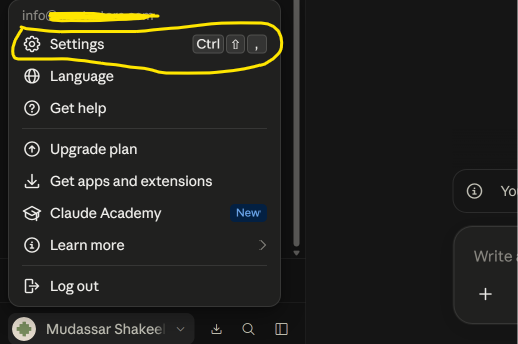
Step 1. Login into Claude Desktop > Click on profile > Settings
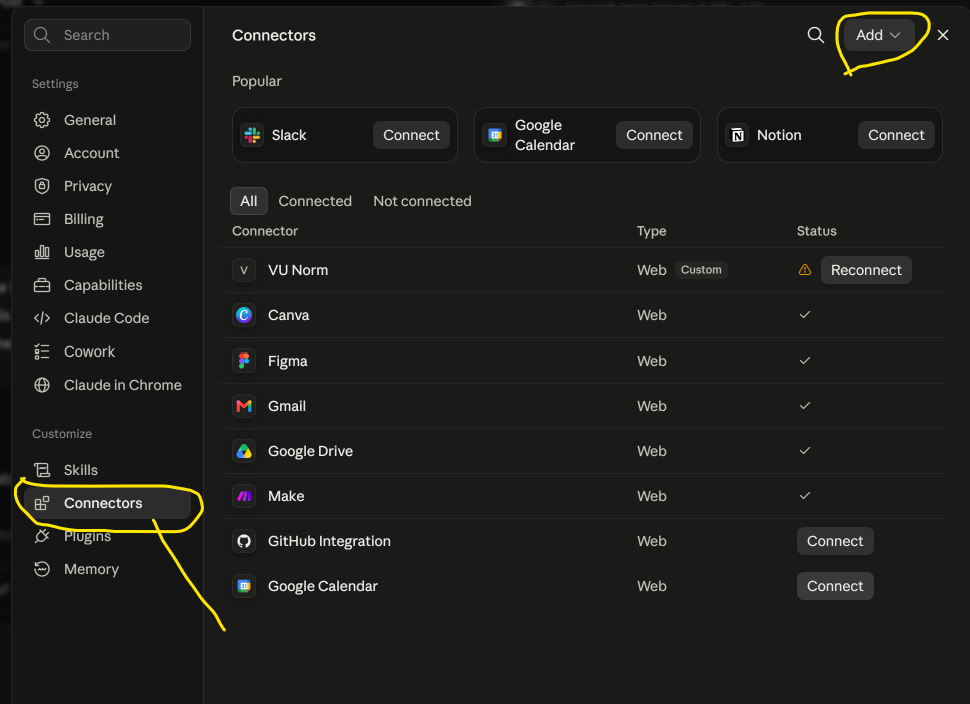
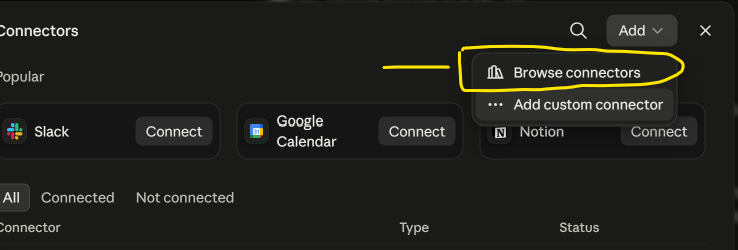
Step 2: Click on Connectors → Add → Browse connectors and search for Upwork, or go directly to the connector directory.
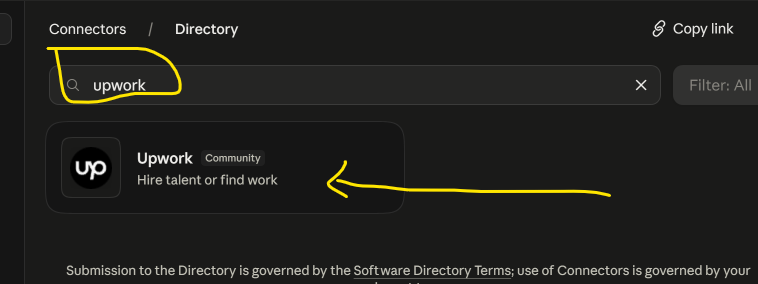
Step 3 : Click Connect, then log in to Upwork and authorize the connection.
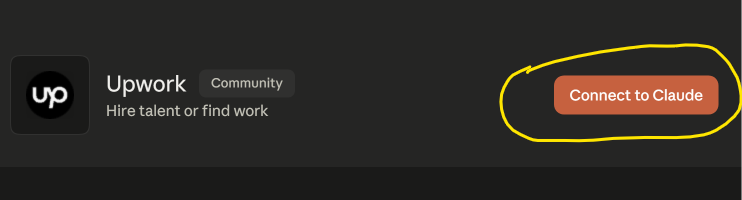
Step 4: To use it in a chat, click the + in the chat input, choose Connectors, and enable Upwork.
Note: free-plan users are limited to one custom connector; Pro, Max, Team, and Enterprise support multiple. On Team/Enterprise, an Owner adds it first via Organization Settings before members connect individually.
Claude Code
claude mcp add --transport http upwork https://mcp.upwork.com/mcpThen run /mcp in a session to complete the OAuth login.
ChatGPT
- Enable Developer Mode under Settings → Plugins.
- Add a custom plugin with the name “Upwork,” server URL
https://mcp.upwork.com/mcp, and OAuth authentication. - Sign in through the browser window that opens.
Requires Plus, Pro, Team, Business, or Enterprise, with model reasoning effort set to Medium or High — the Instant setting doesn’t support MCP tool calls.
Cursor
Add the following to your mcp.json (via Settings → Tools & MCP, or directly in the config file):
{
  "mcpServers": {
    "upwork": {
      "url": "https://mcp.upwork.com/mcp"
    }
  }
}
Save, then click Needs login in the MCP panel to complete authorization.
Codex (App and CLI)
codex mcp add upwork --url https://mcp.upwork.com/mcp
codex mcp login upwork
Verify with /mcp inside a Codex session.
Any other MCP-compatible agent that supports remote servers with OAuth (Windsurf, Cline, VS Code, Goose, and others) can connect using the same server URL.
Frequently Asked Questions
Is the Upwork MCP Server free?
Yes. It’s free to use with any Upwork account. Standard Upwork fees still apply to work completed through it, and freelancers still spend Connects to submit proposals, exactly as they would on Upwork.com directly.
Can an AI agent hire or accept work on my behalf without me confirming?
No. Every write action is drafted first, and binding actions — sending an offer, funding a milestone, accepting a contract — complete on Upwork.com, requiring your confirmation there.
Which AI tools work with the Upwork MCP Server?
Any agent that supports remote MCP servers with OAuth, including Claude (Web, Desktop, and Code), ChatGPT, Cursor, and Codex, plus any other MCP-compatible tool using the same server URL.
Does Upwork store my AI conversation history?
No. Upwork states the connector uses the same secure APIs available through its website, with no API keys to manage, and that your conversation history stays inside your AI agent rather than being visible to Upwork.
Can I revoke the connection later?
Yes, at any time, from Upwork’s Account Settings under Connected Apps — doing so immediately invalidates the access and refresh tokens.