
Do you find a way to disconnect and reconnect your Elementor account?
Elementor is a popular WordPress website builder plugin that allows users to create and customize their websites using a drag-and-drop interface. Disconnecting and reconnecting your Elementor Pro account typically refers to managing the connection between your WordPress website and the Elementor cloud services or account.
In this blog post, we’ll delve into the often-overlooked but crucial process of disconnecting and reconnecting your Elementor account. It’s not just about troubleshooting issues; it’s a strategic move with a myriad of benefits that can enhance your overall Elementor experience.
Let’s explore how this simple action can be a game-changer for your website design endeavors.
Disconnect and reconnect your Elementor account step by step
Learn how to easily disconnect and reconnect your Elementor account in WordPress. Troubleshoot issues, update credentials, and ensure seamless integration.
Here are general steps you might follow to disconnect and reconnect your Elementor account:
How to Disconnect your Elementor account?
Follow these quick steps to seamlessly disconnect your Elementor account for troubleshooting or adjustments.
Step 1: Enter your website’s URL followed by “/wp-admin/admin.php?page=elementor-connect” in the browser.
Step 2: Open the ‘Library‘ section on your admin page.
Step 3: Under ‘Library,‘ click on ‘Disconnect.‘
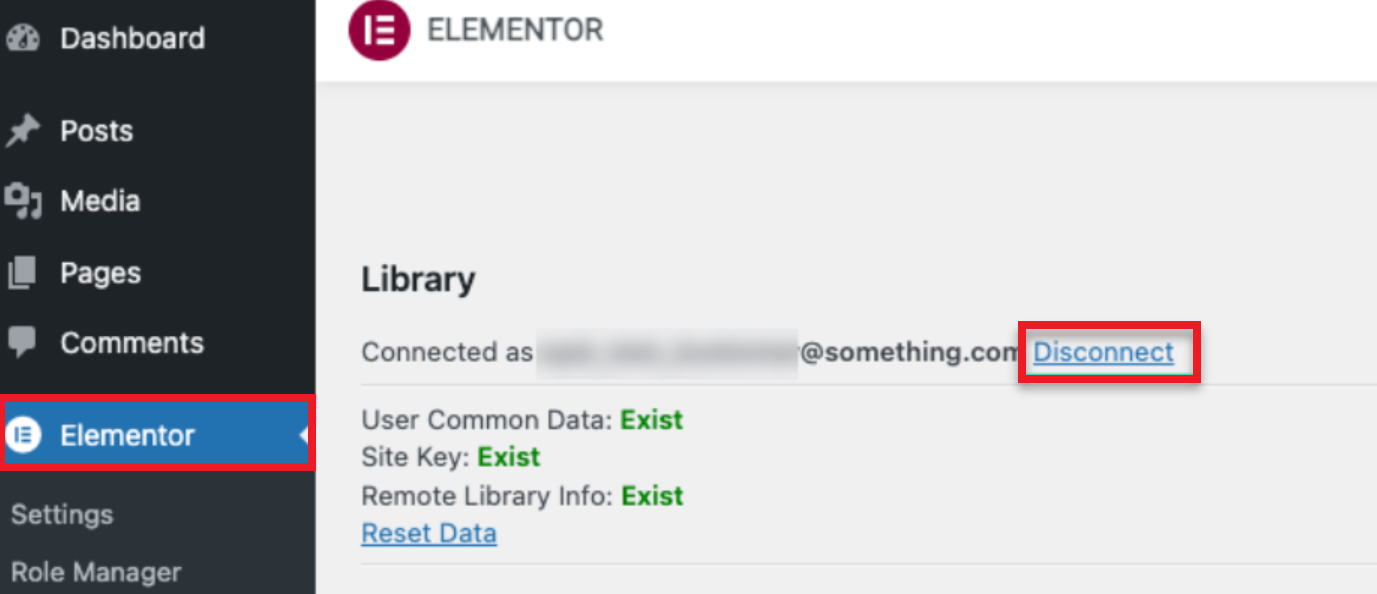
Step 4: Confirm the disconnection if prompted.
Step 5: Check Elementor features to ensure successful disconnection.
How to reconnect your Elementor account
Follow these simple steps to effortlessly connect a new Elementor account and enjoy an enhanced web design experience.
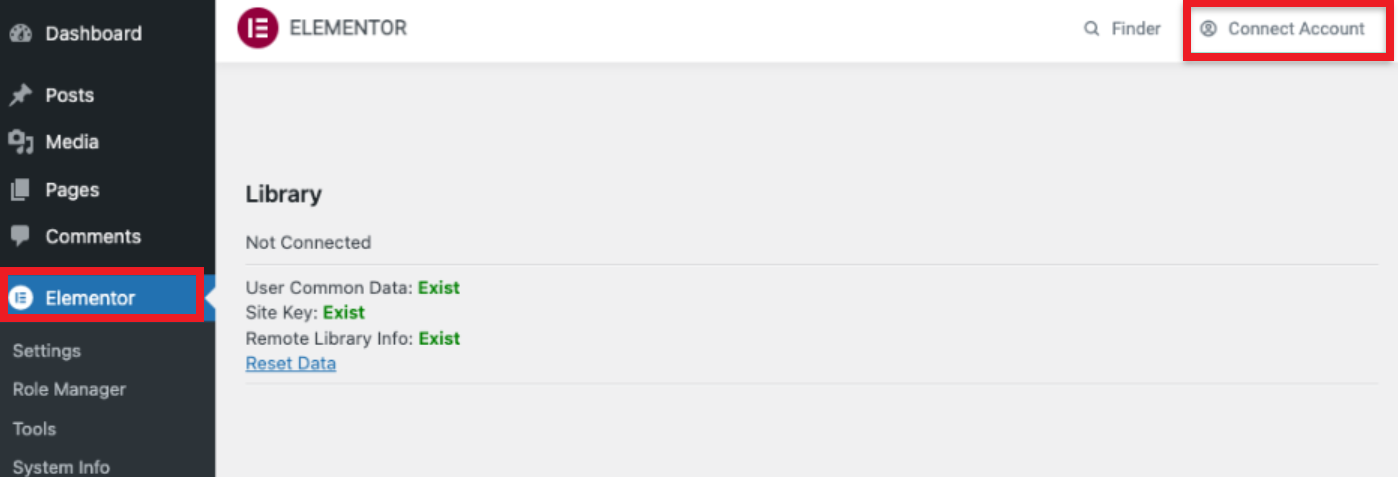
Step 1: Under the top Elementor bar click on “Connect Account.“
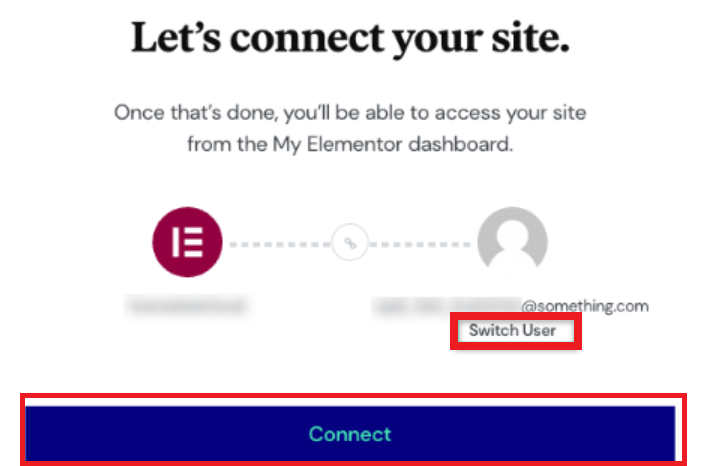
Step 2: On the connection page, click “Switch User.“
Step 3: You’ll be taken to the “Sign in to Elementor” page. Click “Create an Account.“
Step 4: Enter a valid email and password, then click “Create Account.” Alternatively, use your Google account by selecting “Continue with Google.“
Step 5: After creating your new account, click “Connect” to switch to it.
By following these straightforward steps, you can effortlessly disconnect your Elementor account, paving the way for troubleshooting, upgrades, or any necessary adjustments to enhance your web design experience.
Conclusion
In summary, disconnecting and reconnecting your Elementor account is a simple process within the WordPress dashboard. Whether resolving issues or updating credentials, accessing the Elementor settings allows users to manage the connection seamlessly. Refer to Elementor’s official documentation for specific and current instructions.