How to change a regional setting in Windows 10 and 11?

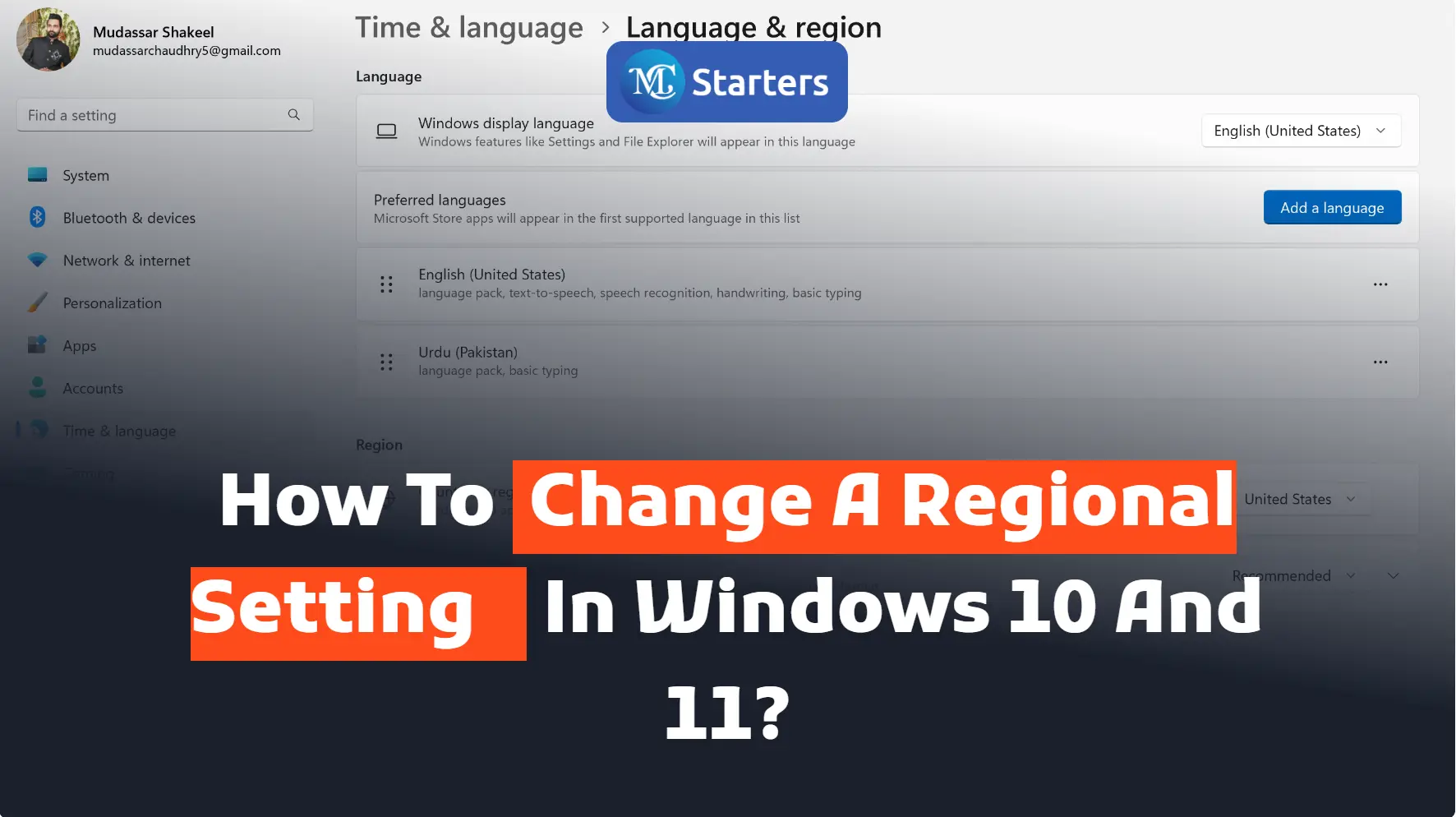
Do you want to change the regional settings in Windows 10 and 11?

You can easily change a regional setting in Windows 10 and 11. Select any location where you live now after changing the regional setting, you see changes in date, time, and location. Your computer shows those apps’ exact locations. 

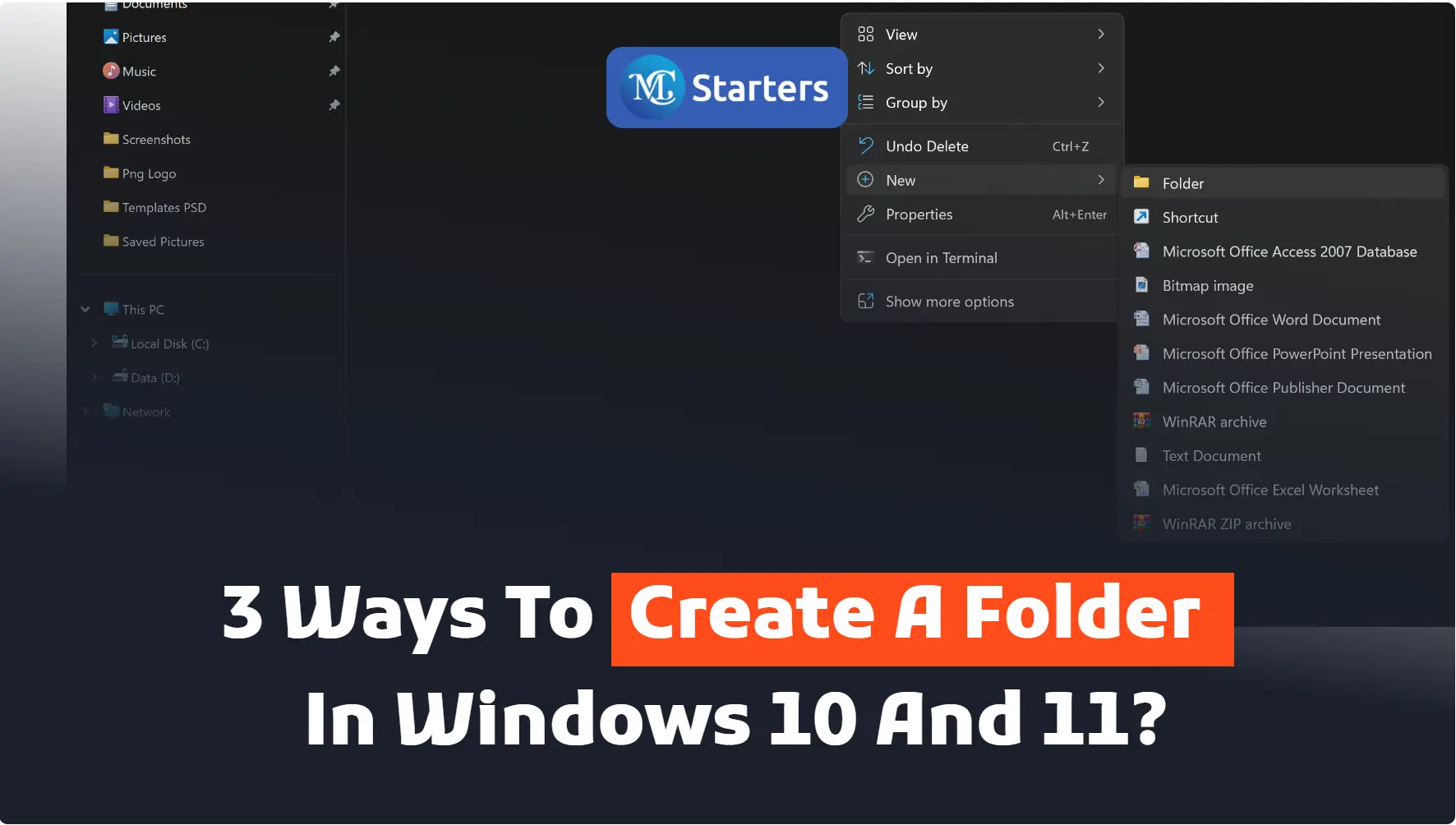
Click Here: 3 Ways to Create a Folder in Windows 10 and 11.

I am telling you how to change a regional setting in Windows 10 and 11.

Let’s go!

Change a Regional Setting

Step 1 Left-click on “Windows start (button)”

Step 2 Open “Setting”

Step 3 Click on “Time & Language” in the settings list

open time and language

Step 4 Click on “Region (text)” in the sidebar of Time & Language

open region

Step 5 Click on “Country or region” and select any location where you live now.

choose locations

Step 6 Drag the mouse down and see all the information about the calendar, time, and date

Step 7 Change your data format in a regional setting

In conclusion, knowing how to change a regional setting in Windows 10 and 11 is crucial for optimizing your user experience and ensuring that your system reflects your preferred language, time zone, and other regional preferences. The process may seem daunting at first, but with the step-by-step guide provided in this blog, you’ll find it easy and straightforward.

We hope this article helped to change a regional setting in Windows 10 and 11. It is a simple process that can be completed in just a few clicks. 

How has changing your regional settings in the past impacted your usage of Windows, and what specific benefits did you notice after making the adjustments? Share your experiences and insights in the comments below, and let’s learn from each other!

If you enjoyed this post, please subscribe to our YouTube channel. You may also find us on TwitterPinterest, Instagram, and Facebook.

How do I change my region on Windows 11?

To change the region on Windows 11, go to Settings > Time & Language > Region, select your desired region, and click “Restart now” to apply the changes.

How do I change my default regional format?

To change the default regional format on Windows 11, go to Settings > Time & Language > Region, and choose your preferred format from the drop-down menu.

Where is the region and language settings in Windows 11?

Find the region and language settings in Windows 11 by going to Settings > Time & Language.

How to change regional settings for all users on a computer?

To change the regional settings for all users on Windows 11, access Settings > Accounts > Family & other users > Set up assigned access, and follow the instructions to apply the changes.

Windows 11 vs. Windows 10: Which Is the Better Choice for You?

We use computers every day, and the software that runs on them is like their brain. You might have heard of Windows 11 vs. Windows 10, which is what many people have on their computers. But now, there’s a new one called Windows 11, and it’s asking us to choose.

In this article, we’re going to take a simple look at both Windows 10 and Windows 11. We’ll see how they look, how fast they are, what new things they can do, and how safe they are. By the end, you’ll have a better idea of which one is the right fit for you and your computer.

Windows 11 vs. Windows 10

Here is a quick comparison between Windows 10 vs. Windows 11.

  • Look: Windows 11 is sleek and centered. Windows 10 is traditional.
  • Performance: Windows 11 is better for newer PCs. Windows 10 is versatile.
  • Gaming: Windows 11 improves gaming. Windows 10 is still good.
  • Compatibility: Windows 11 needs newer hardware. Windows 10 suits older systems.
  • Updates: Windows 11 updates are smoother. Windows 10 updates can be disruptive.

So, let’s dive in and explore Windows 10 and Windows 11 and Which Is the better choice for You.

User Interface

In Windows 10, the main menu where you start things is on the left side, and it looks a bit like a list. You’ve probably seen it many times. But in Windows 11, they changed it. It’s now in the middle, which is different, and it looks more modern, like something you’d see on a new smartphone.

Windows 10:

  • Start Menu on the Left: In Windows 10, the Start Menu, where you launch apps and find stuff, is on the left side of your screen. It’s like the front door of your computer, and it’s where you begin your journey.
  • Familiar and Traditional: Windows 10 has a familiar and traditional interface. It’s like an old friend you’ve known for a while. Many people like this because they know where everything is.
  • Customizable: You can personalize the look of Windows 10 with different backgrounds, colors, and themes. It’s like rearranging the furniture in your living room to make it feel more like home.

Windows 11:

  • Centered Start Menu: Windows 11 shakes things up a bit. The Start Menu is now in the center of your screen, which is different from what you might be used to. It’s like rearranging your furniture and putting the sofa right in the middle of your living room.
  • Modern and Fresh: Windows 11 offers a more modern look with rounded corners and new animations. It’s like giving your old room a trendy makeover with stylish furniture and decorations.
  • Still Customizable: Just like in Windows 10, you can personalize Windows 11 with different themes and colors. So, it’s like you can still add your personal touch to your new, modern living room.

So, when you think about UI, it’s like comparing the layout and design of two different houses. Windows 10’s house is more traditional, and Windows 11’s house is more modern and centered. Some people might prefer the cozy feeling of the old house, while others might like the fresh look of the new one. It all depends on what you find comfortable and stylish.

Additional Software and App Compatibility

When considering an upgrade to Windows 11 or sticking with Windows 10, one critical aspect to evaluate is how your existing software and applications will fare in the transition. Let’s dive into the key points regarding additional software and app compatibility.

Compatibility Testing: Before leaping Windows 11, it’s essential to test your most-used software and apps. Check if they work smoothly on the new operating system. Some might require updates or patches to run correctly on Windows 11.

Windows 11 App Store: Windows 11 introduces changes to the Microsoft Store, potentially affecting how you acquire and manage apps. Explore these modifications and understand how they might impact your app usage.

Legacy Software: If you rely on older or niche software, assess whether it will remain compatible with Windows 11. In some cases, you may need to find alternative solutions or workarounds.

Windows 10 Compatibility Mode: Windows 11 includes a compatibility mode that can help older apps function as they did on Windows 10. Learn how to use this feature to maintain compatibility.

Driver Compatibility: Hardware drivers play a significant role in software and app performance. Investigate whether your device’s drivers are compatible with Windows 11 to ensure a smooth experience.

Application Updates: Keep an eye on updates from software developers. Many will release versions optimized for Windows 11 to take advantage of its new features and capabilities.

Virtualization Options: If certain apps are critical and cannot run on Windows 11, consider virtualization solutions that allow you to run Windows 10 within Windows 11 to use these apps.

User Feedback: Research user experiences and feedback regarding app compatibility on Windows 11. Online forums and communities can provide valuable insights and solutions to common compatibility issues.

Backup and Data Protection: Before any major OS transition, ensure you have a complete backup of your important data. This precaution ensures that even if you encounter compatibility issues, your data remains secure.

Performance Enhancements

Performance Enhancements are like giving your computer a turbo boost to make it work faster and smoother. Let’s see how Windows 10 and Windows 11 compare in this speed race.

Windows 10:

Think of Windows 10 as a reliable car. It gets you where you need to go without any fuss. But sometimes, it takes a bit of time to start up, like your car on a cold morning. It’s good, but not lightning-fast.

Windows 11:

Windows 11 is like a sports car. It revs up quickly when you turn it on, making you feel like you’re in the fast lane. It’s great for multitasking, like listening to music, browsing the web, and working on a document, all at the same time, without slowing down.

In simple terms, Windows 11 makes your computer feel snappier and more responsive, like a sports car with a powerful engine, compared to the reliable but somewhat slower experience of Windows 10. So, if you want a speedier ride, Windows 11 might be the way to go.

Compatibility and Upgrade Considerations:

Choosing the right operating system isn’t just about features and looks; it’s also about ensuring that your digital world remains seamless, secure, and compatible with your needs.

  • Hardware Requirements: Understand the hardware requirements for Windows 11, including CPU, RAM, and storage, and check if your current computer meets these requirements. We’ll provide guidance on how to do this.
  • Device Compatibility: Not all devices can smoothly transition to Windows 11 due to specific hardware and security requirements. We’ll explore the intricacies of device compatibility and what you should look for.
  • Software and App Compatibility: Discuss how existing software and applications perform on Windows 10 versus Windows 11. Highlight potential issues and solutions for compatibility concerns.
  • Upgrade Process: Learn about the steps involved in upgrading from Windows 10 to Windows 11, including data backup and system preparation. We’ll provide practical tips to ensure a smooth transition.
  • Downgrading and Reverting: In case you decide that Windows 11 isn’t the right fit for you, we’ll explain how to downgrade back to Windows 10 while preserving your data and settings.
  • Support Timelines: Understand the support lifecycles for Windows 10 and Windows 11, including end-of-support dates. Learn why staying up-to-date with security updates is crucial.
  • Community and Resources: Discover where to find valuable resources, community forums, and support networks to assist you in your upgrade journey or with any issues you may encounter.
  • User Testimonials: Gain insights from real users who have gone through the upgrade process or decided to remain with Windows 10. Their experiences can offer valuable perspectives.
  • User Poll and Survey Results: Explore the results of user polls and surveys regarding the choice between Windows 10 and Windows 11, providing insights into popular preferences.

New Features and Productivity

New Features and Productivity are like having cool gadgets and tools to make your computer work better and help you get things done. Let’s explore what Windows 10 and Windows 11 have to offer in this area.

Windows 10:

Think of Windows 10 as a trusty toolbox with all the essential tools you need. It gets the job done, but there aren’t many flashy gadgets. You have a good selection of apps, and everything is familiar.

Windows 11:

Windows 11 is like getting a new and improved toolbox with some exciting gadgets. It introduces Snap Layouts, which help you organize your open windows neatly. There are also Snap Groups to manage your tasks better. It’s like having a handy organizer to keep everything in order.

Plus, Windows 11 connects you with Microsoft Teams right from the taskbar, making communication and collaboration easier. And the app store has more choices, including Android apps, like having a bigger store with more options.

So, if you’re looking for some new and helpful tools to boost your productivity, Windows 11 brings some cool features to the table. It’s like upgrading your toolbox to get the job done even more efficiently.

Security and Hardware Requirements

Security and Hardware Requirements are like locking your front door and making sure your house can handle the latest gadgets. Let’s see how Windows 10 and Windows 11 compare in terms of keeping your computer safe and what kind of house they need to live in.

Windows 10:

Think of Windows 10 as a solid lock on your front door. It keeps your computer safe with features like Windows Defender, which is like a security guard for your digital world. It’s a good choice for most computers, even those that aren’t brand new.

Windows 11:

Windows 11 takes security a step further. It uses a special lock called TPM 2.0, which makes it even harder for anyone to break in. This is like having a high-tech security system in your home. But here’s the catch – not all houses (or computers) can have this new lock. So, you need a fairly new and fancy house (computer) to use Windows 11.

In simple terms, if your computer is like a house, Windows 11 wants a newer and more advanced house with better security. But Windows 10 is like a reliable lock that fits on most doors (computers) and still keeps things safe. It all depends on how fancy your “house” is and how much security you want.

Integration with Microsoft Services:

Both Windows 10 and Windows 11 are deeply connected to Microsoft’s ecosystem of services. Let’s explore how these operating systems integrate with Microsoft services and how they might influence your choice.

Microsoft 365 and Office Integration: Windows 10 and Windows 11 both integrate seamlessly with Microsoft 365 and Office applications. You can use apps like Word, Excel, and PowerPoint with ease on both operating systems. Windows 11 brings some visual enhancements and features that enhance productivity with these applications.

OneDrive Integration: Both operating systems offer integrated access to OneDrive, Microsoft’s cloud storage service. Your files can be easily synced, making them accessible from any device. However, Windows 11 may offer improved integration with OneDrive, enhancing your cloud storage experience.

Microsoft Edge Browser: Windows 10 and Windows 11 come with Microsoft Edge as the default web browser. While it’s available on both, Windows 11 may offer some additional features and improvements to the browser, enhancing your web browsing experience.

Cortana Integration: Cortana, Microsoft’s virtual assistant, is available on both Windows 10 and Windows 11. However, Windows 11 may introduce improvements to Cortana’s capabilities and integration with the OS.

Outlook and Email Integration: Windows 10 and Windows 11 offer seamless integration with Outlook and email services. You can manage your emails, calendars, and contacts efficiently on both systems. Windows 11 may

User Experience and Customization

User Experience and Customization are like making your computer feel comfy and personalized, just the way you like it. Let’s compare how Windows 10 and Windows 11 handle this.

Windows 10:

  • Customization within Limits: Windows 10 allows you to personalize your desktop with different wallpapers, colors, and themes. You can add gadgets and icons to make it feel more like your own space.
  • Familiarity: For users who like things just the way they are, Windows 10 offers a familiar and consistent experience, which is great for those who don’t want too much change.
  • Less Touch-Friendly: While it works on touchscreen devices, Windows 10 isn’t as touch-friendly as Windows 11, making it more suitable for traditional desktops and laptops.

Windows 11:

  • Widgets for Information: Windows 11 introduces widgets, like a digital bulletin board, where you can get quick access to news, weather, and other personalized information.
  • Enhanced Touch and Pen Support: It’s like having a touchscreen-friendly apartment. Windows 11 makes touch and pen input smoother and more enjoyable, which is perfect for 2-in-1 laptops and tablets.
  • Virtual Desktops for Organization: Windows 11 provides virtual desktops, allowing you to create different workspaces for various tasks. This is like having separate rooms for different activities in your trendy apartment.
  • A More Modern Look: The overall design of Windows 11 is more modern, with rounded corners and a centered Start Menu. It’s like redecorating your space to keep up with the latest trends.

So, Windows 10 offers a cozy, familiar room with customization options, while Windows 11 is like moving into a trendy, modern apartment with additional features for a more personalized experience. Your choice depends on whether you prefer the familiar or want to embrace a more contemporary look and feel.

conclusion

In conclusion, the decision between Windows 11 and Windows 10 hinges on your individual needs and preferences. Windows 11’s modern interface, performance enhancements, and new features make it a compelling choice for those looking to embrace the future of Windows. However, compatibility with your existing hardware is a crucial consideration. We’ve explored the differences, but the final choice rests with you. The right operating system can significantly impact your computing experience, so choose wisely.

Whether you decide to stick with the familiarity of Windows 10 or embrace the innovations of Windows 11, the world of technology continues to evolve, offering exciting possibilities for all users.

What should I consider before upgrading to Windows 11?

Before upgrading, check if your computer meets the hardware requirements for Windows 11. Additionally, test the compatibility of your most-used software and apps to ensure they work smoothly on the new OS.

Is it worth upgrading to Windows 11 from Windows 10?

Whether it’s worth upgrading depends on your specific needs and hardware compatibility. If you value a modern interface and performance enhancements, Windows 11 could be a good choice.

What are the key differences between Windows 10 and Windows 11?

Windows 11 introduces a centered Start Menu, enhanced performance, new productivity features like Snap Layouts, and improved touch and pen support. It also has higher hardware requirements compared to Windows 10.

What happens to my data when I upgrade to Windows 11?

During the upgrade process, your data, files, and applications should be preserved. However, it’s always a good practice to back up your important data before any major OS transition.

How to Change Time Zone on Windows 10 and 11?

Did you find a way to change time zone on Windows 10 and 11?

Time zone settings are as important as your Windows 10 and 11 to display the correct local time. Whether you’re traveling, moving to a different region, or simply need to adjust to your time zone to Save Time. Here’s a simple guide on how to change the time zone on your computer.

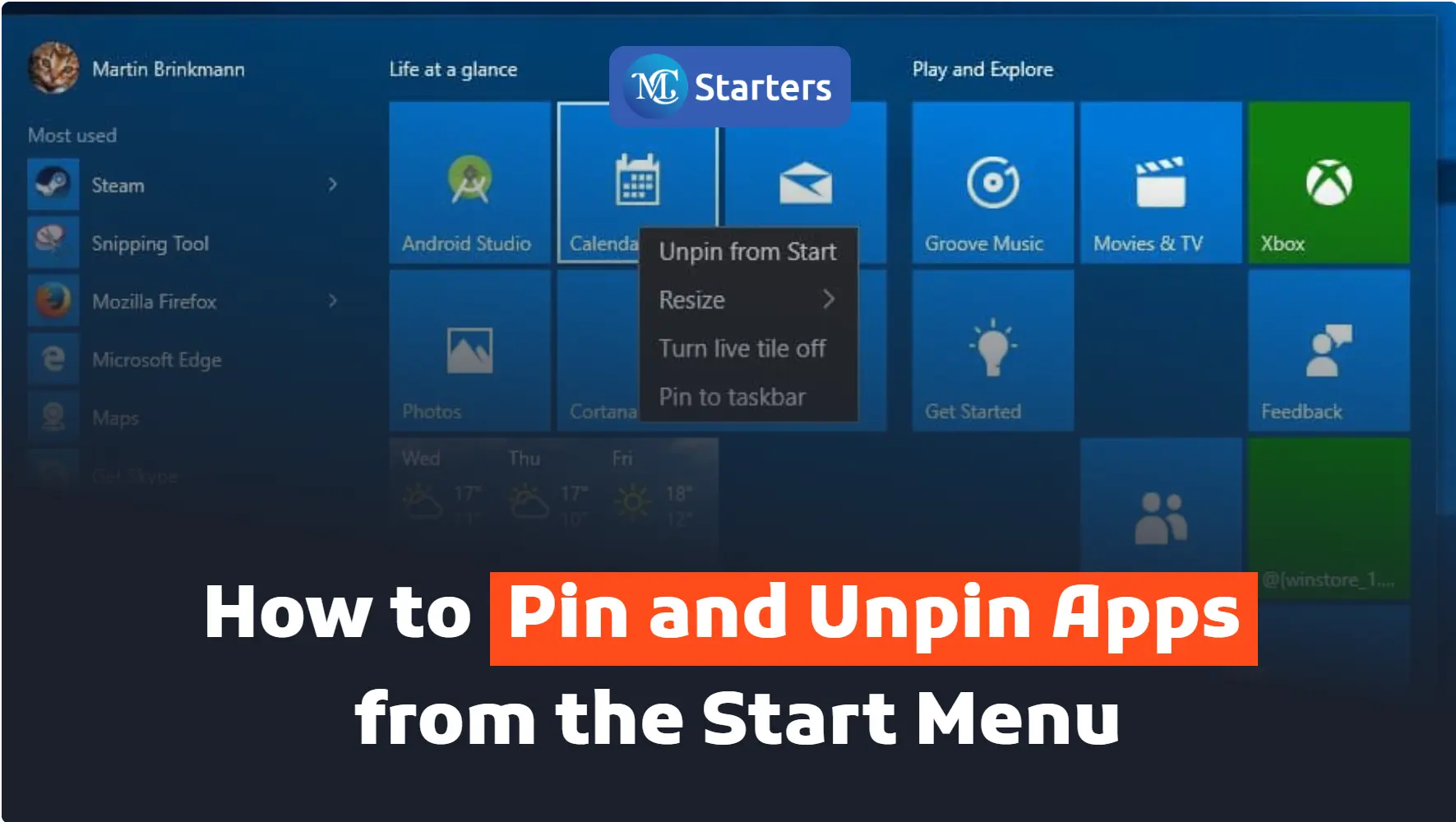
Click Here: Pin and Unpin Apps from the Start Menu

Here are a few steps you can easily change time zone on Windows 10 and 11. Change the time zone using different steps.

 In this article, I am telling you how to change time zone on Windows 10 and 11. 

Change Time in Settings

Step 1: First, go to the “Windows Start” button. Click on the “settings

Step 2: Select the “Time & Language“. Press the “Date & Time

Change Time In Settings

Step 3: Scroll down to the “Time zone” section and click on the drop-down menu to see the list of available time zones.

Change Time In Settings

Step 4: Select your desired time zone from the list.

Change Time In Settings

Change Time with Control Panel

Step 1: First, go to the “Windows Startbutton. Write the word “Control Panel” then open

Step 2: Press on “Clock and Region

Change Time with Control Panel

Step 3: Select the “Date and Time” and change the time zone.

Change Time with Control Panel

Step 4: Press the section“Change Time Zone” and click on the drop-down menu to see the list of available time zones.

Change Time with Control Panel

Step 5: Select your desired time zone from the list.

Change Time with Control Panel

Your system will immediately apply the new time zone settings. Do not restart your computer to ensure the changes take effect.

Changing the time zone on both Windows 10 and Windows 11 is a straightforward process that allows you to adjust your system’s clock to the correct local time. Whether you’ve moved to a different location or need to synchronize your computer’s time with a specific time zone, we’ve provided you with a step-by-step guide to make the process seamless.

What time zone are you currently using on your Windows computer and is it the correct one for your location? If you’ve ever encountered issues with your system’s time, share your experience with us in the comments below!

We hope this article helped you learn how to change the time zone on Windows 10 and 11.

If you enjoyed this post, please subscribe to our YouTube channel. You may also find us on TwitterPinterest, Instagram, and Facebook.

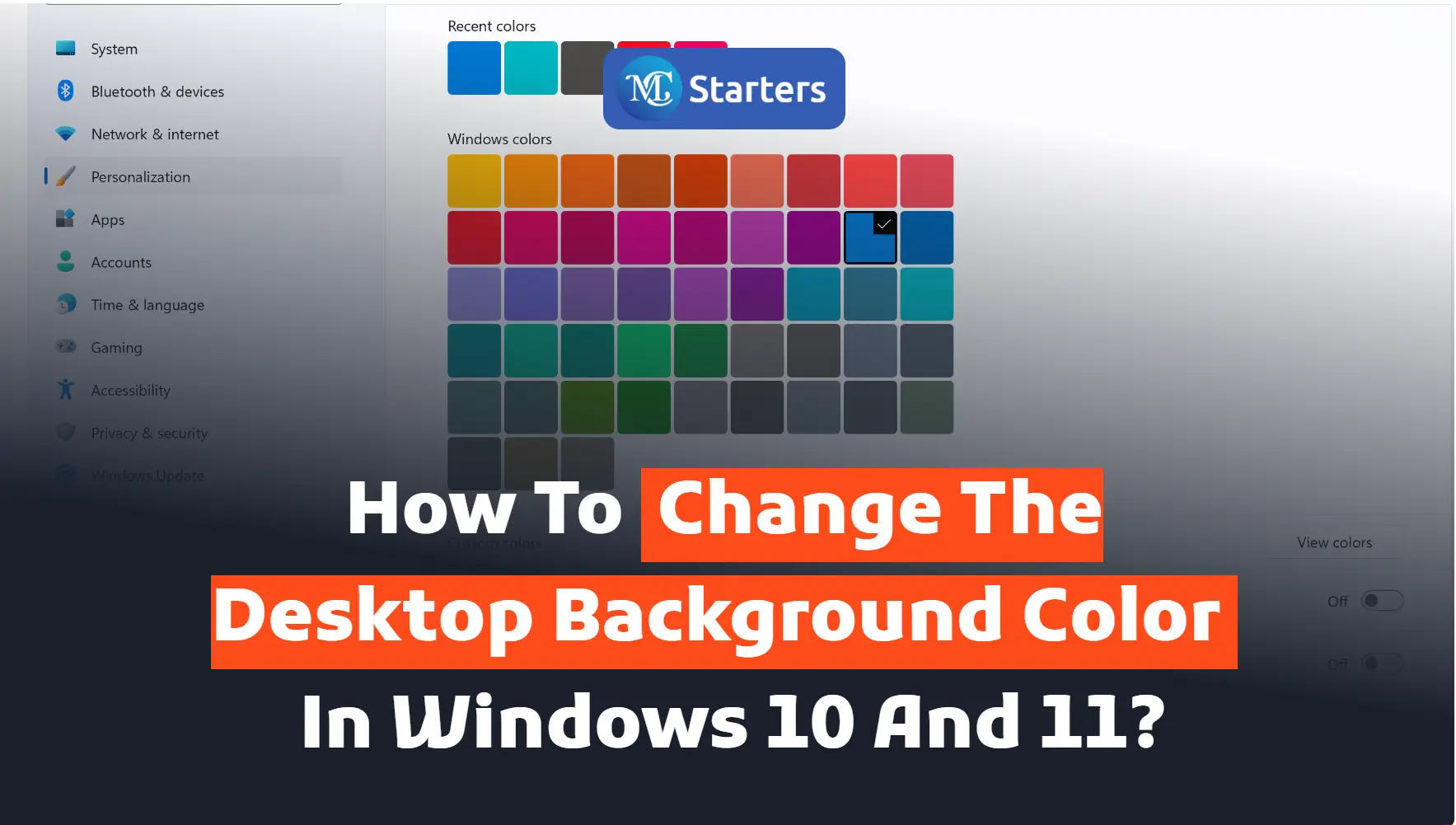
How to change the Desktop Background color on Windows 10 and 11?

Do you want to change the desktop background color on Windows 10 and 11?

Click on Start> Settings> Personalization> Choose colors> Accent color

A change in desktop background color is needed for every man when you’re bored with the image. You pull a color from your computer display. Choosing a new color gives you an enjoyable and fuller mind. You feel some change in your computer. You can create a custom color.  Change the background color in this easy way.

Click Here: Enable Dark Mode on Windows 10 and 11

Let’s go!

Change the Desktop Background color

Fellows step-by-step to change the desktop background color and make it cool.

Step 1 Go to “Window Start” and open “Settings.”

Step 2 Click on “personalization” and open “color.”

Desktop Background color

Step 3 Choose a color.

Step 4 Scroll down and pull the “Accent color” from your background

Desktop Background color

Personalizing your desktop with a unique and appealing color can add a touch of individuality to your computing experience.

Changing the desktop background color on both Windows 10 and 11 is a simple and effective way to personalize your computer’s appearance. Whether you prefer a calming blue, a vibrant red, or any other color that reflects your style, we’ve provided you with an easy-to-follow guide to make the changes effortlessly.

What is your favorite desktop background color, and does it influence your mood or productivity while using your computer? Share your thoughts with us in the comments section below!

We hope this article helped to change the desktop background color on Windows 10 and 11.

If you enjoyed this post, please subscribe to our YouTube channel. You may also find us on Twitter, Pinterest, Instagram, and Facebook.

How do I change the background color on my desktop to Windows 11?

Right-click on your desktop, select “Personalize,” go to “Background,” and choose a new color.

How do I change my background back to white in Windows 11?

Right-click on your desktop, select “Personalize,” go to “Background,” and choose the white color option in the “Background” settings.

Do Windows 11 desktops have different backgrounds?

Windows 11 allows you to set different backgrounds for each monitor if you have multiple displays.

How do I change the background theme in Windows 11?

Go to “Settings,” select “Personalization,” and choose a new theme under the “Themes” section.

How do I change the background color on my desktop to Windows 10?

Right-click on your desktop, select “Personalize,” go to “Colors,” and choose a new background color.

How do I customize my desktop screen in Windows 11?

Right-click on your desktop, select “Personalize,” and explore the options to change the background, theme, colors, and other customization settings.

How to Enable Dark Mode on Windows 10 and 11?

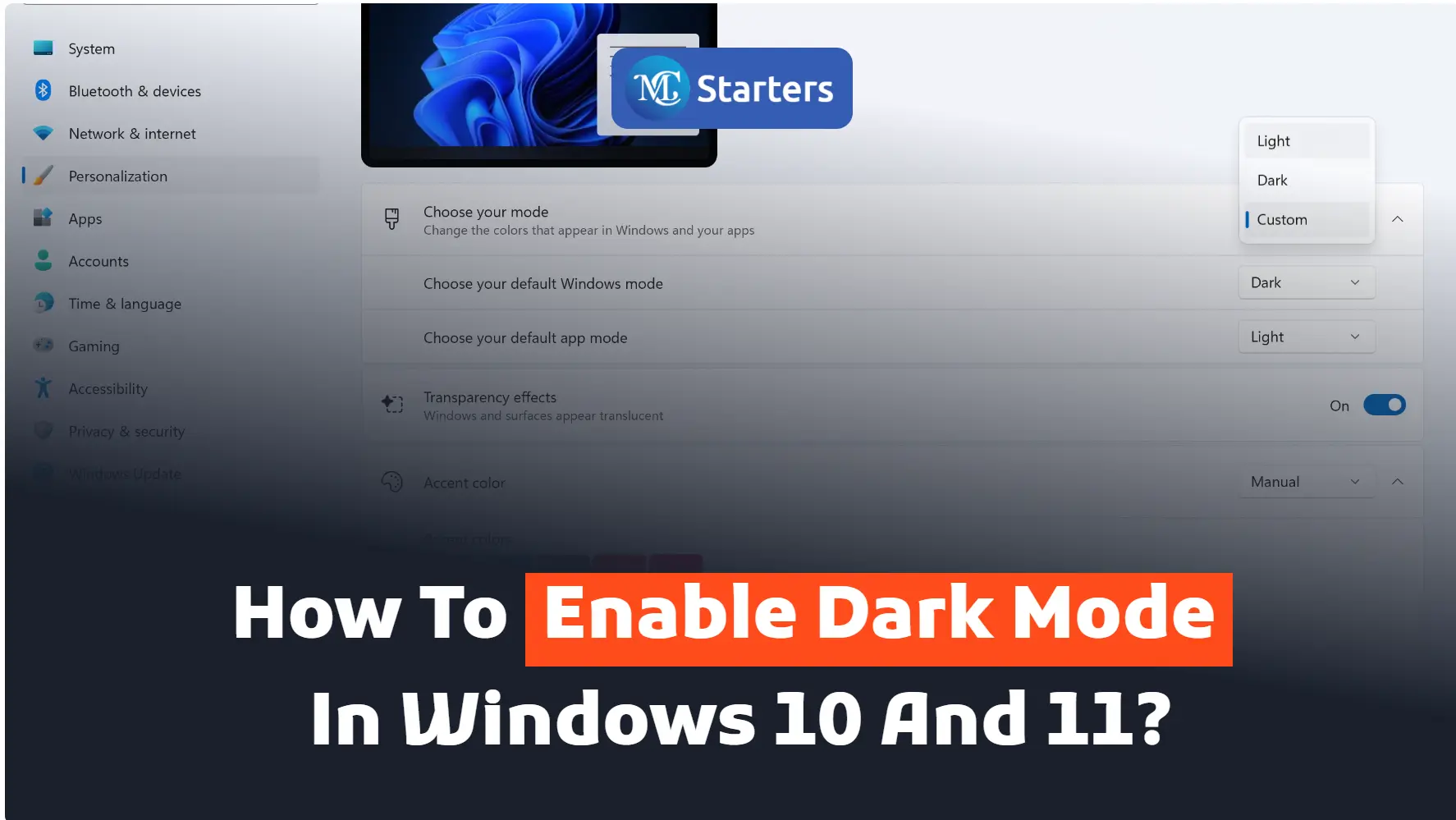
Do you want to enable dark mode on Windows 10 and 11?  

Turning on dark mode on a laptop desktop is very effective for your work. Easily select any custom color for the window theme on Windows 10 and 11. 

Click Here: Disable the Touchpad on Windows 10 and 11

Dark light increases the progress of a business. With dark light, you can do well work during daylight hours. It is specially designed for working in low-lit environments.

I am telling you how to enable dark mode in Windows 10 and 11.

Let’s get started.

Enable Dark Mode on Windows 10 and 11

Fellows step-by-step

Step 1 Select the Windows Start button and open “Settings”.

Step 2 Press “Personalization” in the setting list. Choose “Color” from the sidebar menu.

Screenshot

Step 4Choose your mode” and select “Dark

 Enable Dark Mode

Step 5 Scroll down and choose the custom color

After selecting dark mode, it can change the look of your Windows start menu.

conclusion

In conclusion, enabling Dark Mode on Windows 10 and 11 is a straightforward process that not only adds a stylish touch to your user interface but also reduces eye strain, especially in low-light environments. With just a few clicks, you can enjoy a more visually comfortable computing experience while conserving energy on devices with OLED or AMOLED screens.

We hope this article helped to enable dark mode on Windows 10 and 11.

If you enjoyed this post, please subscribe to our YouTube channel. You may also find us on Twitter, Pinterest, Instagram, and Facebook.

How do I put Windows 11 in dark mode?

To enable dark mode on Windows 11, open “Settings,” go to “Personalization,” and under “Choose your color,” select “Dark.”

Does Windows 11 have dark mode?

Yes, Windows 11 has a dark mode option that you can enable in the “Personalization” settings.

How do I get Windows 10 in dark mode?

To enable dark mode in Windows 10, go to “Settings,” choose “Personalization,” and under “Colors,” select “Dark.”

How do I enable dark mode in Windows 11 without activation?

You can enable dark mode in Windows 11 without activation by going to “Settings,” selecting “Personalization,” and choosing “Dark” under “Choose your color.” Activation is not required for this feature.

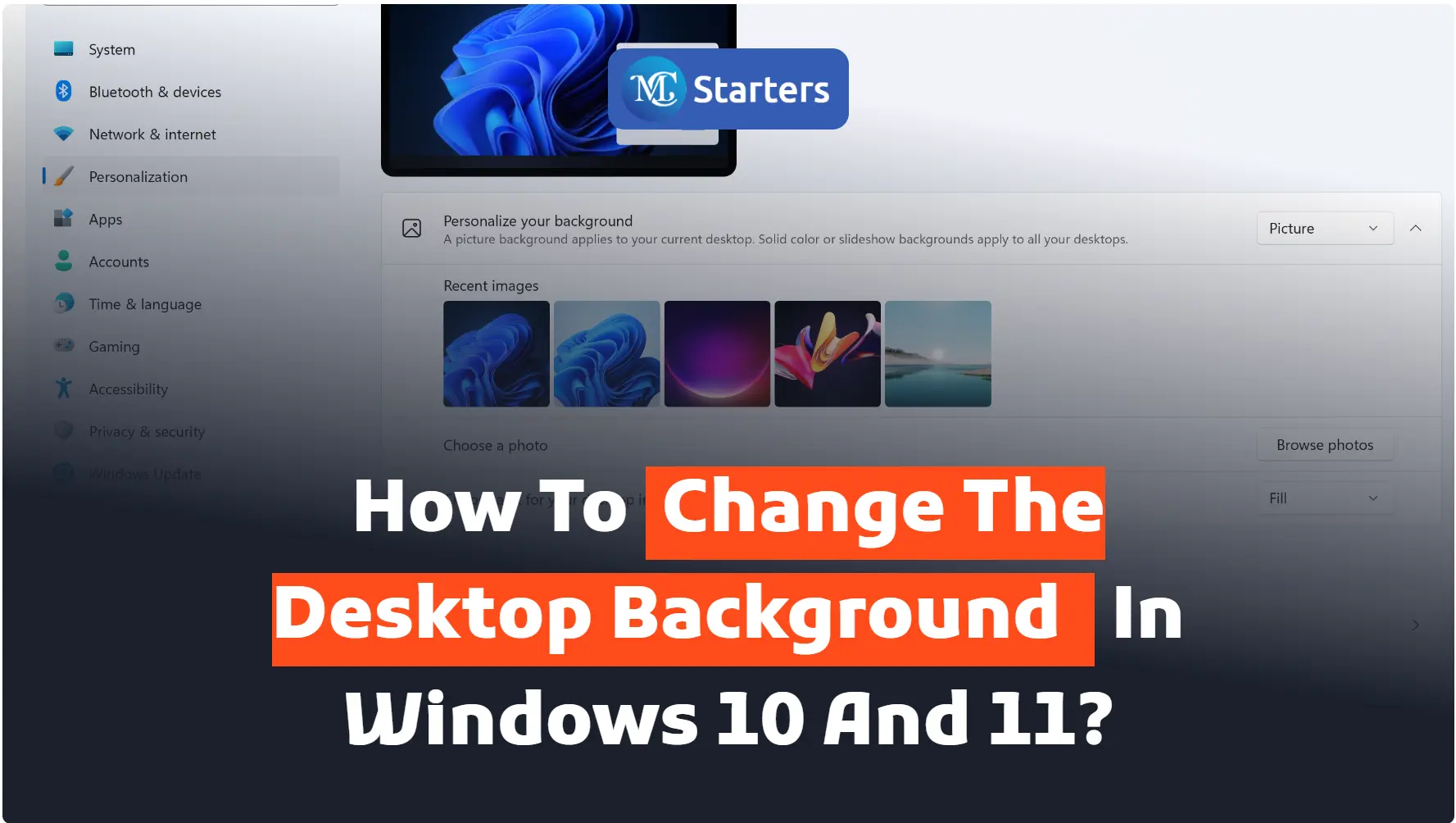
How to Change the Desktop Background on Windows 10 and 11?

Are you looking for a way to change the desktop background on Windows 10 and 11?

When you are tired of seeing blue lights on your desktop and want a change of background. It is easy to change the background image in Windows 10. 

Click Here: Set up Night Light Displays on Windows 10 and 11

Desktop background changes in two different ways, by clicking right-click and settings.  

Let’s get started

Change the background with a Right-Click

It is a direct way of changing the background. If any good image is saved on your computer 

Step 1 Go to this folder where the images are saved

Step 2 Right-click on the image

Step 3 Press “set as desktop background”

Choose an image to apply to your screen.

Change Background with Settings

Changing backgrounds in this way is a long process. Fellows step by step

Step 1 Go to the Windows start button and open “Settings

Step 2 Click on “personalization” and open “background

Step 3 Choose a “picture” “Solid color” or “Slide show

Step 4 Choose any new picture and easily pick any image from “browse

Changing the desktop background on both Windows 10 and Windows 11 is a straightforward process that allows you to add a personal touch to your computer’s appearance. Follow these steps to customize your desktop background:

We hope this article helped you learn new ways to change your desktop background on Windows 10 and 11.

We would love to hear about your desktop background! Share with us the wallpaper you currently have on your Windows computer. Is it a stunning landscape, a favorite family photo, or an inspiring quote? Let us know in the comments below!

If you enjoyed this post, please subscribe to our YouTube channel. You may also find us on TwitterPinterest, Instagram, and Facebook.

Do Windows 11 desktops have different backgrounds?

As of my last update in September 2021, Windows 11 does not natively support different backgrounds for multiple desktops. All desktops have the same background.

What are Windows 11 desktop backgrounds?

Windows 11 desktop backgrounds are typically located in the “Backgrounds” or “Wallpapers” section within the “Personalization” settings.

How do I make my desktop background different in Windows 10?

In Windows 10, you can set a different background by right-clicking an image and selecting “Set as desktop background” or go to Settings > Personalization > Background and choose different wallpapers.

How do I have two different wallpapers?

As of my last update in September 2021, to have two different wallpapers, you can use third-party software or apps designed for multiple monitors to set individual wallpapers for each monitor.

Get Professional Websites