
If you want to add text before and after the hamburger icon in Divi then you need to follow the below steps. Most website owners like that to add Text “Menu” Next To The Divi Hamburger Menu. It helps to give clear meaning to see all pages on the mobile menu.
Want to Learn More About Divi Builder.
Download Free Divi Header Templates For Websites.
Add text before and after the Hamburger Icon in Divi
Add Text After Hamburger Icon in Divi
Below are the simple steps you just need to follow.
Step 1: Copy the below snippet.
.mobile_menu_bar:after {
 position: relative !important;
 content: 'MENU';
 bottom: 9px;
 left: 10%;
 color: #000000;
}
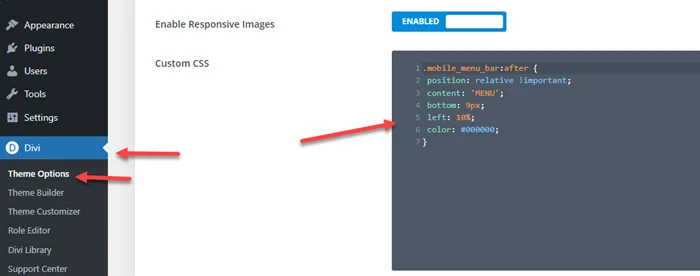
Step 2: Got to Divi > Theme Options > CSS > Paste above CSS snippet > Save Changes.
Add Text Before Hamburger Icon in Divi
Below are the simple steps you just need to follow.
Step 1: Copy the below snippet.
#et_mobile_nav_menu:before {
    content: 'MENU';
    font-size: 14px;
    position: absolute !important;
    bottom: 29px;
    right: 35px;
    color: #000000;
}
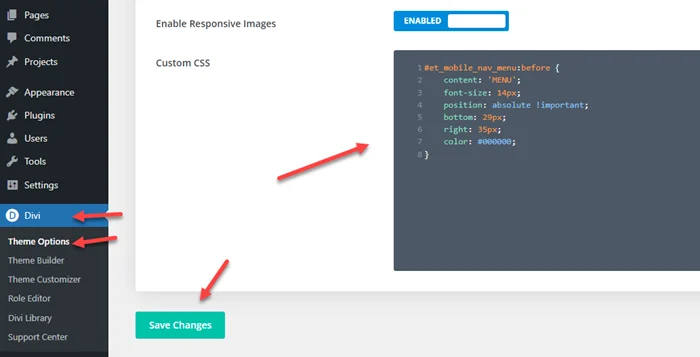
Step 2: Got to Divi > Theme Options > CSS > Paste above CSS snippet > Save Changes.
We hope you enjoy to add text before and after the hamburger icon in Divi and it’s helpful for you. But if you still need any help then comment below.
You Might Also Want to Hire Divi Theme Expert.