5 Best Elementor Themes For Education

Do you want excellent Best Elementor Themes For Education and courses?

Here is the best Elementor themes collection that I have collected in many hours. It is the best element or theme that is selling in the market. These are easy to customize and use the drag-and-drop Elementor editor to launch an online course website. It is a ready-made page builder.

Download free Elementor website templates for the WordPress site.

Learn More About Elementor Page Builder.

List of Best Elementor Themes For Education

Check out below the top education theme for the Elementor page builder. We help you decide a theme for School and College.

Scuola-Language School WordPress Elementor

Scuola-Language School WordPress Elementor

Scuola is a responsive Elementor theme for school language. It is made for courses, learning, and educational websites. The user easily utilizes and creates unique sites with zero programming skills. This theme handled the course booking, payments, and management system with the WooCommerce plugin. This theme is compatible with Elementor Page Builder, WooCommerce, Yoast SEO, and Elementor Pro Page Builder.

  • Elementor Front End Builder
  • Elementor Pro Support and Compatibility
  • Elementor Header and Footer Builder
  • An extensive setup guide
  • One-Click Demo Content Import
  • Premium Revolution Slider (save $29)
  • SEO Ready
  • RTL Support

Ellen-Education LMS & Online Courses WordPress Theme

Ellen-Education LMS & Online Courses WordPress Theme

Ellen is a fast and lightweight WordPress theme designed for online training, college, university, and education websites. This theme is compatible with many plugins like WPML, Loco Translate, Yoast plugins, etc. This theme is easily customizable and developer-friendly.

Here are the core features:

  • RTL Feature For Arabic & Hebrew LanguagReady
  • Unlimited Typography Option
  • W3 Valid
  • Contact Form 7
  • Redux Theme Option
  • Easily Customizable from the Admin Dashboard
  • Creative Layout

Emeritus -Education and Online Courses Theme
Emeritus -Education and Online Courses Theme

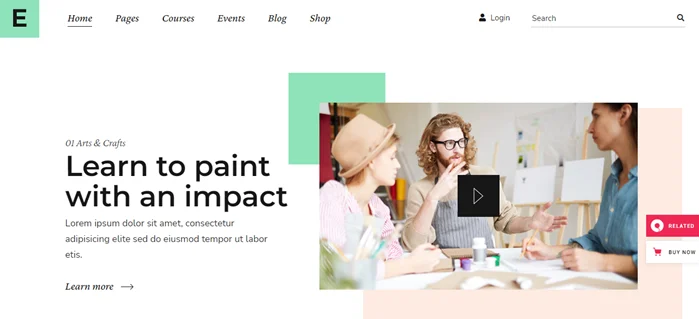
Emeritus is a first-class online education website. It is easy to use and one-click demos import. It provides practical inner pages and five header types. You can easily drag and drop with the Elementor page builder. It is compatible with the events calendar and the Elementor Page Builder plugin.

  • Easy-to-Use and Powerful Admin Interface
  • One-click import of the demo site
  • The Course List shortcode
  • Course Category List shortcode
  • Course Search shortcode
  • Highly customizable typography settings.
  • Separated typography settings for responsive
  • 900+ Google Fonts

Skole-Kindergarten

Skole-Kindergarten

Skole is an Elementor theme designed specifically for kindergartens and preschools. Skole is a feature-rich Elementor theme that is visually striking, entertaining, and lively. Users can create a website without any coding skills, as well as professional developers. In one click, you import the demos. It is an SEO-ready theme.

Here are the core features.

  • Elementor Front End Builder
  • Elementor Pro Support and Compatibility
  • Elementor Header and Footer Builder
  • An extensive setup guide
  • WooCommerce Integration
  • Timely Support – 8 hour average response time
  • One-Click Demo Content Import
  • An extensive setup guide
  • 23 HD Video Tutorials for Beginners

Efor-Coaching & Online Courses WordPress Theme

Efor-Coaching & Online Courses WordPress Theme

Efor is coaching. This WordPress theme is specially designed for all kinds of coaching businesses: health and wellness coaching, team coaching, career coaching, fitness coaching, etc. It is made with a pack of the features that are needed for coaching WordPress sites. Attract new customers, increase your email list and sell online courses. Its responsive design works on any device and it’s easy to drag and drop with the Elementor page builder.

  • Responsive Design & Retina Ready
  • Sell Your Courses Online with LearnPress or TutorLMS.
  • 4 different header variations.
  • Flexible Images and Videos by default
  • Complete blog system
  • Advanced Theme Options Panel: on/off many features.
  • 800+ Google Fonts
  • SEO Friendly

Conslusion

We hope this article gave you a good overview of the best Elementor Themes For Education business. You may also want to see our list of 23 Best Elementor Template Kits.
How to Add Back to Top Button in Squarespace

Do you want to add back to the top button in Squarespace? We will help you with that in just two steps. We make this with custom javascript and CSS code.

Download Free Header Templates For WordPress Elementor Site.

Add Back to Top Button in Squarespace

Please follow the below step to add scroll back to the top button in Squarespace.

Step 1: First copy below Javascript code.

<script>
  const body = document.querySelector('body');
  const cursor = document.createElement('button');
  cursor.className = "cursor";
  cursor.textContent = "⬆";

   body.appendChild(cursor);
   cursor.addEventListener("click", function(){
     window.scrollTo(0, 0);
 });
</script>

Step 2: Go to Setting > Advanced > Code Injection > Footer > Scroll Down > Paste Code in Footer

Squarespace footer injection code

Step 3: Now Copy Below CSS code

html{
  scroll-behavior: smooth !important;
}
.cursor{
    z-index: 10;
    position: fixed;
    bottom: 30px;
    right: 20px;
    border: none;
    outline: none;
    
  /* The Background color of the button. You can put your hex color instead of crimson*/
    background: blue;
  
  /* The color of the icon inside the button. You can put your hex color instead #fff*/
    color: #fff;
    padding: .8rem 1.3rem;
    border-radius: 50%;
  
  /* increase or decrease the icon font-size to make the button bigger or smaller */
    font-size: 1.3rem;
    font-weight: bold;
}
@media (max-width: 500px){
    .cursor{
        right: 10px;
        bottom: 45px;
    }
}

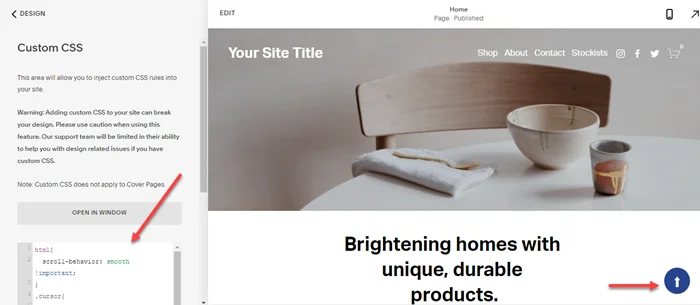
Step 4: Go to Design > Custom Css > Paste Above Code.

Squarespace custom code for Back to Top Button

We hope you found Add Back to Top Button in Squarespace post helpful. But if you still face any problems, then comment below.

Make Website With Drag and Drop Page Builder in 5 Mint.

How to change the email used in the contact form Squarespace

Some of the clients ask how do can I change the email address on the contact form? So, now I make a step-by-step tutorial for everyone who wants to know how to change the email used in the contact form Squarespace.

Check Our Free Elementor Templates For WordPress Websites.

Learn More About Elementor Page Builder.

Change the email used in the contact form Squarespace

Please follow the step to step guides.

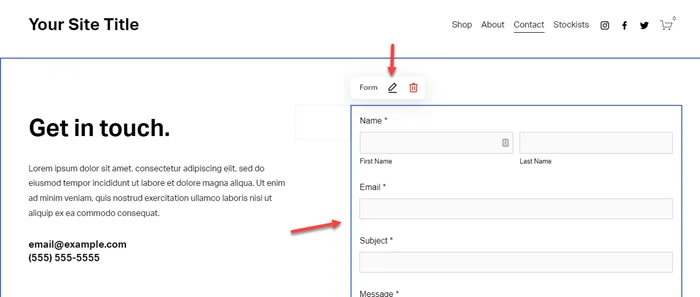
Step 1: Go to the Contact form and click on the Edit icon.

Click on Edit Form squarespace

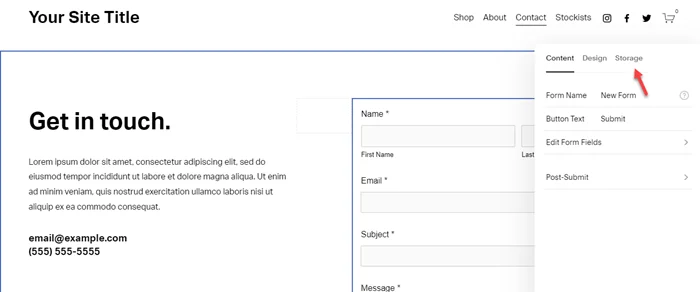
Step 2: Now click on Storage.

Click on Storage

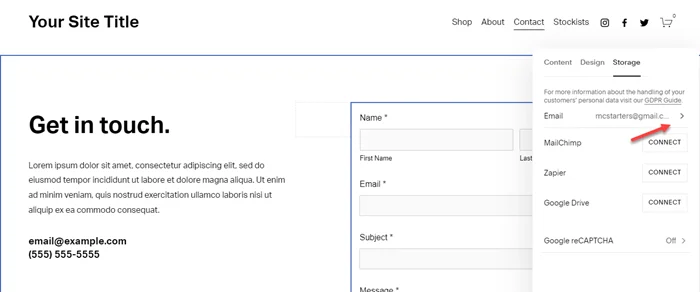
Step 3: Now click on Email.

Click on Email

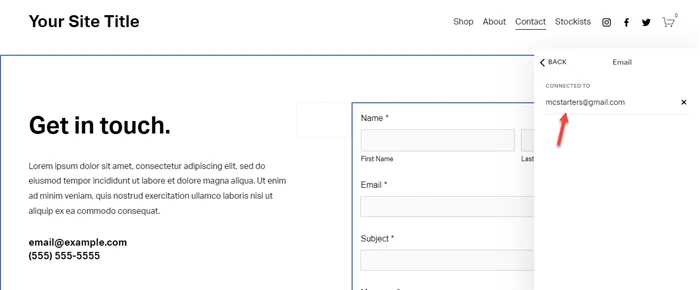
Step 4: Now here enter the email below the “Connected to” text.

Enter Email in Connect field

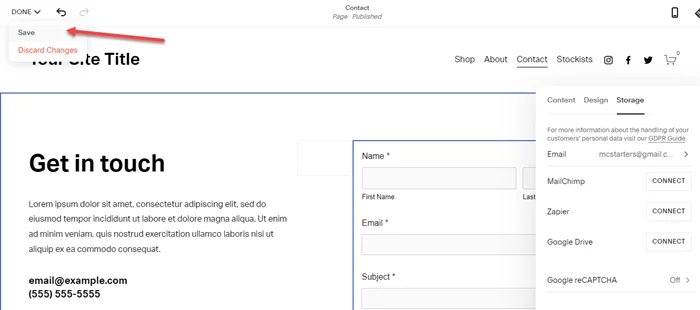
Step 5: Last click on Done and Save.

Save Squarespace page

It’s done now. Just go to the website and refresh the contact page and test the form is works or not. If you still face any problems then comment below.

Best Elementor Theme For Food Blog 2022

Are you looking for the best Elementor WordPress theme for a food blog?

A food blog wants complete guidance with photos and looks attractive. Traditional WordPress themes do not make a standout website for food. Elementor is the best website builder for making the perfect recipe blog.

You Might Also Like to Learn More About Elementor Page Builder.

Download Our Free Elementor Templates for Website.

Best Elementor Theme For Food Blog

In this post, we will share with you the best Elementor theme that makes a standout food blog.

EasyMeals-Food Blog WordPress Theme

EasyMeals-Food Blog WordPress Theme

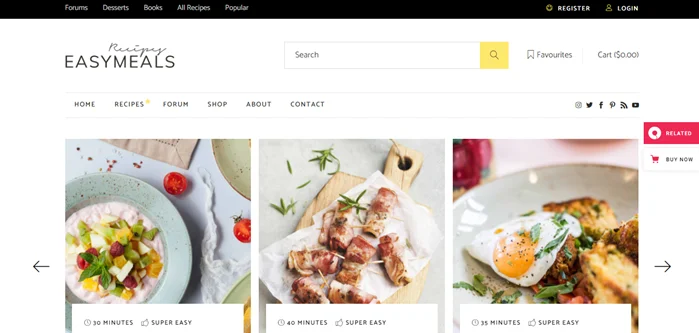
EasyMeals is a unique recipe and personal community food blog website theme. You can easily customize it with drag & drop elements using the Elementor Page Builder. It has a powerful admin dashboard and a full Elementor page builder that lets you adapt any element with ease. This theme creates a fine section of food blog layouts that display your recipes. You can set up a bbPress plugin, their community members can share their experiences & stories.

Here are some features.sss

  • One-Click Demo Content Import
  • 900+ Google Fonts
  • Large collection of pages and layouts
  • SEO Optimized
  • Elementor Page Builder compatible (free version)
  • Compatible with bbPress plugin for creating forums and bulletin boards
  • Recipe List shortcode
  • Header Standard

Genius Kitchen-News Magazine and Blog Food WordPress Theme

Genius Kitchen-News Magazine and Blog Food WordPress Theme

The Genius Kitchen is a great theme. It is a powerful page builder. You can build anything with a drag & drop page builder and a large element library. It is compatible with popular WordPress plugins like Yoast, YITH compare, MailChimp, WooCommerce, and W3 Total Cache. You can build and maintain an online store with a Merchandiser This theme provides friendly customer support. There are powerful integrated features included.

  • Drop & Drag element builder page
  • Header/Footer custom design
  • Woocommerce Catalog Mode integrate
  • Custom main color
  • 40+ styles grid post
  • Menu Sticky On/Off
  • One-click import demo data
  • Add Google fonts

Fooddy 24/7 – Food Ordering & Delivery Elementor Theme

Fooddy 247 – Food Ordering & Delivery Elementor Theme

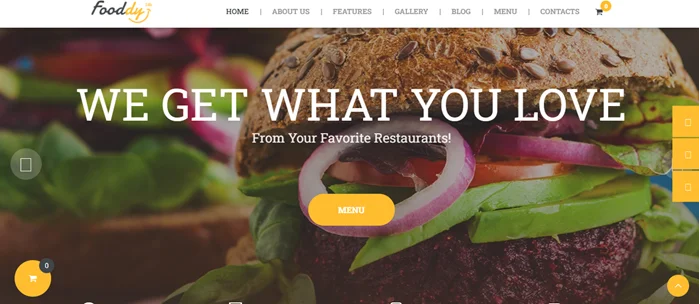
Fooddy 24/7 is a stylish food delivery WordPress theme. It is designed for online food ordering and delivery websites. It is also used for food blogs, online cookbooks, mobile applications, recipe websites, and restaurant listings.

This theme is a fully responsive and informative layout. It allows you to create your page layouts with Elementor page builder and WPBakery page builder compatibility. This theme is compatible with premium plugins.

Here are some features.

  • Professional design
  • One-Click demo install
  • Modern, Flexible, Customizable
  • WordPress 4.0+ Tested and Approved
  • Built with HTML5 and CSS3 code
  • 100% Responsive & Mobile-friendly
  • Boxed and Fullwidth page layouts
  • Elementor and WPBakery Page Builder support

Organic Store | Eco-Products Shop WordPress Theme

Organic Store Eco-Products Shop WordPress Theme

Organic Store is a user-friendly page builder theme. This theme gives a stunning demo layout. It gives the pre-built pages pre-defined layouts. It is fully responsive and optimized for every screen resolution. It is easy to use and gives awesome options that will adjust the theme to your needs.

  • Professional design
  • One-click demo install
  • Modern, Flexible, Customizable
  • WordPress 4.0+ Tested and Approved
  • Built with HTML5 and CSS3 code
  • 100% Responsive & Mobile-friendly
  • Boxed and full-width page layouts
  • WPBakery Page Builder support
  • Elementor Page Builder support

Bouffe – Restaurant & Coffee Shop Theme

Bouffe – Restaurant & Coffee Shop Theme

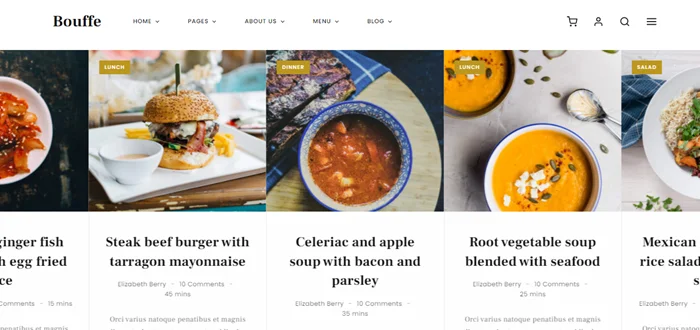
Bouffe is a multi-purpose restaurant, cafe, coffee, recipes, and wine WordPress theme. It is suitable for all businesses. You can build unique websites with Bouffe, easily installable, customizable, and usable structure. It customizes your theme as you like, everything as you imagine. It offers the best page builder experience and is compatible with OpenTable, contact form, and custom URLs. Here are advanced features.

  • Advanced Theme Customizer
  • Elementor Page Builder
  • Menu Listing & Management
  • Reservation System
  • Recipe Listing & Management
  • Custom Sidebar Builder
  • 100% Responsive Design
  • One-Click Installation
  • SEO Friendly

A-Mart – Organic Products Shop WordPress Theme

A-Mart – Organic Products Shop WordPress Theme

A-Mart is a colorful, clean & responsive organic food WordPress theme. It is an intuitive Elementor Page Builder theme and easy to customize without any coding skill. It is perfect for natural food-related websites like agricultural businesses and healthy food blogs. It is compatible with Elementor Page Builder, WPML, Essential Grid, and WooCommerce. It is an informative layout that looks unique on any platform. It is a powerful framework and Retina ready.

  • Professional design
  • One-Click demo installation
  • Modern, Flexible, Customizable
  • 100% Responsive & Mobile-friendly
  • Boxed and Fullwidth page layouts
  • Elementor Builder support
  • Multiple Blog Styles
  • Flexible Layout Options

We hope you like our list of best Elementor WordPress themes for a food blog. If you find it useful then comment below.

You Might Also Like to hire For cheap WordPress design

How to Remove Checkout Fields from WooCommerce?

One of the most crucial processes in any eCommerce store is checkout. Keep things simple if you want to be successful and increase your sales. As a result, we’re going to show you How to Remove Checkout Fields from WooCommerce?

You Might Also Like Free Elementor Templates For WordPress Website

If you want to learn More About Elementor Page Builder

Why disable WooCommerce checkout fields?

The Users add items to their shopping carts but they leave the site without purchasing anything, just because of the lengthy and confusing checkout process.

To avoid this, the checkout page should be simple and contain only the fields that are required. This is especially true if you sell digital or virtual things like software, music, or ebooks. Because this type of goods does not require shipping, it should have its own checkout page that does not require information such as an address or a postal code.

Remove Checkout Fields from WooCommerce

So, to boost conversion let’s start step by step guide on how to remove checkout fields from WooCommerce.

Step 1: Copy the below snippet.

/* WooCommerce: The Code Below Removes Checkout Fields */

add_filter( 'woocommerce_checkout_fields' , 'custom_override_checkout_fields' );

function custom_override_checkout_fields( $fields ) {
unset($fields['billing']['billing_first_name']);
unset($fields['billing']['billing_last_name']);
unset($fields['billing']['billing_company']);
unset($fields['billing']['billing_address_1']);
unset($fields['billing']['billing_address_2']);
unset($fields['billing']['billing_city']);
unset($fields['billing']['billing_postcode']);
unset($fields['billing']['billing_country']);
unset($fields['billing']['billing_state']);
unset($fields['billing']['billing_phone']);
unset($fields['order']['order_comments']);
unset($fields['billing']['billing_email']);
unset($fields['account']['account_username']);
unset($fields['account']['account_password']);
unset($fields['account']['account_password-2']);
return $fields;
}

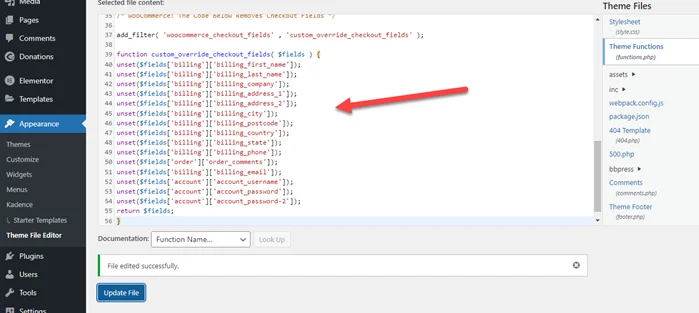
Step 2: Go to Child Theme > Function.php > Paste Code

Remove checkout woocommerce

If you look at the code, you’ll note that identifying which checkout field each line represents is simple.

You can simply delete the line of code that represents the individual field if you want to display any checkout fields that have been removed.

For example, you want to display a bill’s first name then you need to delete the below fields line from the code.

unset($fields['billing']['billing_first_name']);

It’s Done. We hope you find How to Remove Checkout Fields from WooCommerce post helpful but if you still face issues then comment below.

How to add text before and after the Hamburger Icon in Divi

If you want to add text before and after the hamburger icon in Divi then you need to follow the below steps. Most website owners like that to add Text “Menu” Next To The Divi Hamburger Menu. It helps to give clear meaning to see all pages on the mobile menu.

Want to Learn More About Divi Builder.

Download Free Divi Header Templates For Websites.

Add text before and after the Hamburger Icon in Divi

Add Text After Hamburger Icon in Divi

Below are the simple steps you just need to follow.

Step 1: Copy the below snippet.

.mobile_menu_bar:after {
 position: relative !important;
 content: 'MENU';
 bottom: 9px;
 left: 10%;
 color: #000000;
}

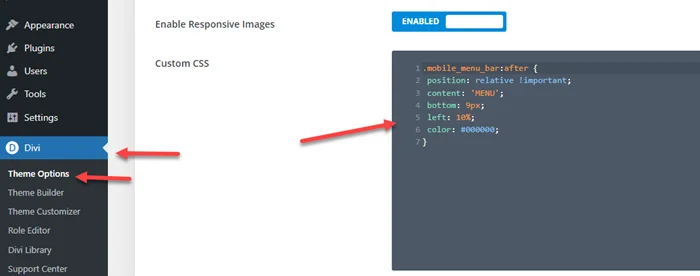
Step 2: Got to Divi > Theme Options > CSS > Paste above CSS snippet > Save Changes.

Add Text after Hamburger Icon in Divi

Add Text Before Hamburger Icon in Divi

Below are the simple steps you just need to follow.

Step 1: Copy the below snippet.

#et_mobile_nav_menu:before {
    content: 'MENU';
    font-size: 14px;
    position: absolute !important;
    bottom: 29px;
    right: 35px;
    color: #000000;
}

Step 2: Got to Divi > Theme Options > CSS > Paste above CSS snippet > Save Changes.

Add Text Before Hamburger Icon in Divi

We hope you enjoy to add text before and after the hamburger icon in Divi and it’s helpful for you. But if you still need any help then comment below.

You Might Also Want to Hire Divi Theme Expert.

Get Professional Websites