How to Fix the “There Has Been a Critical Error on Your Website” Error

“There Has Been a Critical Error on Your Website” is the most common error in WordPress. The full version of this error show like that when you open a WordPress website.

“There has been a critical error on your website. Please check your site admin email inbox for instructions. Learn more about debugging in WordPress.”

We will show 4 methods of fixing this issue. I hope one of works for your Website but if still not fixed then comment below.

Note: Please take a backup before working on the solution

You Might Also Like Elementor Website Templates for WordPress.

Want to Learn More About Elementor Page Builder.

There Has Been a Critical Error on Your Website

Let’s start fixing, Please follow every step to get rid of this error.

Upgrade Your PHP Version

Your site may break as a result of outdated PHP, and additional issues are almost certain to arise. You should generally run your site on the most recent version of PHP that WordPress supports, which is presently PHP 7.3 through 8.0.

Some WordPress users prefer to stick to PHP 7.4 because of theme and plugin compatibility concerns. Normally, this isn’t a problem. However, if you’re using PHP 5. x, you should upgrade immediately because it can cause major problems.

If you are not an expert then you need to contact hosting support they will help you to Upgrade Your PHP Version but if you are a developer then follow the below steps.

Step 1: Open to Hosting Account > Open Cpanel > Search Php > Click “Select PHP Version”.
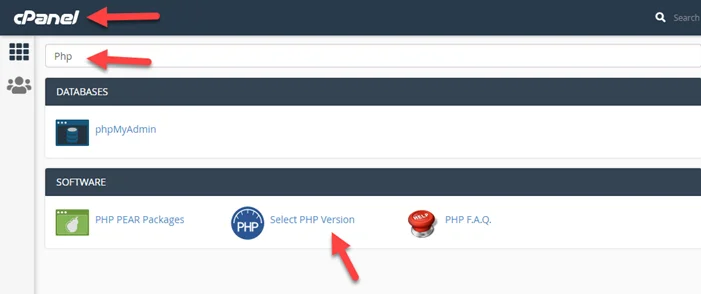
Open Cpanel and Php version

Step 2: Upgrade the PHP version by clicking on the current dropdown icon.
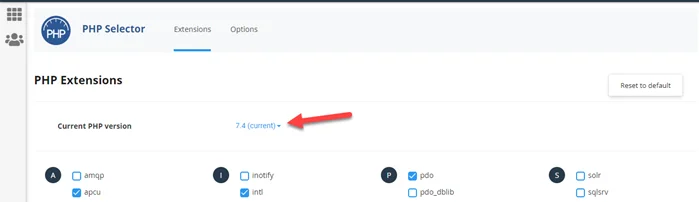
Upgrade Your PHP Version

Disable All Plugins

A plugin is frequently to blame when you’re experiencing a critical problem. Finding the plugin that’s causing the problem can be difficult if your site has many or even hundreds of plugins.

But there’s a quick approach to figure out which plugin is causing the issue to turn them all plugins off and see whether that solves the problem. If it does, turn them on one at a time until your site stops working. And there you have it: the perpetrator!

Learn how to disable all plugins or disable plugins one by one.

Step 1: Open Cpanel > File Manager

File Manager

Step 2: Access WordPress wp-content folder 📂. Here you see the plugins folder. please Rename this folder to plugins_old. It helps you to disable all plugins in one step.

Step 3: Check website is working or not. If work then one of plugin cause of this problem.

Step 4: Rename plugin_old to plugin and activate all plugins from the WordPress dashboard. Now you again see your website stop working.

Now it’s time to disable plugins one by one to get rid of this error.

Step 1: Again Open Cpanel > File Manager > wp-content > plugins. Here you see all plugins.

Step 2: Rename plugins one by one and check website work or not. if work then just disable this plugin and activate all other. if not, then move to the next plugins and do the same process again until you fix it.

Raise the PHP Memory Limit

Step 1: Open the wp-config.php file.

Step 2: Insert the following code right before the final line and save.

define( 'WP_MEMORY_LIMIT', '128M' );

Increase the Max Upload File Size

Step 1: Log into file manager and edit the wp-config.php file

Step 2: Placing the below snippet right above the final line.

ini_set('upload_max_size' , '256M' );
ini_set('post_max_size','256M');

We hope you can fix the “There Has Been a Critical Error on Your Website” issue but if you are still facing the issue then comment below.

Frequently Asked Question

How do I fix there has been a critical error on your website please check your site admin email inbox for instructions?

Step 1: Log in to File Manager
Step 2: Access wp-content > plugins
Step 3: Remain plugin folder
Step 4: Access website admin and now you successfully login.

You Might Also Like WordPress Website Services

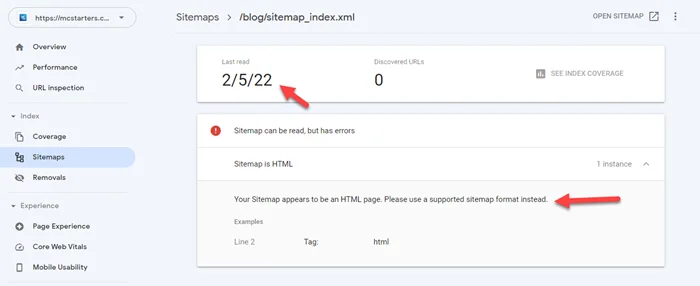
Your Sitemap appears to be an HTML page. Please use a supported sitemap format instead

I face the “Your Sitemap appears to be an HTML page. Please use a supported sitemap format instead” error in my blog. I fix this easily with just a simple hack.

Your Sitemap appears to be an HTML page

You Might Also Like: Free Elementor Templates For WordPress

Learn More About Elementor Page Builder

Your Sitemap appears to be an HTML page error

Please follow the steps to fix this issue.

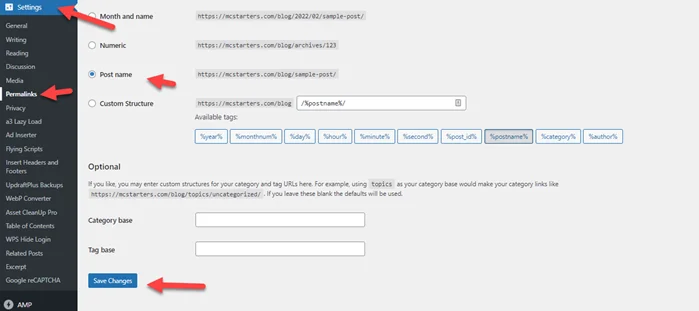
Step 1: Go to settings > Permalinks >Here just click on Save Changes

WordPress Permalink Settings

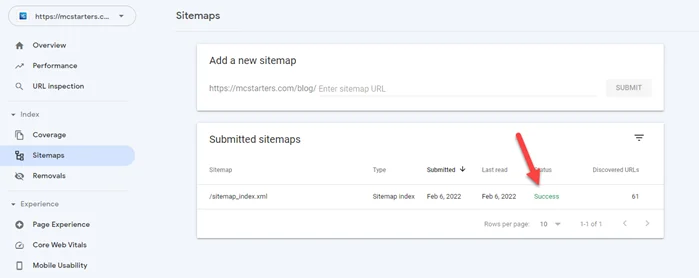
Step 2: Remove the previous sitemap from the google search console and add new again. You see a success message.

Your Sitemap appears to be an HTML page error fix

I hope you fix this issue but if you still need any help then comment below or hire an expert from the below link.

You Might Also Like: Cheap WordPress Design services for businesses.

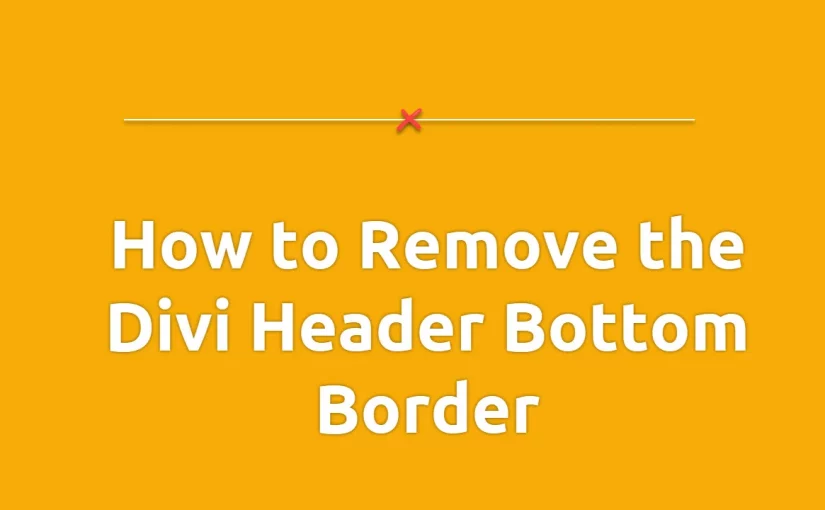
How to Remove the Divi Header Bottom Border

By default, The Divi theme header contains a thin grey line below the header. It looks like a bottom border but actually, this is a shadow. Today, we are going to show you how to Remove the Divi Header Bottom Border!

You Might Also Like: Free Divi Header Layout

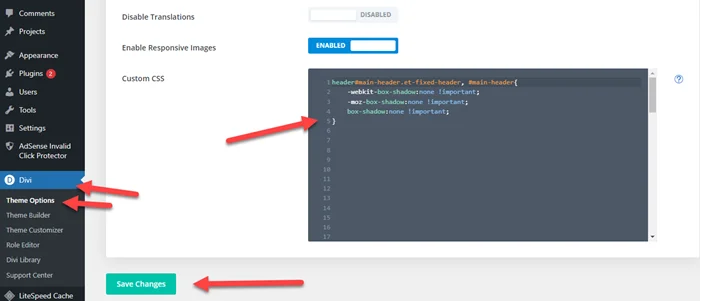
Remove the Divi Header Bottom Border

Please copy the below snippet and follow the steps to Remove the Divi Main Header Underline.

Step 1: Copy below Snippet

header#main-header.et-fixed-header, #main-header{ 
	-webkit-box-shadow:none !important; 
	-moz-box-shadow:none !important; 
	box-shadow:none !important; 
}

Step 2: Go to Divi > Theme Options > Paste code into Custom Css box > Click on Save Changes.

How to Remove the Divi Header Bottom Border

I hope you fix this issue with the above step but if you still need help then comment below or check out our Divi services from the below link.

You Might Also Like to Hire: Divi Theme Expert

How to Remove Divi Header Shadow

Divi Theme users always see Divi header shadow. Sometimes look nice but sometimes the user does not want a shadow in the Divi header. So, today we will show you how to remove Divi Header Shadow.

You Might Also Like: Free Divi Header Layout

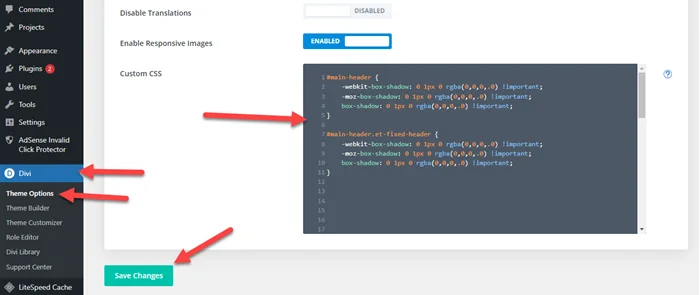
Remove Divi Header Shadow

We create a snippet for this. You just need to copy a snippet and add it to the website. Make sure you follow all steps.

Step 1: Copy below CSS Code

#main-header {
    -webkit-box-shadow: 0 1px 0 rgba(0,0,0,.0) !important;
    -moz-box-shadow: 0 1px 0 rgba(0,0,0,.0) !important;
    box-shadow: 0 1px 0 rgba(0,0,0,.0) !important;
}

#main-header.et-fixed-header {
    -webkit-box-shadow: 0 1px 0 rgba(0,0,0,.0) !important;
    -moz-box-shadow: 0 1px 0 rgba(0,0,0,.0) !important;
    box-shadow: 0 1px 0 rgba(0,0,0,.0) !important;
}

Step 2: Go to Divi > Theme Options > Custom CSS > Paste It > Click on Save Changes

How to Remove Divi Header Shadow

I hope you fix this issue with the above step but if you still need help then comment below or check out our Divi services from the below link.

You Might Also Like to Hire: Divi Theme Expert

How To Fix Replytocom Links Issue in WordPress

One of my clients faced a ReplyToCom links issue in WordPress website. We will fix this issue with the URL parameters. Replytocom links generate whenever you “Reply” to comments.

You Might Also Like: Free Elementor Website Templates

For fixing the Replytocom issue you need to follow the below steps.

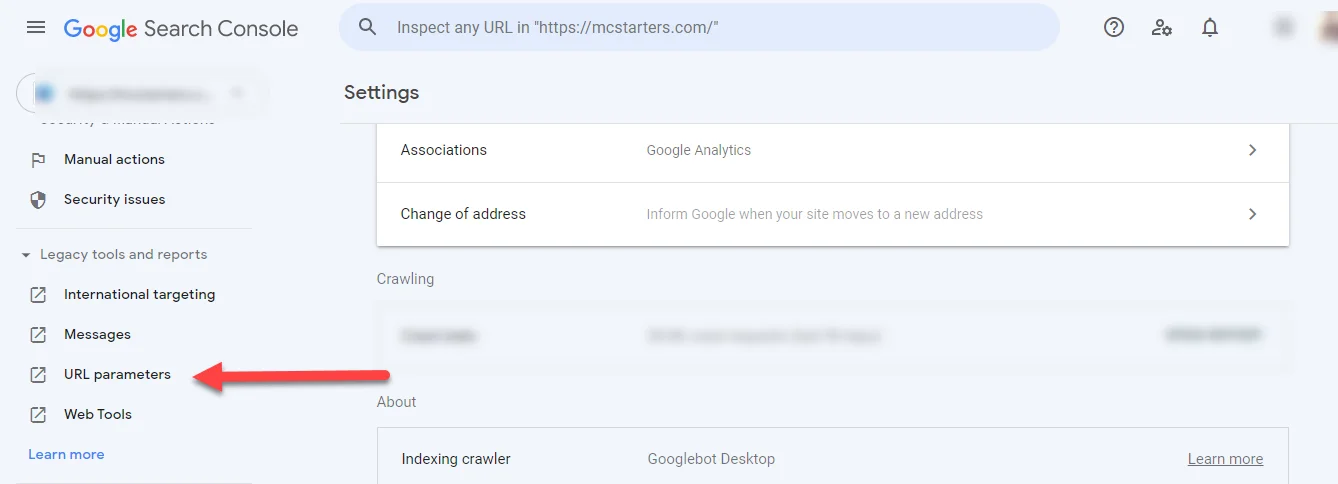
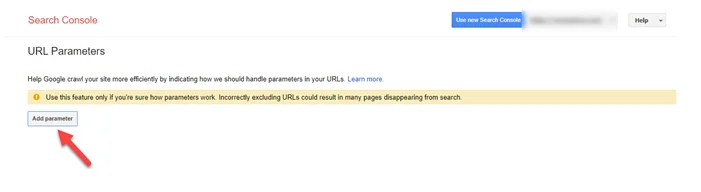
Step 1: Open Google Search Console > Under Legacy Tools and reports > Click on “URL Parameters”.

URL Paramaters

Step 2: Click on “Add Parameter”

Add URl Parameters

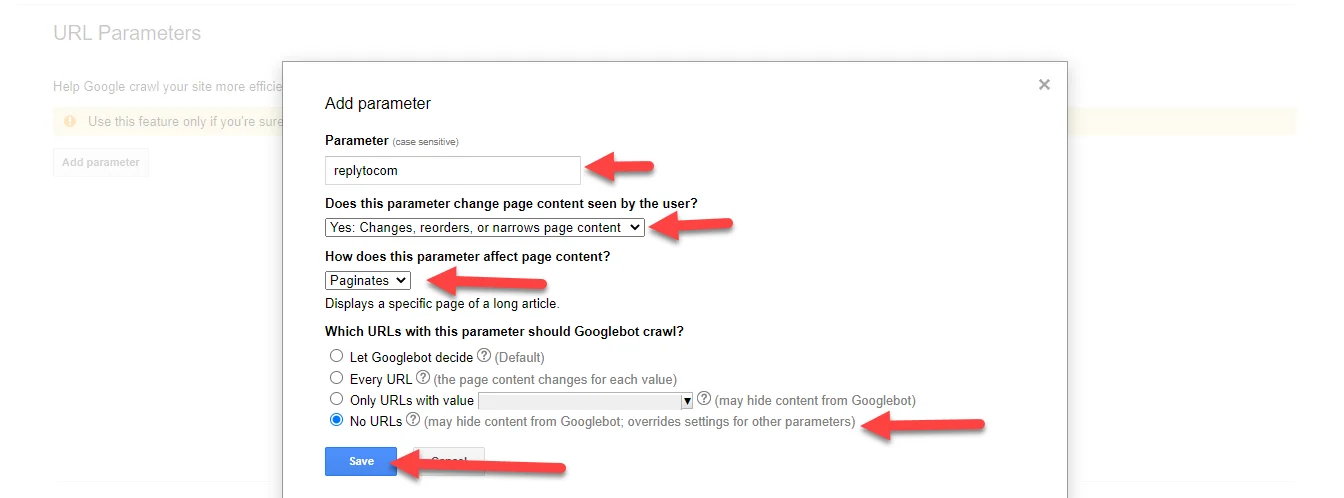
Step 3: Now you enter “replytocom” in the parameter field and set other actions as shown in the picture below.

Fix Replytocom Links Issue

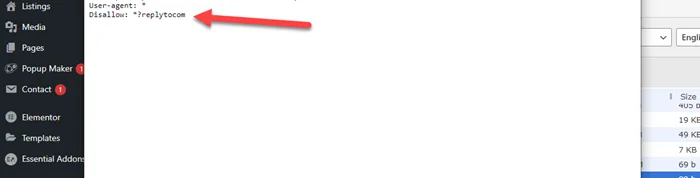
Step 1: Open the robots.txt file and copy the below line.

Disallow: *?replytocom

Step 2: Paste the line at the end of the robots.txt file.

replytocom fix with robots.txt

I hope you fix this issue after these steps but if you still need any help then comments below.

What is Squeeze Landing Page ( 10 + Free Squeeze Pages Templates )

A squeeze landing page is a simple web page that captures visitors’ email addresses by offering something valuable in return. In this post, we’ll discuss the definition of the squeeze landing page and also show you some squeeze landing page templates.

You Might Also Like: Download Free Squeeze Page Templates

Squeeze Landing Page

Your visitor’s email address isn’t the only thing an effective squeeze page asks for. Squeeze pages can give visitors a compelling cause to give you their personal information in exchange for whatever useful offer you have. To explain the necessity to ask for your visitor’s email address, the offer should be attractive.

Squeeze landing pages typically provide the following things in exchange for people’s contact information, such as:

  • Free Template for business
  • Download Valuable file
  • E-Book
  • Free course content
  • Free workshops training

Key Benefits of Squeeze Pages

Squeeze pages provide key benefits when compared with other types of landing pages. For example,

Easy to create: Squeeze pages are simple to create with a drag and drop builder. In the landing page industry, every platform offers a drag and drop system such as ConvertKit, KickoffLabs, Unbounce, Leadpages, and Hubspot.

Darg and Drop Subscription form builder: You can also create a subscription form with a drag and drop system. It is easy to place on the landing page.

Faster load speed: Squeeze landing pages load faster due to the minimum text and style. According to a Google report, page load is the main detractor in the web browsing experience for 46% of consumers. It’s no surprise that it’s the leading cause of page departures.

Higher conversion rates: Squeeze pages provide high conversion because it is simple and focus on just capturing the lead.

Best Practices for Squeeze Page

Below are the best practices you can use in 2022 to get the most conversions out of your squeeze pages:

Call-To-Action: On a squeeze page, there should only be one CTA (call to action): provide an email address. The action and outcome for the user should be clearly stated in your CTA button. “Book my seat,” for example, is actionable and informs the user that they will be enrolled in a course or webinar.

Light design: We don’t want heavy graphics to go in the way of signup, just as we don’t want excessive material to come in the way of signup. The arrangement of the page should be such that the email input form is prominently displayed and highlighted.

Limited content: The content should be targeted and kept to a bare minimum. The goal of the page should be to entice people to fill the one input form on the page – their email address – by providing clear, crisp, fair, and appealing material and offers.

10 + Free Squeeze Pages Templates

We create squeeze pages templates with a clean designs that helps business owners collect leads. We create squeeze templates using Elementor page builder.

Squeeze Landing Page V1

Squeeze-Landing-Page-V1

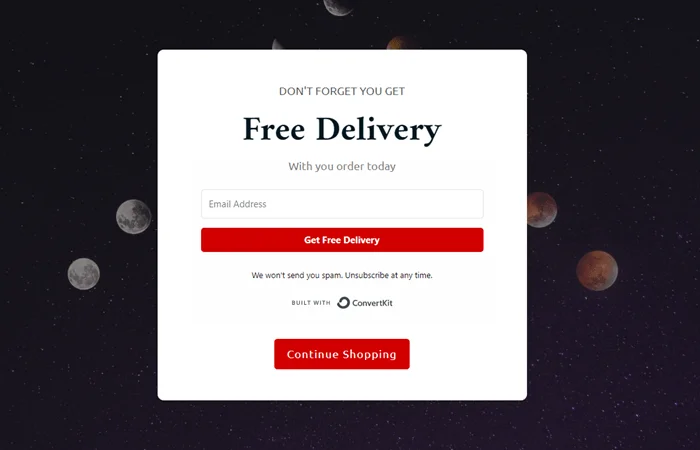
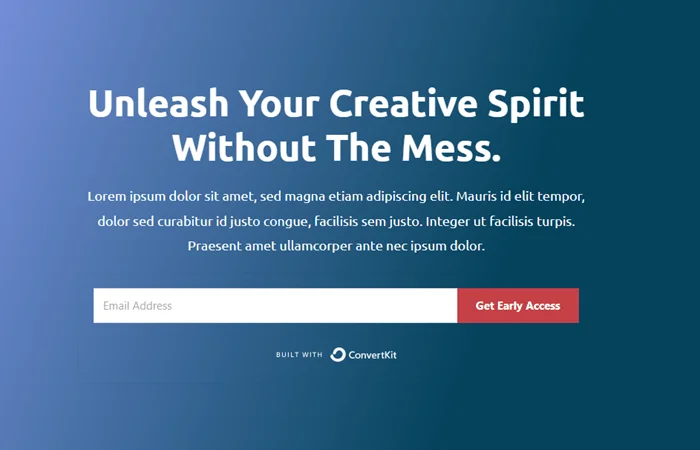
This squeeze page template includes a heading, Email Input field, and One Cta button. It also makes with the large background image.

Squeeze Landing Page V2

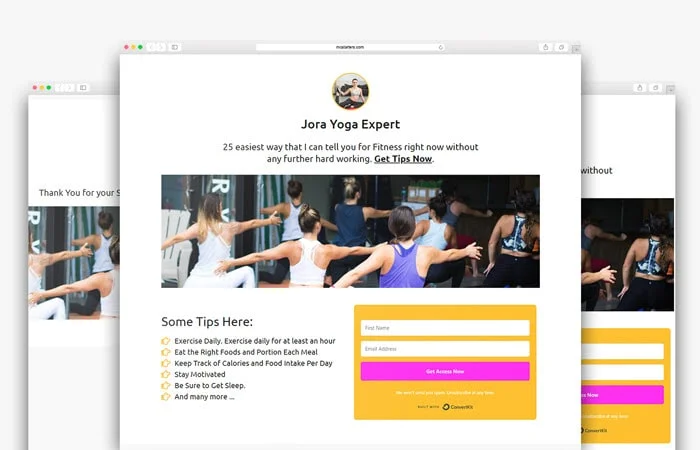
It is best for yoga and fitness-related business. It includes a small image of a yoga expert with a name and also includes large yoga studio images. This is squeeze page template show some exercise tips and FirstName and Email for data capture.

Squeeze-Landing-Page-V2

Squeeze Landing Page V3

Squeeze-Landing-Page-V3

Squeeze Landing Page V4

Squeeze-Landing-Page-V4

Squeeze Landing Page V5

Squeeze-Landing-Page-V5

Squeeze Landing Page V6

Squeeze-Landing-Page-V6

Squeeze Landing Page V7

Squeeze-Landing-Page-V7

Squeeze Landing Page V8

Squeeze-Landing-Page-V8

Squeeze Landing Page V9

Squeeze-Landing-Page-V9

Squeeze Landing Page V10

Squeeze-Landing-Page-V10

You Might Also Like: Free Elementor Landing Page Templates

Frequently Asked Question

How do I create a squeeze page in WordPress?

You can create a squeeze page in WordPress using Elementor. We are provide free squeeze pages templates for WordPress Elementor page builder.

Get Professional Websites