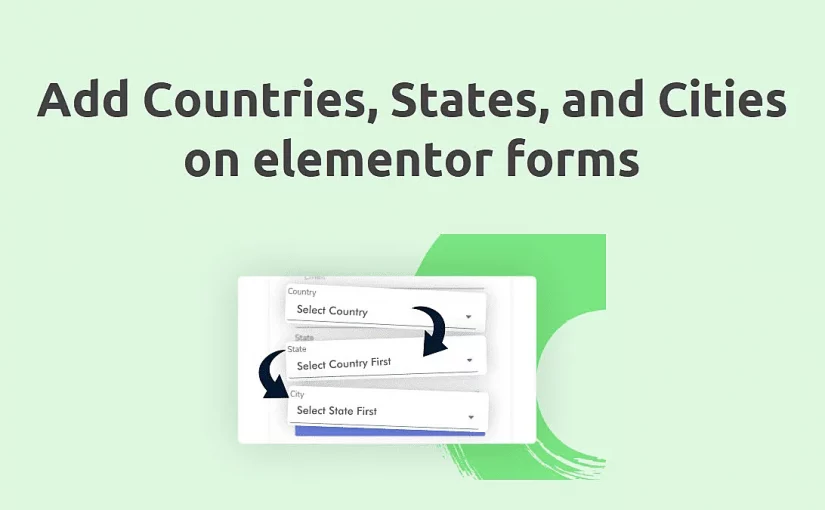
How to add Countries, States, and Cities on Elementor forms?

Add Countries, States, and Cities on Elementor forms is a challenge for beginners. Dropdown customization has not become a challenge by reading these steps.

Here today we show you step-by-step guides on how to add a list of countries, and once a country is selected, the second field filled with states from that country, and the next dropdown menu will be filled with cities from that state.

Add Countries, States, and Cities on Elementor forms:

Here are step-by-step guides to add countries, states, and cities on Elementor forms.

Step 1: Download IWS – Geo Form Fields plugin and upload and Activate it.

Note: Install this plugin at your own security risk as this plugin is currently not available now on WordPress.
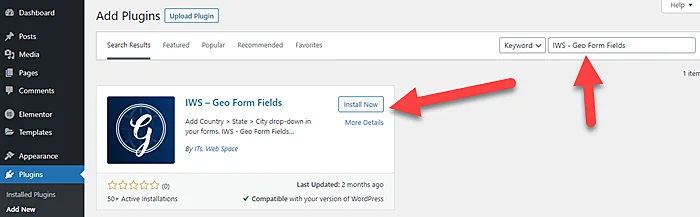
Install & Activate IWS – Geo Form Fields plugin

Step 2: Create the Elementor form according to requirements.
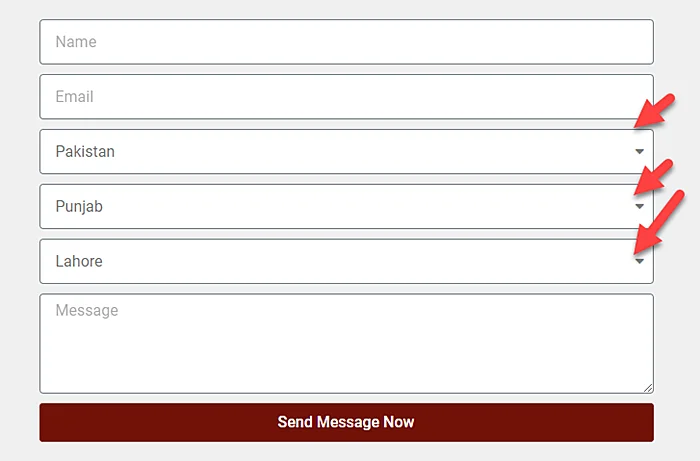
Elementor form

Step 3: Now add select fields in the form fields, Add label ” Country” and Options content, and leave it blank.

Step 4: Click on “ADVANCED” and add ID “country” and make sure all letters of ID are in lowercase.
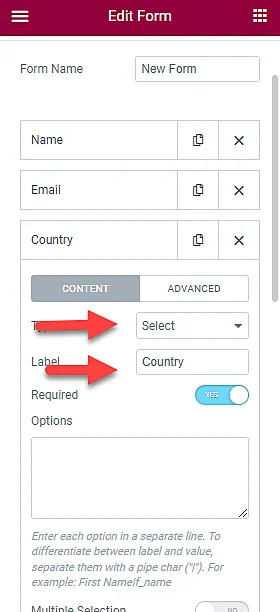
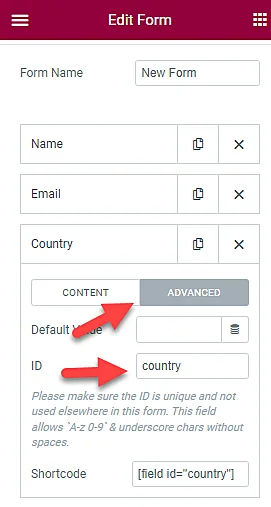
add select fields with country label
ADVANCED Id in Elementor Form for Country

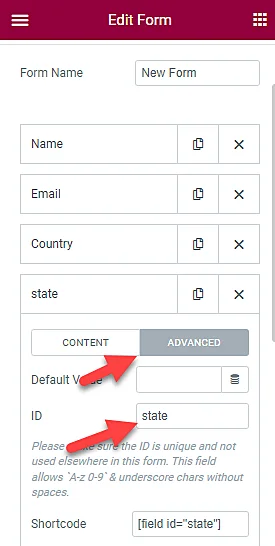
Step 5: Now duplicate this field and just change the label and ID into “state“.
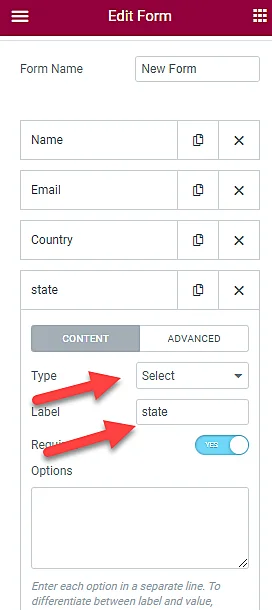
state field
advanced state field

Step 5: Again duplicate the State field and now just change the label and ID into “city“.
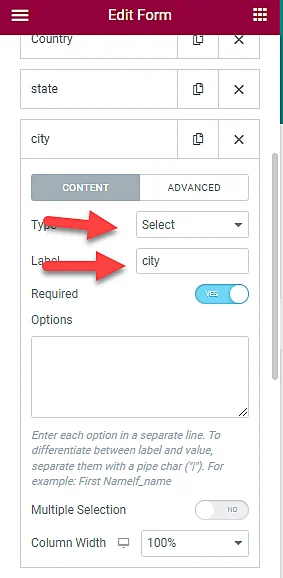
City field
City Field Advanced ID

Step 6: Now update the Elementor page and view the form in the front end.

Elementor form

Note: If your country, state, and city aren’t already included in this list, you can easily add it from the Admin panel.
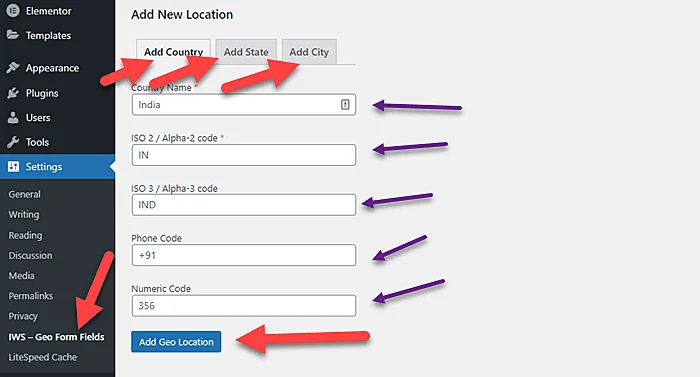
Add New Location country, state, and city

You Might Also Like to Hire: Elementor Expert for Web Design

Conclusion:

In summary, integrating Countries, States, and Cities into Elementor forms is straightforward. Elementor’s built-in features and customization options make it easy to add dynamic dropdowns, set defaults, and apply conditional logic. Users can create visually appealing and highly functional forms that enhance user experience and engagement.

For advanced features, third-party plugins and custom CSS provide additional flexibility.

FAQs: Add Countries, States, and Cities on Elementor forms

How can I integrate a country dropdown in my Elementor form?

To add a country dropdown in Elementor forms, you can use the “Select” field and choose the “Countries” option. Elementor provides a pre-built list of countries for easy selection.

Can I customize the list of countries in the dropdown?

Yes, you can customize the list of countries. In the form editor, go to the “Select” field, click on “Edit,” and then choose the “Manage Options” button. Here, you can add, remove, or rearrange countries based on your preferences.

Are there any third-party plugins that enhance country, state, and city dropdown functionality in Elementor forms?

Yes, there are third-party plugins available that can enhance the functionality of country, state, and city dropdowns in Elementor forms. Check the Elementor Pro addons or explore the WordPress plugin repository for additional features.

Can I use custom CSS to style the country, state, and city dropdowns in Elementor forms?

Yes, you can add custom CSS to style the dropdown fields. In the form editor, select the field, go to the “Advanced” tab, and add your custom CSS in the “Custom CSS” field to achieve the desired styling for the country, state, and city dropdowns.

Four Steps to Create a Robots txt File for Your Website

Most newcomers don’t know how to create a robots txt for the website. Today, We will show you four steps to Create a Robots txt File.

Robots.txt is a simple text file to guide google robots on how to crawl site posts and pages on their website. The robots.txt file is also known as the robots exclusion protocol.

You Might Also Like: Free Keyword Research Tools

Four Steps to Create a Robots txt File

Step 1: Copy the below lines of snippet

User-Agent: *
Allow: /?display=wide
Disallow: /readme.html
Disallow: /refer/
Disallow: /wp-admin/
Disallow: /wp-login.php
Disallow: /cgi-bin/
Disallow: /trackback/
Disallow: /comments/
Disallow: /xmlrpc.php
Allow: /wp-admin/admin-ajax.php

User-agent: NinjaBot
Allow: /

User-agent: Mediapartners-Google*
Allow: /

User-agent: Googlebot-Image
Allow: /wp-content/uploads/

User-agent: Adsbot-Google
Allow: /
 
User-agent: Googlebot-Mobile
Allow: /

Sitemap: https://example.com/post-sitemap.xml

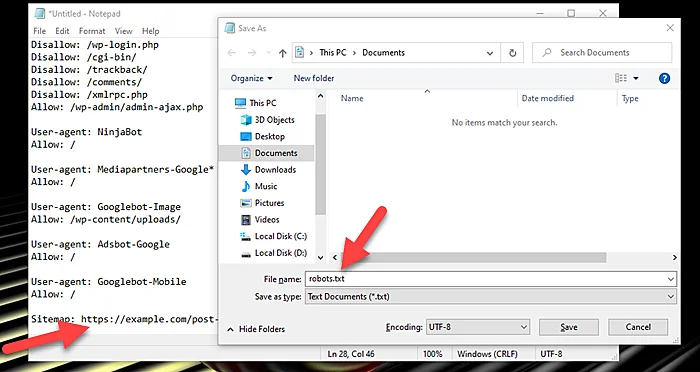
Step 2: Open notepad and paste the above code and save the file with the name “robots.txt”. Last, you must just change the sitemap URL according to your own website sitemap URL.

Create a Robots txt File

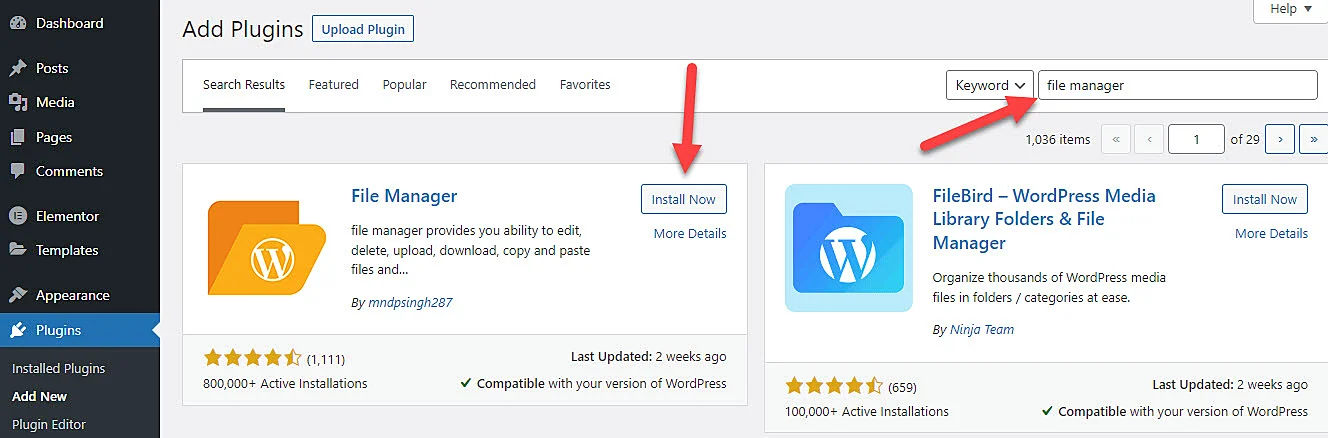
Step 3: Install and Activate File Manager plugin

Install and Activate File Manager

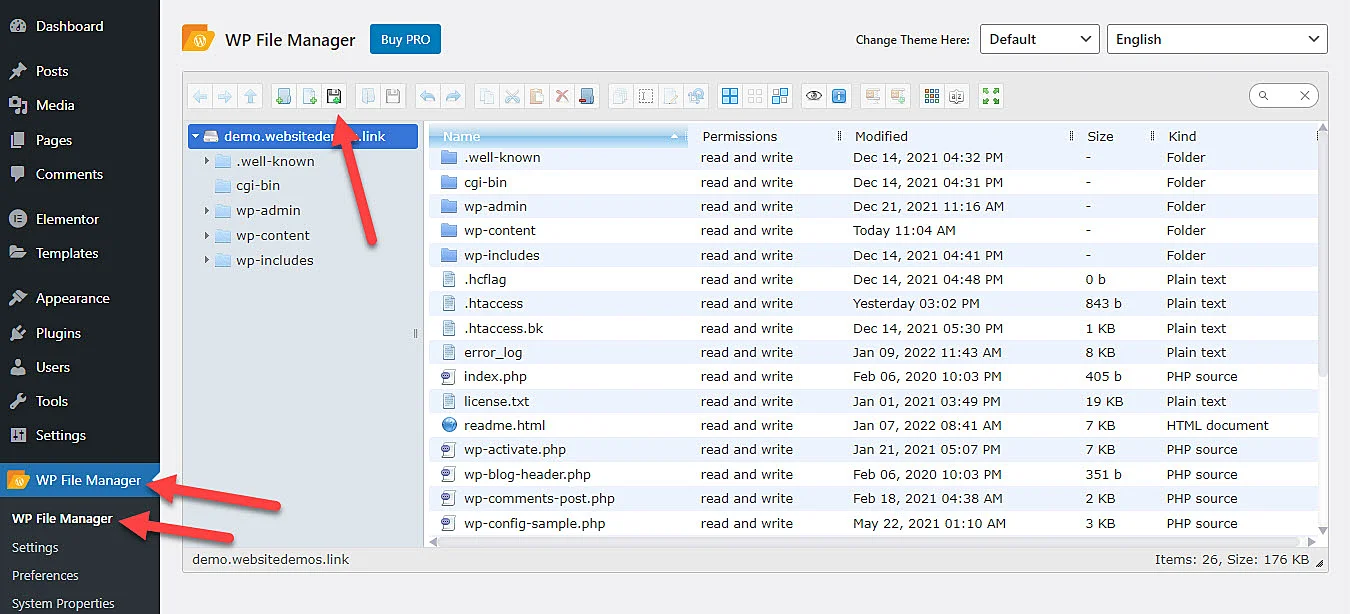
Step 4: Now you should go to file manager and upload the robots.txt file into the root directory. Make sure this is placed outside the “wp-content” if you are using WordPress.

File Manager Upload Robots txt File
upload robots.txt file into root directory

Watch Video

How do I Create a Robots txt File?

Step 1: Copy the below lines of snippet
Step 2: Open notepad and paste
Step 3: Upload robots.txt file into the root directory

Is robot txt necessary?

No, a robots.txt file is not required for a website.

You Might Also Like Cheap WordPress Design services for business.

How to add spacing between menu text in Divi?

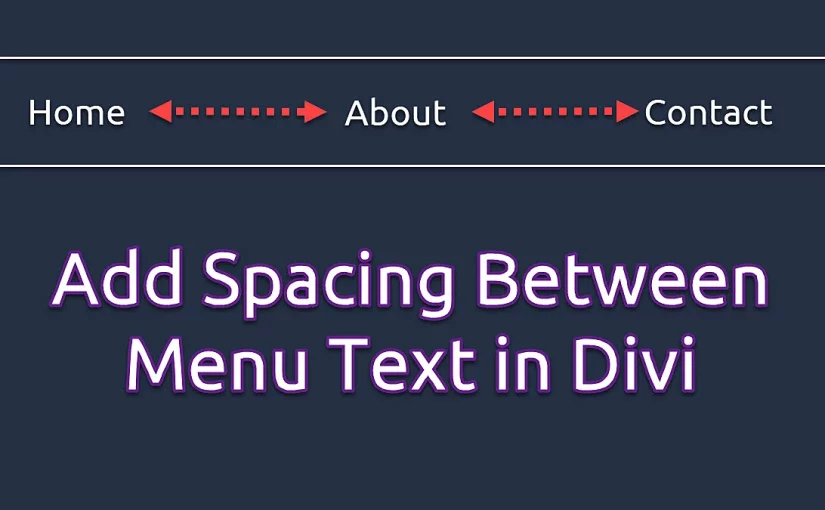
In this post, We will show you how to add spacing between menu text in the Divi theme. It is a bigger challenge for beginners to add space between Divi menu items.

You Might Also Like: Free Header Layout For Divi Websites

Add spacing between menu text in Divi

Step 1: Copy below CSS Code and paste into ” Divi > Theme Options > Custom Css

#top-menu li a{
    padding: 0 25px!important;
}

Step 2: Adjust the 25px according to own website menu requirements.

I hope you do that but if still you have any questions then comment below.

You Might Also Like to Hire: Divi Theme Expert

How to Fix Divi Jumping Header

The jumping header in Divi is a well-known issue. It happen when divi website page load.

In this post, We will show you how to fix Divi Jumping header in WordPress. I do with the help of custom CSS.

You Might Also Like to hire: Divi Website Designer for websites

Fix Divi Jumping Header

To fix divi jumping header you need to add below css code into Divi > Theme Options > Custom Css

#page-container {
padding-top: 100px !important;
}

#main-header {
top:39px !important;
}

Note: This is Code may not work. You Can adjust padding according to website header and check website without login.

You Might Also Like: Divi Header Layouts

My Header and Setting

Divi Header

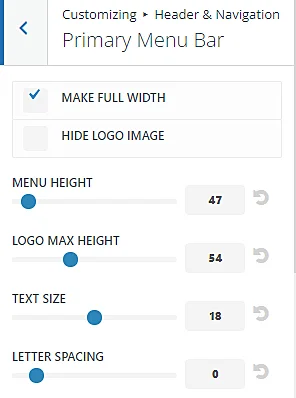
Below is my website header “Menu Height“. You can adjust it also according to website.

Fix Divi Header Jumping Problem

I hope you fix this issue but If you have any questions please let me know in the comments.

How to create custom header in Divi

You can create custom header in Divi using Divi theme builder. you can free header layout from our mcstarters.com websites. We create these header with responsive design. These are free to download and use.

How to Hide Header in Divi

The top section of a web page is known as the header. It is a very important element of any website. In the post, we will show you how to hide the header in Divi.

You Might Also Like: Free Divi Header Layout Pack

Hide Header in Divi

In the post, we show how to hide the header on the whole website, hide the website on a specific page, and disable the header on a specific post.

Hide header for entire Divi website

if you want to hide Divi main and a top header from the entire website then you need to follow the below step.

Step 1: Copy Below Code and Paste into Divi > Theme Options > Custom CSS

#main-header {
 display:none!important;
}

#top-header {
 display:none!important;
}

Hide Header for Specific Divi Page

Step 1: Copy the below snippet and paste Snippet into Custom CSS.

.page-id-1235 #main-header {
 display:none!important;
}

.page-id-1235 #top-header {
 display:none!important;
}

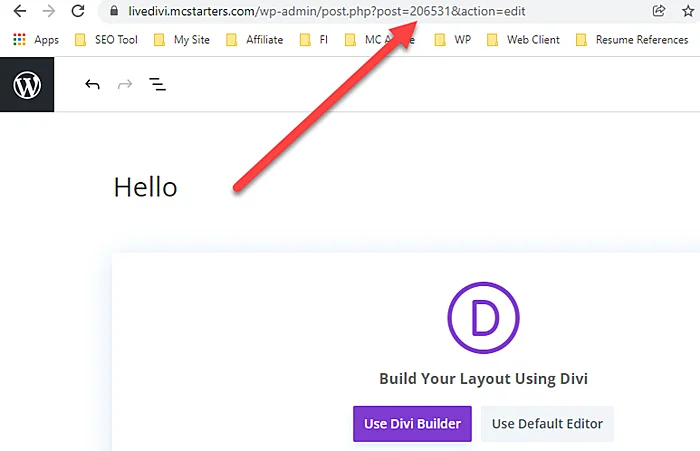
Step 2: Change Page ID with your page ID. You get the page id within the URL when you edit the page. check out the below attachments for this.

Hide Header for Specific Divi Page

Hide Header for Specific Divi Post

Step 1: Copy Code and Paste into Divi theme options > CSS

.postid-206531  #main-header {
 display:none!important;
}

.postid-206531 #top-header {
 display:none!important;
}

Step 2: Replace your post id with your post ID. You get the post id within the URL when you edit the post.

Done ❤️

You Might Also Like to Divi Web Designer For Site.

How to Increase icon size within toggle widget Elementor

The Toggle Widget allows you to build collapsed text boxes where the visitor only sees the titles of the text box items. This allows you to present your content in a compact format, allowing visitors to swiftly sift through the titles without having to navigate through a long page.

Download Elementor mega menu templates

Elementor toggle widget contain icons but not have any options to increase icon size within toggle widget Elementor. To increase icon size need to custom CSS code.

You Might Also Like: Free Elementor Templates For Websites

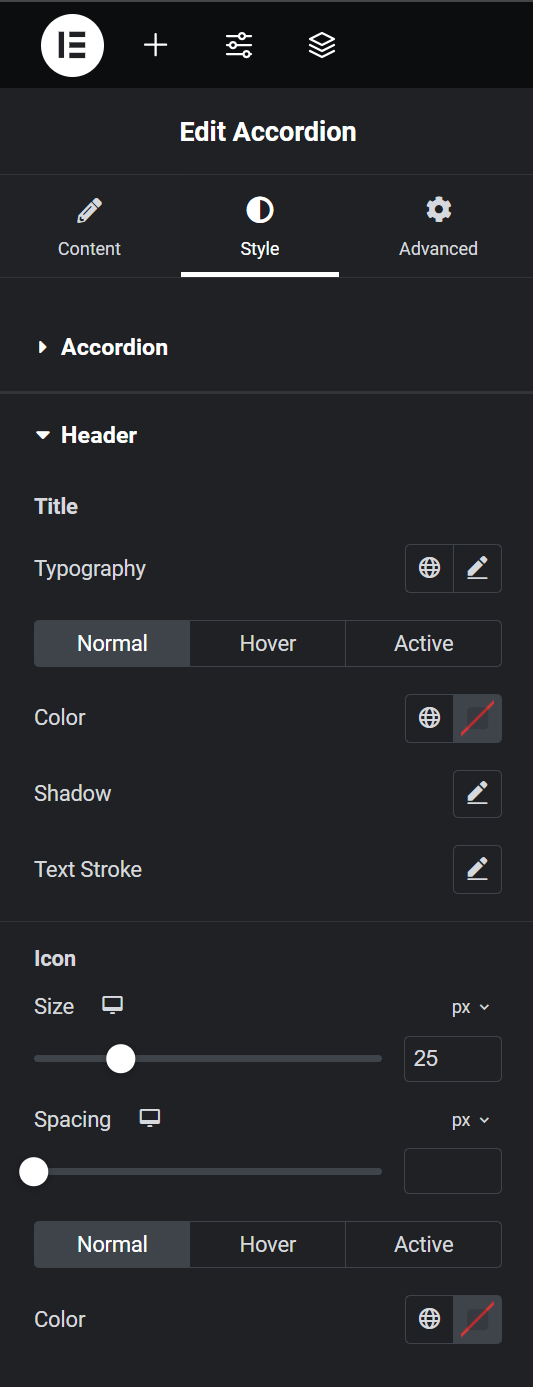
Elementor accordion icon size

Step 1: Add accordion widget.

Step 2: Go to style >Header > Change icon size.

elementor accordion icon size

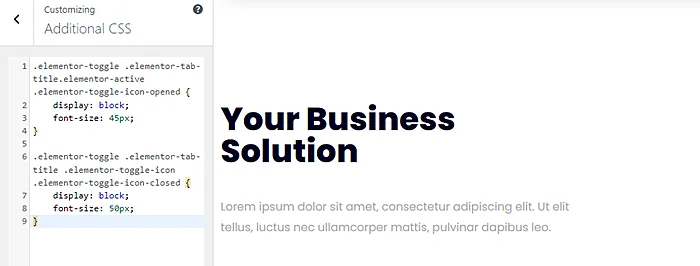
Increase icon size within toggle widget in Old Elementor version.

Step 1: Copy Below Code

.elementor-toggle .elementor-tab-title.elementor-active .elementor-toggle-icon-opened {
    display: block;
    font-size: 45px;
}

.elementor-toggle .elementor-tab-title .elementor-toggle-icon .elementor-toggle-icon-closed {
    display: block;
    font-size: 45px;
}

Step 2: Paste code into Appearance > Customize > Custom CSS and you can adjust the icon size by changing font size.

Increase icon size within toggle widget

You Might Also Like to Hire: Elementor Pro Expert

Get Professional Websites