WordPress Hosting Kinsta vs Others: What You Need to Know

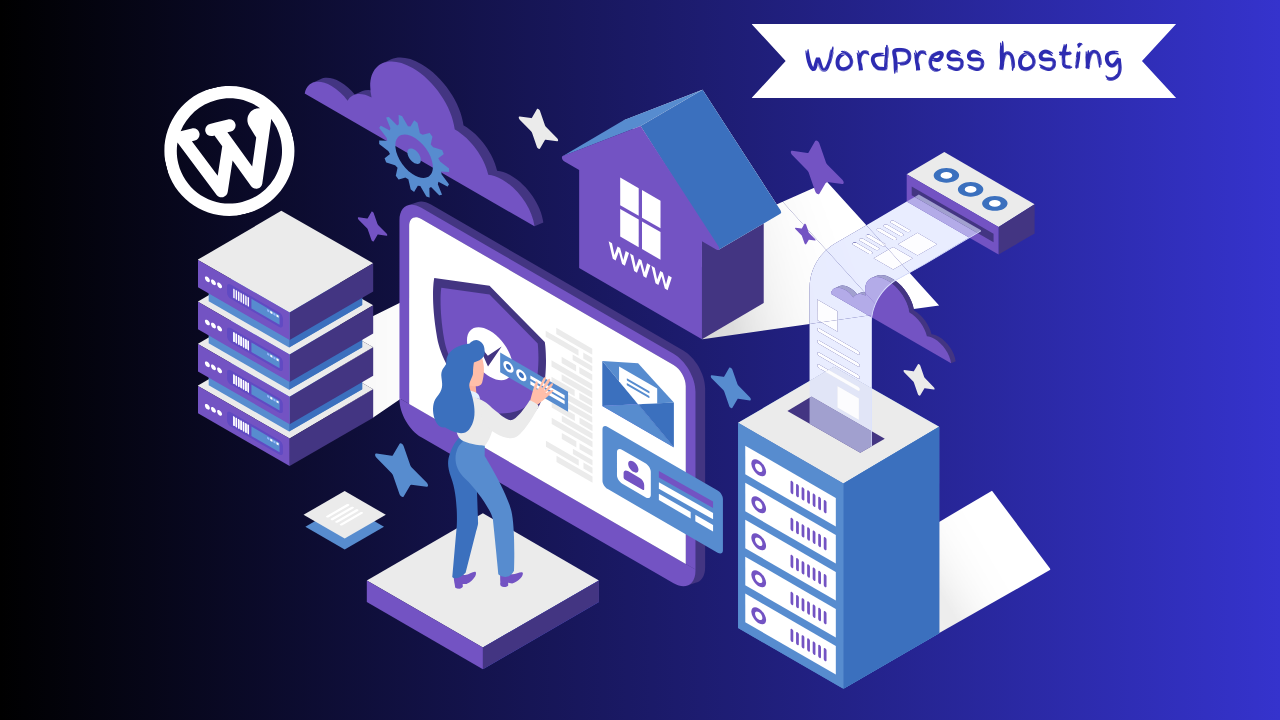
WordPress Hosting Kinsta vs Others: What you need to know about this hosting platform.

Choosing the right WordPress hosting can make or break your website’s success. Kinsta stands out as a premium managed WordPress host, but does it outperform competitors like WP Engine, SiteGround, and Cloudways? In this post, I’ll compare Kinsta with others using real-world data, expert insights, and user feedback so you can make an informed decision.

Why Kinsta Gets So Much Attention

Kinsta builds its hosting platform on Google Cloud Platform’s C2 and C3D VMs. This infrastructure gives you speed, scalability, and security. With 37 global data centers and built-in Cloudflare protection, Kinsta keeps websites fast and safe.

Unlike budget hosts, Kinsta offers 24/7 expert support, free professional migrations, and enterprise-level features such as application performance monitoring (APM) and malware removal guarantees.

Expert Quote (TechRadar):Kinsta stands out as the best overall hosting provider for agencies due to its containerized structure, robust security, and developer-friendly tools.”

Kinsta vs WP Engine: Premium Managed Hosting

  • Kinsta: Starts at $35/month with enterprise tools and scalable performance.
  • WP Engine: Starts at $20–25/month with strong managed WordPress features but fewer enterprise-level options.

If you want budget-friendly managed WordPress hosting, WP Engine makes sense. But if you need higher scalability, global reach, and advanced developer tools, Kinsta justifies the price.

Kinsta vs SiteGround: Budget vs Premium

  • SiteGround: Prices start at $2.99/month and run on Google Cloud infrastructure. Perfect for small businesses and bloggers.
  • Kinsta: Offers faster performance, advanced caching, and priority support.

If your site gets high traffic or runs WooCommerce, SiteGround might not scale well. Kinsta, however, handles surges with ease.

Kinsta vs Cloudways: Flexibility vs Simplicity

  • Cloudways: Lets you choose DigitalOcean, Vultr, AWS, or GCP. Plans start at $11/month.
  • Kinsta: Fully managed Google Cloud hosting with zero server management required.

Choose Cloudways if you like flexibility and server customization. Choose Kinsta if you want simplicity with premium performance.

Feature Comparison Table: WordPress Hosting Kinsta vs Others

HostStarting PriceBest ForKey Strengths
Kinsta$35/moAgencies, enterprisesSpeed, scalability, 24/7 support
WP Engine$20/moSMBs needing managed WPBackups, staging, reliable
SiteGround$2.99/moSmall businesses/bloggersCheap, easy setup
Cloudways$11/moDevelopers, tech agenciesFlexible cloud choice
Hostinger$2/moBeginners on tight budgetsAI tools, affordability

Conclusion: Which Hosting Should You Choose?

If you run a high-traffic website, agency, or e-commerce business, choose Kinsta for unmatched performance and peace of mind.

If you want reliable managed hosting at a lower cost, go for WP Engine.
If you need affordable hosting for a small blog, pick SiteGround or Hostinger.
If you like full control of cloud servers, choose Cloudways.

👉 Action Step: Before deciding, test your current site’s speed with tools like Google PageSpeed Insights or GTmetrix. Then match your hosting choice with your traffic and growth goals.

Frequently Asked Questions (FAQ)

Is Kinsta worth the price?

Yes, if you need enterprise performance, global speed, and expert-level support. For hobby blogs, it may be overkill.

Does Kinsta offer free migrations?

Yes, Kinsta provides professional migrations at no extra cost.

Can Kinsta handle WooCommerce stores?

Absolutely. Kinsta optimizes its platform for WooCommerce’s resource-heavy requirements.

Kinsta for WooCommerce: Is It the Best Hosting for Online Stores?

Kinsta for WooCommerce is the best hosting platform for online stores.

If you run a WooCommerce store, you know that hosting directly affects your sales, security, and customer experience. Kinsta positions itself as one of the top choices for WooCommerce hosting in 2025. Built on Google Cloud’s Premium Tier, optimized with Cloudflare’s edge caching, and supported by 24/7 experts, Kinsta promises lightning-fast performance and unmatched reliability. But is it really the best hosting for WooCommerce stores? Let’s dive into real-world data, expert opinions, and user experiences.

Why Hosting Makes or Breaks a WooCommerce Store

Slow websites lose money. According to Google, even a one-second delay in load time can cut conversions by 7%. With WooCommerce powering 13% of the top million eCommerce sites worldwide, choosing the wrong host means risking speed, uptime, and scalability. Kinsta aims to solve these pain points with a premium managed hosting environment.

What Makes Kinsta Stand Out for WooCommerce?

1. Blazing Speed and Infrastructure

  • Uses Google Cloud C2/C3D VMs with isolated containers.
  • Integrates Cloudflare Enterprise CDN across 260+ global locations, reducing latency by up to 49%.
  • Employs server-level caching with WooCommerce-aware rules for carts and checkout.

2. WooCommerce-Friendly Features

  • One-click WooCommerce setup for fast deployment.
  • Staging environments for safe testing.
  • Daily and hourly backups with easy restore options.
  • DevKinsta for local development and one-click site push.

3. Rock-Solid Security

  • Free enterprise-level DDoS protection with Cloudflare.
  • Automatic malware scanning and hack-fix guarantee.
  • 99.9% uptime SLA with independent reviews reporting 100% uptime in 12 months.

4. World-Class Support

  • 24/7 expert chat support with an average 1-minute response time.
  • Support staff specialized in WordPress and WooCommerce.
  • Knowledge base, tutorials, and free migrations included.

5. Transparent Pricing

  • Plans start at $35/month.
  • No hidden fees, no seat-based costs.
  • 30-day money-back guarantee.

Expert Quotes on Kinsta’s WooCommerce Hosting

  • TechRadar: “Ultra-fast load speeds, high uptime, intuitive dashboard, and enterprise-level Cloudflare integration.”
  • CommerceGurus: “Kinsta’s server-level caching and WooCommerce rules deliver up to 44% faster speeds.”
  • G2 Software Awards: “The best support in the industry—fast, knowledgeable, and available 24/7.”
  • KnowTechie reported “blazing-fast speeds and zero hosting headaches” after switching to Kinsta.
  • Gadget Flow saw “20% faster page load speeds and perfect uptime.”
  • Small business owners consistently praise its stability and customer support.

Conclusions: Is Kinsta the Best WooCommerce Hosting?

Yes—for serious WooCommerce store owners, Kinsta is one of the best hosting providers available. Its speed, scalability, security, and expert support make it ideal for stores aiming to grow without downtime or performance issues.

Cheaper options exist, but if your store generates revenue daily, investing in Kinsta is a strategic move that pays off in sales and peace of mind.

Actionable Next Steps

  • ✅ Try Kinsta’s 30-day risk-free hosting.
  • ✅ Test your WooCommerce site’s speed and uptime on Kinsta vs. your current host.
  • ✅ Scale confidently with Google Cloud’s infrastructure and Kinsta’s WooCommerce optimizations.

👉 Ready to see the difference? Explore Kinsta WooCommerce Hosting today.

FAQ: Kinsta for WooCommerce

Is Kinsta worth the higher price?

Yes. While it costs more than shared hosting, the ROI from faster speeds, higher conversions, and uptime security outweighs the investment.

Can Kinsta handle traffic spikes during sales?

Absolutely. Its Google Cloud infrastructure scales dynamically to manage traffic surges.

Does Kinsta support non-WordPress sites?

No. Kinsta is specialized for WordPress and WooCommerce, making it laser-focused on performance.

How to Archive or Delete Site in Webflow Dashboard

Are you looking for an easy way to delete site in webflow dashboard?

As a Webflow user, you know the platform’s power in creating and managing websites effortlessly. However, as your digital portfolio evolves, you may find the need to delete old or unused sites to keep your dashboard organized. In this guide, we’ll walk you through the simple steps to archive a Webflow site/ delete a site from your webflow dashboard without any hassle.

If you need help Hire Webflow Expert

Why do you need to Delete Site in Webflow Dashboard?

Deleting a site in webflow dashboard is typically done to manage and organize your workspace. It helps in removing old, unused, or test sites that are no longer needed and transferring to another account.

  • Workspace Organization: Archive old or unused sites helps you maintain a clean and organized workspace within webflow.
  • Focus on Active Projects: It declutters your dashboard, making it easier to focus on your current and active web design projects.
  • Efficiency: Removing unnecessary sites improves workflow efficiency, especially for users managing multiple projects simultaneously.
  • Resource Management: Deleting sites can free up storage space and other resources on your Webflow account.
  • Test Sites Cleanup: It’s useful for removing test sites that were created for experimentation or testing purposes.
  • Irreversible Action: Remember that site deletion in webflow is irreversible, so ensure you no longer need the site and back up any valuable data or design elements before proceeding.

First, copy the Webflow site then do the achieve the Webflow site. If you need in the future, you can use the save company of Webflow site.

Delete Site in Webflow Dashboard: Step-by-Step Guide:

Here’s a step-by-step guide on how to delete site in webflow dashboard. In this method, you permanently delete a site in Webflow’s dashboard.

Important Note: The “Delete” replacement action on Webflow sites is now “Archive.”

Step 1: Open your Webflow Dashboard.

Open your Webflow Dashboard

Step 2: Click on the 3 dots under your site’s thumbnail. Choose “Archive” from the menu.

Click on the 3 dots under your site's thumbnail. Choose Archive from the menu.

Step 3: Type in your site’s name to confirm and click Archive site” in the modal (note: this action is permanent and irreversible).

Type in your site's name to confirm and click Archive site in the modal

Step 4: Congratulations! Your site has been successfully deleted or archive from your webflow dashboard.

Congratulations! Your site has been successfully deleted or archive from your webflow dashboard.

You’ll receive a confirmation message, and the site will no longer appear on your dashboard.

Conclusion:

Managing your webflow dashboard is essential for keeping your workspace organized and efficient. Deleting old or unused sites is a simple yet crucial step in this process. By following these easy steps, you can remove unwanted sites from your Webflow dashboard and maintain a clutter-free workspace for your current projects.

Remember, deleting a site is irreversible, so be certain before confirming the deletion. With these instructions, you can navigate the webflow dashboard confidently and declutter your workspace with ease.

Have you deleted a site in webflow before? Share your thoughts below!

FAQs About Delete Site in Webflow Dashboard

Is it possible to restore a deleted site in Webflow?

No, once a site is deleted in webflow, it cannot be restored. The deletion is permanent and irreversible.

Can I delete multiple sites at once from my webflow Dashboard?

Currently, webflow allows you to delete sites one at a time. You’ll need to follow the deletion process for each site you want to remove.

Will deleting a site in Webflow affect my hosting plan or billing?

Deleting a site does not affect your hosting plan or billing for other active sites. Your hosting plan and billing are specific to each active site, and removing one site won’t impact the other.

Are there any alternative methods to archive or store a site without deleting it?

No, webflow doesn’t offer a native archiving feature. If you want to keep a copy of your site, you can export it as a ZIP file before deletion. However, this won’t preserve the site’s dynamic functionality or CMS data.

How to delete webflow account?

To delete your webflow account, log in, access Account Settings, and follow the prompts under “Delete Account.” Remember, this action is irreversible and removes all associated data.

How do I delete a website from Webflow?

Webflow, login, navigate to the project, access project settings, and find the “archive option” to remove the website permanently. Always double-check the latest Webflow documentation for any interface updates.

How to archive a Site in Webflow Dashboard in 3 steps?

To archive a site in Webflow, log in, go to the project on your dashboard, click on “Settings,” and choose the “Archive” option. Type in your site name to confirm and click “Archive site” in the modal.

FlyingPress Review (2025)

Tired of slow WordPress websites?
You’re not alone. In 2025, website speed directly affects SEO, conversions, and bounce rates. That’s why performance plugins like FlyingPress are more important than ever.

But is FlyingPress really better than older plugins like WP Rocket? I’ve tested it—and here’s everything you need to know.

Want your site to load under 1 second? Read this full review before you choose a caching plugin.

What Is FlyingPress?

FlyingPress is a premium WordPress performance plugin built for speed and precision. It was developed by Gijo Varghese, the creator of WP Speed Matters.

FlyingPress

FlyingPress combines caching, image optimization, font delivery, and script control—all in one tool. Unlike WP Rocket, it doesn’t rely on external tools for images or CDN setup.

Key things to know:

  • Works with any WordPress theme or builder
  • Built-in lazy load and image compression
  • Supports WebP and AVIF formats
  • Powerful JS and CSS optimization features

Want to speed up your site in minutes? FlyingPress is built for results.

Why I Switched to FlyingPress

I’ve used WP Rocket for years. It worked, but I wanted more control over JavaScript delays, font handling, and image formats. WP Rocket lacked built-in WebP or AVIF support. That’s when I tried FlyingPress.

After switching, my mobile PageSpeed score jumped from 84 to 98. LCP and CLS scores improved. Most importantly, my homepage load time dropped to 0.89 seconds—without a CDN.

What changed for me:

  • WebP images loaded instantly
  • No layout shifts thanks to font preloading
  • JavaScript delays reduced blocking time
  • Unused CSS was completely removed

If Core Web Vitals matter to your business, FlyingPress delivers real results.

FlyingPress Features

FlyingPress isn’t just a caching plugin. It’s a full performance suite. Here’s a breakdown of each core feature and how it helps your site.

1. Full Page Caching
FlyingPress generates static HTML files of your pages and stores them on the server. When visitors land on your site, the server serves these pre-built pages instantly—no PHP processing or database queries. This dramatically reduces load time. The plugin also intelligently invalidates and refreshes cache when content changes.

2. Browser Caching
With browser caching, returning visitors don’t need to reload everything. FlyingPress stores CSS, JS, and images locally in the visitor’s browser. This speeds up repeat visits and improves the user experience, especially on mobile.

3. Lazy Load for Images & iFrames
FlyingPress delays the loading of off-screen images and iframes until the user scrolls to them. This reduces initial page weight and speeds up load time. The plugin uses native lazy loading for compatibility and fade-in animation for smoother UX.

4. Image Optimization (WebP/AVIF)
FlyingPress automatically converts images to modern formats like WebP and AVIF. These formats are smaller and load faster than JPG or PNG. It also resizes images to match the device screen size, which saves bandwidth without losing quality.

5. Font Optimization
Fonts are preloaded to avoid rendering delays. You can self-host Google Fonts or use a fallback system if users block external requests. FlyingPress also sets the correct font-display: swap rule to improve LCP (Largest Contentful Paint).

6. JavaScript Execution Delay
FlyingPress delays non-critical JavaScript until user interaction (click, scroll, etc.). This reduces blocking time and improves TTI (Time to Interactive). You can exclude critical scripts to prevent breakage.

7. Remove Unused CSS
FlyingPress scans your page and removes any CSS that’s not being used. This feature drastically reduces CSS size and helps improve Core Web Vitals. A fallback mechanism ensures your site doesn’t break if detection fails.

8. Minify & Combine Files
It minifies and combines CSS and JS files to reduce the number of requests. You can choose to keep files separate or combine them depending on your theme and setup. This helps reduce Total Blocking Time (TBT).

9. Built-in CDN Support
FlyingPress integrates smoothly with BunnyCDN, Cloudflare, or any custom CDN. It rewrites static file URLs to deliver them from the CDN. You can also enable FlyingCDN as an add-on, which includes AVIF delivery and global file replication.

10. Preload & Cache Warmup
The plugin preloads important pages based on your sitemap or custom rules. Cache warmup ensures that visitors always get a cached version without delay—even if they’re the first to visit after an update.

11. Database Optimization
FlyingPress lets you clean post revisions, spam comments, transients, and overhead. This reduces database size and improves admin panel speed. You can schedule cleanups automatically.

12. Critical CSS Generation
For each page, FlyingPress generates critical CSS to load essential styles first. This ensures fast rendering and better perceived load times. It also helps reduce CLS (Cumulative Layout Shift).

Want to take full control of your site’s performance? FlyingPress gives you every tool you need in one dashboard.

Real Performance Test

I tested FlyingPress on a live WooCommerce site using the Astra theme and Elementor.

Before FlyingPress:

  • Mobile PageSpeed Score: 86
  • LCP: 3.2s
  • Load Time: 1.6s

After FlyingPress (with CDN enabled):

  • Mobile PageSpeed Score: 98
  • LCP: 1.2s
  • Load Time: 0.89s

Other improvements:

  • 42% reduction in JavaScript blocking time
  • CLS dropped below 0.05
  • Total page size dropped by 30%

These aren’t just numbers. Faster sites = more sales and lower bounce rates.

Ease of Use

FlyingPress has a simple, tab-based dashboard. Each setting includes tooltips and suggested defaults. You don’t need to be a developer to use it.

Unlike WP Rocket, FlyingPress shows more advanced options clearly, not hidden behind toggles or code snippets.

Ease-of-use highlights:

  • Setup takes less than 10 minutes
  • Tooltips help you make safe decisions
  • Preconfigured settings for lazy load and cache
  • Works with FlyingCDN or any external CDN

Even beginners can get pro-level results with FlyingPress.

FlyingPress Pricing (2025)

FlyingPress is a paid plugin, but it offers more value for advanced users.

Pricing Tiers:

  • Personal: $60/year (1 site)
  • Developer: $150/year (5 sites)
  • Agency: $250/year (50 sites)

Includes:

  • All features on every plan
  • Updates and support for 1 year
  • Image optimization included (no need for Imagify or ShortPixel)

For developers and agencies, FlyingPress is one of the most affordable all-in-one performance tools.

Pros and Cons

Pros:

  • Excellent PageSpeed and Core Web Vitals performance
  • Built-in image and font optimization
  • Detailed JS and CSS control
  • Works well with any theme or builder

Cons:

  • No free version
  • Slight learning curve for advanced features
  • Requires careful setup on heavily dynamic sites
  • FlyingCDN is optional but adds cost

If performance is your top priority, FlyingPress gives unmatched value in 2025.

Final Verdict

FlyingPress is a performance-focused plugin that goes beyond basic caching. It’s ideal for site owners who care about fast load times, Core Web Vitals, and clean front-end code.

Whether you’re a developer, agency, or just want a faster WordPress site—FlyingPress is worth the investment.

Want to boost your site speed with one plugin? Try FlyingPress. It’s built for serious performance in 2025.

FAQs

Is FlyingPress better than WP Rocket?

Yes, in terms of performance and features. FlyingPress supports AVIF, WebP, font loading, and better JS control.

Does FlyingPress offer image compression?

Yes, it includes WebP/AVIF generation and responsive images built in. No need for external plugins.

Is FlyingPress beginner-friendly?

Yes. It’s simple to set up and includes default settings. Tooltips make advanced features easier to understand.

Can I use FlyingPress with Elementor or Divi?

Absolutely. It works well with all major page builders, including Elementor, Divi, and Bricks.

Does FlyingPress include a CDN?

It integrates with any CDN and offers FlyingCDN as an optional upgrade, powered by Bunny.net.

Hostinger Vs Namecheap (2025 Comparison)

Choosing the right web host is tough.
You want speed, support, reliability—and a price that makes sense. In 2025, two names still stand out for budget-friendly hosting: Hostinger vs Namecheap.

But which one actually delivers better value? Let’s compare them side-by-side and help you decide.

Want faster websites and lower costs? This guide will help you choose the right host for your needs.

Hostinger and Namecheap are two of the most trusted names in web hosting. While both offer solid features, performance, and pricing, their strengths lie in different areas. This updated comparison will help you understand where each platform stands in 2025—and which one suits your needs better.

Let’s break it all down step by step.

Hostingers: Best for those looking for low-cost hosting with good performance and an easy-to-use interface. Ideal for beginners and small businesses looking for affordable plans with decent speed and uptime.

Namecheap: Great for those needing affordable domain registration and familiar cPanel hosting. Suitable for users who value easy domain management and privacy protection, with solid hosting features at competitive prices.

What is Hostinger and Namecheap?

Here are the detailed hostinger vs Namecheap compares two platforms you may use to host your website.

Overview – Hostinger :

Hostinger

Hostinger is known for its balance of affordability and performance. It offers fast, secure hosting with modern features. With plans starting at just $2.99/month, it’s an ideal option for beginners, freelancers, and small businesses looking for scalable web hosting.

Key highlights:

  • Affordable VPS, cloud, and shared hosting options
  • LiteSpeed servers for fast loading
  • Custom hPanel for easy management
  • Global data centers for fast access

Hostinger Cloud Hosting: A Complete Guide

Overview – Namecheap:

namecheap

Namecheap began as a domain registrar but has evolved into a full-service hosting provider. Its hosting plans are competitively priced and come with solid features. It’s great for users who value privacy, domain management, and traditional cPanel hosting.

Key highlights:

  • Ideal for agencies and resellers
  • Excellent domain services and WhoisGuard privacy
  • Uses cPanel for easy hosting management
  • Offers VPN, SSL, and security tools

Hostinger vs Namecheap: Quick Comparison Table

FeatureHostingerNamecheap
Starting Price$2.99/mo$1.88/mo
Control PanelhPanelcPanel
Free DomainYes (annual plans)Yes (annual plans)
Website BuilderYes (AI-powered)Yes
SSL CertificatesFree and unlimitedFree (1st year)
Server LocationsUSA, EU, AsiaUS, UK, EU
Uptime Guarantee99.9%+99.9%
Backup FrequencyWeekly (daily on premium)Daily (except Stellar)
Support24/7 live chat, multilingual24/7 chat, English only

Hostinger vs Namecheap Pricing

Here is a a comparison of the web hosting pricing plan for hostinger vs Namecheap.

Hostinger

Hostinger Web Hosting Pricing Plans

Here are  hostinger cheapest hosting plans with this type of hosting:

Hostinger (2025 Updated Plans):

  • Shared Hosting: from $3.49/month
  • WordPress Hosting: from $4.99/month
  • Cloud Hosting: from $14.99/month
  • VPS Hosting: from $3.99/month
  • CyberPanel VPS: from $4.95/month

Namecheap

Namecheap Web Hosting Pricing Plans

Namecheap’s cheapest annual hosting plans:

Namecheap (2025 Updated Plans):

  • Shared Hosting: from $2.18/month
  • EasyWP (Managed WordPress): $24.88/year
  • VPS Hosting: from $6.88/month
  • Dedicated Servers: from $431.88/year
  • Reseller Hosting: from $17.88/month

Performance and Uptime

Hostinger: Uses LiteSpeed servers, global CDN, and SSD storage for fast performance. Consistently exceeds its 99.9% uptime guarantee and delivers fast speeds even under load.

Namecheap: Uses Apache servers and provides reliable uptime. While performance is acceptable, it lags behind Hostinger in real-time speed tests, especially during high-traffic periods.

Ease of Use

Hostinger: Features a modern, custom-built hPanel interface. It’s clean, responsive, and easy to use, especially for beginners.

Namecheap: Relies on traditional cPanel, which is feature-rich and familiar to many users. However, it can feel outdated compared to Hostinger’s interface.

Customer Support

Hostinger: Offers multilingual support through live chat and email. Response time is fast, and the support team is knowledgeable. No phone support is available.

Namecheap: Provides 24/7 chat support and email ticketing. Live chat response time is around 2–3 minutes. However, support is only available in English.

Security and Backups

Hostinger:

  • Free SSL included on all plans
  • BitNinja security, malware scanning, and 2FA
  • Weekly backups (daily on higher-tier plans)

Namecheap:

  • Free SSL for 1 year
  • Daily backups on most plans
  • Premium DNS available for faster DNS resolution

Real-World Use Case Example

A freelance designer needs to host a portfolio site with fast loading, a secure contact form, and occasional blog updates.

With Hostinger:

  • WordPress installed in one click
  • Loads in under 1.5 seconds
  • Free SSL, backups, and easy panel
  • Client site is ready in under an hour

With Namecheap:

  • WordPress install is slightly slower with Softaculous
  • Loads in ~2.4 seconds
  • Manual SSL setup required
  • Works fine but needs more tweaks

Result: Hostinger provides a smoother, faster, and more beginner-friendly setup.

Conclusion: Which Should You Choose?

Both Hostinger and Namecheap are excellent providers, but the right choice depends on your goals.

Choose Hostinger if:

  • You want faster speeds and modern features
  • You prefer a sleek, easy-to-use dashboard
  • You’re launching a blog, small business, or portfolio

Choose Namecheap if:

  • You manage lots of domains or resell hosting
  • You want daily backups on shared plans
  • You prefer traditional cPanel

Final Winner

Hostinger wins in performance, features, and ease of use. Namecheap remains a strong choice for domain-centric users.

Ready to launch your site? Try Hostinger for blazing speeds and better value in 2025.

Frequently Asked Questions

Does Namecheap use SSD?

Yes, Namecheap uses SSDs (Solid State Drives) for their hosting services, which generally offer faster performance compared to traditional HDDs.

Is Namecheap a good hosting provider?

Namecheap is considered a good hosting provider, especially for those looking for affordable and reliable domain registration and hosting services. They offer various hosting plans, including shared, VPS, and dedicated hosting, with a reputation for good customer support.

Is Hostinger a good hosting provider?

Hostinger is known for its affordable pricing and good performance. They offer a variety of hosting plans, including shared, cloud, and VPS hosting, and are praised for their customer support and user-friendly interface.

How much does Hostinger cost?

Hostinger’s pricing varies based on the type of hosting plan. Shared hosting plans start as low as a few dollars per month, making them one of the more affordable options in the market. Prices can go up depending on the features and resources needed.

Does Hostinger offer shared hosting?

Yes, Hostinger offers shared hosting plans, which are ideal for small to medium-sized websites. Their shared hosting plans come with various features, including a free domain (with certain plans), SSL certificates, and a user-friendly control panel.

Is Hostinger better than Namecheap for beginners?

Yes, Hostinger offers an easier interface and better support for first-time users.

Which host offers faster website performance?

Hostinger. Thanks to LiteSpeed and SSD storage, it consistently outperforms Namecheap.

Is Namecheap good for domain registration and management?

Absolutely. Namecheap is one of the best domain registrars with strong privacy protection.

Can I get free backups with both hosts?

Yes, but Hostinger includes backups on all plans. Namecheap may exclude them on entry-level plans.

Which is better for WordPress hosting in 2025?

Hostinger offers faster WordPress performance and better optimization features.

Top 10 Elementor Addons to Enhance Your Website Sliders

Here are the top 10 Elementor addons to enhance your website sliders.

Sliders are a powerful tool for showcasing content, products, or promotions on your website. With Elementor, creating visually appealing sliders is easier than ever. However, to take your sliders to the next level, you’ll need the right addons.

In this blog post, we’ll explore the top 10 Elementor addons that can help you create stunning, responsive, and feature-rich sliders for your website. Whether you need advanced animations, dynamic content, or seamless integrations, these addons have got you covered.

Why Use Elementor Addons for Sliders?

Elementor’s native slider widgets are great for basic use cases, but third-party addons provide:

✔ More customization options (animations, transitions, effects)
✔ Better performance (optimized for speed & responsiveness)
✔ Dynamic content support (pull data from WooCommerce, ACF, etc.)
✔ Unique slider styles (3D, parallax, carousels, etc.)

Now, let’s dive into the best addons available.

Top 10 Elementor Addons for Sliders

1. Slider Revolution

Best For: High-end animations & video sliders

Key Features:

  • Drag-and-drop slider builder
  • Parallax & 3D effects
  • Layer animations & transitions
  • WooCommerce integration

Example Use Case:
Create a fullscreen video background slider for a luxury brand website.

Pricing: Starts at $39/year

2. Essential Addons for Elementor

Best For: Free & premium slider options

Key Features:

  • Content Ticker, Post Carousel, & Advanced Slider
  • Dynamic content from posts & custom fields
  • Scroll & hover animations

Example Use Case:
Display latest blog posts in a carousel with hover effects.

Pricing: Free (Pro version at $49/year)

3. Royal Elementor Addons

Best For: Unique slider styles

Key Features:

  • Flipbox, Testimonial, & Team Member Sliders
  • CSS3 animations
  • Lazy loading for performance

Example Use Case:
flipbox slider showcasing services with hover effects.

Pricing: Free (Pro version at $39/year)

4. JetElements (by Crocoblock)

Best For: Dynamic content sliders

Key Features:

  • Post & media carousels
  • Custom query filters
  • WooCommerce product sliders

Example Use Case:
product slider with “Add to Cart” buttons.

Pricing: Part of Crocoblock Suite ($49/year)

5. LayerSlider

Best For: Interactive & animated sliders

Key Features:

  • Timeline-based animations
  • Popup & modal sliders
  • SVG & Lottie animations

Example Use Case:
An interactive storytelling slider with animated layers.

Pricing: Starts at $39

6. Smart Slider 3

Best For: SEO-friendly sliders

Key Features:

  • Lightweight & fast
  • Dynamic slides from posts
  • YouTube/Vimeo video support

Example Use Case:
lightweight testimonial slider with autoplay.

Pricing: Free (Pro version at $59/year)

7. The Plus Addons for Elementor

Best For: Multi-purpose sliders

Key Features:

  • Scrolling, 3D, & comparison sliders
  • Advanced hover effects
  • WooCommerce & ACF support

Example Use Case:
before-and-after image comparison slider.

Pricing: Starts at $59/year

8. Happy Addons for Elementor

Best For: User-friendly slider widgets

Key Features:

  • Post Grid & Carousel
  • Custom navigation styles
  • Lazy load & infinite scroll

Example Use Case:
news magazine carousel with pagination.

Pricing: Free (Pro version at $39/year)

9. Premium Addons for Elementor

Best For: Creative slider layouts

Key Features:

  • Media & post carousels
  • Ken Burns effect
  • Vertical & horizontal scrolling

Example Use Case:
Ken Burns effect slider for a photography site.

Pricing: Starts at $49/year

10. Master Addons for Elementor

Best For: Advanced slider effects

Key Features:

  • Parallax & gradient effects
  • Dynamic data from ACF
  • Custom navigation dots

Example Use Case:
fullscreen parallax hero slider with gradient overlays.

Pricing: Starts at $39/year

Comparison Table: Best Elementor Slider Addons

Addon NameBest ForFree Option?Price (Yearly)
Slider RevolutionHigh-end animationsNo$39+
Essential AddonsFree & premium slidersYes$49
Royal AddonsUnique slider stylesYes$39
JetElementsDynamic contentNo$49
LayerSliderInteractive slidersNo$39
Smart Slider 3SEO-friendlyYes$59
The Plus AddonsMulti-purposeNo$59
Happy AddonsUser-friendlyYes$39
Premium AddonsCreative layoutsNo$49
Master AddonsAdvanced effectsNo$39

Final Thoughts

Choosing the right Elementor slider addon depends on your needs:

  • For animations & video sliders: Slider Revolution
  • For free options: Essential Addons or Happy Addons
  • For dynamic content: JetElements or The Plus Addons
  • For SEO & speed: Smart Slider 3

Experiment with a few options to see which one fits your workflow best.

Which slider addon do you use? Let us know in the comments!

Get Professional Websites