How to Hide Secondary Menu Items in Mobile Menu Divi

You may create a primary menu in the main header and a secondary menu in the top header using the Divi Theme. You may notice that the menu items from both menus are shown within the same mobile menu if you access your site on a mobile device. Here’s today we will show how to Hide Secondary Menu Items in Mobile Menu.

You Might Also Like: Divi Footer for the website

Hide Secondary Menu Items in Mobile Menu Divi

We show step by step. It is easy. You just need to add below custom CSS.

Step 1: Copy below CSS Code

#mobile_menu li:not([id]) { 
	display:none !important; 
}

Step 2: Go to Divi > Thene Options > Custom Css and Paste the above code.

Hide Secondary Menu Items in Mobile Menu

Top 7 Best Insurance WordPress themes

WordPress has produced limitless options for the insurance industry to market deeply on the digital stage and capture the attention of many potential customers from every corner of the world. Professionals and organizations are viewing for the easiest and most useful website management and management tools for maintaining their web.

The list of Insurance WordPress themes are further down:

You Might Also Like: best insurance theme for Elementor

Best Insurance WordPress themes

We are listing some best insurance WordPress themes. If you find these themes useful then comment below.

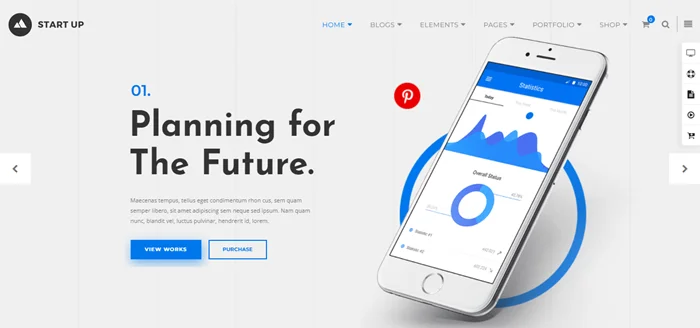
StartUp Pro Theme

StartUp Pro theme

StartUp Pro has been working with extraordinarily lead and full intensity and for all related insurance, financial, and business companies to get supreme revenue from their online marketing and in their business. Insurance is one of the leading WordPress themes for helping clients.

It is smooth, visually robust, and functionally established, WooCommerce friendly and widely responsive theme provide every insurance mean to exploit its potential of it and make the relevant website as useful and dominant, as StartUp Pro is company-oriented and smoothly negotiable.

Features:

  • Image/Video Banner
  • Animations
  • Multi templates
  • 89% speed test
  • Multiple Header Options
  • Cool Color Schemes
  • Easy to Customize

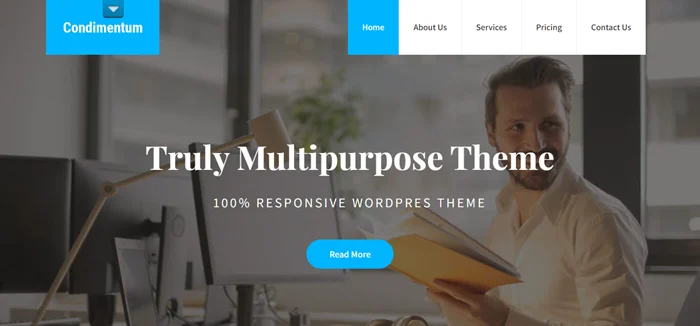
Condimentum Theme

Condimentum theme

Condimentum is the best quality insurance WordPress theme for the online promotion of any insurance and financial plan. This skillfully formalized, perfectly organized, and innovative template in its flexible practice comes power-packed with all the main features and manageable elements which are “must-have” parts of every existing and truly competitive website building tool, with 100% responsiveness. Condimentum is a truly Flexible and Robust WordPress theme with various industry use likely for the same theme.

Features:

  • Responsive at its best
  • Resolution friendly
  • Theme Options Simplified
  • Layout options
  • Plugins Compatibility
  • Top-Notch Support
  • High-Quality Coding

SKT Banking Theme

SKT Banking theme

If you are looking for an insurance business on the internet, then you are in the right place. SKT Banking is an insurance WordPress theme that creates range caching to improve website functionality. There are customizer options that help you to modify the fonts, images, colors, etc. of the website in real-time.SKT Banking is a passage between banks and commercial organizations and has a commercial website that has all types of material concerning various commercial keys from the bank.

Features:

  • Fully SEO friendly
  • Simple and easy
  • 6 + slider choices
  • WooCommerce compatible
  • Responsive 100%
  • cross-browser compatible
  • Cross-device and cross-platform compatible

Divi Theme

Divi Issuance theme

Divi is powered by the Divi Builder. It is an exceptionally wp Multiuse theme with a versatile framework that works for creating the website of all types. Each module of Divi is systematically customizable. Its main purpose is to fulfill the client’s requirements quickly. It is flawless to create insurance-related websites. Customers can also buy several Child themes for Divi. 

Features:

  • drag and drop Divi Builder
  • Shape Dividers
  • Transform Controls & Effects 
  • Advanced Code Editing 
  • Filters & Effects
  • Animation
  • Multi-Select & Bulk Editing

Webify Theme

Webify

Webifyis powered by “ThemeBubble”. It is an amazing insurance wp theme in the market. It is an advance and the most customizable theme. It offers a simple and reliable interface for customers to customize different features of their theme and their site. Webifycontainsloads of shortcodes to create an infinite design. 

Nowadays every client wants to open a website on mobile so it is compatible with all screen resolutions. Webify is a theme for the users who want to demonstrate their work on a well-ordered collection site.

Features:

  • Multi-purpose demos
  • Unlimited Layouts
  • Lifetime free updates
  • Live page builder & customizer
  • 100% Responsive
  • Fast Load Speed
  • SEO

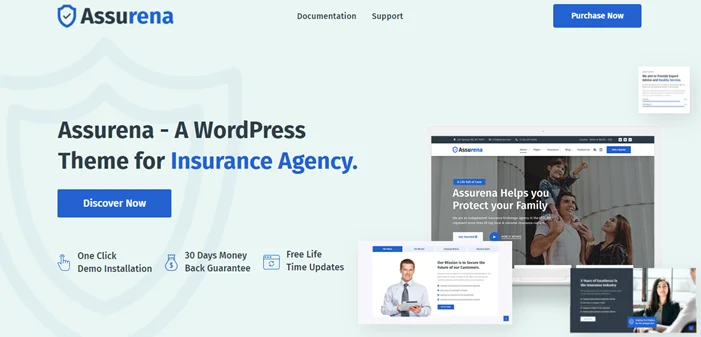
Assurena Theme

Assurena

Assurena is an insurance agency WordPress theme specially made for insurance agencies. You can get amazing results with it. Your website’s presentation will be outstanding on all devices and platforms. Assurena offers you every option you can require to construct a superb business website with extreme comfort. Get as innovative as you want; Assurena will hold all your thoughts easily.

Features:

  • Powerful Admin Interface
  • Highly Customizable
  • No coding knowledge required
  • One-Click Demo Content Import
  • Large collection of pages and layouts
  • WooCommerce compatible

Avada Theme

Avada-WordPress-Theme

Avada is an amazing WordPress versatile theme. If you are going to start an insurance company or have an existing website, do the right thing with Avada. This theme rocks when used as a legal, insurance, or real estate business theme. It is an easy theme that anyone can profit from. It is completely future-proof and contains ultra-sharp retina graphics. Avada helps you get higher rankings because it is built with SEO.

Features:

  • Fusion Builder
  • Powerful Admin Panel
  • Fully Customizable
  • Retina Ready
  • Fusion Core Plugin
  • Advanced Header Options 
  • Blog Options

5 Easy Steps to Change Your WordPress Login URL

Security is the main issue if you have a website. Changing your WordPress login URL is the best way to improve WordPress website security. So, today we show you 5 steps.

You Might Also Like: Free Elementor Website Templates

The benefit of change your WordPress login URL

  • Hide login page URL and make it access harder for hackers.
  • It help to improve Security

Follow Steps:

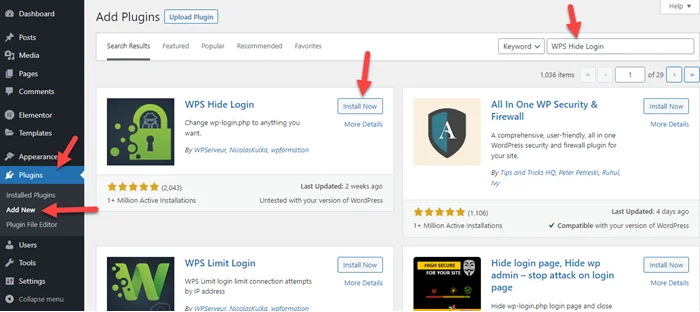
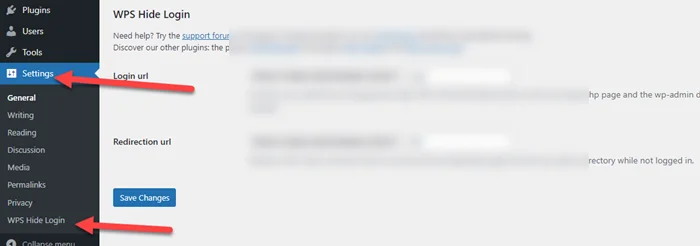
Step 1: Go to Plugins > Add New > Search WPS Hide Login > Install and Activate

WPX Hide Login

Step 2: Go to Setting > Click on “WPS Hide Login

Change Your WordPress Login URL

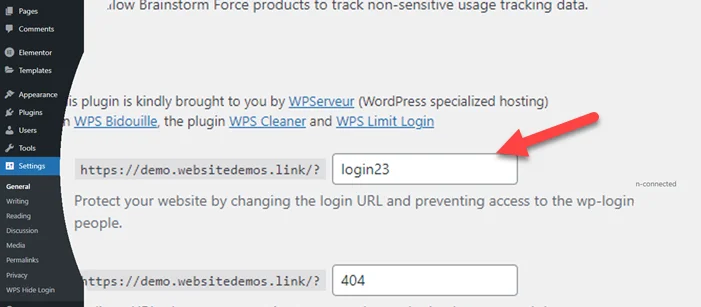
Step 3: Enter the word in the Login URL field. that you want to replace with wp-admin. Last click on “Save Changes”.

Change Wp Login URL

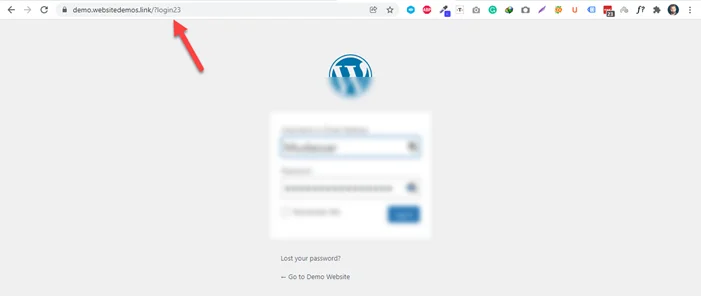
Step 4: Now you see the login URL at the top. Please bookmark this or remember this URL.

Bookmark Login URL

Step 5: Last go to URL and see it work or not.

Login URL

It’s done. If you face any issues then let me know we will help or comment below.

Frequently Asked Question

How to hide wp admin URL?

We hide wp admin URL with the help of the “WPX Hide Login” plugin. It helps you to change WordPress URLs easily without any coding knowledge.

Should you change WP admin URL?

I think yes because of security.

How to create free ahref account

Do you know ahref provides a free webmaster account that helps with site audit & site explorer? In this post, we will show you step-by-step guides on how to create free ahref account.

Ahrefs Webmaster Tools is only free for website owners. It’s Improves your website’s SEO performance and gets more traffic from search.

Three important functions of the Ahref webmaster tool:

  • Monitor your SEO health
  • Know your backlinks
  • See keywords that bring you traffic

You Might Also Like: Best SEO Plugin For WordPress

Create free ahref account

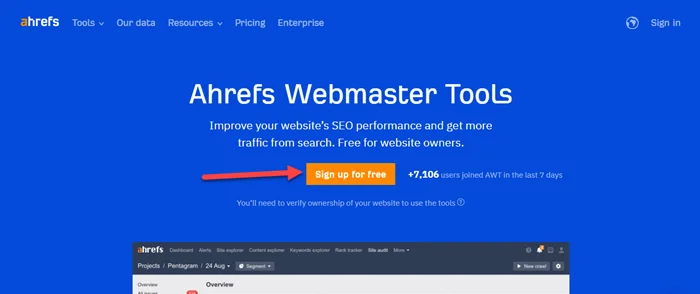
Step 1: Go to Ahref webmaster tool. Click on Sign up and Enter Email. Now click on “Sign up for free”

create free ahref account

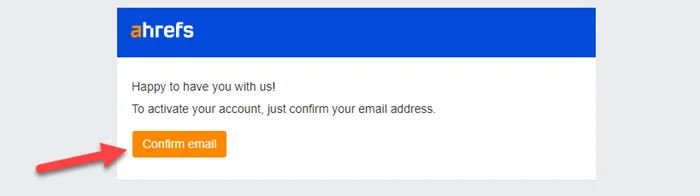
Step 2: Check your email account for verification and create a password.

Ahref Email Verification

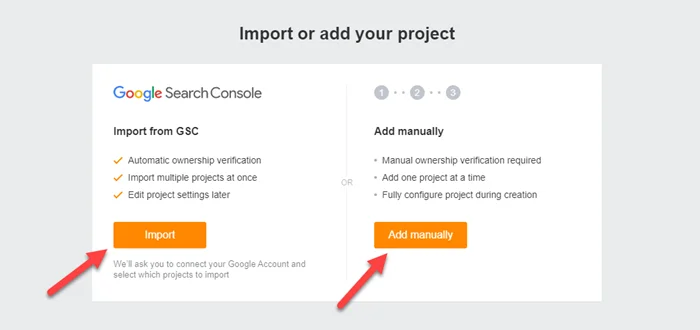
Step 3: To import or add your project just click on “Add Manually”

Note: You can also click on Import and Sign in with the google search console account. It’s automatically verified ownership.

Import or add your project in Ahref

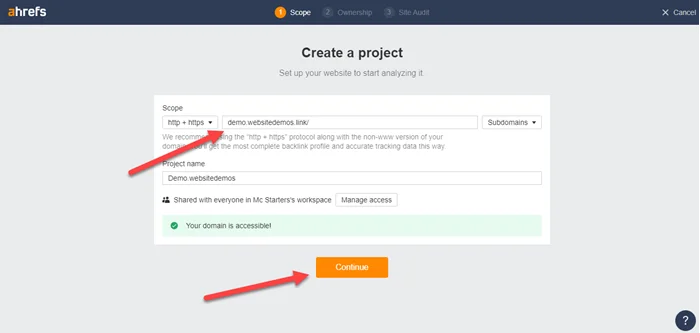
Step 4: Enter Website Url and Click on “Continue”.

Create a project in Ahref

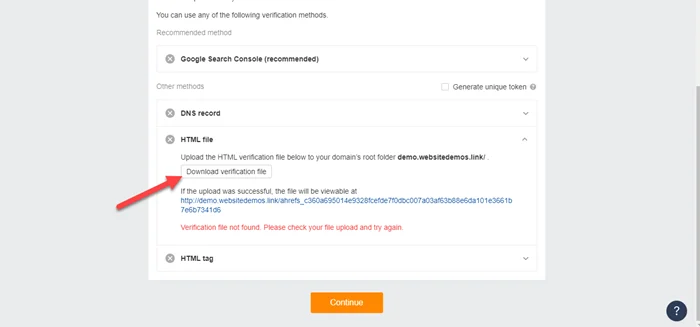
Step 5: Click on HTML File and download the verification file.

Download Ahref Verification

Step 6: For uploading files, you need to install and activate the ” File Manager ” plugin.

Install File Manager Plugin

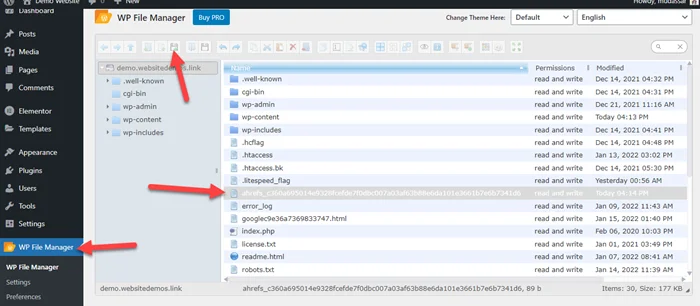
Step 7: Go to Wp File Manager > Click on Upload icon > Select File and upload it.

Ahref verification Upload File

Step 8: When a file is uploaded then move back and click on “Recheck Status”

Recheck Status ahref verification

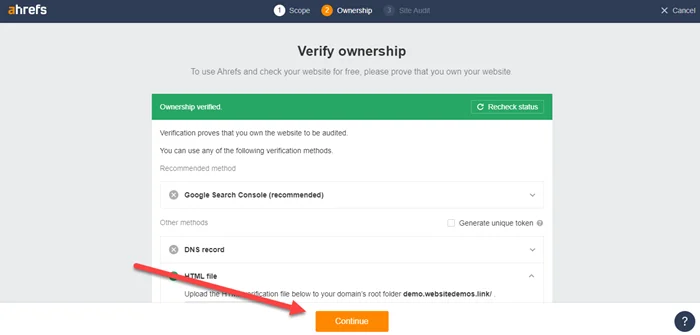
Step 9: Now you successfully see the ownership verified message and click on “Continue”

Ownership Verifed

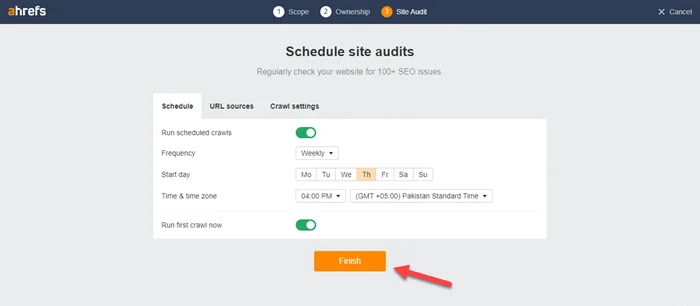
Step 10: Now click on “Finish”

Ahref Finish Site Audit

Step 11: Now you see starting crawl message under health score. It takes some time to crawl the website.

Ahref Crawel Status

Step 12: After the complete crawl, you see the site audit and site explorer report.

Ahref Dashboard Mc Starters

I hope you easily create an ahref account but if you face any problems then comment below.

Frequently Asked Questions

How do I get the Ahref tool for free?

You can get the Ahref tool for free just for site audit and site explorer. It works like a google search console.

Which SEO tool is the best?

Ahrefs, Google Search Console, SEMRush, KWFinder are the best SEO tools.

How to Submit website to Google Search Console

Your website must be indexed if you want to expand your business and tell search engine users where to find it. So, for indexing, you need to submit website to Google Search Console.

Google search console tool helps with:

  • Website Ranking
  • Monitor & Analyse Google Search Results
  • URL Inspection & Submitting an Indexing Request
  • Index Coverage, Sitemaps, and Removals
  • Optimize Site Speed, Mobile Usability and AMP
  • Check internal and external

You Might Also Like: Create a Robots txt File

Submit website to Google Search Console

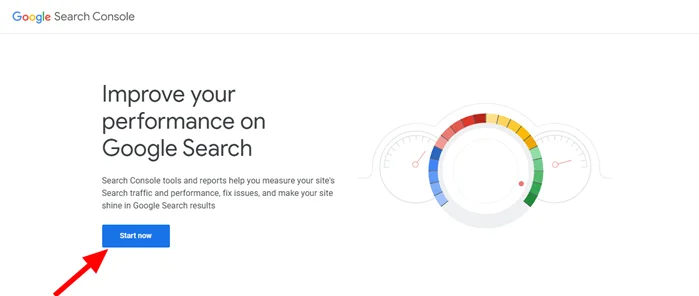
Step 1: Go to Google Search Console, click on “Start Now” and Sign in with a gmail.com account.

Google Search Console

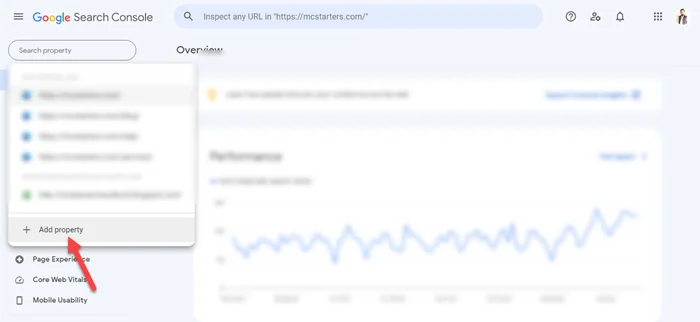
Step 2: Click on “Add property”. Now you see ” Select property type popup screen”

Click on “Add property”.
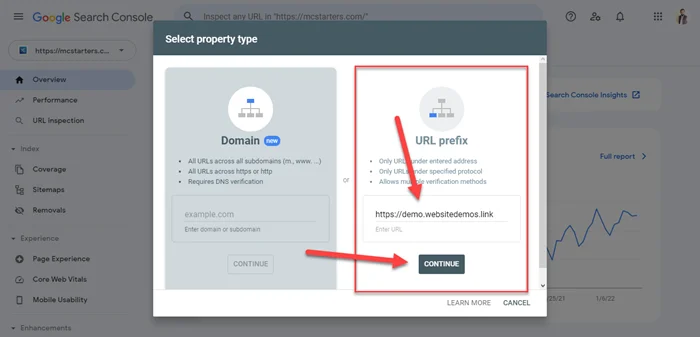
Google Search Console Popup

Step 3: Copy the website URL you want to submit and paste it under the URL prefix. Last, click on “continue”

GSC URL prefix

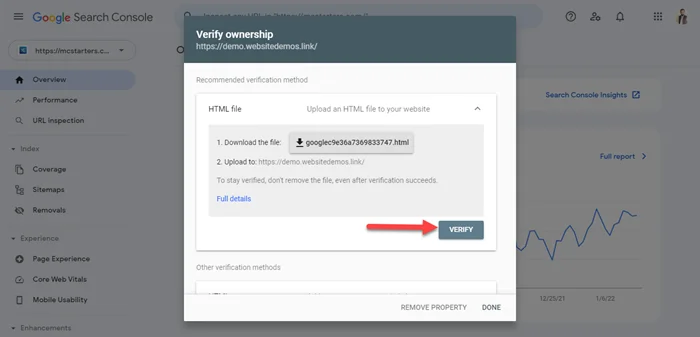
Step 4: Download verification file

Google Search Console verify ownership

Step 5: Now install and activate “File Manager”

Install File Manager Plugin

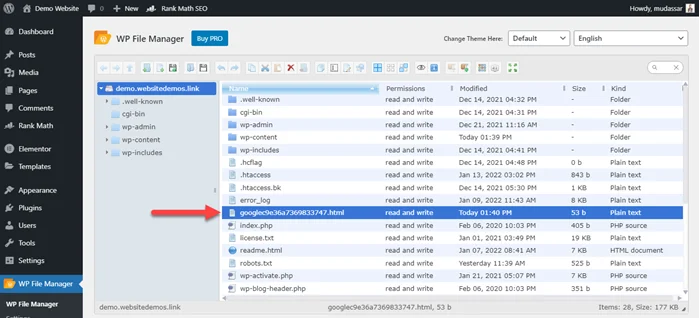
Step 6: Go to “File Manager”, Click on the upload icon, and upload a file.

Upload download file into root directory
Verification File

Step 7: Now click on “Verify”

Click on Verify

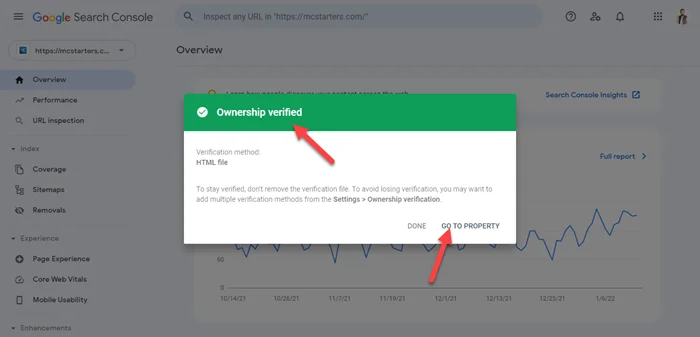
Step 8: Go to Property.

Ownership verifed

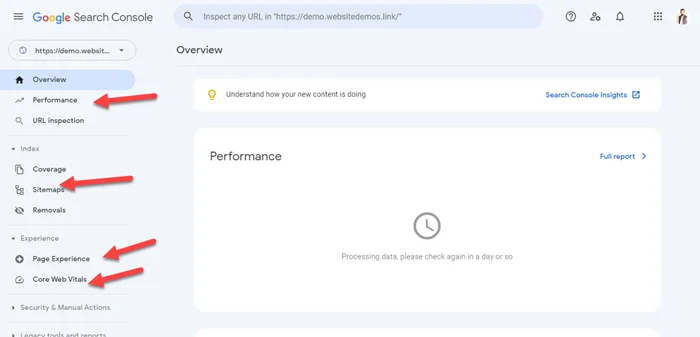
Step 9: Now you see all details within the google search console.

GCS Screen

I hope you submit URLs to Google Search Console easily. But if still face any issues, please comment below.

Frequently Asked Question

How do I submit my website to Google console?

Step 1: Log in to Google Search Console and select “Add a Property
Step 2: Upload verification in WordPress root directory
Step 3: Click on Verification

How do I get my website to show up on Google search?

To show up a website in google search you need to submit the website in the google search console.

Shortcodes stopped working in Elementor Pro Forms

Sometimes Elementor users face issues of Shortcodes stopped working in elementor pro forms. Here today we will give you a short solution.
An Elementor shortcode is a specific tag that you enter into a WordPress page, and when you see the live website, it gets swapped with other content.

You Might Also Like: Elementor Specialist for next website project

Shortcodes stopped working in Elementor Pro Forms

Solution 1: In most cases, this is an issue with Plugins and Elementor addons conflict. Deactivate addons and plugins one by one to fix it.

Solution 2: Change theme of WordPress

If it worked, let us know and share it with someone else who will need it one day. 

Get Professional Websites