Windows 11 vs. Windows 10: Which Is the Better Choice for You?

We use computers every day, and the software that runs on them is like their brain. You might have heard of Windows 11 vs. Windows 10, which is what many people have on their computers. But now, there’s a new one called Windows 11, and it’s asking us to choose.

In this article, we’re going to take a simple look at both Windows 10 and Windows 11. We’ll see how they look, how fast they are, what new things they can do, and how safe they are. By the end, you’ll have a better idea of which one is the right fit for you and your computer.

Windows 11 vs. Windows 10

Here is a quick comparison between Windows 10 vs. Windows 11.

  • Look: Windows 11 is sleek and centered. Windows 10 is traditional.
  • Performance: Windows 11 is better for newer PCs. Windows 10 is versatile.
  • Gaming: Windows 11 improves gaming. Windows 10 is still good.
  • Compatibility: Windows 11 needs newer hardware. Windows 10 suits older systems.
  • Updates: Windows 11 updates are smoother. Windows 10 updates can be disruptive.

So, let’s dive in and explore Windows 10 and Windows 11 and Which Is the better choice for You.

User Interface

In Windows 10, the main menu where you start things is on the left side, and it looks a bit like a list. You’ve probably seen it many times. But in Windows 11, they changed it. It’s now in the middle, which is different, and it looks more modern, like something you’d see on a new smartphone.

Windows 10:

  • Start Menu on the Left: In Windows 10, the Start Menu, where you launch apps and find stuff, is on the left side of your screen. It’s like the front door of your computer, and it’s where you begin your journey.
  • Familiar and Traditional: Windows 10 has a familiar and traditional interface. It’s like an old friend you’ve known for a while. Many people like this because they know where everything is.
  • Customizable: You can personalize the look of Windows 10 with different backgrounds, colors, and themes. It’s like rearranging the furniture in your living room to make it feel more like home.

Windows 11:

  • Centered Start Menu: Windows 11 shakes things up a bit. The Start Menu is now in the center of your screen, which is different from what you might be used to. It’s like rearranging your furniture and putting the sofa right in the middle of your living room.
  • Modern and Fresh: Windows 11 offers a more modern look with rounded corners and new animations. It’s like giving your old room a trendy makeover with stylish furniture and decorations.
  • Still Customizable: Just like in Windows 10, you can personalize Windows 11 with different themes and colors. So, it’s like you can still add your personal touch to your new, modern living room.

So, when you think about UI, it’s like comparing the layout and design of two different houses. Windows 10’s house is more traditional, and Windows 11’s house is more modern and centered. Some people might prefer the cozy feeling of the old house, while others might like the fresh look of the new one. It all depends on what you find comfortable and stylish.

Additional Software and App Compatibility

When considering an upgrade to Windows 11 or sticking with Windows 10, one critical aspect to evaluate is how your existing software and applications will fare in the transition. Let’s dive into the key points regarding additional software and app compatibility.

Compatibility Testing: Before leaping Windows 11, it’s essential to test your most-used software and apps. Check if they work smoothly on the new operating system. Some might require updates or patches to run correctly on Windows 11.

Windows 11 App Store: Windows 11 introduces changes to the Microsoft Store, potentially affecting how you acquire and manage apps. Explore these modifications and understand how they might impact your app usage.

Legacy Software: If you rely on older or niche software, assess whether it will remain compatible with Windows 11. In some cases, you may need to find alternative solutions or workarounds.

Windows 10 Compatibility Mode: Windows 11 includes a compatibility mode that can help older apps function as they did on Windows 10. Learn how to use this feature to maintain compatibility.

Driver Compatibility: Hardware drivers play a significant role in software and app performance. Investigate whether your device’s drivers are compatible with Windows 11 to ensure a smooth experience.

Application Updates: Keep an eye on updates from software developers. Many will release versions optimized for Windows 11 to take advantage of its new features and capabilities.

Virtualization Options: If certain apps are critical and cannot run on Windows 11, consider virtualization solutions that allow you to run Windows 10 within Windows 11 to use these apps.

User Feedback: Research user experiences and feedback regarding app compatibility on Windows 11. Online forums and communities can provide valuable insights and solutions to common compatibility issues.

Backup and Data Protection: Before any major OS transition, ensure you have a complete backup of your important data. This precaution ensures that even if you encounter compatibility issues, your data remains secure.

Performance Enhancements

Performance Enhancements are like giving your computer a turbo boost to make it work faster and smoother. Let’s see how Windows 10 and Windows 11 compare in this speed race.

Windows 10:

Think of Windows 10 as a reliable car. It gets you where you need to go without any fuss. But sometimes, it takes a bit of time to start up, like your car on a cold morning. It’s good, but not lightning-fast.

Windows 11:

Windows 11 is like a sports car. It revs up quickly when you turn it on, making you feel like you’re in the fast lane. It’s great for multitasking, like listening to music, browsing the web, and working on a document, all at the same time, without slowing down.

In simple terms, Windows 11 makes your computer feel snappier and more responsive, like a sports car with a powerful engine, compared to the reliable but somewhat slower experience of Windows 10. So, if you want a speedier ride, Windows 11 might be the way to go.

Compatibility and Upgrade Considerations:

Choosing the right operating system isn’t just about features and looks; it’s also about ensuring that your digital world remains seamless, secure, and compatible with your needs.

  • Hardware Requirements: Understand the hardware requirements for Windows 11, including CPU, RAM, and storage, and check if your current computer meets these requirements. We’ll provide guidance on how to do this.
  • Device Compatibility: Not all devices can smoothly transition to Windows 11 due to specific hardware and security requirements. We’ll explore the intricacies of device compatibility and what you should look for.
  • Software and App Compatibility: Discuss how existing software and applications perform on Windows 10 versus Windows 11. Highlight potential issues and solutions for compatibility concerns.
  • Upgrade Process: Learn about the steps involved in upgrading from Windows 10 to Windows 11, including data backup and system preparation. We’ll provide practical tips to ensure a smooth transition.
  • Downgrading and Reverting: In case you decide that Windows 11 isn’t the right fit for you, we’ll explain how to downgrade back to Windows 10 while preserving your data and settings.
  • Support Timelines: Understand the support lifecycles for Windows 10 and Windows 11, including end-of-support dates. Learn why staying up-to-date with security updates is crucial.
  • Community and Resources: Discover where to find valuable resources, community forums, and support networks to assist you in your upgrade journey or with any issues you may encounter.
  • User Testimonials: Gain insights from real users who have gone through the upgrade process or decided to remain with Windows 10. Their experiences can offer valuable perspectives.
  • User Poll and Survey Results: Explore the results of user polls and surveys regarding the choice between Windows 10 and Windows 11, providing insights into popular preferences.

New Features and Productivity

New Features and Productivity are like having cool gadgets and tools to make your computer work better and help you get things done. Let’s explore what Windows 10 and Windows 11 have to offer in this area.

Windows 10:

Think of Windows 10 as a trusty toolbox with all the essential tools you need. It gets the job done, but there aren’t many flashy gadgets. You have a good selection of apps, and everything is familiar.

Windows 11:

Windows 11 is like getting a new and improved toolbox with some exciting gadgets. It introduces Snap Layouts, which help you organize your open windows neatly. There are also Snap Groups to manage your tasks better. It’s like having a handy organizer to keep everything in order.

Plus, Windows 11 connects you with Microsoft Teams right from the taskbar, making communication and collaboration easier. And the app store has more choices, including Android apps, like having a bigger store with more options.

So, if you’re looking for some new and helpful tools to boost your productivity, Windows 11 brings some cool features to the table. It’s like upgrading your toolbox to get the job done even more efficiently.

Security and Hardware Requirements

Security and Hardware Requirements are like locking your front door and making sure your house can handle the latest gadgets. Let’s see how Windows 10 and Windows 11 compare in terms of keeping your computer safe and what kind of house they need to live in.

Windows 10:

Think of Windows 10 as a solid lock on your front door. It keeps your computer safe with features like Windows Defender, which is like a security guard for your digital world. It’s a good choice for most computers, even those that aren’t brand new.

Windows 11:

Windows 11 takes security a step further. It uses a special lock called TPM 2.0, which makes it even harder for anyone to break in. This is like having a high-tech security system in your home. But here’s the catch – not all houses (or computers) can have this new lock. So, you need a fairly new and fancy house (computer) to use Windows 11.

In simple terms, if your computer is like a house, Windows 11 wants a newer and more advanced house with better security. But Windows 10 is like a reliable lock that fits on most doors (computers) and still keeps things safe. It all depends on how fancy your “house” is and how much security you want.

Integration with Microsoft Services:

Both Windows 10 and Windows 11 are deeply connected to Microsoft’s ecosystem of services. Let’s explore how these operating systems integrate with Microsoft services and how they might influence your choice.

Microsoft 365 and Office Integration: Windows 10 and Windows 11 both integrate seamlessly with Microsoft 365 and Office applications. You can use apps like Word, Excel, and PowerPoint with ease on both operating systems. Windows 11 brings some visual enhancements and features that enhance productivity with these applications.

OneDrive Integration: Both operating systems offer integrated access to OneDrive, Microsoft’s cloud storage service. Your files can be easily synced, making them accessible from any device. However, Windows 11 may offer improved integration with OneDrive, enhancing your cloud storage experience.

Microsoft Edge Browser: Windows 10 and Windows 11 come with Microsoft Edge as the default web browser. While it’s available on both, Windows 11 may offer some additional features and improvements to the browser, enhancing your web browsing experience.

Cortana Integration: Cortana, Microsoft’s virtual assistant, is available on both Windows 10 and Windows 11. However, Windows 11 may introduce improvements to Cortana’s capabilities and integration with the OS.

Outlook and Email Integration: Windows 10 and Windows 11 offer seamless integration with Outlook and email services. You can manage your emails, calendars, and contacts efficiently on both systems. Windows 11 may

User Experience and Customization

User Experience and Customization are like making your computer feel comfy and personalized, just the way you like it. Let’s compare how Windows 10 and Windows 11 handle this.

Windows 10:

  • Customization within Limits: Windows 10 allows you to personalize your desktop with different wallpapers, colors, and themes. You can add gadgets and icons to make it feel more like your own space.
  • Familiarity: For users who like things just the way they are, Windows 10 offers a familiar and consistent experience, which is great for those who don’t want too much change.
  • Less Touch-Friendly: While it works on touchscreen devices, Windows 10 isn’t as touch-friendly as Windows 11, making it more suitable for traditional desktops and laptops.

Windows 11:

  • Widgets for Information: Windows 11 introduces widgets, like a digital bulletin board, where you can get quick access to news, weather, and other personalized information.
  • Enhanced Touch and Pen Support: It’s like having a touchscreen-friendly apartment. Windows 11 makes touch and pen input smoother and more enjoyable, which is perfect for 2-in-1 laptops and tablets.
  • Virtual Desktops for Organization: Windows 11 provides virtual desktops, allowing you to create different workspaces for various tasks. This is like having separate rooms for different activities in your trendy apartment.
  • A More Modern Look: The overall design of Windows 11 is more modern, with rounded corners and a centered Start Menu. It’s like redecorating your space to keep up with the latest trends.

So, Windows 10 offers a cozy, familiar room with customization options, while Windows 11 is like moving into a trendy, modern apartment with additional features for a more personalized experience. Your choice depends on whether you prefer the familiar or want to embrace a more contemporary look and feel.

conclusion

In conclusion, the decision between Windows 11 and Windows 10 hinges on your individual needs and preferences. Windows 11’s modern interface, performance enhancements, and new features make it a compelling choice for those looking to embrace the future of Windows. However, compatibility with your existing hardware is a crucial consideration. We’ve explored the differences, but the final choice rests with you. The right operating system can significantly impact your computing experience, so choose wisely.

Whether you decide to stick with the familiarity of Windows 10 or embrace the innovations of Windows 11, the world of technology continues to evolve, offering exciting possibilities for all users.

What should I consider before upgrading to Windows 11?

Before upgrading, check if your computer meets the hardware requirements for Windows 11. Additionally, test the compatibility of your most-used software and apps to ensure they work smoothly on the new OS.

Is it worth upgrading to Windows 11 from Windows 10?

Whether it’s worth upgrading depends on your specific needs and hardware compatibility. If you value a modern interface and performance enhancements, Windows 11 could be a good choice.

What are the key differences between Windows 10 and Windows 11?

Windows 11 introduces a centered Start Menu, enhanced performance, new productivity features like Snap Layouts, and improved touch and pen support. It also has higher hardware requirements compared to Windows 10.

What happens to my data when I upgrade to Windows 11?

During the upgrade process, your data, files, and applications should be preserved. However, it’s always a good practice to back up your important data before any major OS transition.
How to Optimize website Footer?

Optimize website footer is essential for enhancing user experience and navigation. Despite its location, it is not a place to overlook or clutter with irrelevant details. Optimizing your website footer ensures a cohesive, user-friendly, and engaging platform where visitors can effortlessly access vital links, contact information, and much more.

In this guide, we will explore simple yet effective strategies to make the most of this vital section of your website.

Optimize website Footer

Explore essential strategies and tips for maximizing the potential of this often-underestimated web design element. Enhance your website’s usability and engagement with our comprehensive guide to optimize website footer.

Structured Layout

Integrate the important links section harmoniously with other footer components, like social media integrations and contact details, to form a balanced and comprehensive footer. Start by organizing the footer in a structured layout. Consider dividing it into different sections like quick links, contact details, and social media handles. A well-structured layout facilitates more straightforward navigation and makes the footer visually appealing.

To maintain the effectiveness of optimizing website footer, ensure to update the links regularly, removing outdated links and adding new, relevant ones. Gather feedback from users and make necessary adjustments to continually optimize the layout and functionality of the important links section.

Important Links

Incorporate links to crucial sections of your website, such as the privacy policy, terms of service, and site map, in addition to the more common “About Us” and “Contact Us” pages. It serves as a secondary navigation system, guiding visitors to significant areas on your site seamlessly.

Including important links in your footer helps visitors navigate your site effortlessly, enhancing user experience. With essential links in the footer, visitors can quickly access important sections without going through numerous pages, saving time and reducing bounce rate.

Contact Details

Make it a point to include varied contact avenues, such as your business address, email, and phone number. This openness fosters trust and encourages potential clients or customers to reach out with ease. Placing contact details in the footer ensures that visitors can easily find your contact information on any page of your website.

Including contact details enhances the professionalism of your site, showcasing a readiness to engage with your audience. Ensure that the contact details are prominently displayed in the footer, making it easy for visitors to find the information they need.

Social Media Integration

Prominently display icons linked to your social media profiles. Visitors can quickly connect with you on different platforms, fostering community growth and engagement. By integrating social media links, you can potentially increase your brand’s visibility, attracting more visitors to your website.

Position the social media links prominently in the footer, so that they are easily visible to users, encouraging them to engage with your brand on social platforms. Integrating social media links into your website footer serves as a gateway to foster better connections with your audience across platforms.

Newsletter Subscription

Provide a section where visitors can opt to subscribe to your newsletter. Regular updates through newsletters are an excellent way to nurture relationships with your audience, offering them insights, updates, and special offers directly in their inbox.

Copyright Notice

Protect your website content by including a copyright notice. This not only safeguards your content but also adds a professional touch to your website. Displaying a copyright notice lends a sense of professionalism to your website, highlighting the originality and authenticity of your content.

A standard copyright notice consists of three main components: the copyright symbol (©), the year of publication, and the name of the copyright owner.

Brief About Us Section

Include a brief “About Us” section to impart a personal touch, giving a glimpse into your company’s values and mission. It helps build a rapport with the visitors and cultivate trust. It serves as a window into your brand’s soul, inviting visitors to become part of your journey. Optimize website footer is essential for websites.

Testimonials or Reviews

Consider showcasing a few positive testimonials or reviews in the footer. This social proof can bolster your credibility and persuade potential customers to choose your services or products.

Search Bar

Integrate a search bar to help visitors find the information they are looking for swiftly, enhancing the overall user experience. A search bar helps visitors quickly find what they are looking for without having to navigate through numerous pages, making the user experience smoother and more pleasant. Optimize website footer is essential for websites.

By providing a search function, you can potentially reduce bounce rates, as visitors are more likely to stay on your site if they can easily find the information they are seeking.

Visual Elements

Visual elements can significantly enhance the attractiveness of your website footer, making it an eye-catching and interesting space. Optimize website footer is essential for websites. Add some visual elements like your company logo or graphics that align with your brand theme, to create a visually attractive and cohesive look.

Utilize icons and logos to represent different sections such as contact information, social media links, or newsletter sign-ups, making the footer more intuitive.

Conclusion

As you can see, the website footer can function as a multifaceted tool, enhancing navigation, fostering trust, and promoting user engagement. Optimize website footer is essential for websites. With thoughtful planning and execution, you can transform your footer into a powerful asset for your website.

We hope these detailed strategies inspire you to revamp your website footer into a more functional and engaging space. Happy optimizing!

How do I optimize a footer?

Optimize a footer with organized links, contact info, and responsive design.

What makes a good website footer?

A good website footer is user-friendly, visually appealing, and aligned with your site’s theme.

How do I format a footer for a website?

Format a website footer with structured sections, fonts, colors, and icons.

What is the best practice for website footer design?

Best practices for website footer design include clear sections, essential links, contact info, social media integration, copyright notice, and responsive design.

What is the significance of an “About Us” section in the footer?

An “About Us” section in the footer provides a brief overview of your brand, fostering trust and personal connection with visitors.

How to Enable Flex Container in Elementor Pro / Free?

With the introduction of the new Flexbox Container element in the Elementor Page Builder 3.6, designing your website has become more flexible and efficient. This tool, replacing sections, columns, and inner sections in Elementor, enable flex container in Elementor to create attractive and responsive layouts quickly and easily, thereby enhancing your website’s performance.

The Flexbox’s page builder interface is user-friendly, making the transition smooth whether you’re new or switching from the old builder.

If you have questions about activating containers in Elementor, this guide will help you navigate through the process with easy-to-follow steps.

Enable Flex Container in Elementor Pro / Free

Here’s a step-by-step guide to enabling the Flex Container in Elementor (both Pro and Free versions)

Ensure that you have the Elementor plugin installed or updated to the latest version which supports the Flex Container feature.

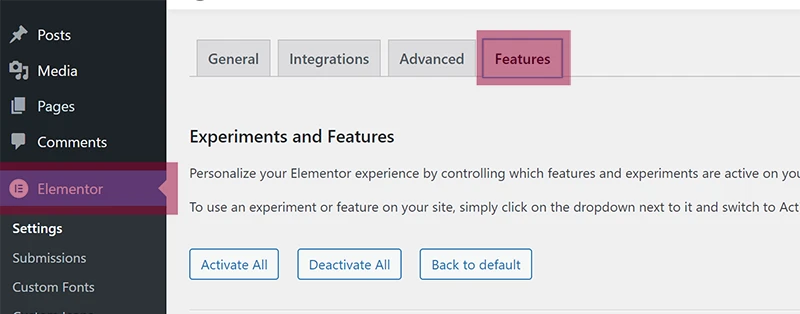
Step 1: Go to “Elementor” > “Settings” and Features Tab.

Flexbox Container 1

Noted: Here you can just click on Activate All if you want All Elementor new features.

Step 3: Scroll down and find the ‘Flexbox Container’ option and ‘activate’ it.

Flexbox Container 2

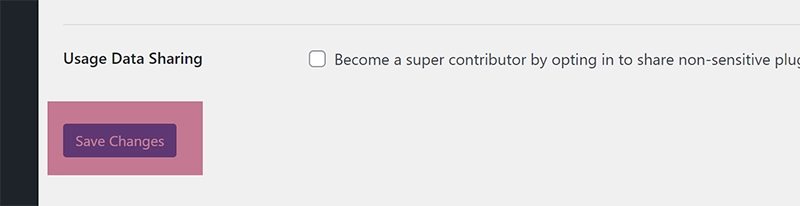
Step 4: Scroll to the end and save changes.

Flexbox Container 3

On new websites, the Flexbox container is active by default.

Conclusions

Enabling the Flexbox Container option in Elementor is a straightforward process. By following the above simple steps, users can effortlessly unlock more flexible and dynamic layout options for their website. It’s important to note that for those setting up new websites, this feature comes activated by default, making the process even more convenient.

How to Enable Flex Container in Elementor Pro/Free?

To enable Flex Container in Elementor Pro/Free, go to Settings > Elementor in WP Dashboard, select Experiments tab, activate Flexbox Container option, and save changes.

How do I enable Flexbox container in Elementor?

To enable the Flexbox container in Elementor, navigate to Settings > Elementor in your WP Dashboard, select the Experiments tab, find the Flexbox Container option, set it to active, and save the changes.

Why is the Elementor container not showing?

The Elementor container might not be showing due to an outdated version of the Elementor plugin. Ensure you have updated to the latest version that supports the Flexbox container feature.

How do I unlock my Elementor Pro for free?

Unlocking Elementor Pro for free is against the terms of service. You must purchase a legitimate license to access the pro features legally and ethically.

Does Elementor have a Flexbox?

Yes, Elementor does have a Flexbox feature, introduced in version 3.6, allowing users to create flexible layouts with ease. You can activate it through the Experiments tab in the Elementor settings.

Where We Get WordPress Footer Templates – Ultimate Source

Are you looking for the best WordPress footer templates for your website?

A WordPress footer is a section located at the bottom of a WordPress website. This area often contains important information. Footers serve as a secondary navigation area and play a crucial role in guiding visitors to explore other parts of the website. They also help in establishing brand consistency by showcasing brand-related information. You can customize the footer on your WordPress site to align with your brand’s aesthetics and needs, enhancing the overall user experience.

WordPress footer for your website is very important without footer your website looks unprofessional. With a footer, you easily replace website information on the footer.

In this blog post, I write about professional footer templates.

Mc Starters WordPress Footer Templates

A website’s footer serves as a secondary navigation area, housing important links and information. Mc Starters comes to the rescue by offering free, stylish, and customizable WordPress footer templates that can significantly enhance the bottom section of a WordPress site. Designing a footer from scratch can be time-consuming. Mc Starters’ templates save you valuable time, allowing you to focus on other aspects of your website.

Benefits of Using Mc Starters Free Footer Templates

Here are a few benefits of the Mc Starters WordPress footer templates.

  • Cost-Efficient: Access a variety of professionally designed footer templates without incurring any costs.
  • User-Friendly: Even beginners can easily navigate and customize the templates, requiring no prior coding knowledge.
  • Versatile Designs: Choose from a range of templates that cater to different aesthetics, ensuring a perfect match for your website’s design.
  • Professional Appearance: Mc Starters’ templates are designed to have a professional and aesthetically pleasing look, helping websites maintain a polished and cohesive design.
  • Pre-Designed: These templates are ready-made, which means they come with a pre-structured design for the footer of your website.
  • Seamless Integration: Integrate the templates effortlessly with numerous WordPress themes, creating a cohesive look across your website.
  • Regular Updates: Benefit from regular updates that introduce new features and templates, keeping your website fresh and contemporary.
  • Free: Mc Starters offers these templates for free, making them accessible to a wide range of users, whether it’s for personal or business websites.
  • Community Support: Engage with a community of users and developers of Mc Starters, it provides a platform for sharing tips, advice, and best practices.

Requesting a Custom Footer Template from Mc Starters

If you have specific design requirements or unique branding for your website that cannot be fulfilled by the available Mc Starters’ footer templates, you have the option to request a custom footer template tailored to your needs.

Here’s how the process typically works:

  • Contact Mc Starters: Reach out to Mc Starters through their website or the contact information provided. They are often willing to work with you to create a custom footer template that aligns with your website’s style and functionality.
  • Discuss Your Requirements: In your communication with Mc Starters, be prepared to discuss your specific requirements and preferences. This may include details such as color schemes, logo placement, additional elements, and any unique features you want in your footer.
  • Receive a Quote: Mc Starters will likely provide you with a quote for creating the custom footer template. The cost can vary depending on the complexity of the design and the time required.
  • Design and Feedback: Once you’ve agreed to the terms, Mc Starters’ design team will begin crafting your custom footer template. They will likely provide you with drafts for your review and feedback.
  • Iterate and Finalize: Collaborate with Mc Starters to make any necessary revisions or adjustments until you are satisfied with the custom footer template’s design.
  • Delivery: After final approval, Mc Starters will deliver the custom footer template to you in a format compatible with Elementor or your chosen website builder.
  • Integration: Finally, you can integrate the custom footer template into your website using Elementor or the appropriate tools, ensuring it aligns seamlessly with your overall site design.

By offering the option of custom footer templates, Mc Starters aims to provide a personalized solution for website owners who have specific design preferences and requirements.

Tips for Optimizing Your Websites with Mc Starters Footer

While using Mc Starters’ footer templates is a great start, here are some additional tips to maximize the effectiveness of your website’s footer:

  • Prioritize Important Information: Place the most critical information, such as contact details and links to key pages, at the top of your footer where it’s easily visible.
  • Keep it Clean and Organized: Avoid clutter by organizing your footer content neatly. Use clear headings and dividers to separate different sections of the footer.
  • Mobile-Friendly Design: Ensure that your footer is responsive and looks good on various screen sizes, including mobile devices. Many users access websites on their smartphones.
  • Copyright and Legal Notices: Include copyright notices and any necessary legal disclaimers in the footer to protect your content and inform users about your policies.
  • Newsletter Signup: If you have a newsletter, consider adding a signup form in the footer to encourage visitors to subscribe to your updates.
  • Social Proof: Showcase customer testimonials or trust badges in the footer to build trust and credibility with your audience.
  • Link to Privacy Policy: If you collect user data, link to your privacy policy in the footer to inform users about how their information is handled.
  • Sitemap: Include a sitemap in the footer to help users easily navigate your website and discover all the content it offers.
  • Accessibility Features: Ensure that the footer is accessible to individuals with disabilities by following web accessibility guidelines. Use descriptive alt text for images and provide keyboard navigation options.
  • Performance Optimization: Keep the footer code and elements lightweight to maintain fast website loading times.
  • Regular Updates: Periodically review and update your footer to reflect any changes in your contact information, links, or other relevant details.
  • Testing: Test your footer on different browsers and devices to ensure it displays correctly and functions as intended.

By implementing these tips, you can make the most of your website’s footer and create a valuable and user-friendly resource for your visitors.

Utilizing Mc Starters free footer templates is a smart move for any website owner looking to enhance their site’s footer section. With an array of benefits like cost-efficiency and user-friendliness, these templates serve as a vital tool in building a functional and visually appealing footer. Mc Starters’ templates are often created by experienced designers who follow industry best practices. This expertise shines through in the quality of the templates.

Incorporating Mc Starters’ footer templates into your website not only simplifies the design process but also ensures that your website’s footer is visually appealing, functional, and user-friendly.

WordPress Footer Templates with Elementor

An Elementor footer template refers to a pre-designed layout or format that you can use to create the footer section of your website using the Elementor plugin in WordPress. The footer usually appears at the bottom of your web pages and can contain various elements like contact information, social media links, a sitemap, or a copyright notice. Using a template makes it easier to design this section as it provides a structured format that you can customize to suit your website’s theme and requirements.

Benefits of Using Elementor Footer Templates

Here are a few benefits of the Elementor template.

  • Enhanced Well-being: Helps in improving the quality of life and overall well-being.
  • Cost-Efficiency: Helps in saving money in the long run due to efficient features or services.
  • Time-Saving: Offers solutions that can help save time and allow for a more streamlined process.
  • Ease of Use: Designed with user-friendly features, making it simple and convenient to use.
  • Improved Health: Certain products or services can lead to better physical or mental health.
  • Environmental Friendliness: Contributes to environmental conservation, by being sustainable or reducing waste.
  • Skill Enhancement: Allows individuals to develop or improve specific skills and knowledge.

WordPress Footer Templates with Themeforest

ThemeForest is a popular online marketplace where you can buy and sell website templates and themes for various platforms like WordPress. Now, when we talk about a “ThemeForest footer template”, we are referring to a pre-designed footer layout or template available for purchase or download on the ThemeForest platform.

Benefits of Using ThemeForest Footer Templates

Here’s why a footer template from ThemeForest might be beneficial:

  1. Professionally Designed: These templates are designed by professionals, ensuring a high-quality and aesthetically pleasing footer for your website.
  2. Customizable: Even though the templates are pre-designed, they offer customization options to match your website’s theme and branding.
  3. Time-Saving: Using a template can save you a lot of time as you don’t have to create a footer from scratch. You just need to install the template and modify it as per your requirements.
  4. Feature-Rich: These templates often come with built-in features like social media links, contact information sections, newsletter subscriptions, etc., providing a comprehensive solution for your website’s footer.
  5. Responsive Design: The templates are usually responsive, meaning they adapt well to various screen sizes, offering a good user experience on both desktop and mobile devices.

Conclusion

Your website’s footer may be small, but its impact is significant. Mc Starters offers a range of footer templates, compatible with Elementor, that effortlessly elevate your website’s design. These templates are accessible, expertly crafted, and promote user engagement. Transform your footer with Mc Starters and leave a lasting impression on your visitors.

How do I get a custom footer in WordPress?

If you have specific design requirements or unique branding for your website that cannot be fulfilled by the available Mc Starters footer templates, you have the option to request a custom footer template from Mc Starters tailored to your needs.

How to Change WordPress Footer?

Utilizing a footer effectively is a simple way to enhance the user experience and the functionality of your site. The change WordPress Footer? is a crucial area at the bottom of each page.

Navigation: Helps users easily find important sections, enhancing user-friendliness.

Contact: Houses quick-access contact information, fostering better connections.

Professionalism: Gives the site a neat and trustworthy appearance by displaying important links and legal information, building trust with your audience.

In this guide, we’ll walk you through changing your WordPress footer, covering its importance and step-by-step instructions for effective customization, enhancing your website’s functionality and appeal.

Change WordPress Footer: Step-by-Step

Utilizing these methods, including the ‘Footer template of Mc Starters,’ will empower you to optimize your website’s footer section, enhancing the user experience and potentially increasing visitor engagement.

There are several methods to customize your WordPress footer. This guide will explore techniques using Elementor, the Divi Page Builder, and the Header and Footer Plugin.

Change Footer in WordPress Elementor Pro

Elementor simplifies creating and customizing your WordPress footer with its user-friendly page builder.

Step 1: Download our pre made Elementor footer from Mc Starters and import into Elementor library.

Step 2: Go to the Elementor theme builder to start making a new footer.

Step 3: Utilize the footer that you downloaded and imported in step 1.

Check out complete step by step Import Footer into Elementor pro documentation.

Change Footer in WordPress Divi Page Builder

Divi Page Builder streamlines footer customization with its user-friendly approach, making it easy for all users.

Step 1: In your WordPress dashboard, go to the “Divi” tab. Select “Theme Builder” from the Divi menu.

Step 2: Click on “Add Global Footer” to create a new footer template.

Step 3: You can choose to build your footer from scratch or add a pre-made footer template from the Mc Starters by selecting “Add From Library.”

Step 4: Click to save your changes, updating your site’s footer.

Check out complete step by step Import Footer into Divi Page Builder.

Change Footer using WordPress Header and Footer Plugin with Elementor free

Changing your WordPress Footer is made straightforward using the Header and Footer Plugin, ensuring accessibility for all users.

Step 1: Install Header and Footer builder plugin.

Step 2: Go to Appearance > Header and Footer Builder > Create new footer.

Step 3: Download footer templates from Mc Starters > Import Footer > Insert footer into Elementor page builder.

If you are stuck check documentation. How to import footer in Elementor free.

Conclusion

You can easily transform your WordPress footer into a personalized and functional element of your website. Customizing your footer not only enhances the overall appearance but also improves user experience, helping you engage your visitors effectively.

We hope this guide has empowered you to make the most of your website’s footer, contributing to a more professional and engaging online presence.

How do I edit the footer in WordPress?

Edit the footer in WordPress using a page builder like Elementor or by modifying the footer template directly in your theme’s code.

How do I add a custom footer in WordPress?

Add a custom footer in WordPress by creating a new footer template with a page builder or designing a custom footer in HTML/CSS and integrating it into your theme’s code.

How do I edit an existing footer?

Edit an existing footer in WordPress by accessing the WordPress dashboard, locating the footer area, and making changes using a page builder or by directly editing the footer code.

How do I change the bottom footer in WordPress?

Change the bottom footer in WordPress by accessing the theme’s footer template in the theme settings or editing the theme’s code, or by using a page builder to customize it.

How do I edit a footer in WordPress with Elementor?

Edit a footer in WordPress with Elementor by installing and activating the Elementor plugin, then customizing the footer section on the desired page using the Elementor editor.

How do I change the Footer in WordPress with Divi?

Change the footer in WordPress with Divi by installing and activating the Divi plugin, opening the page you want to edit, clicking “Edit with Divi Builder,” locating the footer section, and customizing it using Divi’s interface.

8 Best Page Builder For WordPress

Looking for the best Page Builder for WordPress Websites or Client sites? 

Navigating the WordPress platform is easier and more customizable thanks to the availability of page builders. These tools are designed to assist both novices and experts in creating attractive and functional websites without delving into the complexities of coding. With so many options available, finding the perfect page builder for your needs might seem like a daunting task.

To simplify your search, we’ve rounded up the 8 best page builders for WordPress. In this guide, we will explore each of these builders, highlighting their standout features and how they can help enhance your website.

Whether you’re a seasoned developer looking to streamline your workflow or you’re just beginning your journey in website creation, this list will help you find the right tools to take your WordPress site to the next level.

Join us as we uncover the potential of these page builders and how they can transform your website creation experience, making it more efficient, enjoyable, and successful.

Here’s what we use for our clients according to requirements. We list some best Page builder for WordPress.

Best Page Builder For WordPress

Best Page Builder For WordPress

  • Elementor
  • Beaver Builder
  • Divi Page Builder
  • Thrive Architect
  • SiteOrigin Builder
  • WPBakery Builder
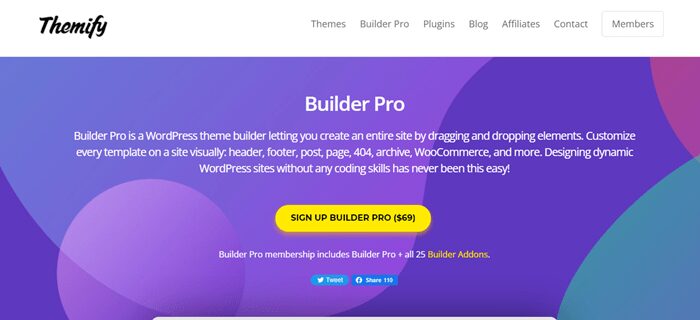
  • Themify Builder
  • Brizy

Elementor Page Builder For WordPress

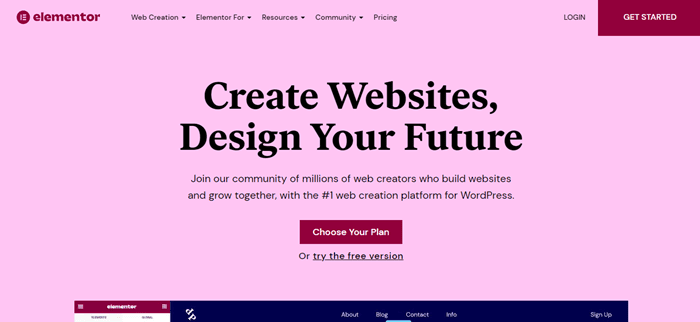
Elementor Page Builder For WordPress

Elementor is a popular page builder for WordPress that allows you to build and design your website visually. It’s a drag-and-drop editor that replaces the traditional WordPress editor, giving you full control over every aspect of your site’s layout. Whether you’re a beginner or an experienced web designer, Elementor simplifies the design process and opens up a world of possibilities.

Check some free WordPress theme for Elementor.

Benefits of Using Elementor:

  • Drag & Drop Editor
  • 300+ Designer Made Templates
  • Popup Builder
  • Responsive Editing
  • No Coding
  • Kits library
  • Theme Style
  • Landing Pages
  • Rating Star Widget
  • Easy to customize
  • Dynamic Content
  • Header and Footer Builder

How to Get Started with Elementor:

  1. Install and Activate: Install the Elementor plugin from the WordPress repository and activate it.
  2. Choose a Template: Start by selecting a template that suits your project or create a new page from scratch.
  3. Drag and Drop: Use the drag-and-drop editor to add and arrange elements on your page.
  4. Customize: Customize each element by editing text, images, colors, and styles.
  5. Preview and Publish: Preview your changes in real-time and hit the publish button when you’re satisfied with your design.

Beaver Builder

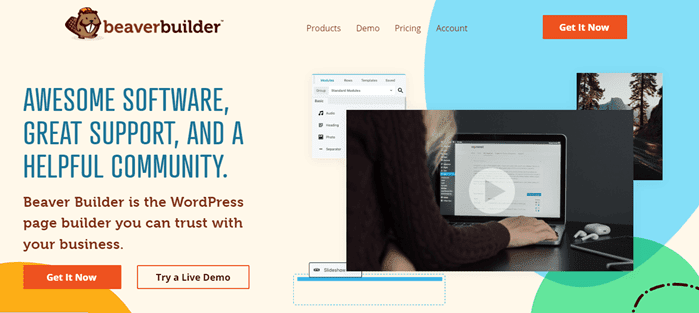
Beaver Page Builder

Beaver Builder is a powerful drag-and-drop page builder for WordPress. It empowers users to create custom web pages and layouts without the need for coding or technical expertise. Whether you’re a beginner or an experienced web designer, Beaver Builder streamlines the web design process, making it accessible to everyone.

Key Features of Beaver Builder:

  • Responsive Design Features
  • Drag and Drop Builder
  • Shortcodes Support
  • Custom JavaScript
  • Much More

Getting Started with Beaver Builder:

  1. Install and Activate: Begin by installing the Beaver Builder plugin from the WordPress repository and activate it.
  2. Select a Template or Create from Scratch: Choose a pre-designed template that suits your project or start with a blank canvas to create a custom design.
  3. Drag and Drop: Use the drag-and-drop editor to add and arrange elements on your page.
  4. Customize: Personalize each element by editing text, images, colors, and styles.
  5. Preview and Publish: Preview your changes in real-time, and when you’re satisfied with your design, hit the publish button.

Divi Page Builder

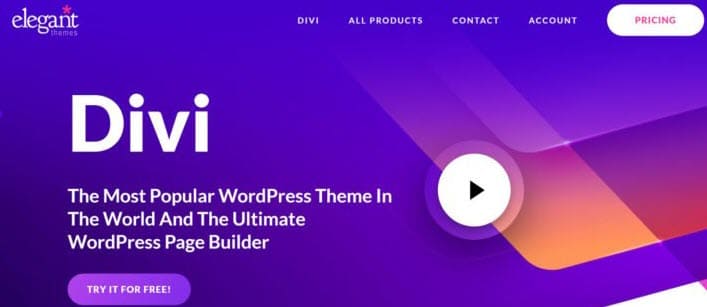
Divi-WordPress-Theme

Divi Builder is a versatile and user-friendly drag-and-drop page builder for WordPress. It empowers users to craft customized web pages and layouts with ease, eliminating the need for coding or technical expertise. Whether you’re a novice or a seasoned web designer, Divi page Builder offers a streamlined approach to web design.

Check Out Our : Free Divi Layouts and Divi Footer Layouts

Benefits of Using Divi Builder:

  • Drag & Drop Building
  • True Visual Editing
  • Custom CSS Control
  • Responsive Editing
  • Design Options Galore
  • Inline Text Editing
  • Save & Manage Your Designs
  • Global Elements & Styles
  • Undo, Redo, & Revisions

Getting Started with Divi Builder:

  1. Install and Activate: Begin by installing the Divi Builder plugin from the WordPress repository and activate it.
  2. Select a Template or Create from Scratch: Choose a pre-designed template that suits your project or start with a blank canvas to create a custom design.
  3. Drag and Drop: Use the drag-and-drop editor to add and arrange elements on your page.
  4. Customize: Personalize each element by editing text, images, colors, and styles.
  5. Preview and Publish: Preview your changes in real-time, and when you’re satisfied with your design, hit the publish button.

Thrive Architect

Thrive Architect WordPress Builder

Thrive Architect is a powerful drag-and-drop page builder for WordPress. It empowers users to build and design web pages and layouts without any coding knowledge. Whether you’re a novice or an experienced web designer, Thrive Architect offers a streamlined approach to web design, allowing you to bring your creative vision to life.

Benefits of Using Thrive Architect:

  • Landing Page Templates
  • Drag And Drop Editing
  • Sales Pages
  • Product Launch Pages
  • Opt-In Pages
  • Webinar Pages
  • Drag And Drop Editing
  • Pre-Built Conversion Elements

Getting Started with Thrive Architect:

  1. Install and Activate: Start by installing the Thrive Architect plugin from the WordPress repository and activate it.
  2. Select a Template or Create from Scratch: Choose a pre-designed template that suits your project or begin with a blank canvas to create a custom design.
  3. Drag and Drop: Utilize the drag-and-drop editor to add and arrange elements on your page.
  4. Customize: Personalize each element by editing text, images, colors, and styles.
  5. Preview and Publish: Preview your changes in real time, and when you’re satisfied with your design, hit the publish button.

SiteOrigin Builder

SiteOrigin Builder

SiteOrigin Builder is a powerful and intuitive drag-and-drop page builder for WordPress. It empowers users to craft custom web pages and layouts with ease, eliminating the need for coding or technical expertise. Whether you’re a beginner or an experienced web designer, SiteOrigin Builder offers a user-friendly approach to web design.

Benefits of Using SiteOrigin Builder:

  • Simple drag and drop.
  • Works with your theme.
  • Use your favorite widgets.
  • Live editing
  • History browser
  • Row and widget styles

Getting Started with SiteOrigin Builder:

  1. Install and Activate: Start by installing the SiteOrigin Builder plugin from the WordPress repository and activate it.
  2. Select a Template or Create from Scratch: Choose a pre-designed template that suits your project or start with a blank canvas to create a custom design.
  3. Drag and Drop: Use the drag-and-drop editor to add and arrange elements on your page.
  4. Customize: Personalize each element by editing text, images, colors, and styles.
  5. Preview and Publish: Preview your changes in real-time, and when you’re satisfied with your design, hit the publish button.

WPBakery Builder

WPBakery Builder

WPBakery Builder is a powerful drag-and-drop page builder for WordPress. It empowers users to create and design web pages and layouts without any coding knowledge. Whether you’re a beginner or a seasoned web designer, WPBakery Builder provides a user-friendly approach to web design, allowing you to transform your creative vision into reality.

Benefits of Using WPBakery Builder:

  • Front End and Back End Page Builder
  • For Any WordPress Theme
  • Content Elements, Templates and Addons
  • Skin Builder: Roll Your Own Color Theme
  • Template Library
  • Professional Online Support
  • Advanced Grid Builder
  • Responsive Design, Mobile Ready Layouts

Getting Started with WPBakery Builder:

  1. Install and Activate: Begin by installing the WPBakery Builder plugin from the WordPress repository and activate it.
  2. Select a Template or Create from Scratch: Choose a pre-designed template that suits your project or start with a blank canvas to create a custom design.
  3. Drag and Drop: Utilize the drag-and-drop editor to add and arrange elements on your page.
  4. Customize: Personalize each element by editing text, images, colors, and styles.
  5. Preview and Publish: Preview your changes in real-time, and when you’re satisfied with your design, hit the publish button.

Themify Builder

Themify Builder

Themify Builder is a powerful drag-and-drop page builder for WordPress. It provides users with the ability to create custom web pages and layouts without requiring any coding knowledge. Whether you’re a beginner or an experienced web designer, Themify Builder offers a user-friendly approach to web design, allowing you to bring your creative vision to life.

Benefits of Using Themify Builder:

  • Drag & drop
  • Preview
  • Undo/redo
  • Copy/paste
  • Responsive
  • Seo friendly
  • Multi-site support

Getting Started with Themify Builder:

  1. Install and Activate: Begin by installing the Themify Builder plugin from the WordPress repository and activate it.
  2. Select a Template or Create from Scratch: Choose a pre-designed template that suits your project or start with a blank canvas to create a custom design.
  3. Drag and Drop: Utilize the drag-and-drop editor to add and arrange elements on your page.
  4. Customize: Personalize each element by editing text, images, colors, and styles.
  5. Preview and Publish: Preview your changes in real-time, and when you’re satisfied with your design, hit the publish button.

Brizy

Brizy Page Builder For WordPress

Brizy is a powerful and user-friendly drag-and-drop page builder for WordPress. It empowers users to create and design web pages and layouts without the need for coding or technical expertise. Whether you’re a beginner or an experienced web designer, Brizy offers an intuitive approach to web design, allowing you to bring your creative ideas to life.

Maybe You Like: Best Website Builder Of 2022

Benefits of Using Brizy:

  • Real-time Editing
  • Drag & Drop
  • Cutting Edge
  • Brizy Page Builder
  • Sliders from any Block
  • Saved & Global Blocks

Getting Started with Brizy:

  1. Install and Activate: Begin by installing the Brizy plugin from the WordPress repository and activate it.
  2. Select a Template or Create from Scratch: Choose a pre-designed template that suits your project or start with a blank canvas to create a custom design.
  3. Drag and Drop: Utilize the drag-and-drop editor to add and arrange elements on your page.
  4. Customize: Personalize each element by editing text, images, colors, and styles.
  5. Preview and Publish: Preview your changes in real-time, and when you’re satisfied with your design, hit the publish button.

Conclusion

In conclusion, the world of web design is filled with opportunities, and these page builder for wordpress open doors to creative possibilities. Explore, experiment, and choose the one that best aligns with your vision and goals. With the right page builder in hand, you can take your WordPress website design to new heights.

WordPress page builder plugins, such as Elementor, Beaver Builder, Divi Builder, Thrive Architect, SiteOrigin Builder, WPBakery Builder, Themify Builder, and Brizy, offer user-friendly drag-and-drop interfaces, pre-designed templates, and responsive design options.

These tools cater to various user needs, from marketers seeking conversion optimization to bloggers and agencies creating visually appealing websites. Each plugin brings unique strengths and versatility to the table, ensuring a suitable choice for different project requirements.

Ultimately, these page builders empower users, regardless of their skill level, to simplify and enhance their WordPress web design projects. With the right page builder, web designers can achieve stunning and functional websites, making the web design journey an exciting and creative one.

So, after considering all of the amazing page builder for WordPress, which WordPress editor is the best?

Frequently Asked Questions

What is the best Page Builder for WordPress?

These are Best Page Builder for WordPress.
Elementor, Beaver Builder, SiteOrigin Builder, WPBakery Builder, Themify Builder, Brizy, Divi Builder, Thrive Architect

Should I use a page builder for WordPress?

I say Yes, Because page builder help you to make website with drag and drop system. If you don’t know coding and complex thing then you must use page builder.

What is the fastest page builder for WordPress?

The fastest page builder for WordPress depends on factors like hosting, but Elementor and Beaver Builder are known for speed optimization.

Which page builder is best for WooCommerce?

For WooCommerce, Elementor and Divi are popular choices, with specialized add-ons available for enhanced e-commerce design.

Which is better Elementor or Divi?

Choosing between Elementor and Divi depends on your specific project needs and preferences, both being highly regarded page builders.

What is faster than WordPress?

WordPress is a widely used CMS, and the speed of your website depends on factors like hosting, optimization, and content, with other CMS options available.

Get Professional Websites