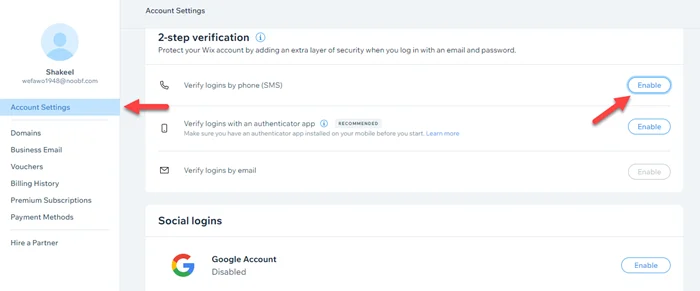
2-Step Verification is a security feature that allows you to add an extra degree of security to your login procedure. A verification code is given to your mobile phone or email address whenever you log in from an unrecognized device.
This ensures that no one else has access to your account without your permission.
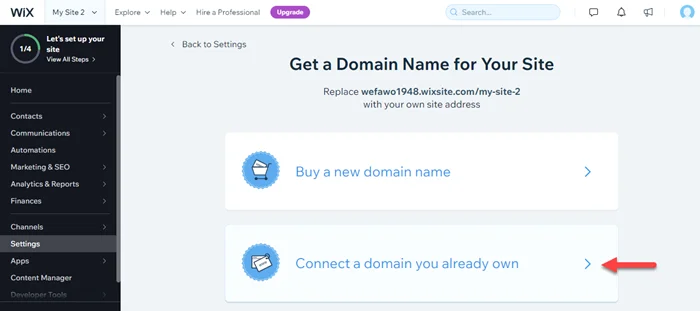
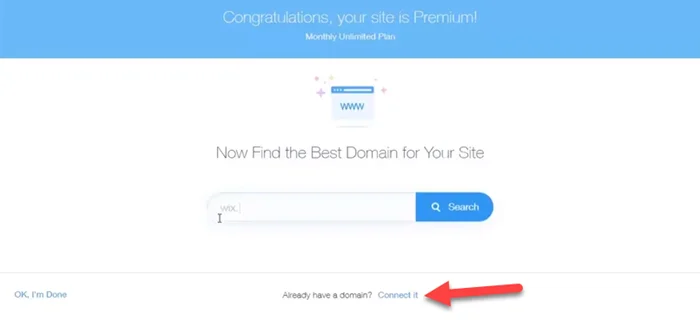
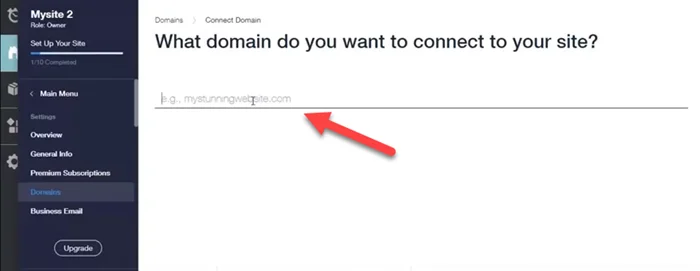
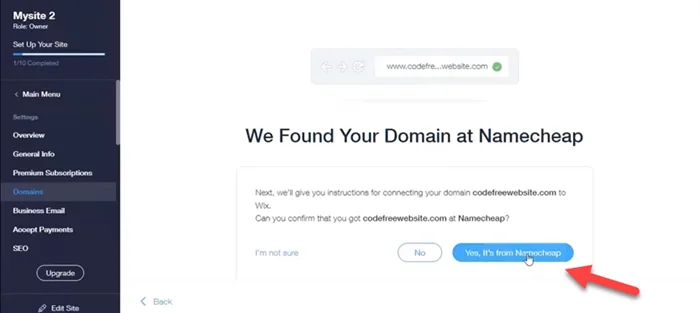
In today’s post, I’m going to show How to Connecting Your Own Domain Name to Wix even if you are a complete beginner, you will be able to do with step by step.
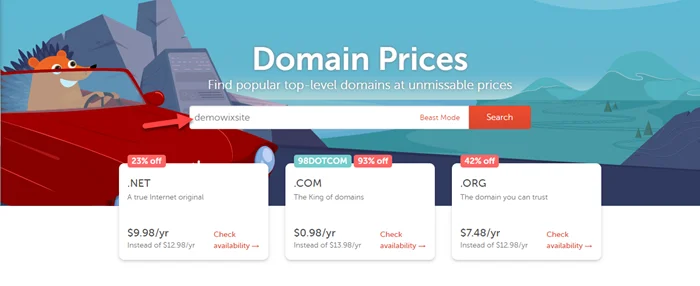
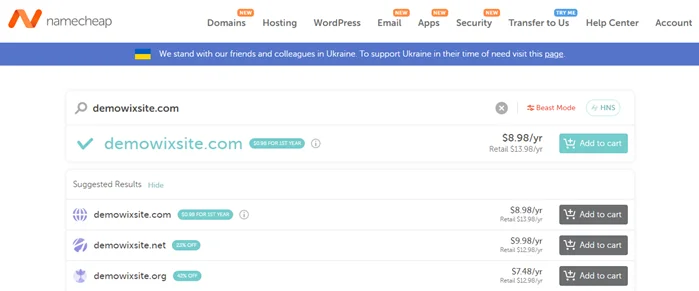
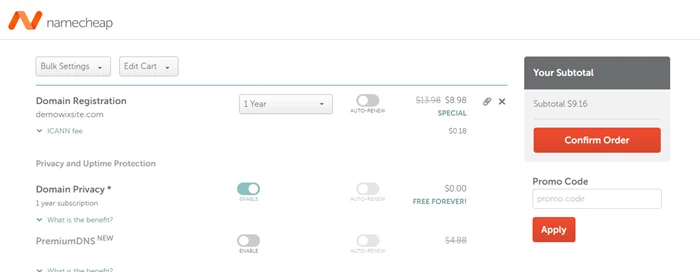
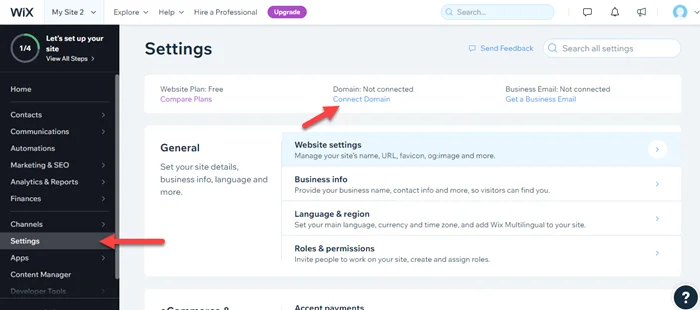
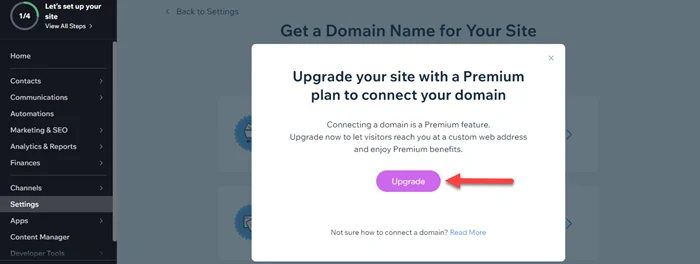
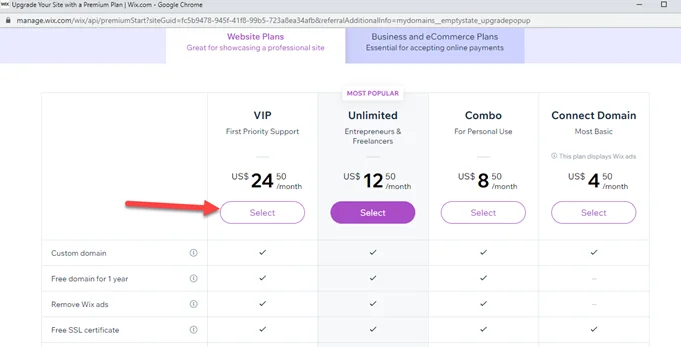
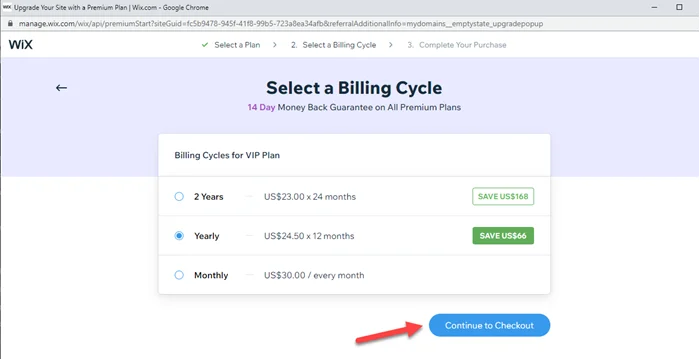
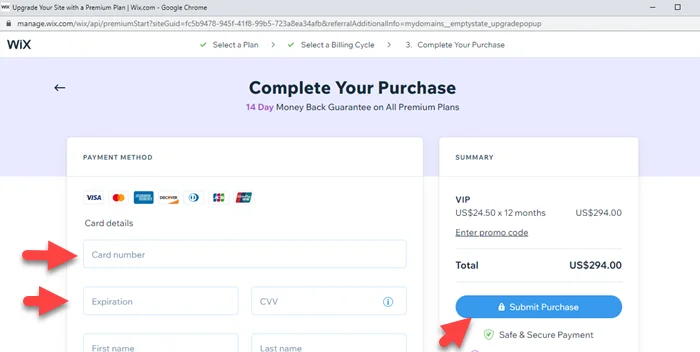
I’m going to cover the full process of purchasing a domain name from Namecheap and how to choose a paid plan in weeks and how we can connect the domain name with the website to give it a standard value.
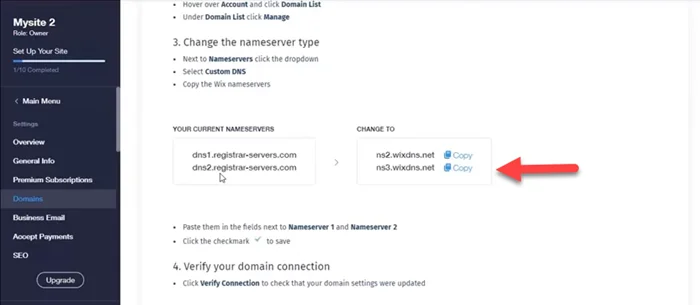
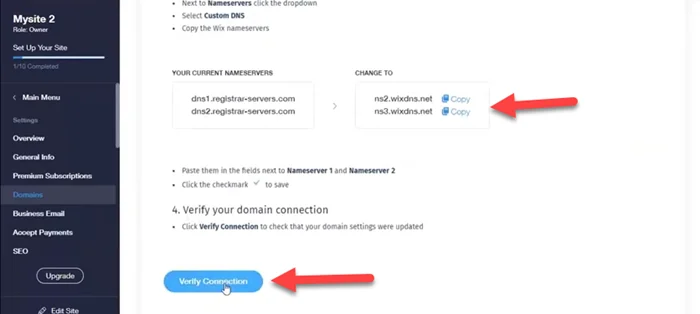
Step 12: Here you see some instructions and you can copy Wix nameservers.
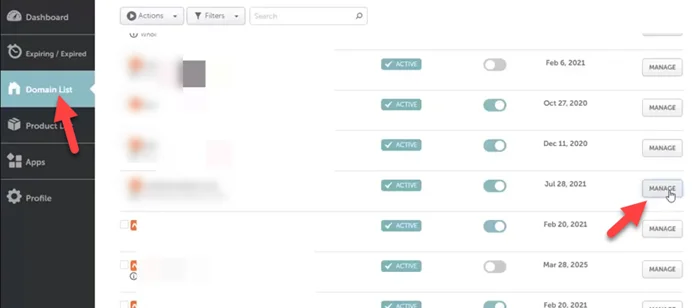
Step 13: Login to the Namecheap Domain > click on domain list > Choose domain > Click on Manage.
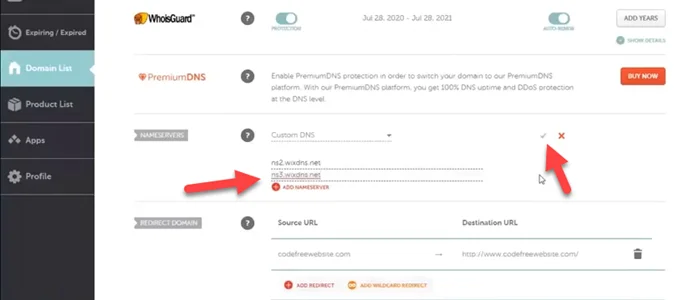
Step 14: Now pick a custom DNS and enter Wix DNS to Namecheap. Click on the green tick.
Step 15: Now click on “Verify Connection“.
Step 16: Login to the Wix site dashboard.
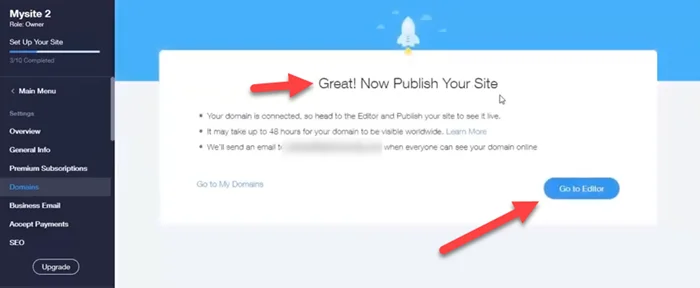
Step 17: Your work is done. It may take up to 48 hours for your domain’s new DNS records to propagate and your site to appear worldwide.
We hope this article helped you learn how to Connecting Your Own Domain Name to Wix. You may also want to get help from our Wix expert.
If you liked this article, then please subscribe to our YouTube Channel for web, windows, tech, and how-tos tutorials. You can also find us on Twitter and Facebook.
Frequently Asked Questions
Can I connect my Wix site to my own domain?
Yes, For this you just need to upgrade your Wix plan and buy Namecheap Domain. Last update nameservers and connect domain.
Is it better to buy a domain through Wix or GoDaddy Or Namecheap?
Yes, It is better to buy a domain through Wix but it is more expensive than GoDaddy or Namecheap.
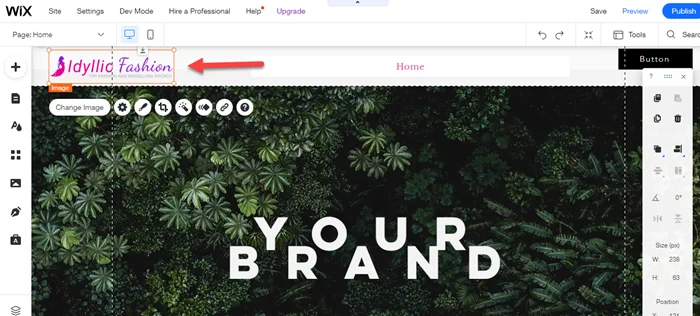
So, today we will show you quickly how to add Alt Text in Wix for good SEO.
If you’ve been in the online business world for a while, I’m sure you’ve heard about alt-text before.
We are talking about alt text so alt text means alternative text and in short, it adds a little bit of text behind your images on your website. Behind your images, I mean in the HTML code of your image tags.
There are two main uses for why your images need ALT text.
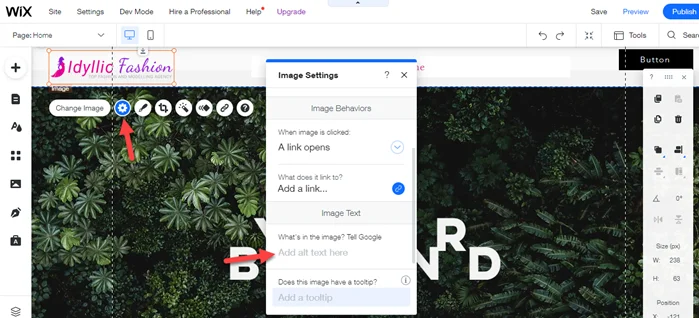
Step 2: Click on images setting gear > Scroll down and you see alt text box.
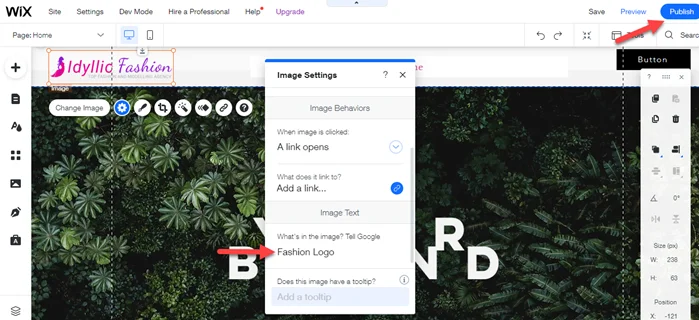
Step 3: Enter image text in empty field. Last, click on publish.
We hope this article helped you learn how to add Alt Text in Wix. You may also want to get help from our Wix expert.
If you liked this article, then please subscribe to our YouTube Channel for web, windows, tech, and how-tos tutorials. You can also find us on Twitter and Facebook.
Frequently Asked Questions
What is alt text for images in Wix?
Alt-text is a simple image description that helps rank Wix’s site on Google.
How to add alt text to images in wix
You can add alt text to images in Wix with simple steps. Just click on the image and enter alt text.
In this post, we will show how to redirect URL in Wix website and redirect from one domain to another.
It’s always a good idea to create new pages with URLs that match the URL of your old site’s page when moving to Wix. Because we understand that this is not always practical, we allow you to set 301 redirects from your old URLs to your new URLs.
A domain name followed by a path, such as mcstarters.com/team, is the most basic URL structure. Each page on your site has a different path and, as a result, a different URL. If you change this path to /our-team, for example, the old link will be broken, visitors will receive a 404 error when they try to access the URL with / team, and your SEO data will be lost.
Please follow the below steps to redirect Wix pages.
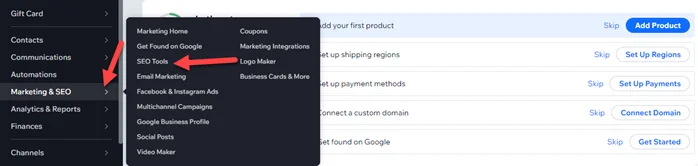
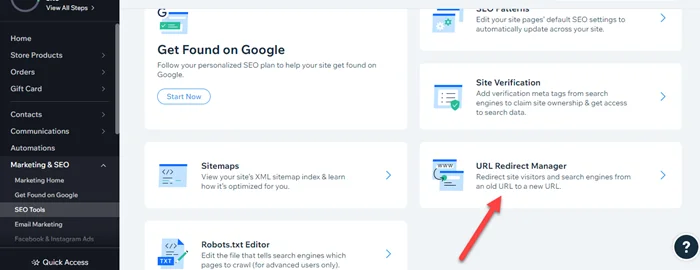
Step 1: Open Wix dashboard > Click on Marketing & SEO > SEO Tools.
URL Redirect Manager
Step 2: Now click on “URL Redirect Manager“.
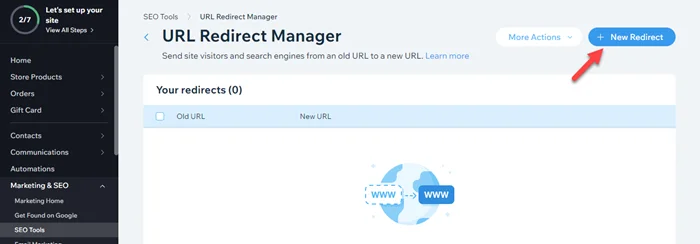
Step 3: Here click on “New Redirect“.
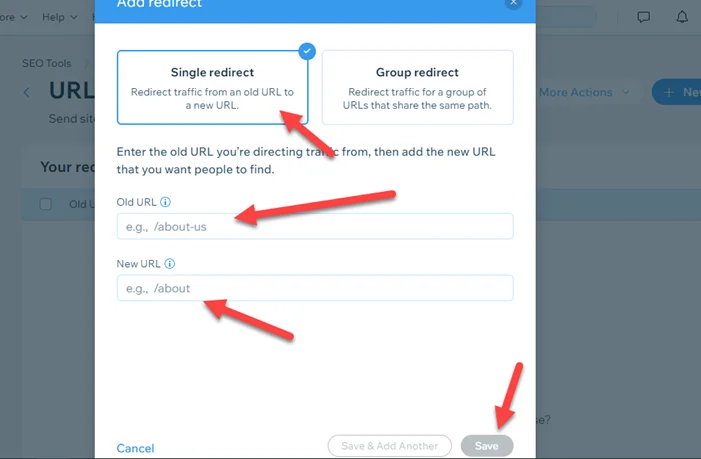
Step 4: Now under single redirect, you can enter the old URL and new URL for redirection. Last click on “Save“.
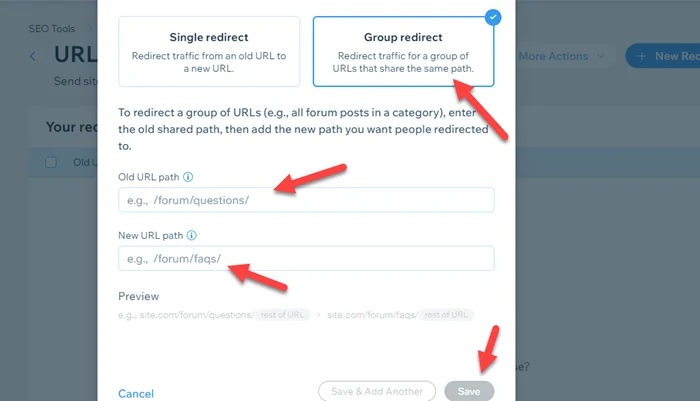
Step 5: Under group redirect, you can enter a similar type of URL into a new URL.
set up a 301 redirect from one domain to another
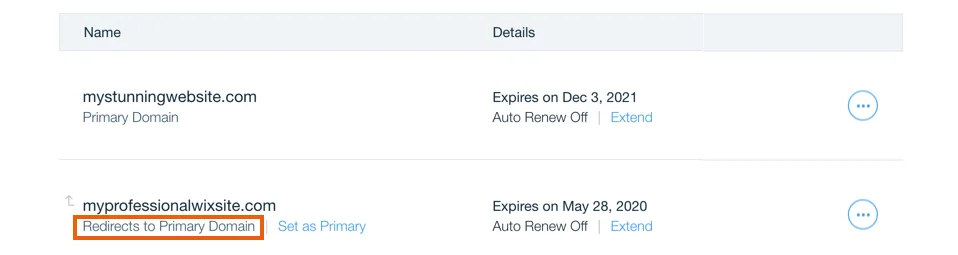
For this, you need two domains primary and secondary then redirect from the secondary domain( old domain ) to the Primary domain ( New Domain ).
We hope this article helped you learn how to redirect URL in Wix website & redirect from one domain to another. You may also want to get help from our Wix expert.
If you liked this article, then please subscribe to our YouTube Channel for web, windows, tech, and how-tos tutorials. You can also find us on Twitter and Facebook.
Frequently Asked Questions
Can you do a 301 redirect to a different domain in Wix?
Yes, you can do a 301 redirect to a different domain in Wix with the help of redirecting the secondary domain into the primary domain.
Does Wix allow domain forwarding?
Yes, Wix allows domain forwarding.
How do I do a 301 redirect in Wix?
You can do 301 redirects in Wix. Just go to SEO Tools > redirect > add old and new URLs. Last click on Save.
Most Payoneer beginners struggle with how to contact Payoneer Support. So, today we show you a step-by-step guide on how to send messages, chat live, and call Payoneer support to fix the problem.
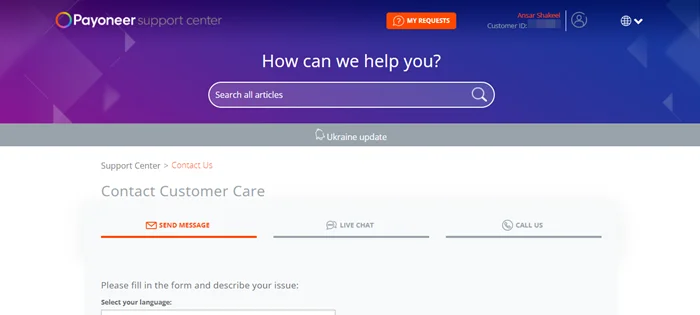
Step 2: Now click on Payoneer Contact and it will take you to the contact customer care page. Here you see all three different options for contact to payoneer.
Send Message Method
Step 3: In the “Send Message” method you can fill questions or problems with details and choose a topic or sub-topic from the dropdown. Last click on Submit.
Noted: you don’t need to move the live chat method if you are using send message method. Make sure don’t send messages again and again.
Payoneer Live Chat
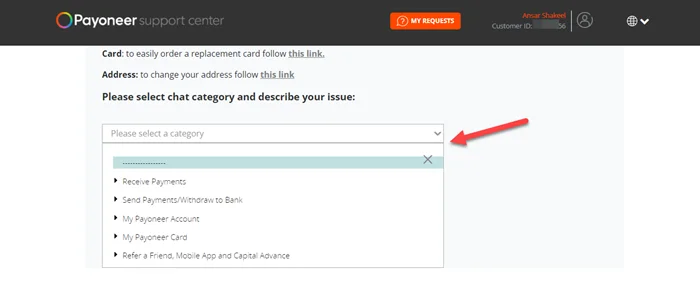
Step 4: If you want to choose live chat then just click on the live chat tab and describe the issue with the topic.
Call Us Method
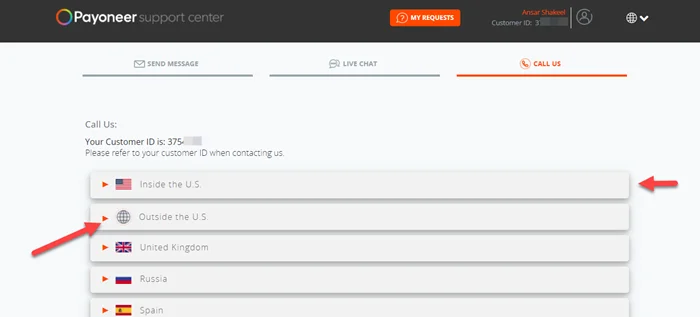
Step 5: Last click on the Call Us tab if you want a direct call with Payoneer support. Click on “Inside the U.S” and “Outside the U.S” to get phone and time detail.
We hope this article helped you learn 3 Way to contact Payoneer support.
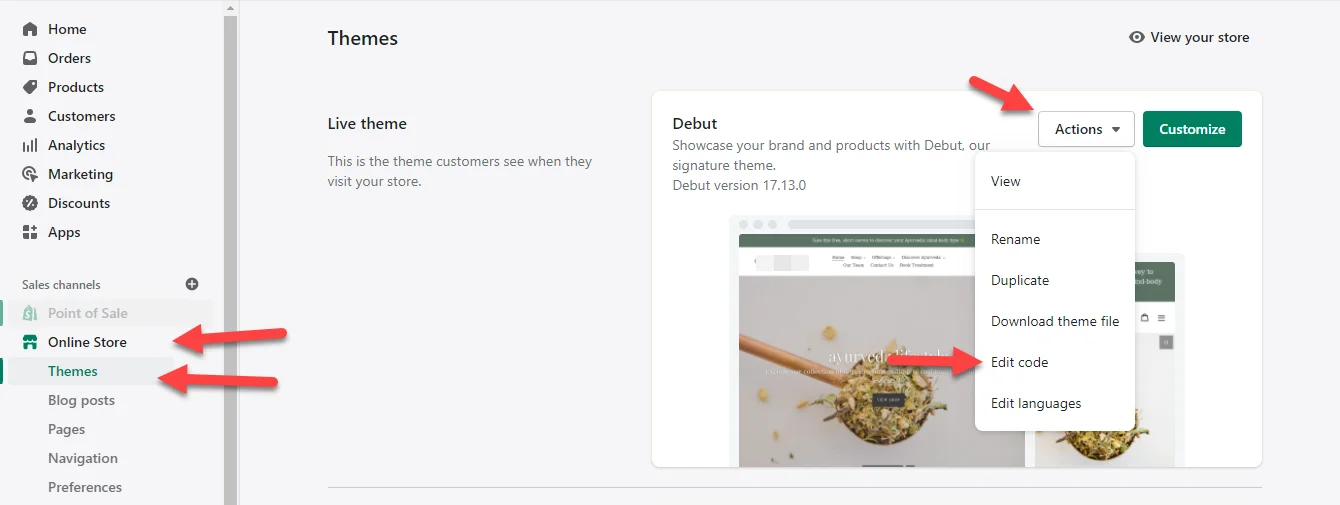
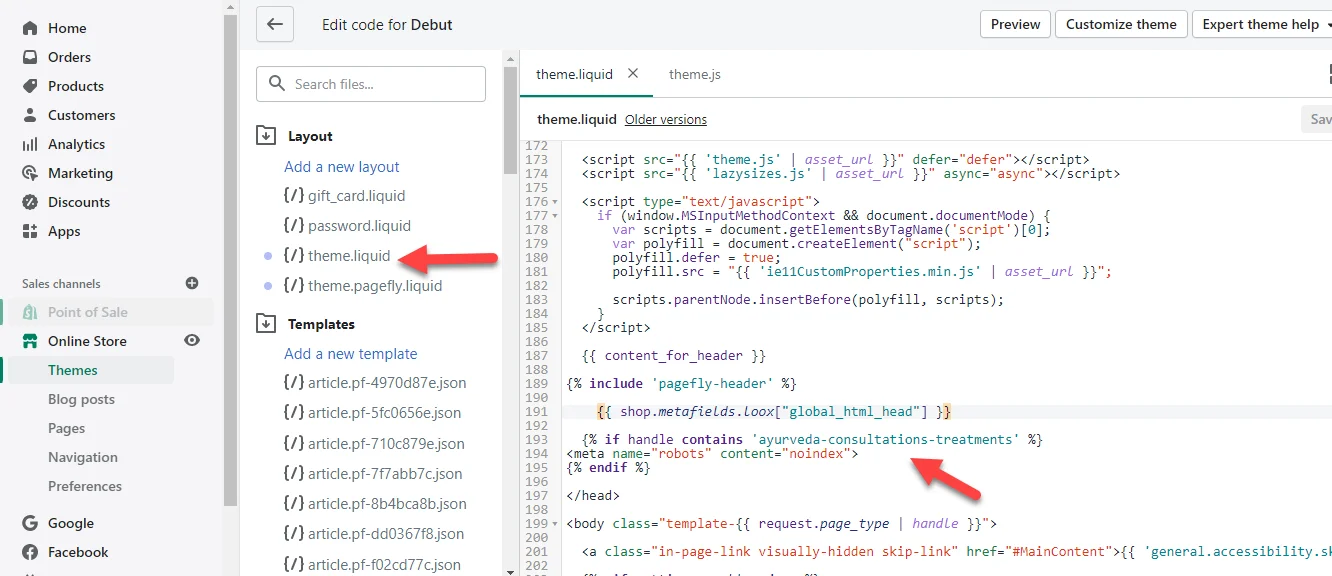
A client asks me to hide a page from the search engines in shopify. I had done this with a custom robots meta tag. Today maybe you also want to hide a page from Google in the Shopify store.
Most users hide pages from search engines just because they don’t want to rank some pages such as thank you, private page, and landing page.